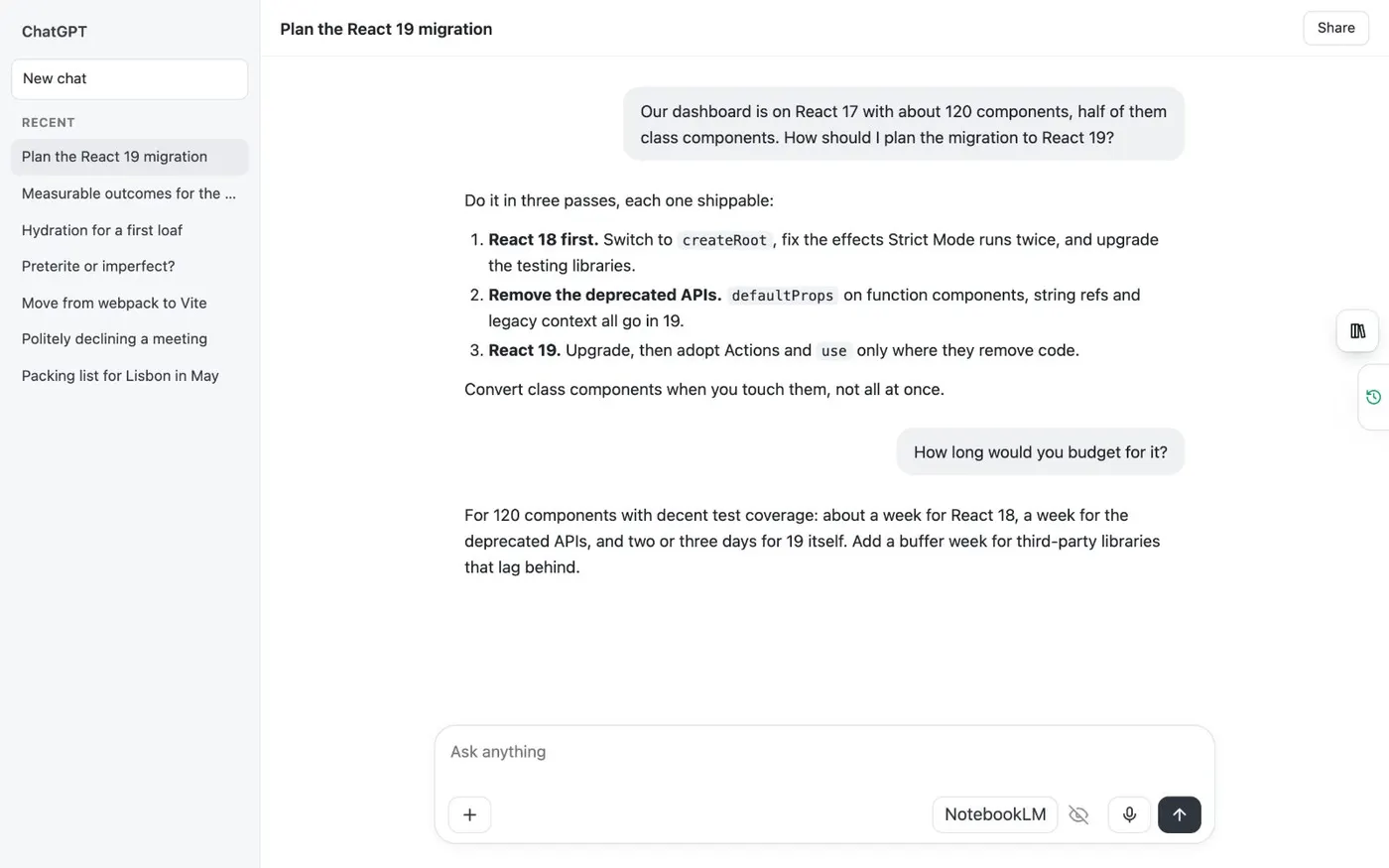
Here's how to save a ChatGPT chat to Gemini Notebook, formerly NotebookLM, with the Kortex extension. Open the chat you want to keep. Kortex adds a NotebookLM button to the chat box.
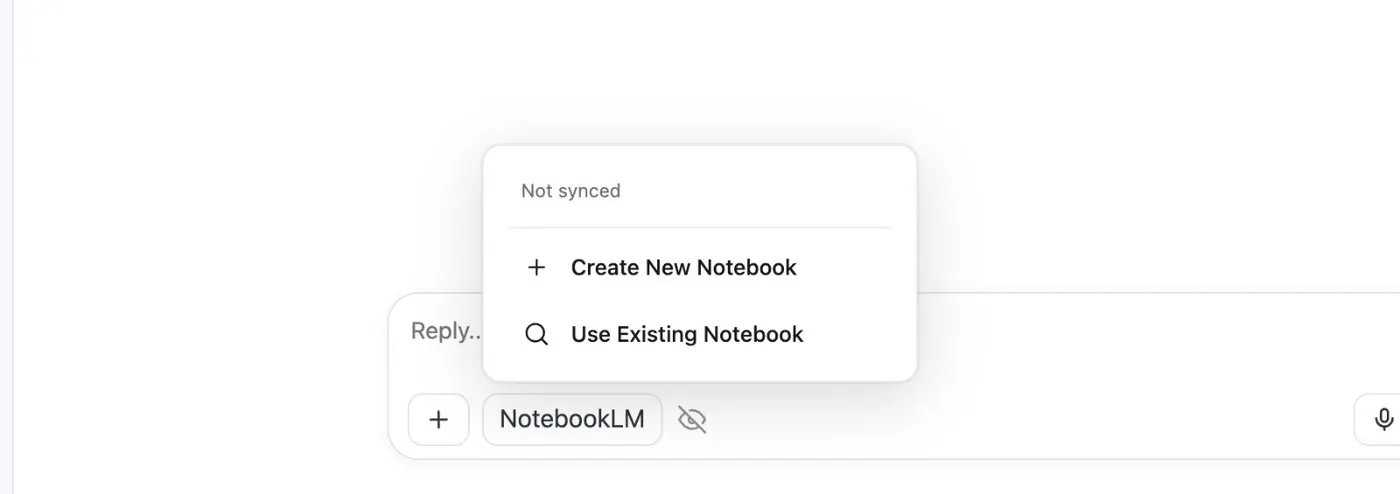
If it's missing, reload the page once. Click it. The menu offers Create New Notebook and Use Existing Notebook.
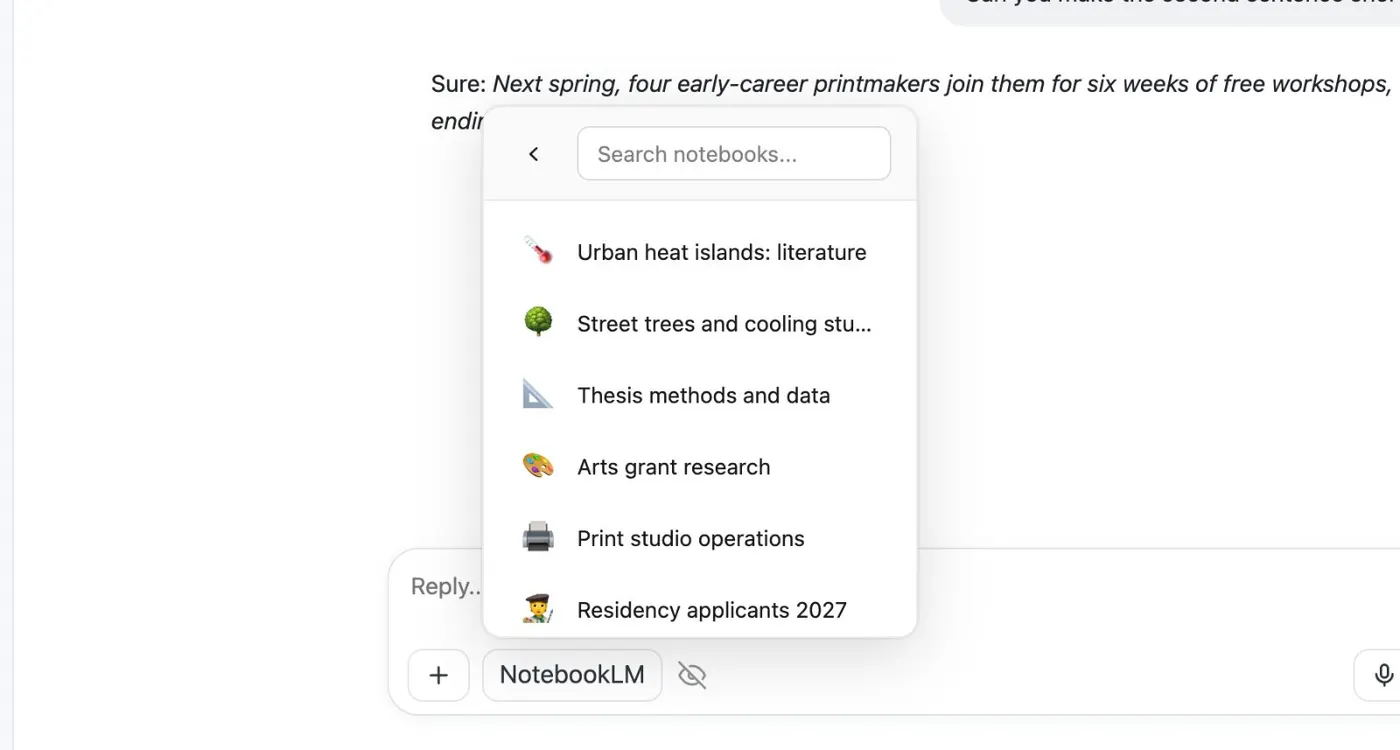
It also says whether you saved this chat before. Use Existing Notebook lists your notebooks, newest first, with a search box. The best match for the chat sits on top, marked Suggested.
If you use tags, folders or collections, a window opens first, so you can file it. Open the notebook in Gemini Notebook. The chat is a source named after the site and the chat.
Your questions and ChatGPT's replies are labeled. A saved chat doesn't change when the conversation does. Click the button again.
The menu now says when you synced it. Re-sync Conversation replaces the earlier copy with the chat as it is now. If you pick a notebook that already has the chat, Kortex warns you first.
Add anyway saves a second copy. Find the full steps and fixes on the Kortex website.