
How to send highlighted text from any web page to NotebookLM (Gemini Notebook)

1 minute 5 steps Updated

Quick answer

Install the Kortex extension and sign in. Select text on any web page, right-click and choose Send highlight to NotebookLM. Then pick a notebook or Create New Notebook. The text becomes a source with the page address and the date. It takes about 20 seconds.

Watch it first

How to send highlighted text and whole web pages to NotebookLM (Gemini Notebook)
Read the transcript

Here's how to send what you read on the web to Gemini Notebook, formerly NotebookLM. A highlighted passage, a whole page, or a PDF copy of it. Start with Highlight and Snipe.

On any web page, select the words you want to keep. Right-click the selection. In the Kortex menu, choose Send highlight to NotebookLM.

A small window opens. Pick a notebook, or click Create New Notebook. The words go in as a new source, with the page link and the date.

Each highlight is its own source. On a site Kortex supports, the NotebookLM button can sometimes go missing. Right-click the page, and choose Save this page to NotebookLM instead.

To keep a page exactly as it looks, open the Kortex side panel and click Capture as PDF. Kortex scrolls the whole page and builds one PDF. The PDF saves to your computer, in your downloads.

Capture as PDF doesn't add anything to a notebook. To use it there, add the file as a source in Gemini Notebook. Or click Import page, to add the page itself.

Add Kortex to Chrome, and keep what you read in your notebook.
  1. Select the text you want

    On any web page, drag across the text. It can be a sentence, a paragraph or several paragraphs. The right-click option shows only while text is selected.

  2. Right-click and choose Send highlight to NotebookLM

    Right-click inside the selection and pick Send highlight to NotebookLM. If you do not see it, check that the text is still selected.

  3. Pick the notebook

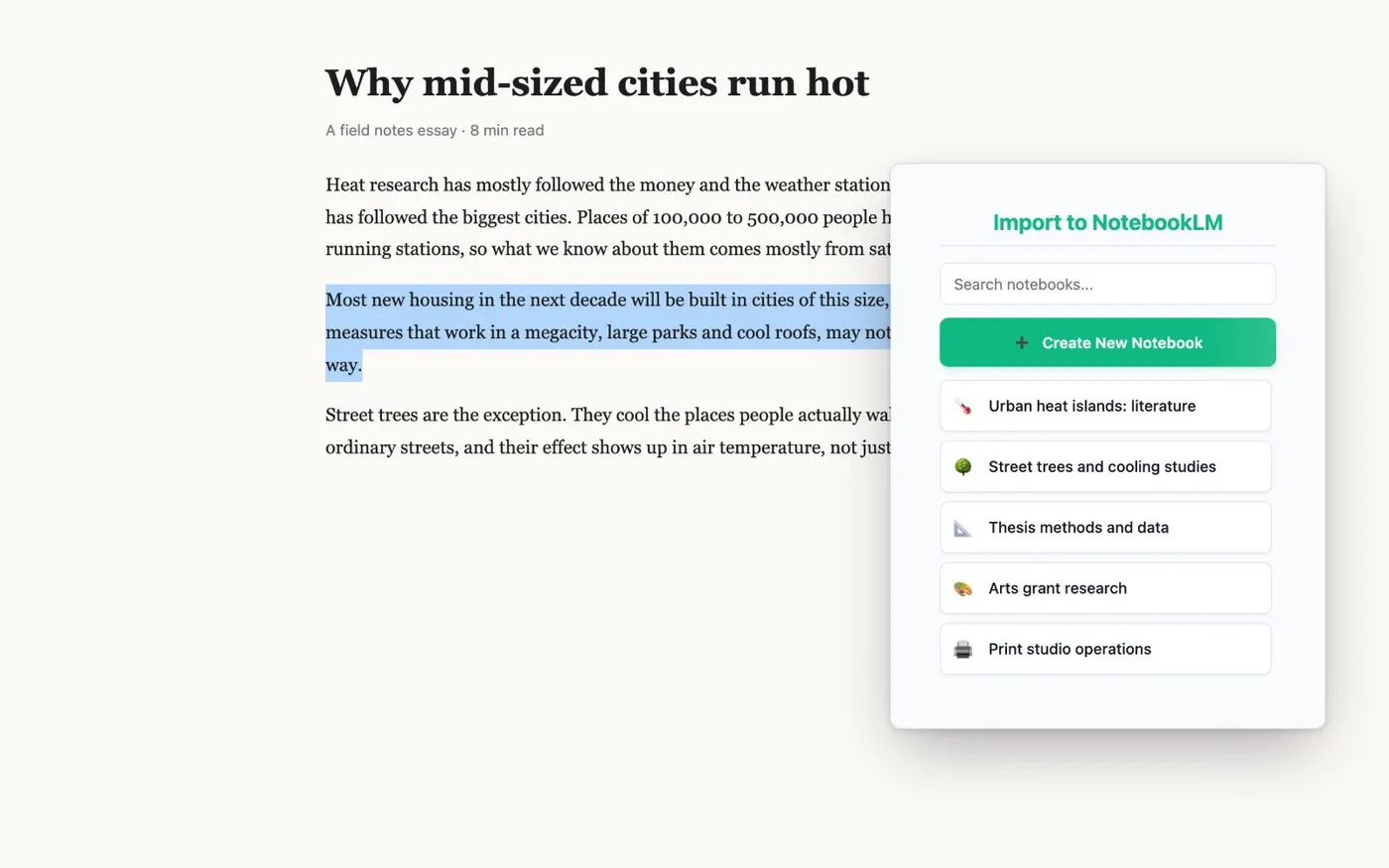
    A small window opens with a search box and your notebooks. Kortex marks the best match as Suggested. Click a notebook to add the text to it. Or click Create New Notebook to start one.

    A web article with one passage selected and the Kortex window open beside it, showing a notebook search box, Create New Notebook and a list of notebooks.
    Select text, right-click and choose Send highlight. Then pick a notebook.
  4. Open the notebook and find the source

    Open the notebook in Gemini Notebook. The highlight is a new source. Its title is the first eight words of the text, followed by three dots. Open it to see the page address, the date and the text.

  5. Repeat for the next passage

    Each highlight is its own source and its own import. Pick the same notebook again to build a set of quotes on one topic.

If it doesn’t work

Send highlight to NotebookLM is not in the right-click menu
Make sure text is selected when you right-click, and right-click inside the selection. If the option is still missing, open your browser's extensions page and check that Kortex is switched on.
Kortex asks me to sign in
Kortex needs you to sign in to your Kortex account. Open the side panel from the toolbar icon and sign in with Google. Then select the text and send it again.
The window does not list my notebook
Type part of its name in the search box. If you use more than one Google account, check that the side panel shows the account that owns the notebook.

Questions people ask

Something we missed? Ask us.

Does highlight and send work on every website?

It works wherever you can select text on a normal web page. No extension can read pages that the browser protects, such as the new tab page.

Why does the menu say NotebookLM?

Google renamed NotebookLM to Gemini Notebook on July 16, 2026. Both names mean the same product. Kortex's menus still have the old name.

How do I save the whole page instead?

Open the Kortex side panel and use Import page. To keep the page as a PDF file, use Capture as PDF in the same card. See full-page capture.

Keep going

More tutorials

All tutorials

Do it on your own notebooks.

Install the Kortex extension and follow these steps on a notebook you already have.

100,000+ users, rated 4.5 on the Chrome Web Store.

Talk to the Kortex team

This opens a pre-filled email in Gmail. We usually reply within a day.