
Import
Import YouTube videos
Kortex adds a button to YouTube that imports videos into Gemini Notebook (formerly NotebookLM) as YouTube sources. You can send one video, a channel’s uploads, a playlist or the current search results. Each video becomes a source Gemini Notebook can cite. One batch takes up to 50 videos.
What does Import YouTube videos do?
Kortex adds a NotebookLM button to YouTube. It imports videos into a Gemini Notebook notebook as YouTube sources. It can send one video, a channel's uploads, a playlist or the current search results. One batch takes up to 50 videos.
What you get
-
One click for a whole playlist
Open a playlist and the button imports it in order. You do not paste fifty links by hand.
-
A channel's newest videos first
On a channel page, Kortex imports the uploads newest first. The batch starts with the most recent videos.
-
Search results, filters included
On a YouTube search page, the button imports the current results with the filters you set.
-
A batch is one click
A batch of up to 50 videos starts with one click. Each video arrives as its own source.
Four kinds of YouTube page
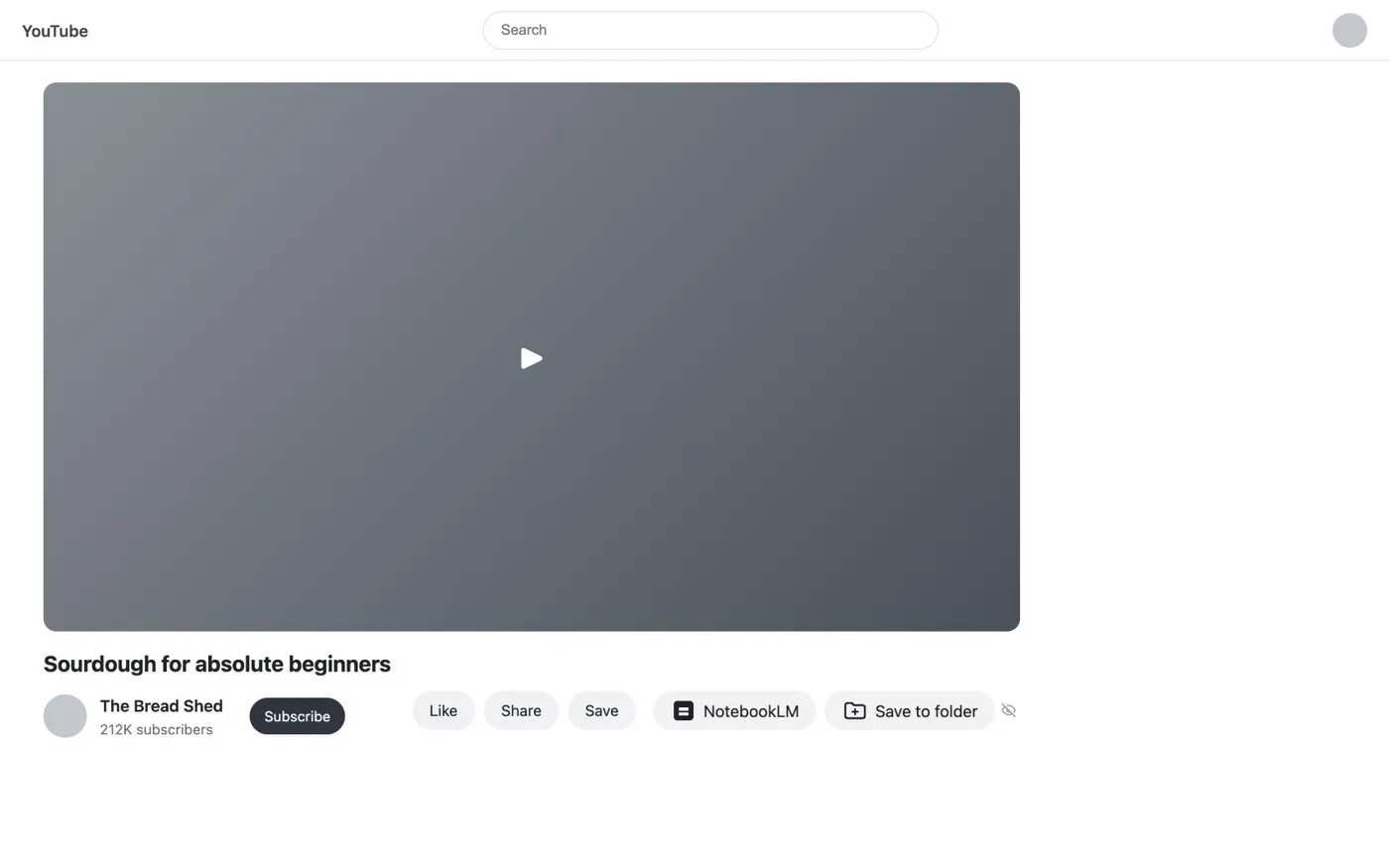
The Kortex button says NotebookLM, the name Kortex’s screens still use for Gemini Notebook. It sits next to Like and Share on a video. It does something different on each kind of page.
- A video: imports that video.
- A channel: imports its uploads, newest first.
- A playlist: imports the playlist, in order.
- Search results: imports the current results, with the filters you chose.
Each video becomes a YouTube source. Gemini Notebook reads the video. It can answer from it and cite it, next to your documents and web pages.
How many videos can I import at once?
A batch can hold up to 50 videos. A 40-video playlist goes in with one click. For links that are not on YouTube, see Bulk import.
Kortex marks the notebook that fits the batch best as Suggested. If the notebook already has a video from the batch, Kortex warns you before it adds the video again.
What it does not do
It does not summarize the video, and it does not download it. It gives the video to Gemini Notebook as a source.
A note on naming
Google renamed NotebookLM to Gemini Notebook on July 16, 2026. The notebooks are the same. The Kortex button on YouTube keeps the old name. Whichever name you search for, this feature puts YouTube videos into those notebooks from the page you are watching. You do not copy any links.
How it works
Want every step? Follow the tutorial.
-
Open a video, channel, playlist or search
Go to the page on YouTube. The NotebookLM button sits beside Like and Share on a video.
-
Click the button
On a video, it imports that video. On a channel, it imports the uploads. On a playlist, it imports the playlist. On search results, it imports the current results.
-
Choose the notebook
Pick Create New Notebook or an existing notebook. Kortex marks the best fit as Suggested. It warns you if the notebook already has a video.
-
Wait for the sources
Open the notebook in Gemini Notebook. Each video appears as a YouTube source after Google has processed it.
Questions people ask
Something we missed? Ask us.
How many videos can I import at once?
Up to 50 in one batch. A playlist or channel with more than that needs separate imports.
Does each video become its own source?
Yes. You start the batch with one click. Every video arrives as a separate YouTube source in the notebook.
Does it work on a channel's page?
Yes. On a channel, the button imports its uploads, newest first. On a playlist, it imports the playlist in order. On a search page, it imports the current results.
Does Kortex write summaries of the videos?
No. Kortex adds the videos as YouTube sources. Gemini Notebook reads them. You can ask it about them after they are processed.
What is the Save to folder button next to it?
It is a different Kortex feature. It does not import into a notebook. This page covers the NotebookLM button only.
How do I add a YouTube playlist to NotebookLM?
Open the playlist on YouTube and click the Kortex button next to Like and Share. Kortex imports the playlist in order. One batch can hold up to 50 videos, so a 40-video playlist goes in with one click.
Try it on your own notebooks.
100,000+ people use the Kortex extension. Install it and try import youtube videos on a notebook you already have.
100,000+ users, rated 4.5 on the Chrome Web Store.