
Export
Export a notebook
Kortex adds download buttons to a Gemini Notebook (formerly NotebookLM) notebook. Sources download as Markdown, plain text or PDF, and several files come as one ZIP. The chat downloads as Markdown, HTML, plain text, PDF or JSON. The buttons sit in a Kortex bar under the notebook’s title.
What does Export a notebook do?
It adds download buttons to a notebook's page. Sources download as Markdown, plain text or PDF, and several files arrive as one ZIP. The chat downloads as Markdown, HTML, plain text, PDF or JSON.
What you get
-
Your sources are yours to keep
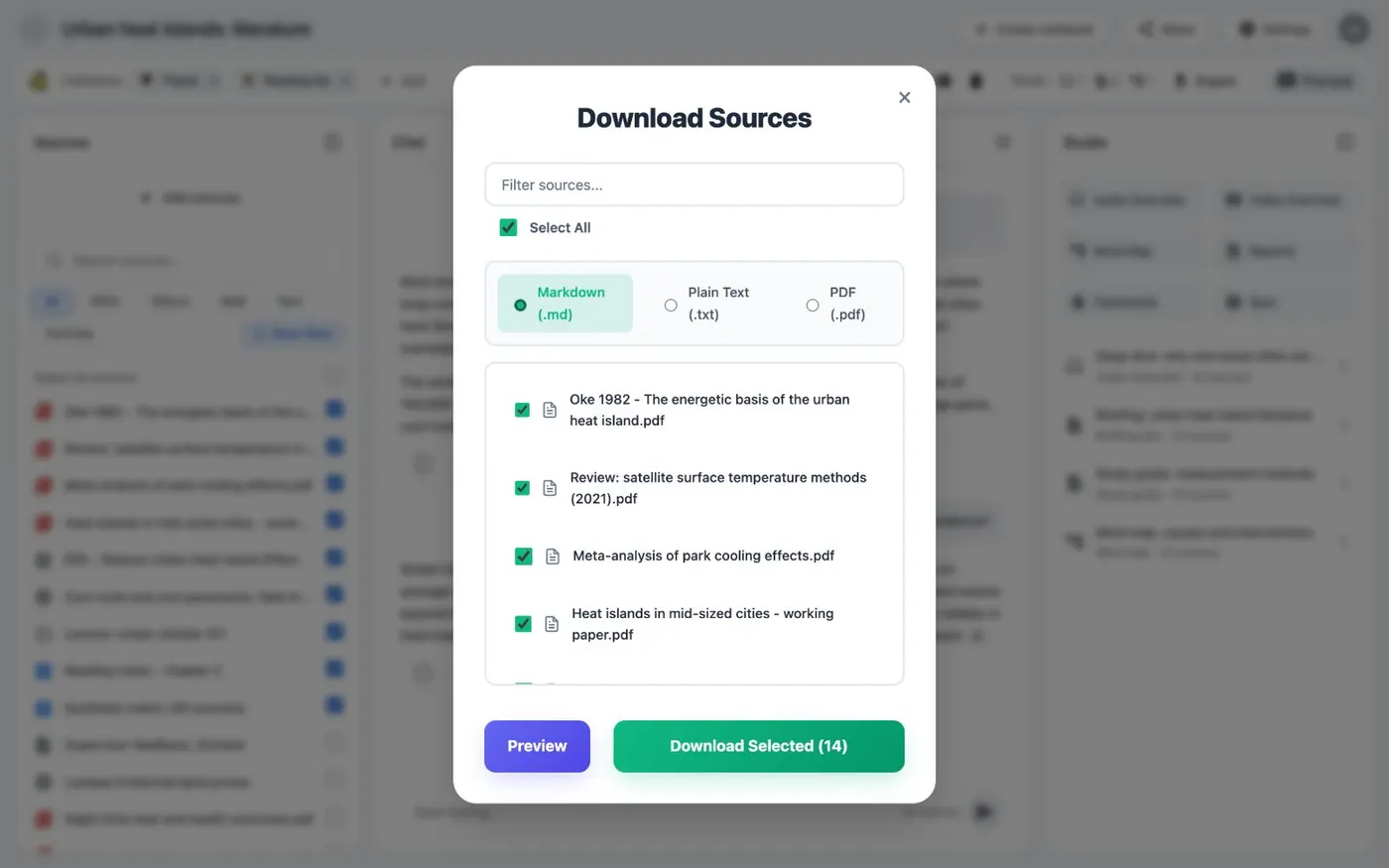
Pick every source, or just the ones you need. Download them all at once instead of opening each one.
-
Formats other tools can read
Markdown and plain text work in Obsidian, Notion or a code repository. PDF is for sharing and printing.
-
The chat comes out too
Export the whole chat, or tick only the answers you want. You can include your own questions or leave them out.
-
Preview before you save
The source exporter has a Preview button. Use it to check what you are about to download.
Where can I export from?
Everything starts on a notebook’s page in Gemini Notebook, where Kortex adds a bar under the title.
- Sources. Download sources opens a window with a filter box, Select All and Select Duplicates, and a Preview button. Choose Markdown, plain text or PDF. Then download your selection. The Kortex Workspace has the same window under a notebook’s Manage menu.
- Chat. Export saves the chat. Two switches, Include User Turns and Include Sources, decide what goes in. Tick answers first, and Export Selected saves only those.
- Studio. Export Studio outputs opens Download Notes. Documents download as Markdown, text or PDF. Slides download as PDF. Mind maps and infographics download as PNG. Video and Audio Overviews download as MP4.
What files do I get?
One file downloads as itself. Several files come as a ZIP. PDFs are packed ten to a ZIP, so a notebook with 40 sources makes four ZIP files of PDFs. Markdown files keep headings and lists, so they work well in other tools.
How it works
Want every step? Follow the tutorial.
-
Open the notebook
Kortex adds a bar under the notebook's title. It has tools for the chat, sources and Studio.
-
Pick what to export
Download sources for the sources, Export for the chat, Export Studio outputs for notes, slides and audio.
-
Choose a format
Markdown, plain text or PDF for sources. Markdown, HTML, plain text, PDF or JSON for the chat.
-
Download
A single file downloads as it is. Several files come as a ZIP, with ten PDFs in each ZIP.
Questions people ask
Something we missed? Ask us.
Can I export a whole notebook as one PDF?
Not as a single file. Kortex exports each source as its own PDF and zips them, ten PDFs in each ZIP. The chat and your notes are separate exports.
Which formats are there?
Sources: Markdown, plain text and PDF. Chat: Markdown, HTML, plain text, PDF and JSON. Notes and documents: Markdown, text and PDF. Slides export as PDF. Mind maps and infographics export as PNG.
What can't be exported?
Quizzes and flashcards are not exported. Kortex has no Word or Google Docs export for notebook content.
Can I copy a chat instead of exporting it?
Yes. Copy puts the chat on your clipboard as Markdown. Nothing is downloaded.
How do I export a NotebookLM notebook to PDF?
Open the notebook in Gemini Notebook (formerly NotebookLM). Click Download sources in the Kortex bar, choose PDF, and download your selection. PDFs are packed ten to a ZIP.
Does the Markdown export keep headings and lists?
Yes. Markdown files keep headings and lists, so they work well in other tools.
Try it on your own notebooks.
100,000+ people use the Kortex extension. Install it and try export a notebook on a notebook you already have.
100,000+ users, rated 4.5 on the Chrome Web Store.