
How to export a NotebookLM (Gemini Notebook) notebook to PDF
Quick answer
Install the Kortex extension, open the notebook, and click Download sources in the Kortex bar. Tick the sources, choose PDF, and download. Each source becomes its own PDF. Kortex zips them ten to a file. The chat and your notes have their own Export buttons, and PDF is one choice.
Watch it first
-
Open the notebook and find the Kortex bar
Kortex adds one bar under the notebook's title. It has your collections, then Chat with Copy and Export, Sources with the download and sync buttons, Studio and Prompts.
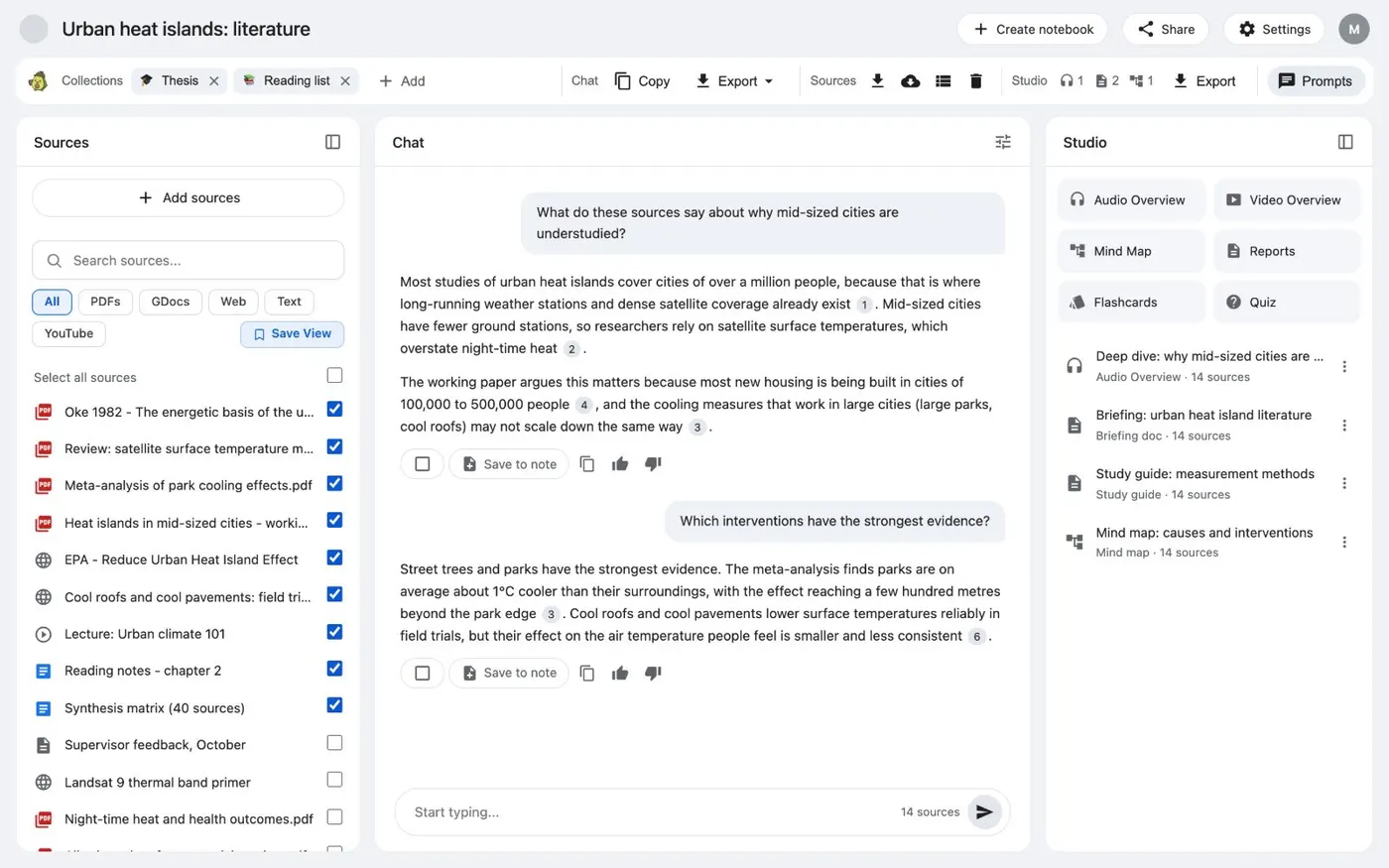
The Kortex bar on a notebook. Collections, chat, sources, Studio and prompts sit in one row. -
Download the sources as PDF
Click Download sources. Tick the sources you want, or use Select All. Choose PDF (.pdf), next to Markdown and Plain Text. Click Preview if you want to check first. Then click Download Selected.
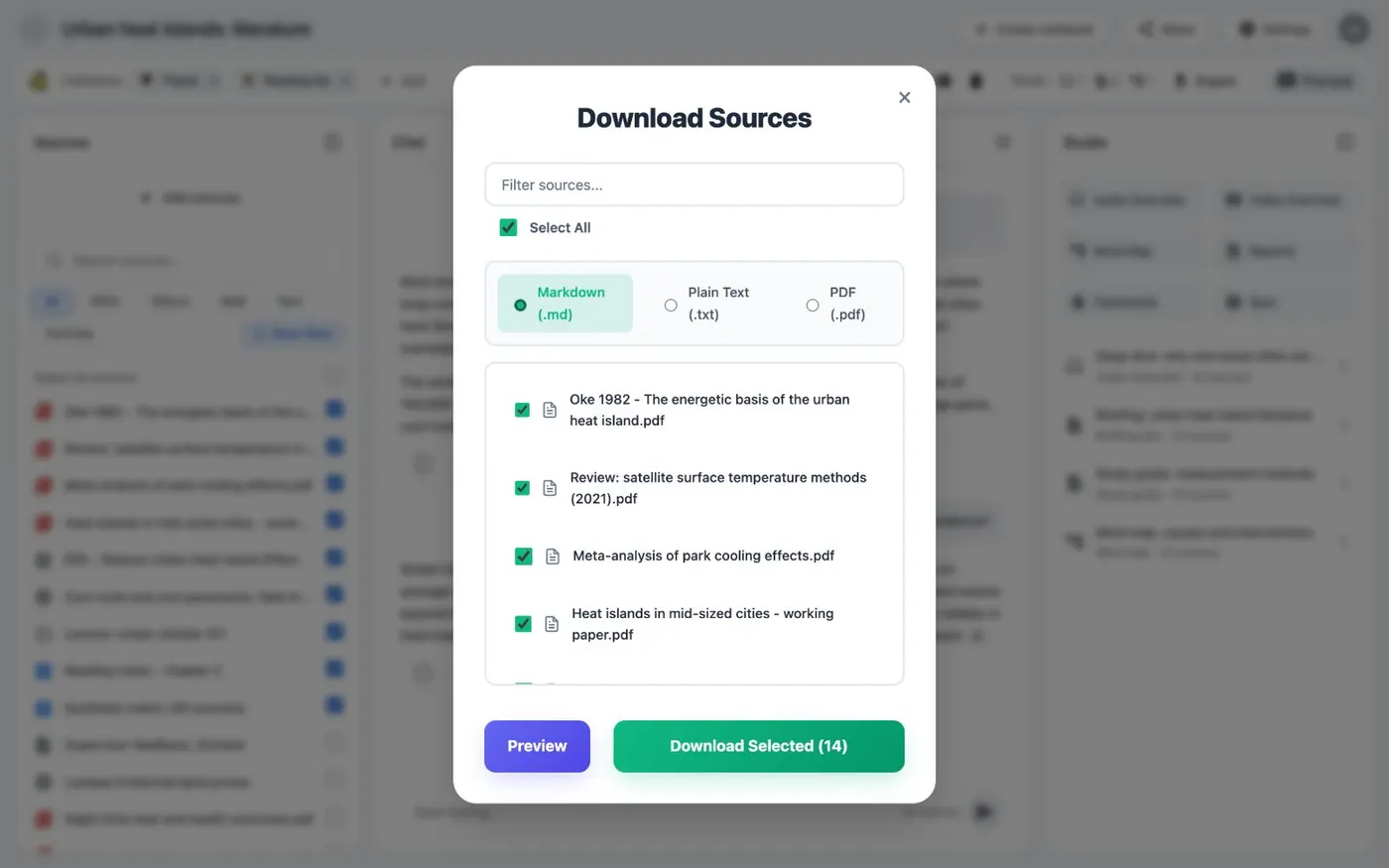
Download Sources: choose the sources and a format. -
Open the ZIP
One source downloads as one PDF. Several sources arrive as a ZIP, with ten PDFs in each ZIP. So 25 sources make three ZIP files. Each PDF is one source.
-
Export the chat
Open Export in the Chat part of the bar and choose PDF. First switch Include User Turns and Include Sources on or off. To save only some answers, tick them in the chat and click Export Selected.
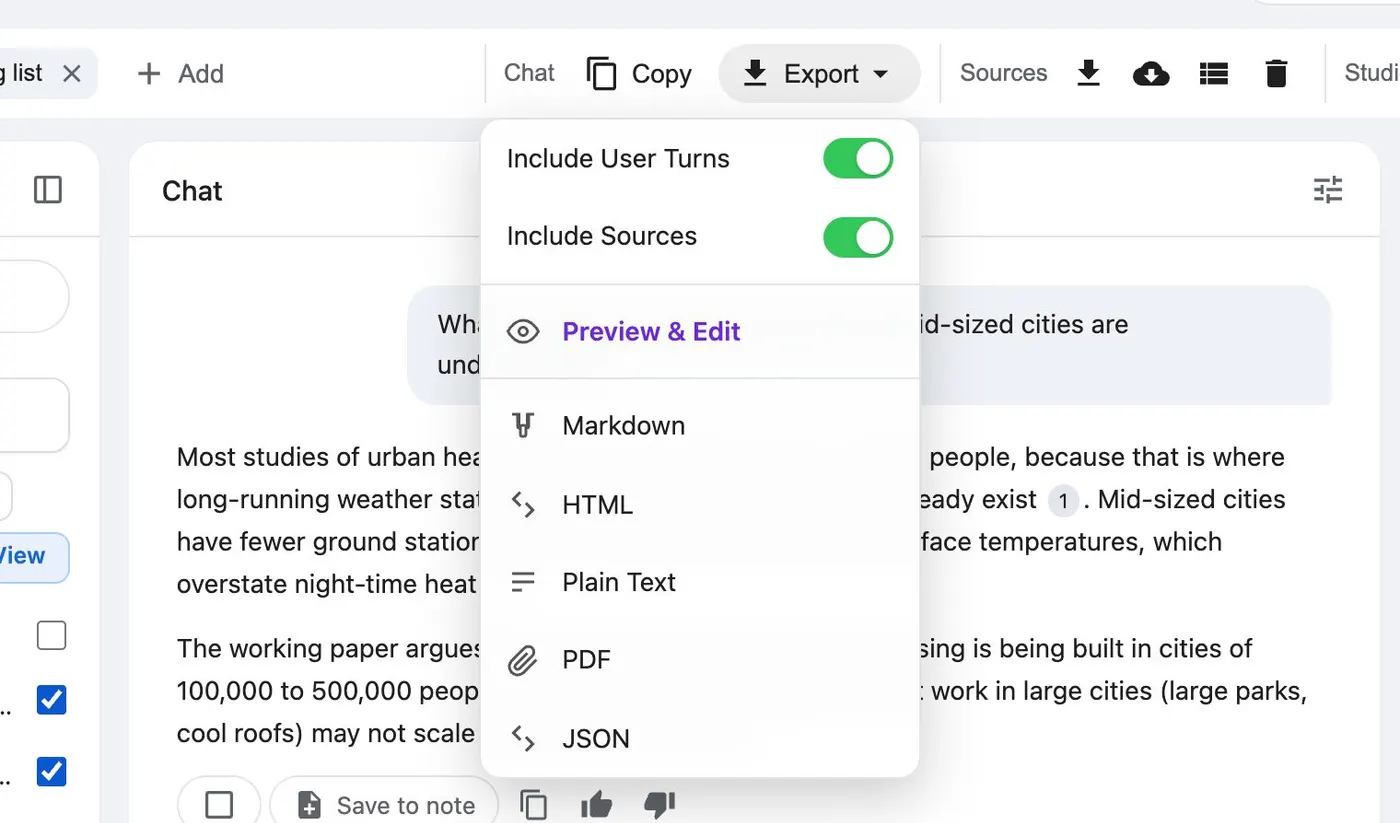
Export a chat as Markdown, HTML, plain text, PDF or JSON. -
Export notes, briefings and slides
Click Export Studio outputs to open Download Notes. Documents such as briefings and study guides can be PDF. Slides export as PDF. Tick what you want and download.
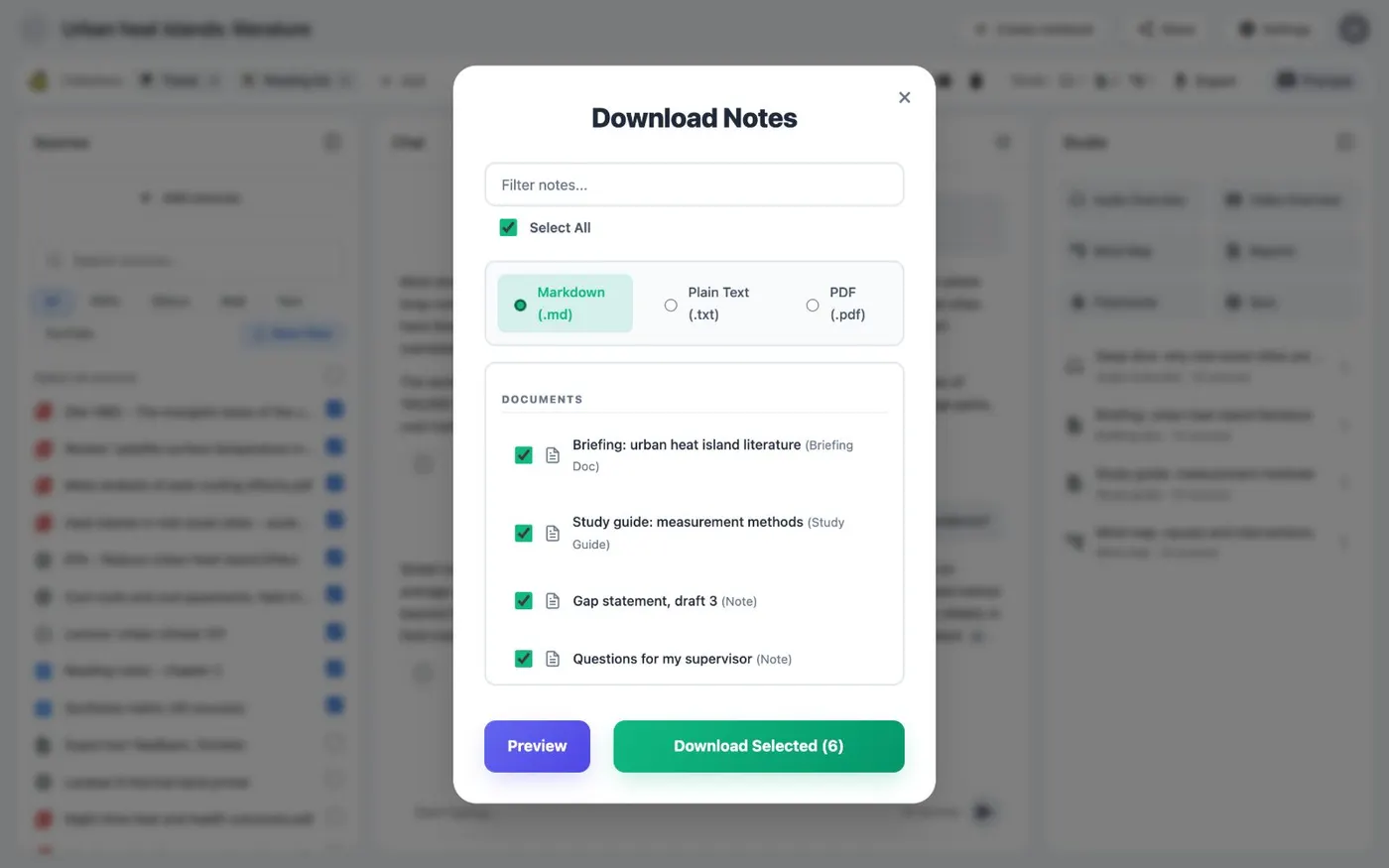
Download Notes lists the notes and artifacts the Studio holds.
If it doesn’t work
- I do not see the Kortex bar
- Reload the notebook page. If the bar is still missing, open the Kortex side panel and check that you are signed in. Then look under Manage features. You can switch each button off.
- I wanted one PDF for the whole notebook
- Kortex makes one PDF per source, then zips them. To read everything in one file, export as Markdown and join the files. Or export the chat and notes separately.
- Quizzes or flashcards are missing from the export
- You cannot export quizzes or flashcards. You can export documents, slides, mind maps, infographics, video and Audio Overviews.
Questions people ask
Something we missed? Ask us.
Can I copy a chat instead of exporting it?
Yes. Copy a chat puts the conversation on your clipboard as Markdown. Nothing downloads.
Can I export to Markdown or text instead of PDF?
Yes. The Download Sources window also has Markdown (.md) and Plain Text (.txt). The chat also exports as HTML and JSON.
Can I export from the Kortex Workspace instead?
Yes. In the Workspace, a notebook's Manage menu has Download Sources. The Sources view has a Download button. Both open the same window.
Keep going
More tutorials
Do it on your own notebooks.
Install the Kortex extension and follow these steps on a notebook you already have.
100,000+ users, rated 4.5 on the Chrome Web Store.