
Automate
Templates
Kortex Templates save a setup you can reuse for your Gemini Notebook (formerly NotebookLM) notebooks, in the Kortex Workspace. A Notebook Template saves a notebook’s tags and collections. A Source Template saves a source’s tags and folder. A Note Template saves a title and text.
What do Kortex Templates do?
Templates live in the Kortex Workspace. A Notebook Template saves a notebook's tags and collections. A Source Template saves a source's tags and folder. A Note Template saves a title and text. Apply them yourself, or from an automation.
What you get
-
Set up a notebook once
Tag and file one notebook the way you like and save it. Then give the next notebook the same tags and collections in one step.
-
Three kinds, three jobs
Notebook Templates save tags and collections. Source Templates save a source's tags and folder. Note Templates save a title and text you reuse.
-
Apply to one notebook or several
Pick a template and choose one or more target notebooks. Kortex tells you how many tags and collections it added.
-
Let a rule do it
An automation can apply a Source Template or add a note from a Note Template as soon as its trigger starts.
A setup you can reuse
Say every thesis chapter or client project gets the same tags and the same collection. Without a template, you set that up by hand each time. A template remembers it. You tag and file one notebook, save it, and apply it to the next.
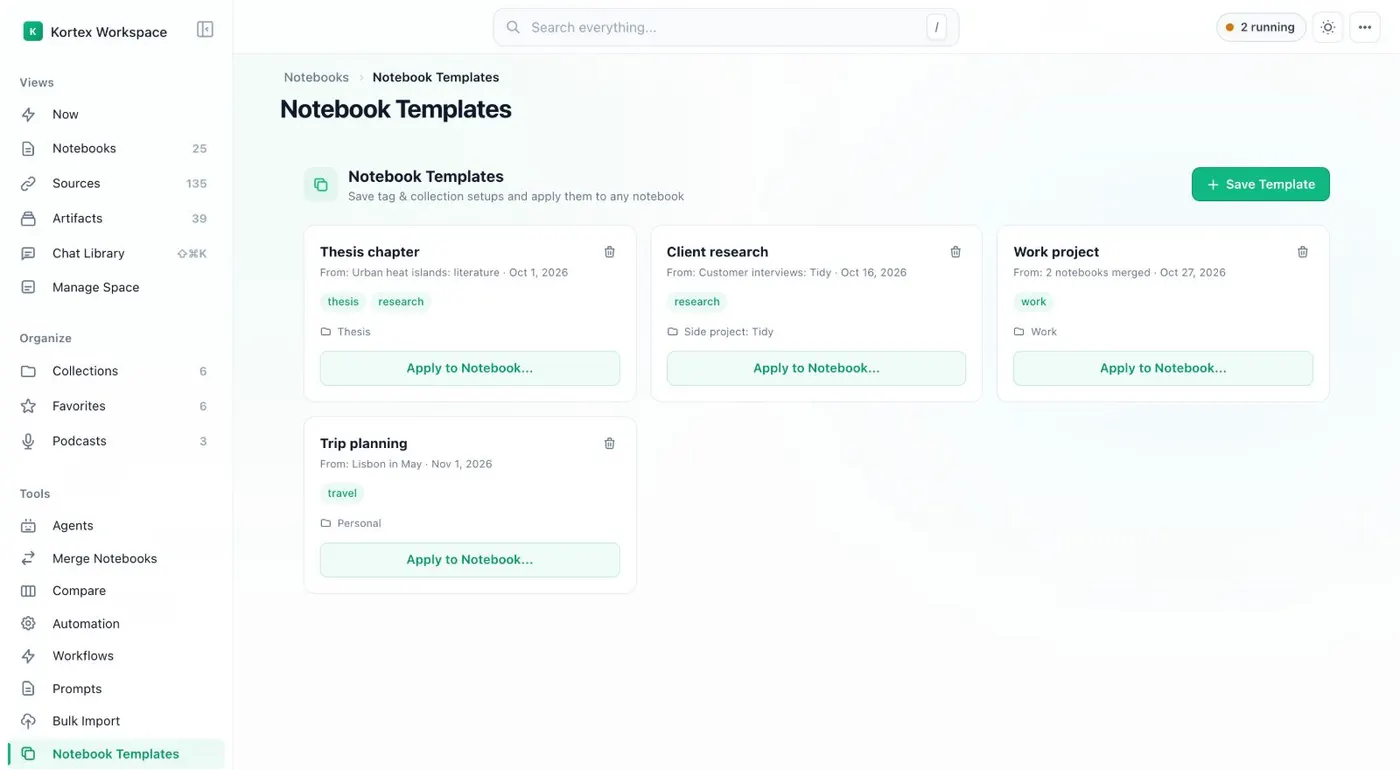
Templates live in the Kortex Workspace. Notebook Templates is in the sidebar. The page lists your templates as cards, and each card has an Apply to Notebook… button.
The three kinds
- Notebook Templates save a notebook’s tags and collections. Click Save Template, name it, and pick the notebook it comes from, called Source Notebook. Then Apply to Notebook… puts the same tags and collections on any notebook you choose. Sources and notes are not copied.
- Source Templates save a source’s tags and folder. Save one from a source, or use Merge as one template to combine several. Then use Apply to Source… on other sources.
- Note Templates are a title and text. Use New Template, then pick one in an automation’s Add note action.
How do templates work with automations?
Templates work best with a rule. An automation can apply a Source Template, or add a note from a Note Template, when a notebook is tagged or filed. The automation rules page lists the triggers.
How it works
Want every step? Follow the tutorial.
-
Set up a notebook
Give a notebook the tags and collections you want every project of that kind to have.
-
Save it as a template
Open Notebook Templates in the Workspace sidebar and click Save Template. Name it and choose the notebook it comes from.
-
Apply it
Click Apply to Notebook... on the template. Choose the target notebooks and confirm.
-
Use the other two kinds
Save a Source Template from a source, or a Note Template with New Template. Then use them in an automation.
Questions people ask
Something we missed? Ask us.
Does a template copy the sources in a notebook?
No. A Notebook Template saves only the notebook's tags and collections. It does not copy sources or notes. It is a setup, not a duplicate of the notebook.
Where do I find Templates?
In the Kortex Workspace. Notebook Templates is in the sidebar. Each of the three kinds has its own view.
What is the difference between the three kinds?
A Notebook Template is tags and collections. A Source Template is a source's tags and folder. A Note Template is a title and text that an automation's Add note action can use.
Are these the same as the Prompts Library?
No. Prompts are saved questions you type into a chat box. Templates organize notebooks and sources. See the prompt library.
Can a rule apply a template for me?
Yes. An automation rule can use Apply source template, or Add note with one of your Note Templates, as one of its actions.
Can I save a NotebookLM notebook as a template?
In part. A Notebook Template saves a notebook’s tags and collections, not its sources or notes. Click Save Template in the Kortex Workspace, name it and pick the Source Notebook.
Try it on your own notebooks.
100,000+ people use the Kortex extension. Install it and try templates on a notebook you already have.
100,000+ users, rated 4.5 on the Chrome Web Store.