
How to automate NotebookLM (Gemini Notebook) with rules
Quick answer
Open Automation in the Kortex Workspace and click Create Pipeline. Name the rule and choose a trigger, such as Notebook tag added. Add actions, such as Move to collection and Generate audio. Then review and save. Rules run in the background while Chrome is open.
Watch it first
-
Open Automation
In the Kortex Workspace sidebar, under Tools, click Automation. Your rules show as cards. Each card has an on and off switch.
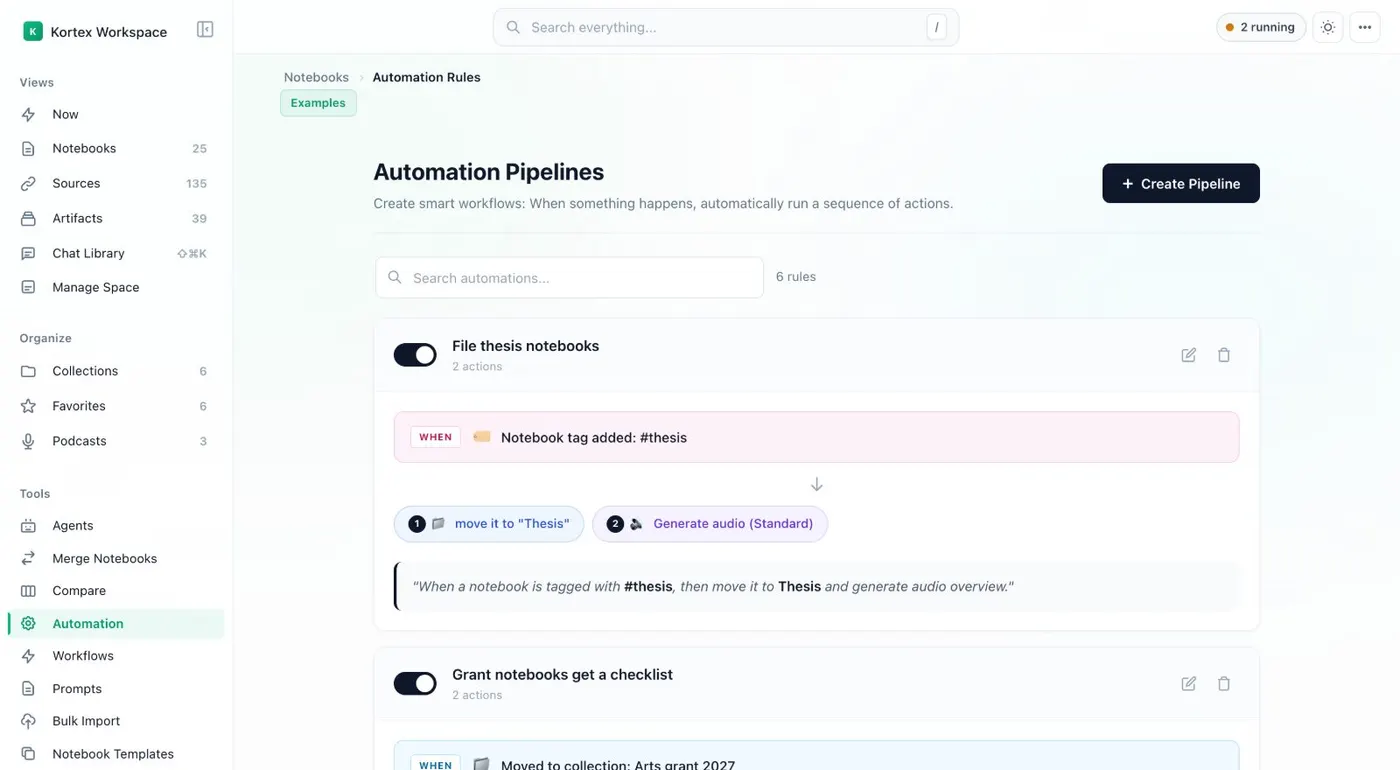
An automation rule: a trigger, then actions. -
Click Create Pipeline
The wizard has four steps: Name, Trigger, Actions and Review. Give the rule a name you will know, such as File thesis notebooks.
-
Choose a trigger
Pick what starts the rule. Your choices are Notebook tag added, Source tag added, Moved to collection, Title contains text, Audio is generated, Episode Finishes, or On a schedule. You can also require a Minimum Sources count.
-
Add the actions
Add one or more actions, such as Move to collection, Add tag, Generate audio, Generate artifact, Add note or Send to podcast. They run in order.
-
Review and save
The Review step shows the rule as a sentence, for example 'When a notebook is tagged with #thesis, then move it to Thesis and generate audio overview.' Check it, then save.
-
Test it with a tag
Add the trigger's tag to a notebook and keep Chrome open. Open Activity in the top bar to watch the rule run. To switch a rule off, use the toggle on its card.
If it doesn’t work
- Nothing happened after I tagged the notebook
- Check that Chrome is open and the rule's switch is on. Check that the tag matches the trigger exactly. Rules run in the background only while Chrome is open.
- A scheduled rule did not run at the right time
- Kortex checks schedules every 15 minutes, in your local time. Chrome must be running.
- The rule is on here but off on my other computer
- A rule's on or off setting stays on the computer where you set it. Turn it on here too.
- Domain Router did not choose a notebook
- Domain Router works only when you have not chosen a notebook. That means the side panel's Domain Router button, the Bulk Import CSV option, and Create New Notebook from an AI site's button.
Questions people ask
Something we missed? Ask us.
Do automations work with Chrome closed?
No. They run in the background whenever Chrome is open. A scheduled rule needs Chrome running when Kortex checks the schedule.
Can I generate an Audio Overview automatically?
Yes. Generate audio is an action, with a style (Deep Dive, Brief, Critique or Debate), a length and instructions. See Audio Overviews.
What is a workflow?
A list of actions your AI assistant did and saved by name over Kortex MCP. You can schedule a saved workflow from the Workflows view.
Keep going
More tutorials
Do it on your own notebooks.
Install the Kortex extension and follow these steps on a notebook you already have.
100,000+ users, rated 4.5 on the Chrome Web Store.