
Study and audio
Audio Overviews from the Workspace
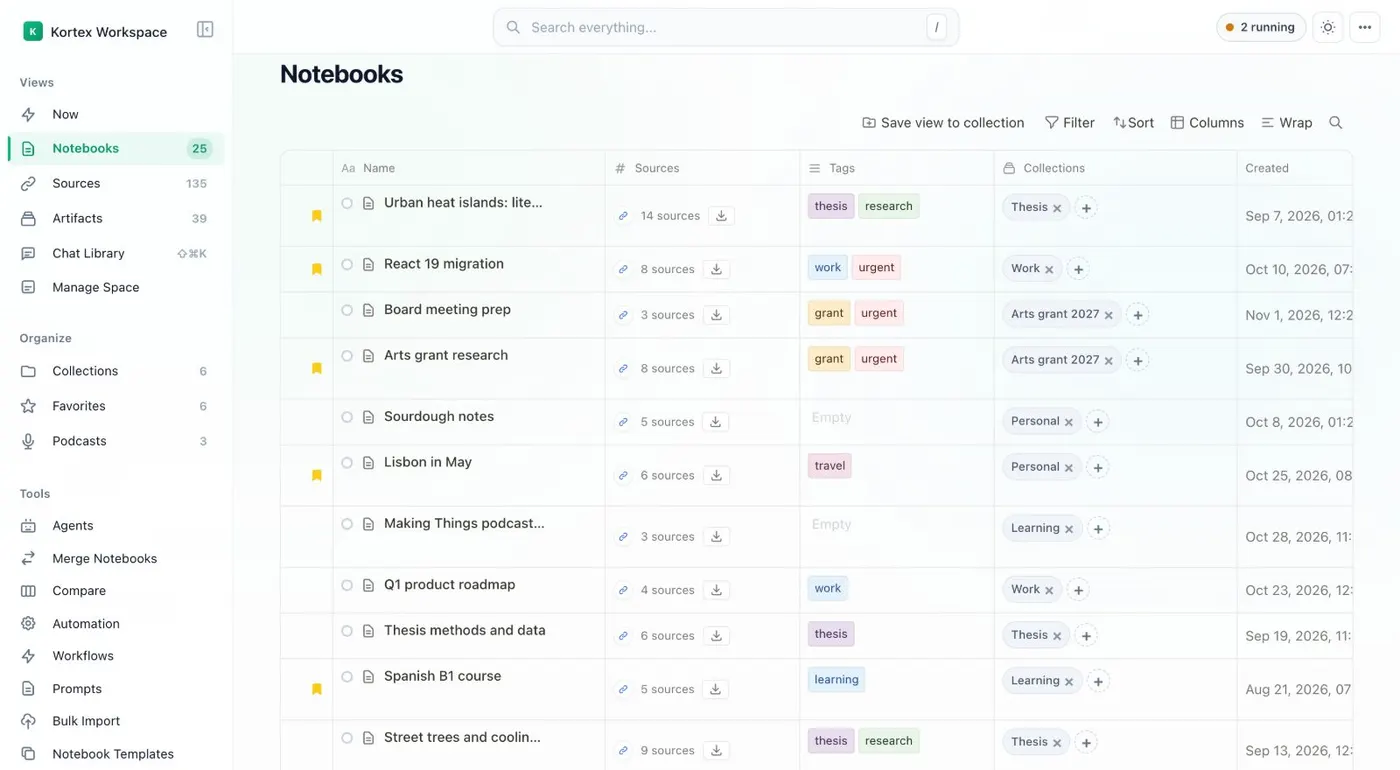
The Kortex Workspace lets you generate, play and download Audio Overviews from Gemini Notebook (formerly NotebookLM) on every notebook row. You pick a style (Deep Dive, Brief, Critique or Debate), a depth, the sources and a language, and can add instructions.
Can Kortex generate and download Audio Overviews?
Yes. The Notebooks table in the Kortex Workspace has an Audio Overview column with Listen, Download, Add to podcast, Delete and Generate Audio. You pick a style, depth, sources and language. You can add instructions too. Downloads are .mp4 files. Google's own daily limits for Audio Overviews still apply.
What you get
-
One column for every notebook
Generate and play audio from the table. You do not need to open each notebook and find its Studio panel.
-
You set the brief
Choose Deep Dive, Brief, Critique or Debate. Choose a depth, the sources to use and a language. Then add instructions.
-
Download the file
Download audio overview saves the audio as an .mp4 file. It plays on a phone or in a video editor.
-
Send it on
Add to podcast sends an Audio Overview to a podcast feed. Delete audio overview removes one you do not want.
The Audio Overview column
In the Kortex Workspace, the Notebooks table has a column for audio. On each row you see Listen, Download audio overview, Add to podcast, Delete audio overview and Generate Audio. Audio Overviews are Gemini Notebook’s spoken summaries of a notebook’s sources. Kortex does not make the audio. It asks Gemini Notebook to make it, using your own Google session.
What can I set for an Audio Overview?
Generate Audio Overview asks for:
- a style: Deep Dive, Brief, Critique or Debate
- Depth: Short or Standard, and In-Depth for Deep Dive
- which Sources to use
- a language
- Instructions (Optional)
Choosing the sources matters most. A notebook with 40 sources makes one audio about everything. Pick five and it covers those five.
How do I download an Audio Overview?
Download audio overview saves an .mp4 file. Add to podcast sends one to a podcast feed, and Add selected to podcast sends several. Listen plays it in the Workspace.
Are there limits on Audio Overviews?
Gemini Notebook sets its own daily limits on Audio Overviews, and they apply here too. If generating stops, Google’s limit is the usual reason.
Related: export Studio outputs, automation rules.
How it works
Want every step? Follow the tutorial.
-
Open the Notebooks table
Open the Kortex Workspace and stay on Notebooks. Each row has an Audio Overview column.
-
Click Generate Audio
A window asks for a style, a depth, the sources to use and a language. You can add instructions too.
-
Wait for it to finish
The row shows Generating... while Gemini Notebook makes it. Activity in the top bar lists it too.
-
Listen, download or send
Use Listen to play it. Download audio overview saves an .mp4. Add to podcast sends it to a podcast feed.
Questions people ask
Something we missed? Ask us.
What audio styles can I pick?
Deep Dive, Brief, Critique or Debate. Depth is Short or Standard, and Deep Dive also has In-Depth.
Why did generating fail or stop?
Gemini Notebook has its own daily limits on Audio Overviews, and Kortex cannot raise them.
What file do I get?
A download is an .mp4 file. Most players open it. A converter can change it to another format.
Can I choose the language?
Yes. The window has a language option. Under it, Instructions (Optional) lets you add anything else you want the hosts to cover.
Can I make one automatically?
Yes. An automation rule has a Generate audio action. You set a style, length and instructions.
Can I download a NotebookLM Audio Overview?
Yes. Download audio overview in the Notebooks table of the Kortex Workspace saves an .mp4 file. Kortex asks Gemini Notebook (formerly NotebookLM) to make the audio, using your own Google session.
Try it on your own notebooks.
100,000+ people use the Kortex extension. Install it and try audio overviews from the workspace on a notebook you already have.
100,000+ users, rated 4.5 on the Chrome Web Store.