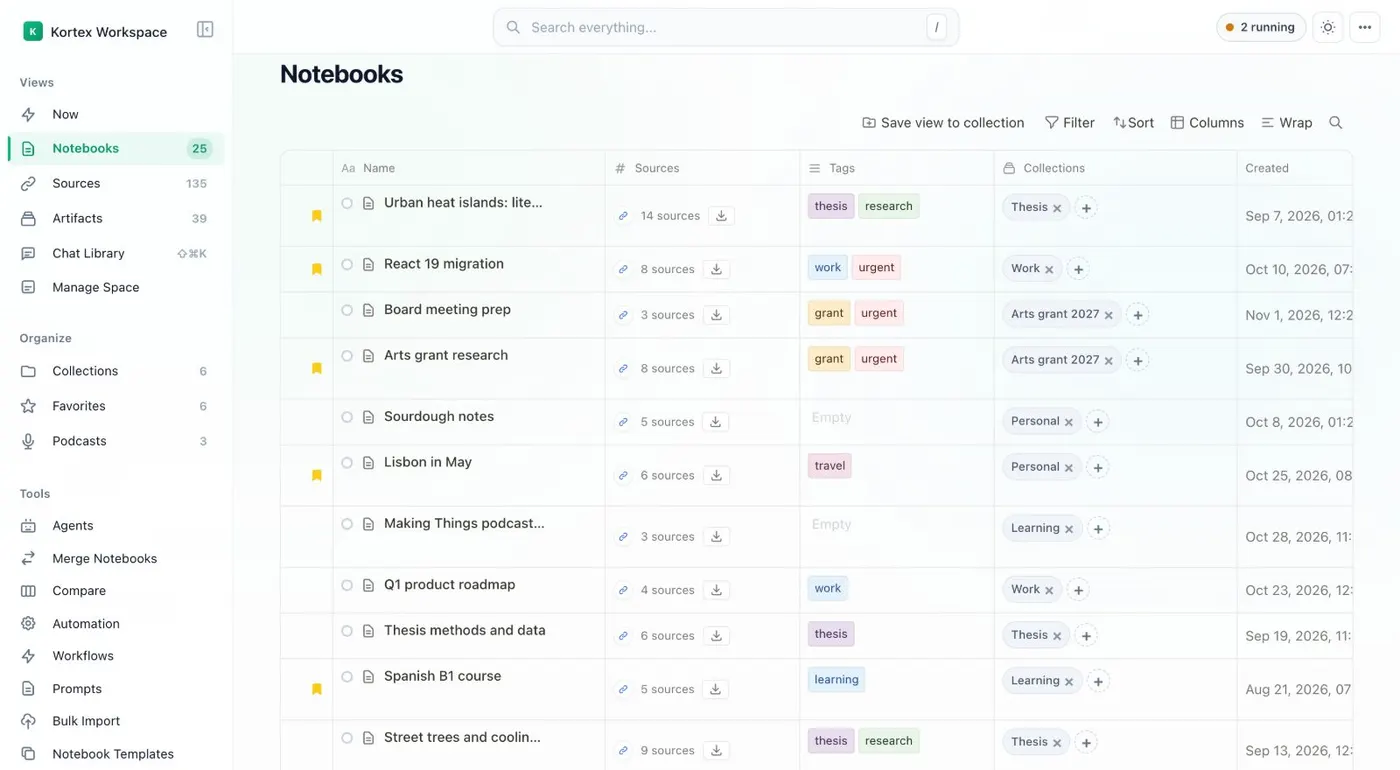
Here's how to make an Audio Overview for Gemini Notebook, formerly NotebookLM, from the Kortex Workspace, and save it as a file. Open the Kortex Workspace. The Notebooks table has an Audio Overview column.
A row shows Generate Audio if the notebook has no audio yet. Click Generate Audio, and the Generate Audio Overview window opens. The notebook needs at least one source.
Pick Deep Dive, Brief, Critique or Debate. Set the Depth to Short or Standard. Deep Dive also has In-Depth.
Then tick the sources to use. Choose the language. Under Instructions, tell the hosts what to focus on.
Then click Generate Audio. The row shows Generating while Gemini Notebook makes the audio. Activity, in the top bar, lists it too.
When it's done, open the row's audio and click Listen to play it. To save it, tick it and click Download. You get an M P 4 file.
Add to Podcast puts it in a private feed you can follow in a podcast app. Make an Audio Overview. Play it, or keep it.