
Study and audio
Podcast feed
A Kortex podcast turns Audio Overviews from Gemini Notebook (formerly NotebookLM) into a private RSS feed, a feed address that podcast apps can follow. Copy it with Podcast RSS and add it to your app. A new episode shows up in the feed within about 10 minutes.
What is the Kortex podcast feed?
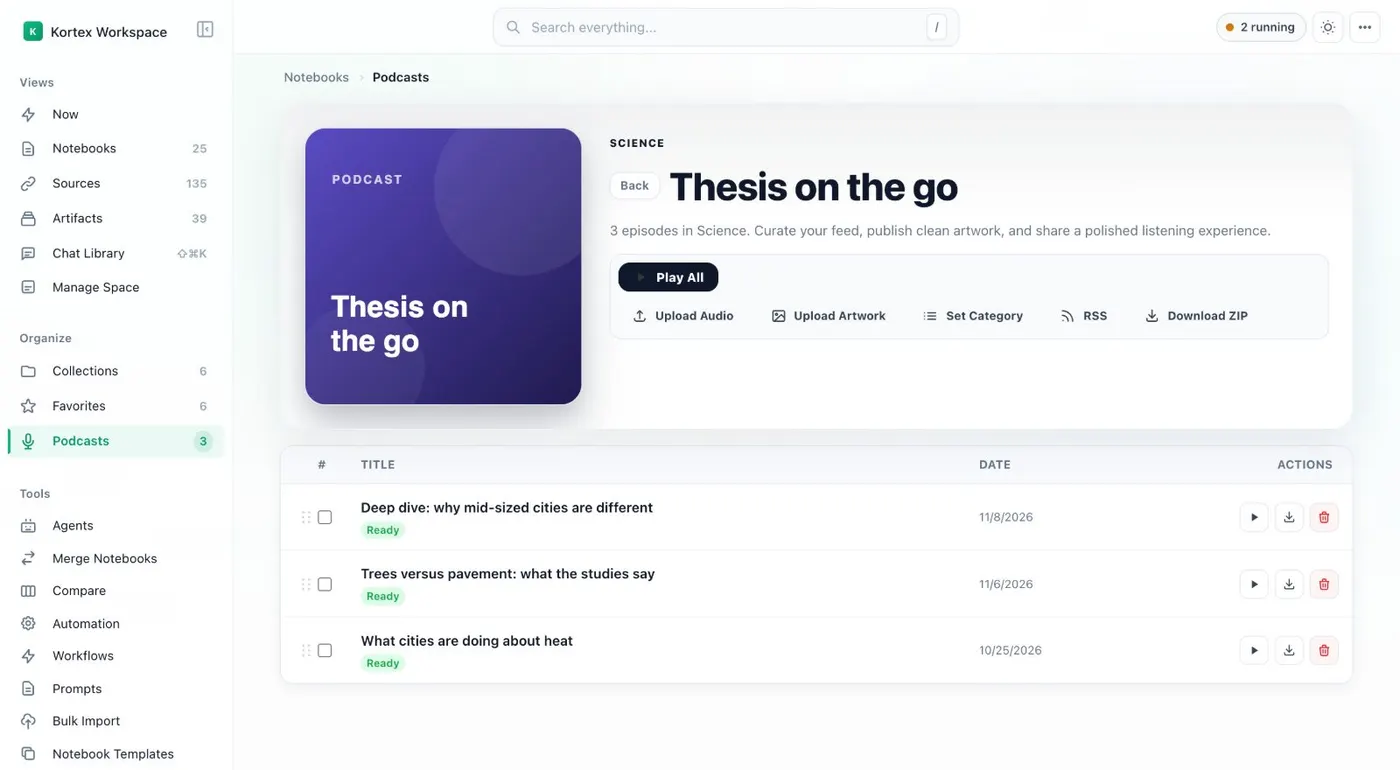
The podcast feed is part of the Kortex Workspace. A podcast gathers Audio Overviews as episodes of a private RSS feed (a feed address that podcast apps can follow). Copy the feed address with Podcast RSS and add it to a podcast app. A new episode shows up in the feed within about 10 minutes.
What you get
-
Your research, in your podcast app
Your Audio Overviews do not have to stay in a browser tab. Add the feed address to an app and play the episodes on a walk.
-
Several feeds
Make a podcast for each theme, such as morning briefings or thesis reading. You can pin up to three podcasts to the top.
-
Episodes from three places
Add an Audio Overview from a notebook row, let an automation send it, or use Upload Audio for your own file.
-
Minutes you can see and get back
The Podcasts page shows how many minutes are left. If you remove an episode, you get its minutes back.
How does the podcast feed work?
Gemini Notebook makes Audio Overviews, and they normally stay inside the notebook. A Kortex podcast gathers them as episodes of a feed. The feed works in any app that accepts a feed address. You make a podcast in the Kortex Workspace, add Audio Overviews to it, copy the address and add it to your app.
How do I add episodes?
There are three ways to add them:
- Add to podcast on an Audio Overview in the Notebooks table
- the Send to podcast action in an automation rule
- Upload Audio, for a file you already have
Managing a podcast
Each podcast has Change Cover, Set Category, Download ZIP and Play All, with a playback Speed control. Podcast RSS copies the feed address.
How do minutes work?
The Podcasts page shows your minutes left. Each episode’s length, in whole minutes, comes out of them. Buy Minutes, in the Workspace’s ⋯ menu, adds more.
Start with Audio Overviews from the Workspace.
How it works
Want every step? Follow the tutorial.
-
Create a podcast
Open Podcasts in the Kortex Workspace sidebar and click New Podcast. Give it a name.
-
Add episodes
Use Add to podcast on a notebook's Audio Overview, an automation's Send to podcast action, or Upload Audio.
-
Copy the feed address
Click Podcast RSS to copy the address of the podcast's private feed.
-
Add it to your app
Paste the address into a podcast app that accepts a feed address. New episodes show up within about 10 minutes.
Questions people ask
Something we missed? Ask us.
Is the feed public?
It is private. Only people who have the feed address can add it to an app. Treat the address like a password and do not post it.
How long until a new episode appears?
A new episode shows in the feed within about 10 minutes.
How are audio minutes counted?
Kortex stores each episode's audio for the feed. The episode's length, in whole minutes, comes out of your podcast minutes. Buy Minutes in the Workspace's ⋯ menu adds more.
Do I get minutes back if I remove an episode?
Yes. If you remove an episode, you get back the minutes it used.
Can I download the episodes?
Yes. Each podcast has Download ZIP. A single Audio Overview also downloads from its notebook row as an .mp4.
Can I listen to NotebookLM Audio Overviews in a podcast app?
Yes. A Kortex podcast gathers your Audio Overviews as episodes of a private feed. Copy the feed address with Podcast RSS and add it to any app that accepts a feed address.
Try it on your own notebooks.
100,000+ people use the Kortex extension. Install it and try podcast feed on a notebook you already have.
100,000+ users, rated 4.5 on the Chrome Web Store.