
How to tag ChatGPT conversations

2 minutes 4 steps Updated

Quick answer

Install Kortex and let it save your chats. Open the chat in the Library, open its ⋯ menu and choose Edit tags. Pick a tag you already use or type a new one. Then filter by that tag above the list, or type #tag in the search box.

Watch it first

How to tag ChatGPT conversations
Read the transcript

Here's how to tag your ChatGPT conversations with Kortex, and filter your Library by tag. Open the Library from the side panel's Chats tab, click All chats, and pick the chat. Tags show beside each chat in the list.

On ChatGPT, the Kortex tab shows the chat's folders and tags too. Open the chat's menu, and choose Edit tags. Pick a tag you already use, or type a new one.

When a chat is open in the reader, the plus Tag chip does the same job. To find tagged chats, use the filters above the list, or type a hashtag and the tag in the search box. Add a site name or a date to narrow it more.

Plain words like these show as chips you can remove. Your notebooks use the same tags. A tag with the same name on a notebook from Gemini Notebook, formerly NotebookLM, is the same tag.

So one filter finds both your chats and your notebooks. A chat can have a folder and several tags at once.
  1. Open the chat in the Library

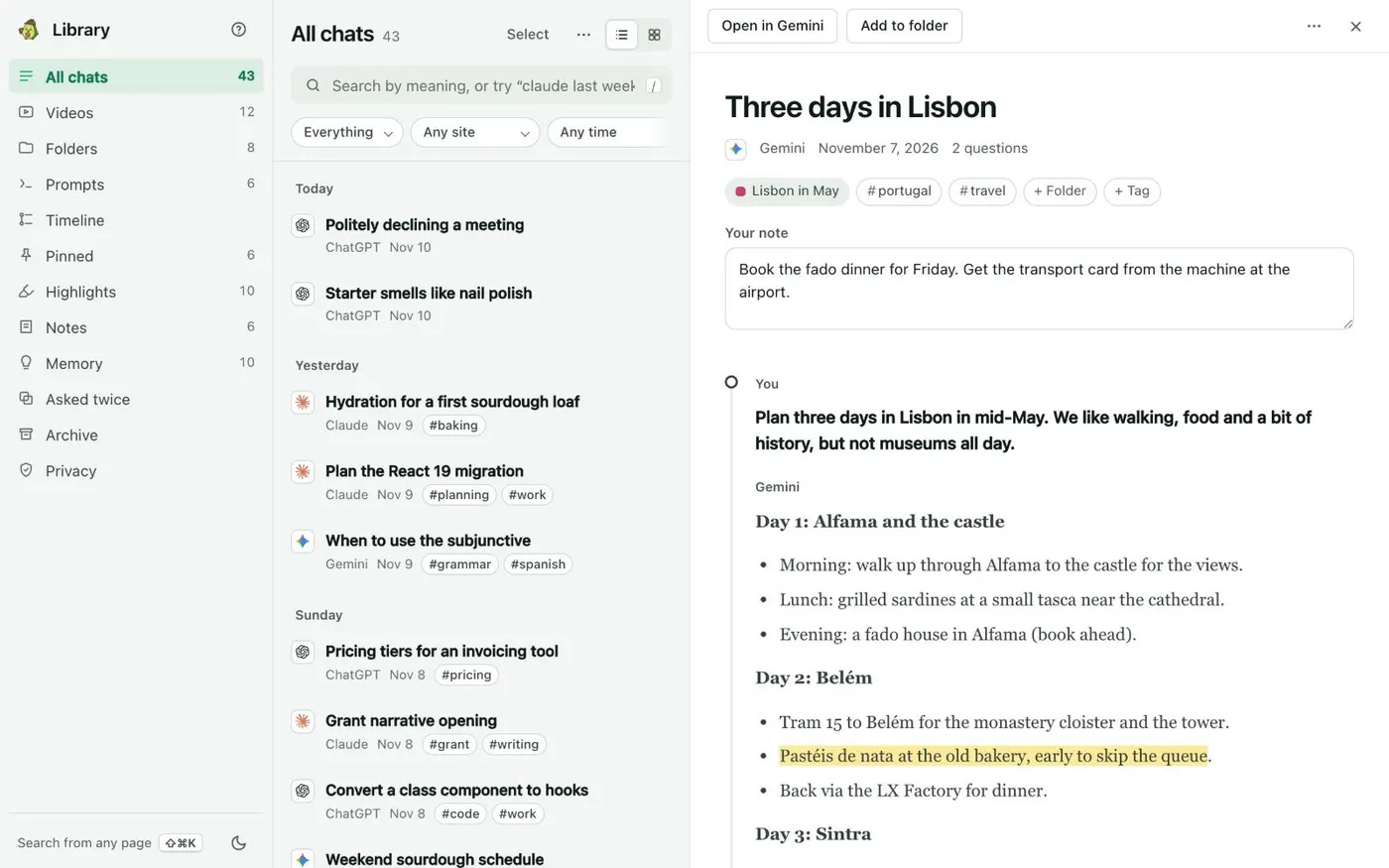
    Click the Kortex icon to open the side panel, open the Chats tab and the Library, then click All chats and pick the chat. Tags show beside each chat in the list. You can also click the Kortex tab on the right edge of ChatGPT, which shows the chat's folders and tags.

    The Library's All chats view: chats listed by day with tags such as baking, planning and work beside each one, and a Lisbon chat open with its tags and + Tag chip.
    All chats lists every saved chat by day. Open one to read it in full beside the list.
  2. Choose Edit tags…

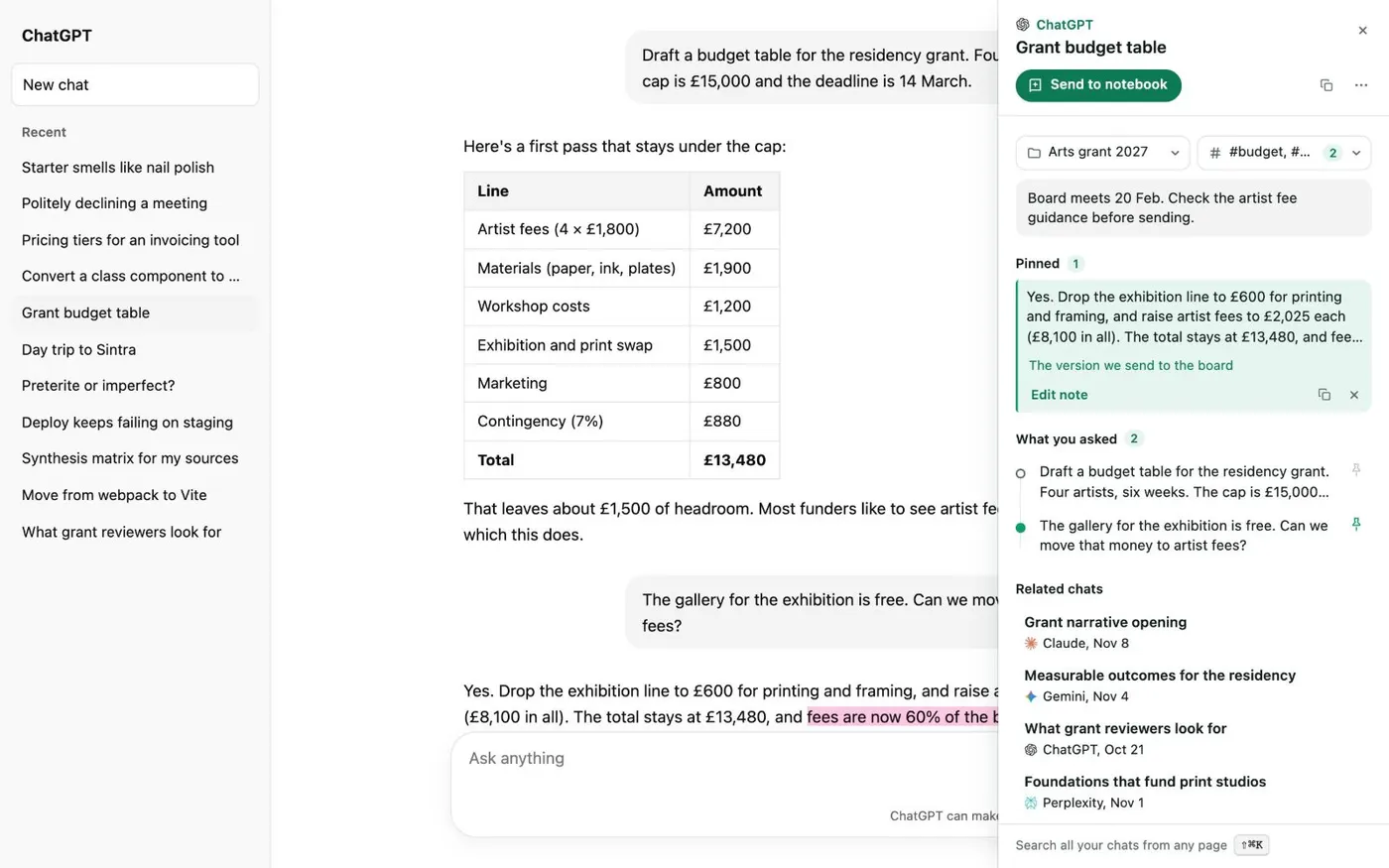
    Open the chat's ⋯ menu and choose Edit tags…. Pick a tag you already use, or type a new one. When a chat is open in the reader, a + Tag chip next to its folder does the same job.

    The Kortex tab beside a ChatGPT chat. Under the chat's title, a folder box and a tags box showing budget and one more tag.
    The Kortex tab keeps your note, pins and related chats next to the chat.
  3. Filter your chats by tag

    Use the filters above the list to narrow by tag. Or type #tag in the search box. Add a site name or a date to narrow further, for example claude last week. Plain words like these show as chips you can remove.

  4. Use the same tag on your notebooks

    A tag on a Gemini Notebook (formerly NotebookLM) notebook with the same name is the same tag. So one filter finds both your chats and your notebooks.

If it doesn’t work

The chat I want to tag is not in the Library
Kortex saves chats only after you say yes to the notice. Open the side panel's Chats tab and the gear for Saving your chats, and check the switches for the main setting and for ChatGPT. Chrome must be open.
The tag filter shows nothing
The filters above the list work together: type, site, date, who wrote it, folder and tag. Clear the others one at a time. Also check that the tag is spelled the way you typed it.
Search shows results for a different word
Kortex corrects typos and says Showing results for. Click Search as typed to undo the correction and search for exactly what you typed.

Questions people ask

Something we missed? Ask us.

Can I tag Claude, Gemini and Perplexity chats the same way?

Yes. Every chat the Library saves has the same menu, whatever AI it came from. A tag you make on a ChatGPT chat can be used on a Claude chat too.

What is the difference between a tag and a folder?

A folder holds chats, notebooks and videos on one topic, and folders can sit inside folders. A tag is a label you can put on any chat. A chat can have a folder and several tags at once.

Do my tags leave my computer?

No. The Library is stored on your computer, in a database inside Chrome. Nothing is sent anywhere unless you send it.

Can I rename a chat as well as tag it?

Yes. Choose Rename in the chat's ⋯ menu. Kortex keeps your name for the chat, even when ChatGPT sends its own title again.

Keep going

More tutorials

All tutorials

Do it on your own notebooks.

Install the Kortex extension and follow these steps on a notebook you already have.

100,000+ users, rated 4.5 on the Chrome Web Store.

Talk to the Kortex team

This opens a pre-filled email in Gmail. We usually reply within a day.