How to organize ChatGPT chats into folders

3 minutes 6 steps Updated

Quick answer

Install Kortex and let it save your chats. Open the Library, click Folders, then New folder, and name it. File a chat by dragging it onto the folder, or open its menu and choose Add to folder. Chats from Claude, Gemini, Perplexity and Grok can go in the same folder.

Watch it first

How to organize ChatGPT chats into folders
Read the transcript

Here's how to sort your ChatGPT chats into folders, with the Kortex Library. First, let Kortex save your chats. When it asks, click Keep my chats in my Library.

Your ChatGPT chats then save on your computer every few minutes, while Chrome is open and you're signed in to ChatGPT. Open the Library from the side panel's Chats tab, and click Folders in the left column. Each folder is a card, with the number of chats inside.

Click New folder, and type a name, such as the project the chats belong to. A folder can hold chats, notebooks and videos. To file a chat, open its menu, choose Add to folder, and pick a folder.

You can also drag the chat onto a folder. On ChatGPT itself, use the folder box in the Kortex tab. To file many chats at once, click Select.

Tick the chats, then choose Add to folder in the bar above the list. Click Done when you finish. When recent chats look like one topic, a card above All chats offers to make a folder from them.

Click Make the folder. Chats from Claude, Gemini, Perplexity and Grok can go in the same folder.
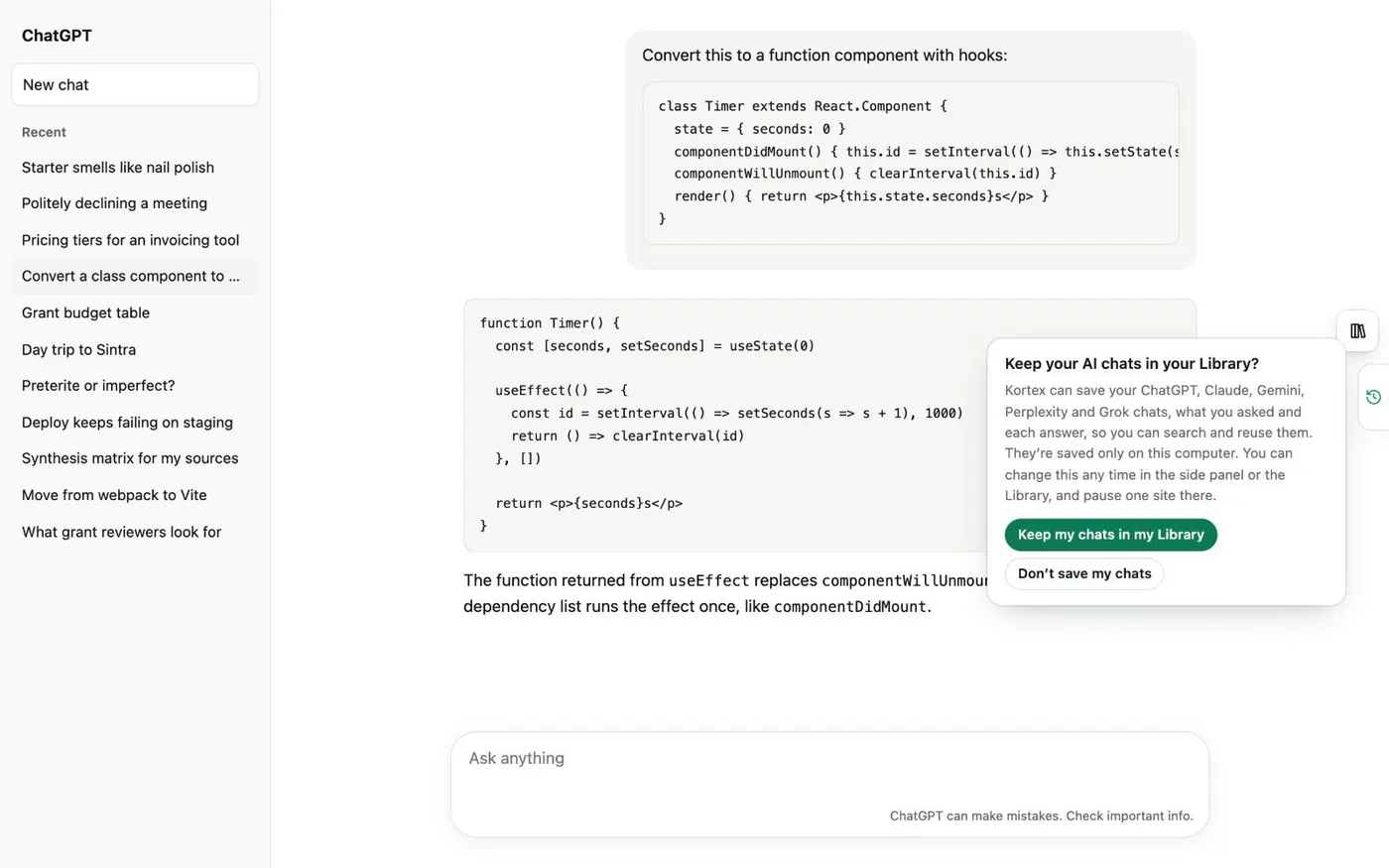
  1. Let Kortex save your ChatGPT chats

    The first time you meet the Library, Kortex asks, Keep your AI chats in your Library? Click Keep my chats in my Library. ChatGPT chats then save on your computer every few minutes while Chrome is open and you are signed in to ChatGPT.

    The notice beside a ChatGPT chat that asks Keep your AI chats in your Library, with the buttons Keep my chats in my Library and Don't save my chats.
    The notice Kortex shows before it saves a single chat.
  2. Open the Library and click Folders

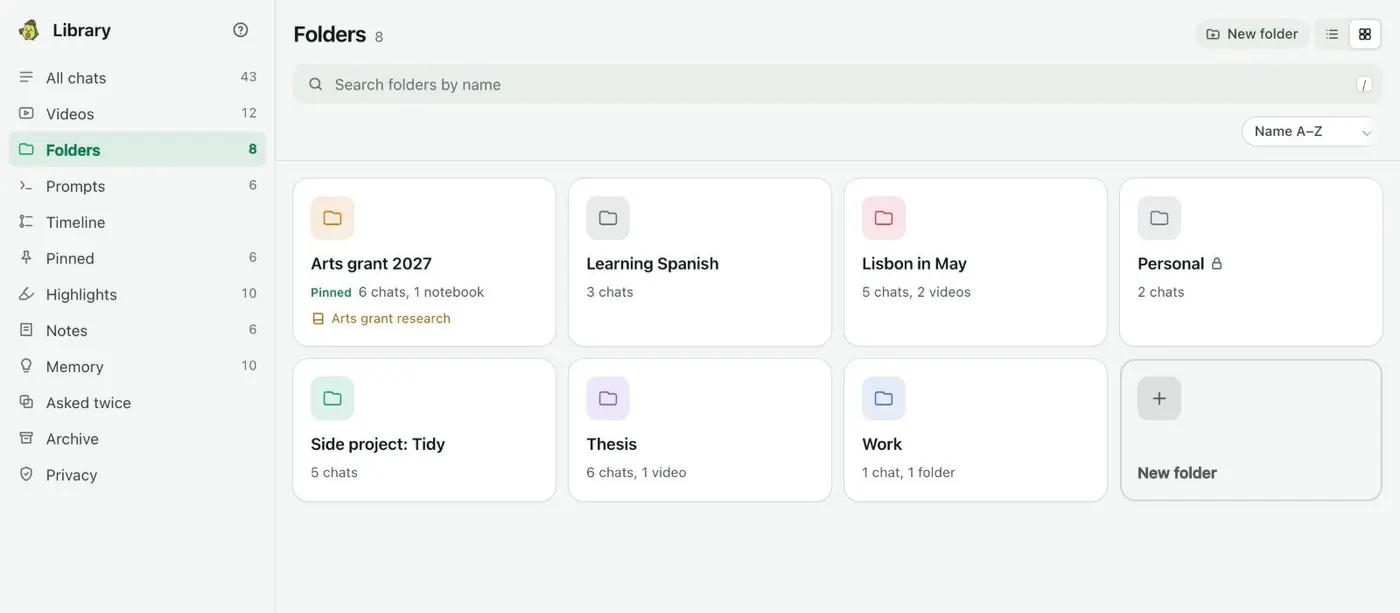
    Click the Kortex icon in the toolbar to open the side panel, then open the Chats tab and the Library. Click Folders in the left column. Each folder is a card with the number of chats and videos inside.

    The Library's Folders view: eight folder cards such as Arts grant 2027, Thesis and Lisbon in May, each with its chat count, and a New folder button at the top right.
    Folders in six colours, with the number of chats inside.
  3. Make a folder

    Click New folder and type a name, for example the project the chats belong to. A folder holds chats, notebooks and videos. To put one folder inside another, use Subfolder on a folder's page, or New folder inside in its ⋯ menu.

  4. File a chat in the folder

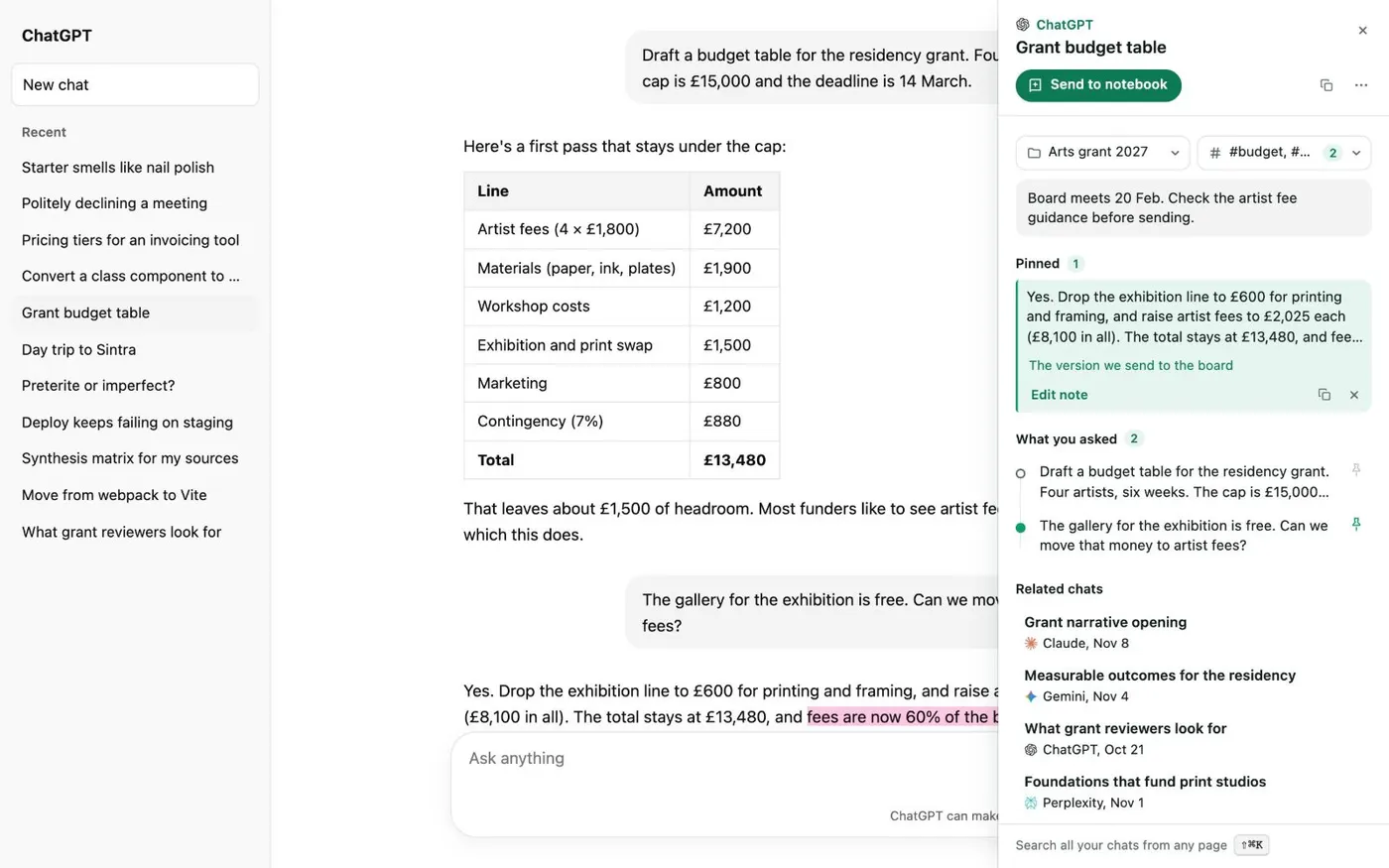
    In All chats, drag a chat onto a folder. Or open the chat's ⋯ menu, choose Add to folder…, and pick a folder or type a name to make a new one. On ChatGPT itself, you can drag a chat from ChatGPT's own sidebar onto a folder, or use the folder box in the Kortex tab on the right edge of the page.

    A ChatGPT chat about a grant budget with the Kortex tab open on the right. Its folder box at the top shows the folder Arts grant 2027, beside a tags box.
    The Kortex tab keeps your note, pins and related chats next to the chat.
  5. File many chats at once

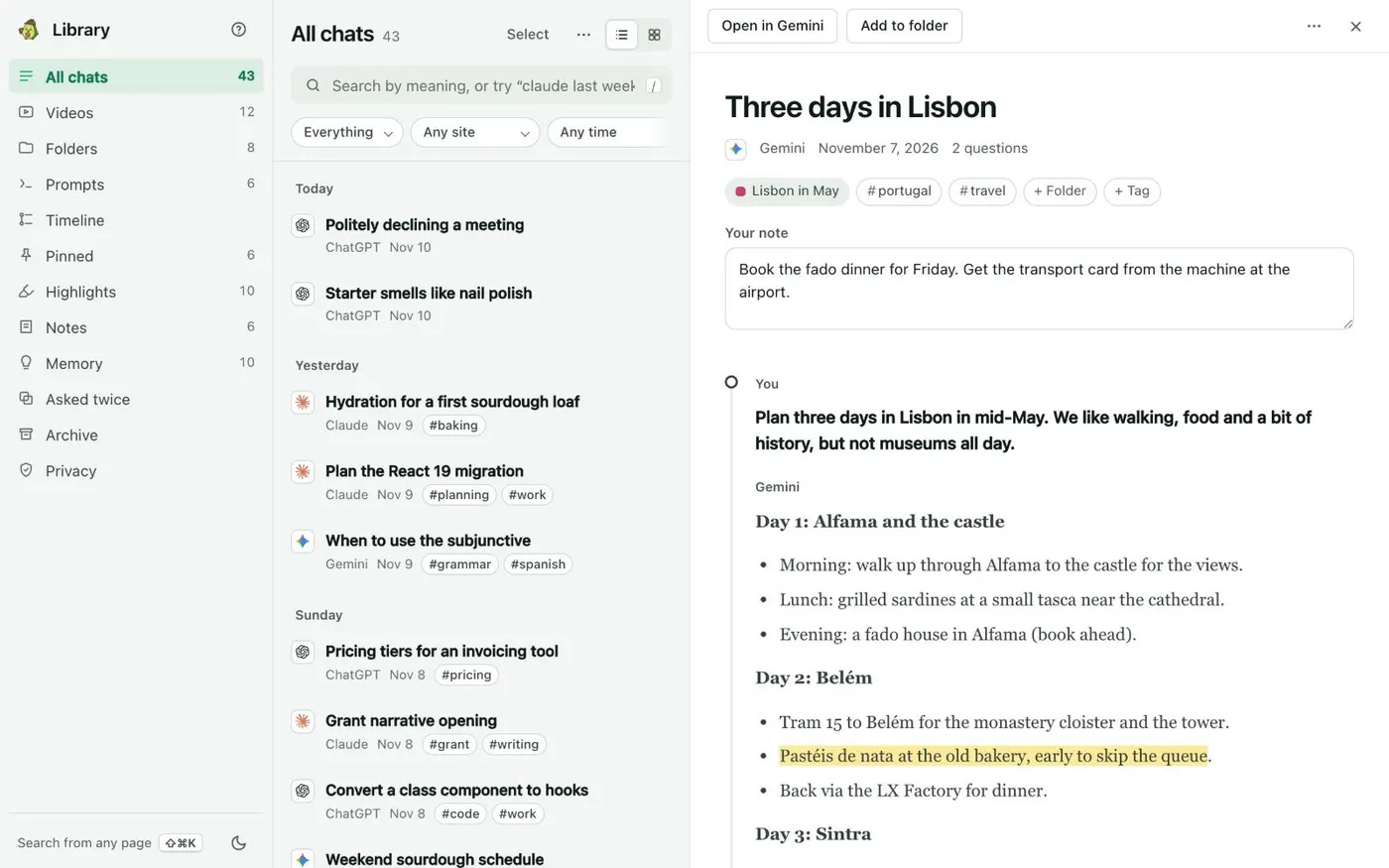
    Click Select at the top right of All chats. Tick the chats, then choose Add to folder in the bar above the list. Click Done when you finish.

    The All chats view: saved chats listed by day with their AI and tags, the Select button at the top, and a Lisbon chat open with a Lisbon in May folder chip.
    All chats lists every saved chat by day. Open one to read it in full beside the list.
  6. Take a folder Kortex suggests

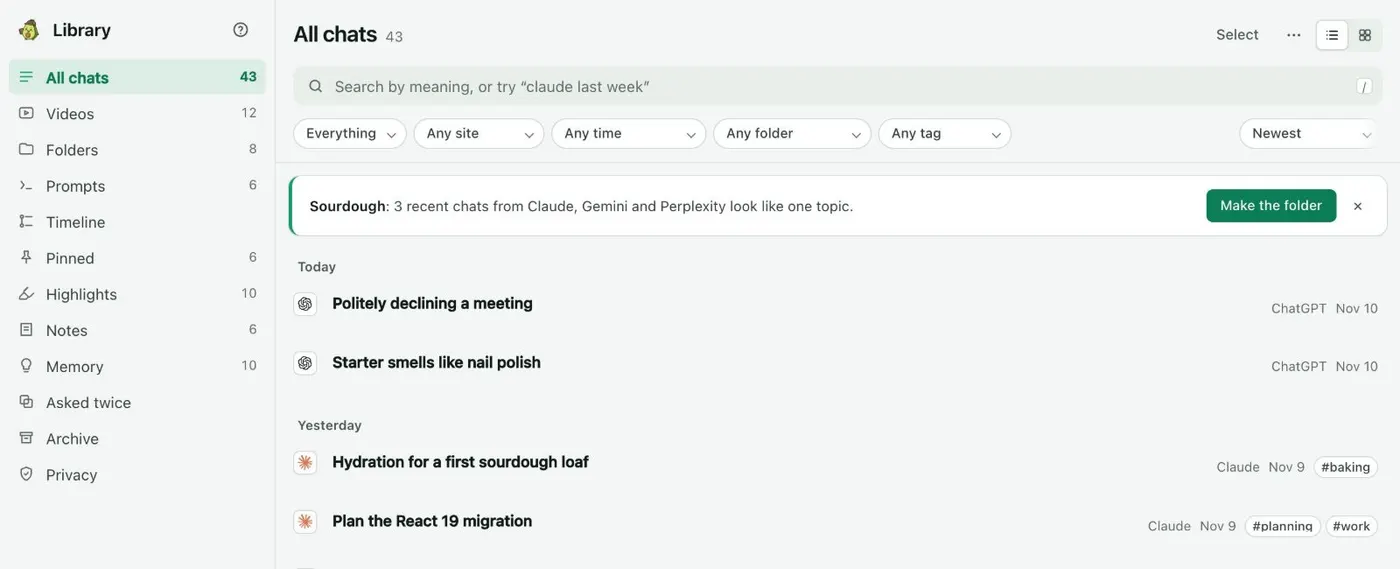
    When recent chats look like one topic, a card above All chats offers to make a folder from them. Click Make the folder. Kortex works this out on your computer. Not now hides that kind of card for a week.

    A card above All chats reading Sourdough, 3 recent chats from Claude, Gemini and Perplexity look like one topic, with a Make the folder button.
    Chats on one subject, from different AIs, offered as one folder.

If it doesn’t work

My ChatGPT chats are not in the Library
Kortex saves only after you click Keep my chats in my Library. Open the side panel's Chats tab, click the gear to open Saving your chats, and check that Save my AI chats on this computer and the ChatGPT row are switched on. Chrome must be open and you must be signed in to ChatGPT.
A chat I just had is not there yet
ChatGPT chats save in the background every few minutes. Wait a little. If ChatGPT turns the background away, Kortex saves from an open ChatGPT tab for a while instead.
I deleted a folder. Are my chats gone?
No. Deleting a folder never deletes its chats. They stay in All chats. A chat you delete on ChatGPT also stays in your Library.

Questions people ask

Something we missed? Ask us.

Can I put chats from different AIs in one folder?

Yes. A folder can hold chats from ChatGPT, Claude, Gemini, Perplexity and Grok, plus YouTube videos and notebooks. That keeps everything about one project in one place.

Can I put folders inside folders?

Yes. Use Subfolder on a folder's page, or New folder inside in a folder's ⋯ menu. Folders can also be pinned to the top and take one of six colours.

Where are my folders stored?

On your computer, in a database inside Chrome. Nothing is sent anywhere unless you send it. You can also choose Make private in a folder's ⋯ menu to keep its chats on this computer.

Can I tag chats as well as filing them?

Yes. A chat can have a folder and tags at the same time. See how to tag ChatGPT conversations.

Keep going

More tutorials

All tutorials

Do it on your own notebooks.

Install the Kortex extension and follow these steps on a notebook you already have.

100,000+ users, rated 4.5 on the Chrome Web Store.

Talk to the Kortex team

This opens a pre-filled email in Gmail. We usually reply within a day.