
How to search ChatGPT conversations and chat history
Quick answer
Install Kortex and click Keep my chats in my Library when it asks. Open the Library from the side panel's Chats tab, click the search box and type what you remember. Add words like chatgpt or last week to narrow it by site and date. Click a result to open the chat where it matched.
Watch it first
-
Turn on saving so Kortex has your chats to search
The first time you meet the Library, Kortex asks Keep your AI chats in your Library? Click Keep my chats in my Library. Until you say yes, nothing is saved. Your chats stay on this computer.
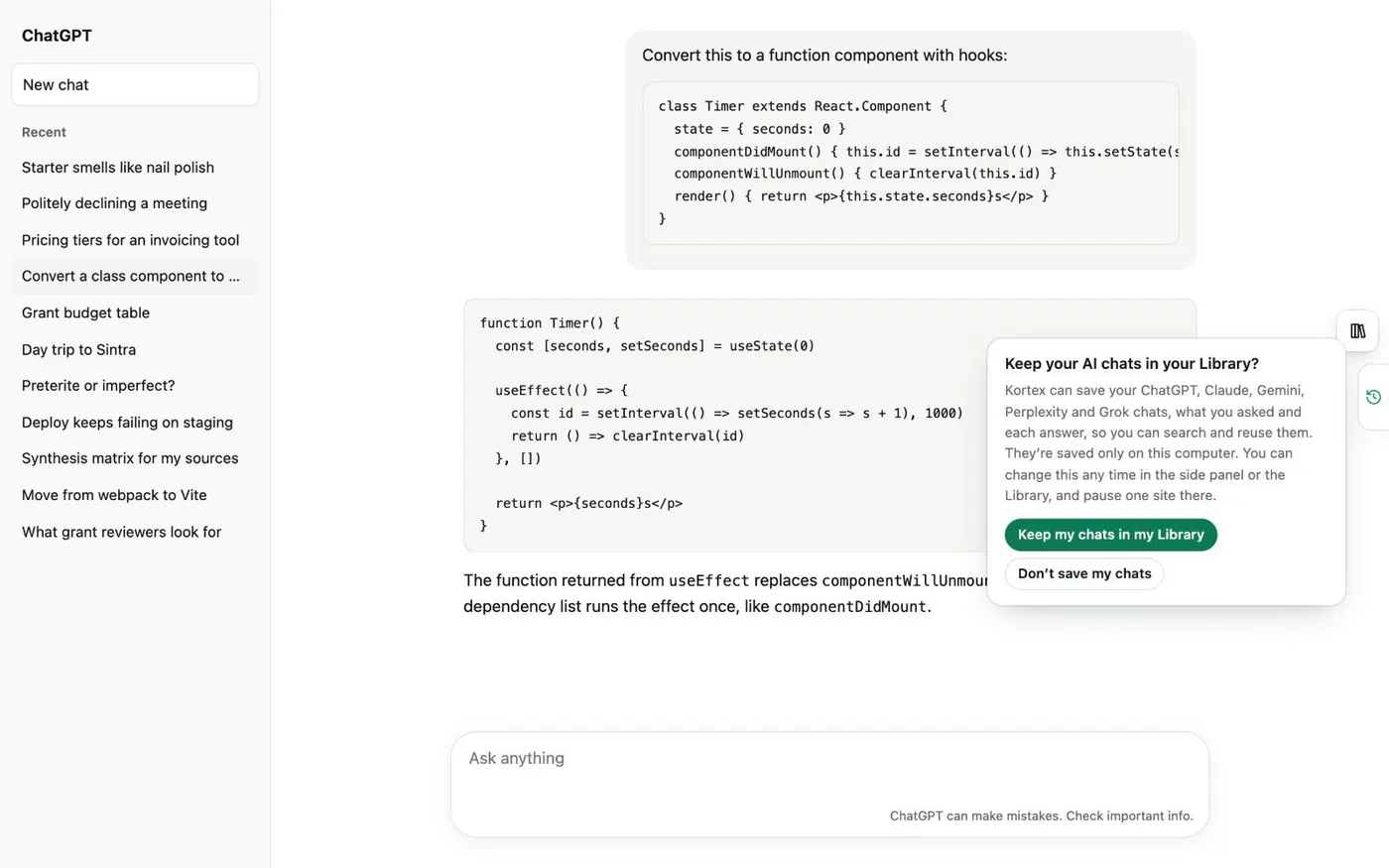
The notice Kortex shows before it saves a single chat. -
Open the Library
Click the Kortex icon in the toolbar and open the Chats tab of the side panel. You can also click the ⋯ menu in the Kortex tab on a ChatGPT page and choose Read in the Library. The Library opens on All chats, newest first.
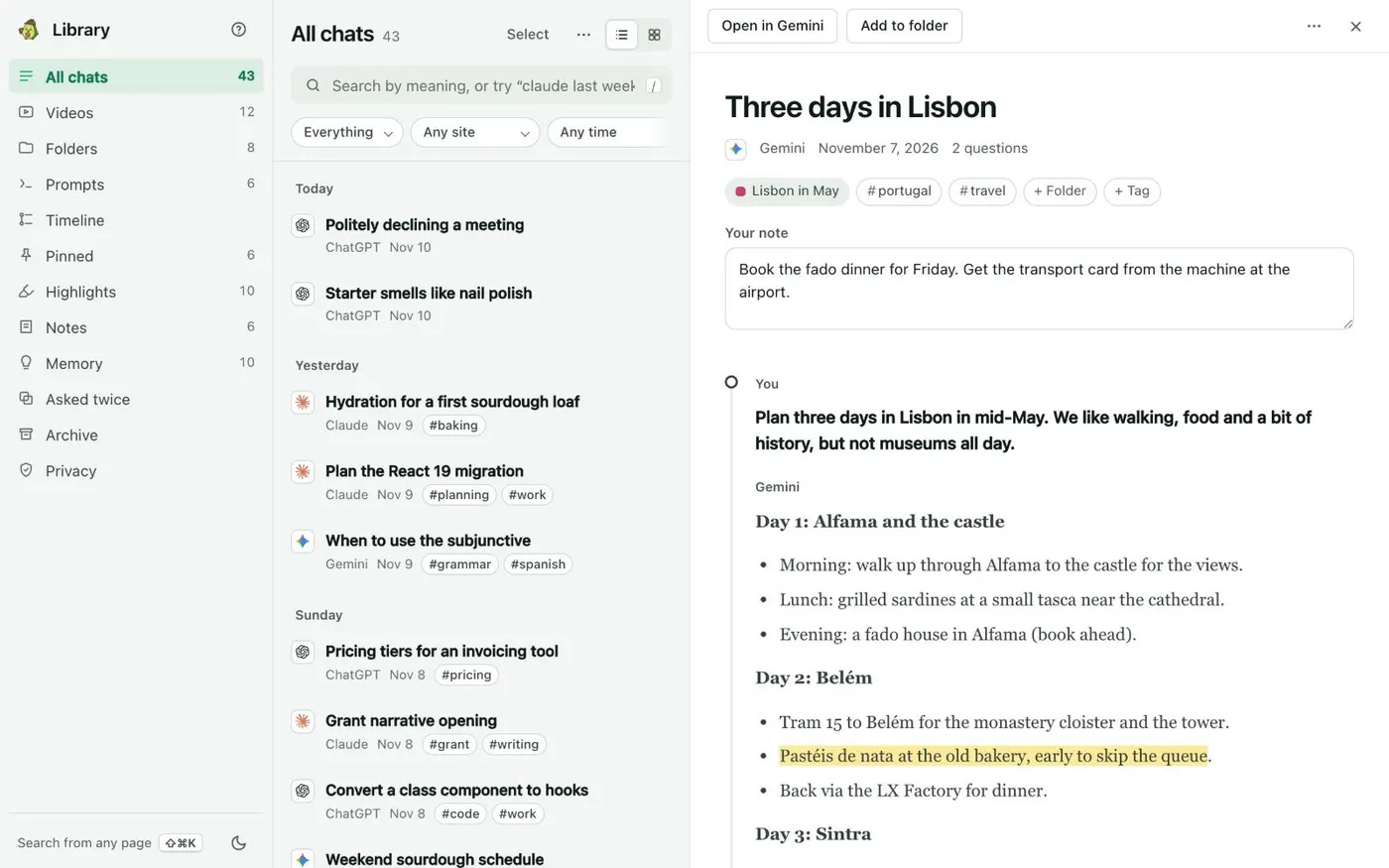
All chats lists every saved chat by day. Open one to read it in full beside the list. -
Type what you remember in the search box
Click the search box, or press Ctrl+K or /. Type a word or the idea of the chat. Kortex searches by words and by meaning, so cooking finds a chat about recipes even if the word cooking is not in it.
-
Narrow the list to ChatGPT and a date
Add plain words to the search and they turn into filter chips: chatgpt for the site, and last week, in March or 2025 for the date. You can also use the Any site and Any time menus above the list. Type
#and a tag name to search one tag. -
Ask a question instead of typing keywords
Type a question of three words or more, such as how long should the dough proof in the fridge. Under From your chats, Kortex shows the passages from your past answers that fit best. These are your chats' own words, not new text.
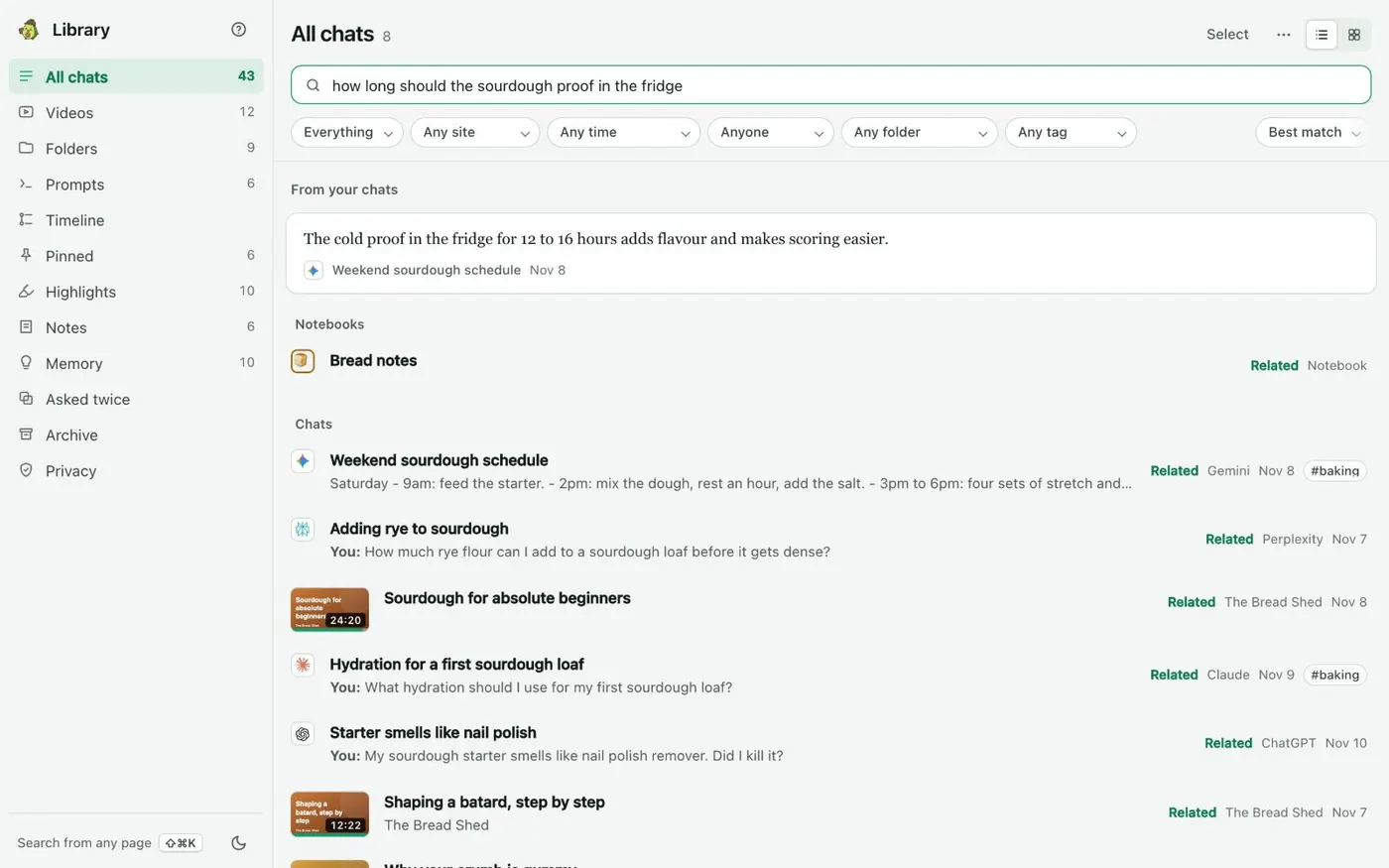
The passage that answers it, from whichever AI said it. -
Open the chat where it matched
Click a result. The chat opens in the reader at the message that matched, formatted as ChatGPT showed it. Use the Open in button at the top to continue the chat on ChatGPT.
-
Search from any web page
On any website, press Ctrl+Shift+K (Cmd+Shift+K on a Mac). A search box opens over the page. Use the arrow keys to move, Enter to open a result, and the right arrow to preview the matching message.
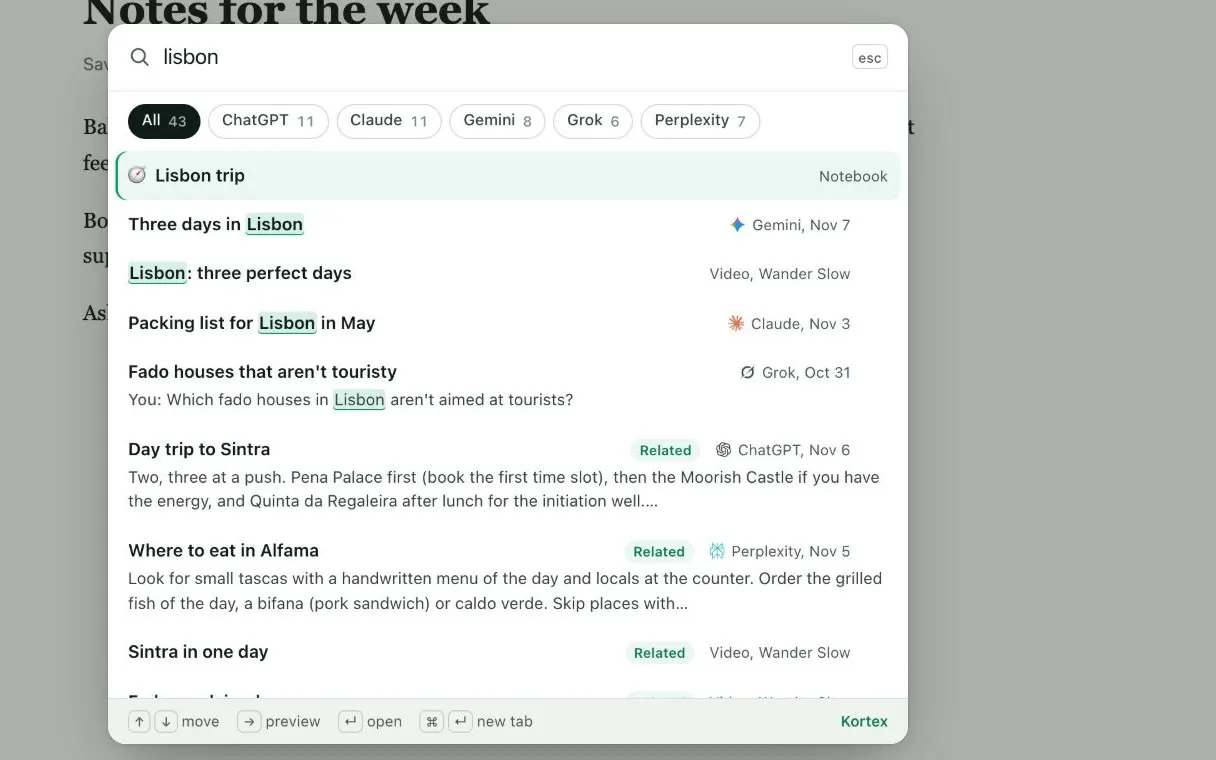
One search across every AI, from any page.
If it doesn’t work
- A chat I know I had is not in the results
- Kortex only finds chats it saved, and it reads each site's newest 500. Older chats can come in from ChatGPT's export file: in the Library, open ⋯ on All chats and choose Add older chats from export files.
- Kortex changed the word I typed
- A misspelled word still finds its chat, and the list says Showing results for the corrected word. Click Search as typed to go back to exactly what you typed.
- The Library is empty
- Saving starts after you click Keep my chats in my Library. Open the side panel's Chats tab, click the gear, and check that Save my AI chats on this computer and the ChatGPT switch are on.
Questions people ask
Something we missed? Ask us.
Does this search the full text of my ChatGPT chats?
Yes. Search looks at what you asked and what ChatGPT answered, not only the titles. A result opens at the message that matched.
Does it work for Claude, Gemini, Perplexity and Grok too?
Yes. The Library keeps chats from ChatGPT, Claude, Gemini, Perplexity and Grok, and one search looks in all of them. Add a site name like claude to the search to see one.
Where are my chats stored?
In a database inside Chrome on your computer. Nothing is sent anywhere unless you send it. Search runs on your computer too.
Can I still find a chat I deleted on ChatGPT?
Yes, if Kortex saved it first. A chat you delete on its site stays in your Library. Delete from Library removes it from Kortex.
Does it work on my phone?
Kortex keeps your chats in Chrome on your computer, so you search them there. The Kortex docs describe the Library only on a computer.
Keep going
More tutorials
Do it on your own notebooks.
Install the Kortex extension and follow these steps on a notebook you already have.
100,000+ users, rated 4.5 on the Chrome Web Store.