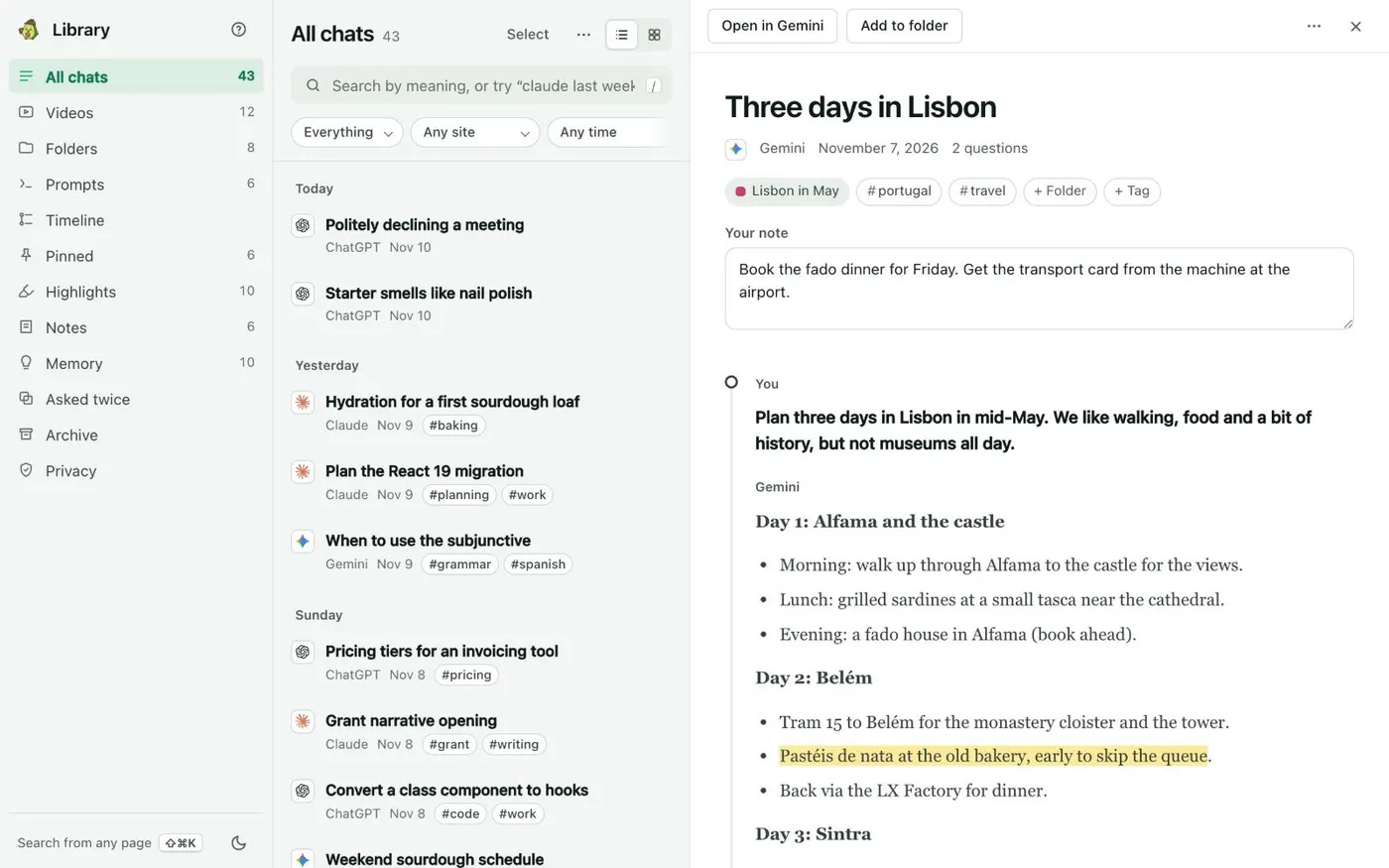
Here's how to save a ChatGPT chat to a Notion page with Kortex. Open the Library from the side panel's Chats tab. Search for the chat, then click it to open it in the reader.
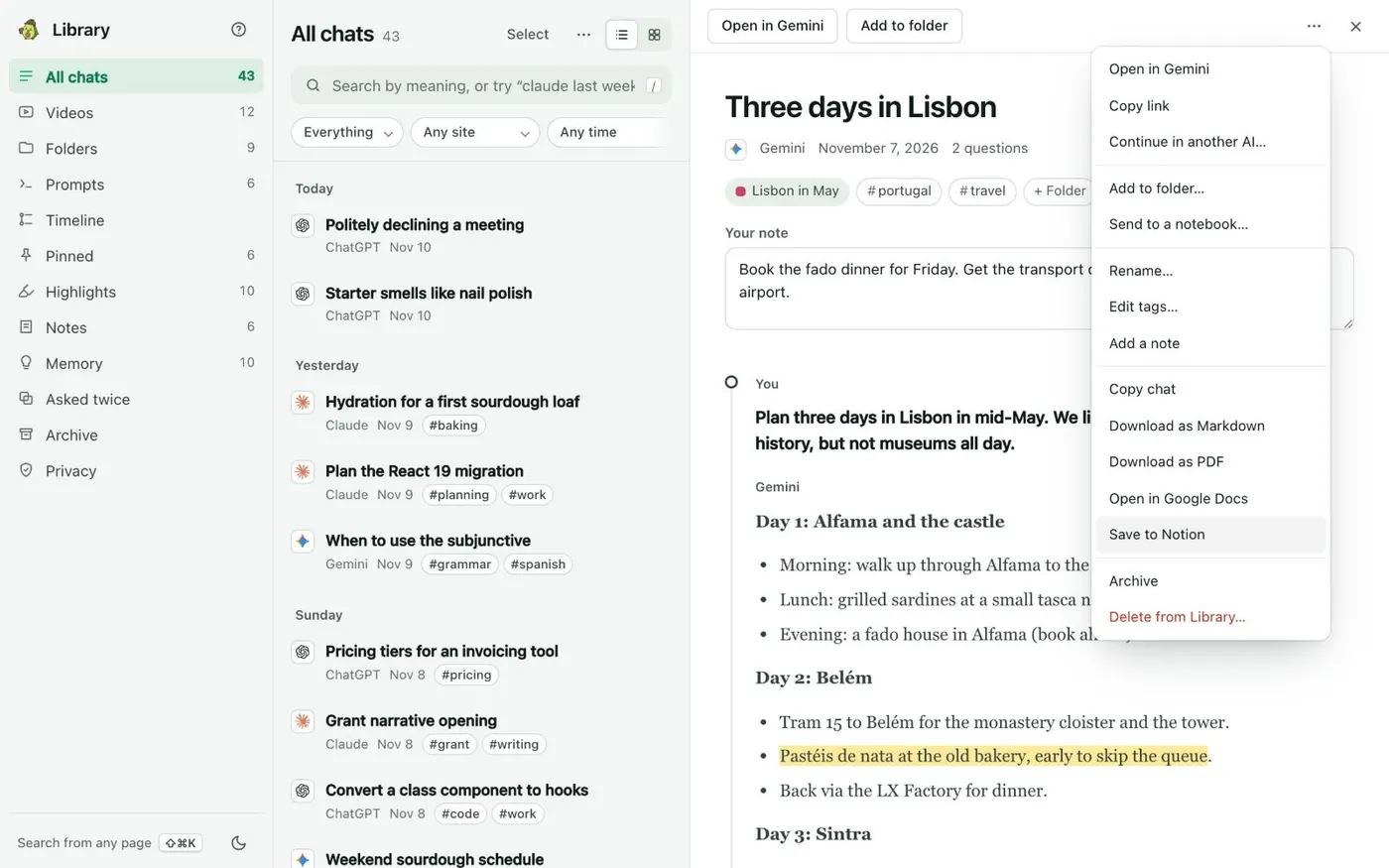
Click the three dots at the top right of the reader. Choose Save to Notion. The same choice is in the Kortex tab on the ChatGPT page.
The first time, Kortex asks you to connect Notion. Click Connect Notion. A Notion window opens.
Pick the pages Kortex may use, then allow it. Then choose the page or database for your saved chats. The chat lands there with its messages, plus your note, pins and highlights.
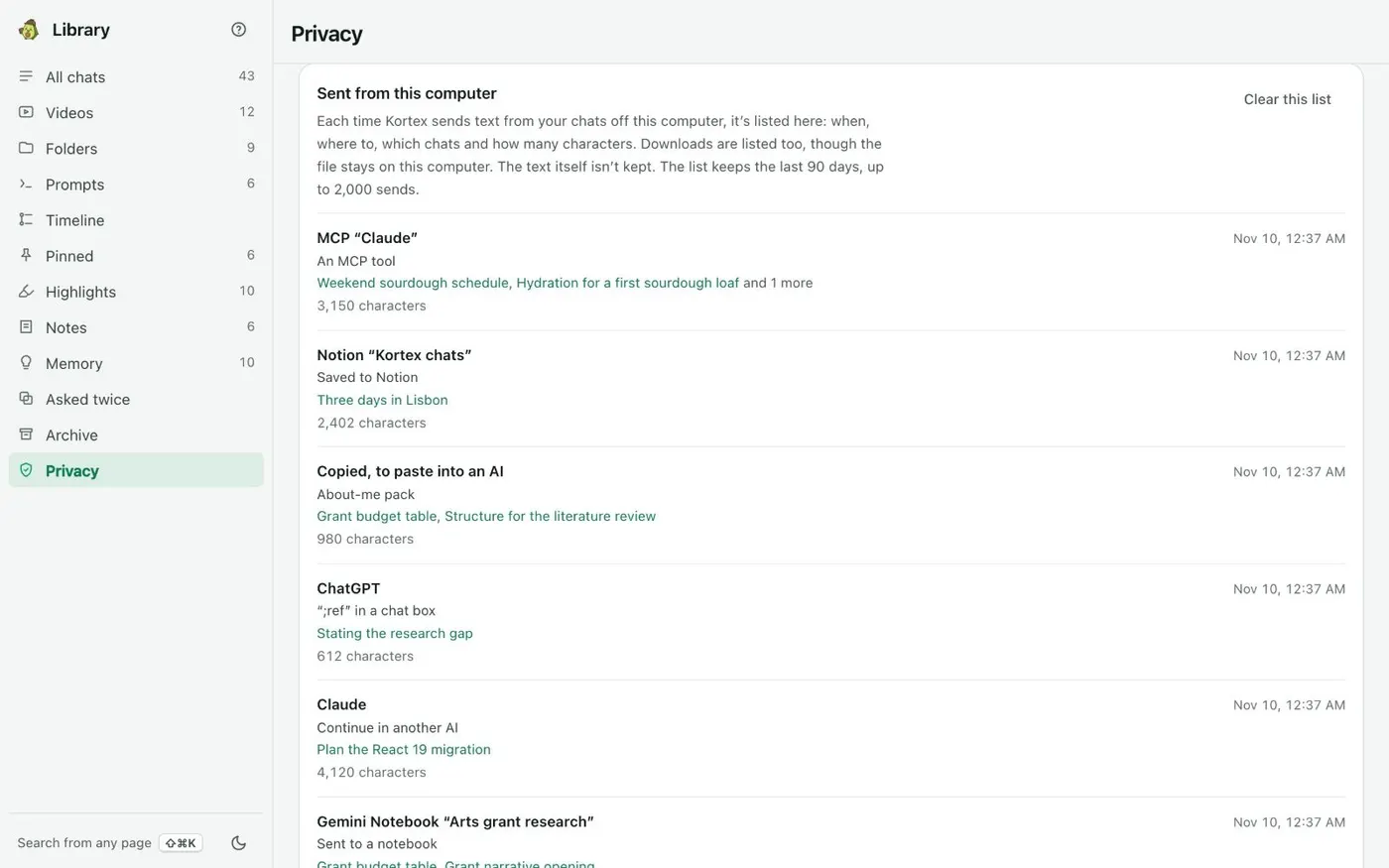
Once it's saved, choose Open in Notion in the chat's three-dot menu. Saving the same chat again updates its page instead of making a new one. To check what left your computer, open Privacy in the Library's left column.
Sent from this computer lists where each send went, which chats, and how many characters. The text itself isn't kept. Your ChatGPT chat, on a Notion page.