Here's how to export a ChatGPT conversation to PDF with Kortex. The file saves on your computer. Kortex exports chats it has saved.
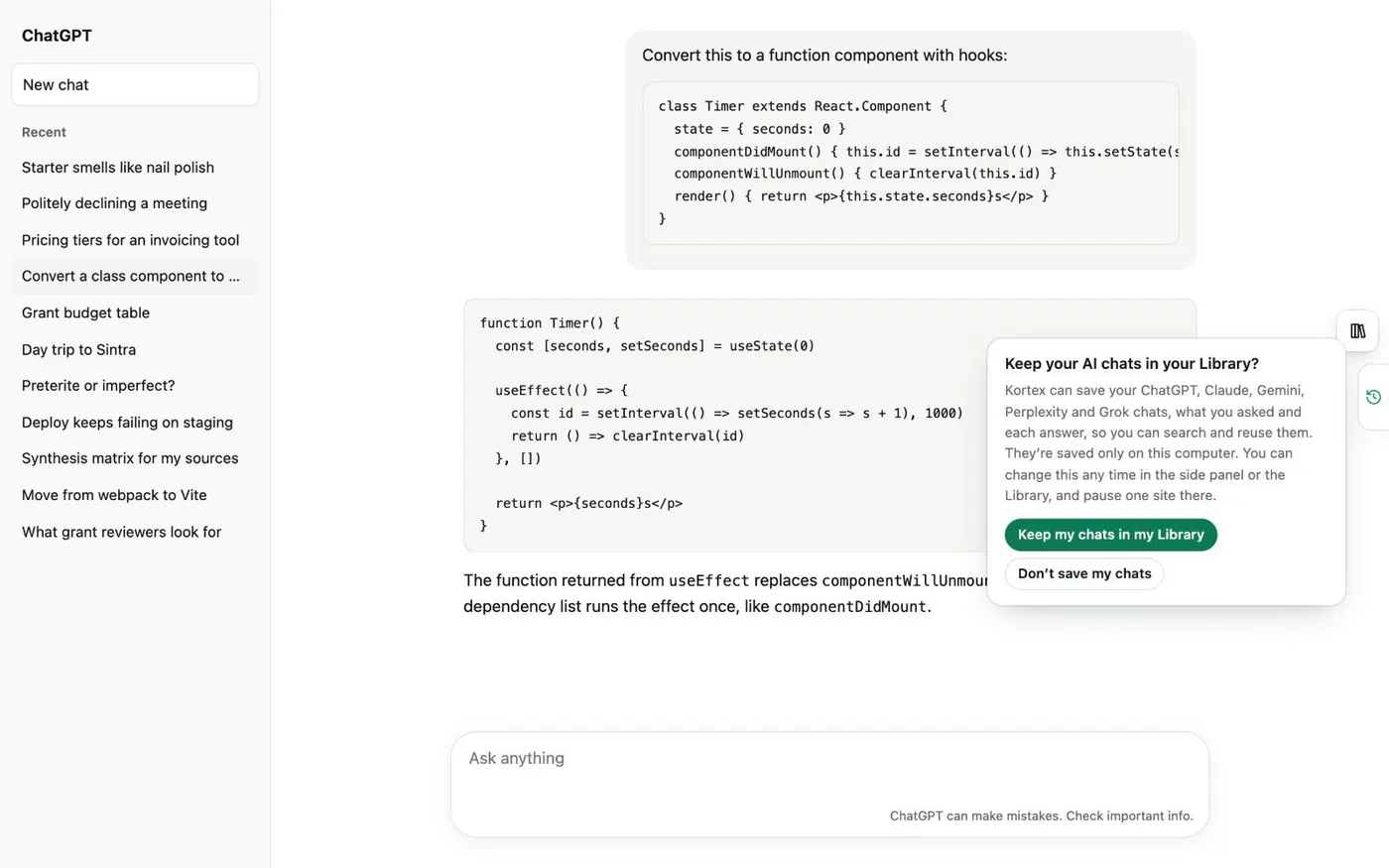
On first use, it asks to keep your AI chats in your Library. Click Keep my chats in my Library. ChatGPT chats then save every few minutes.
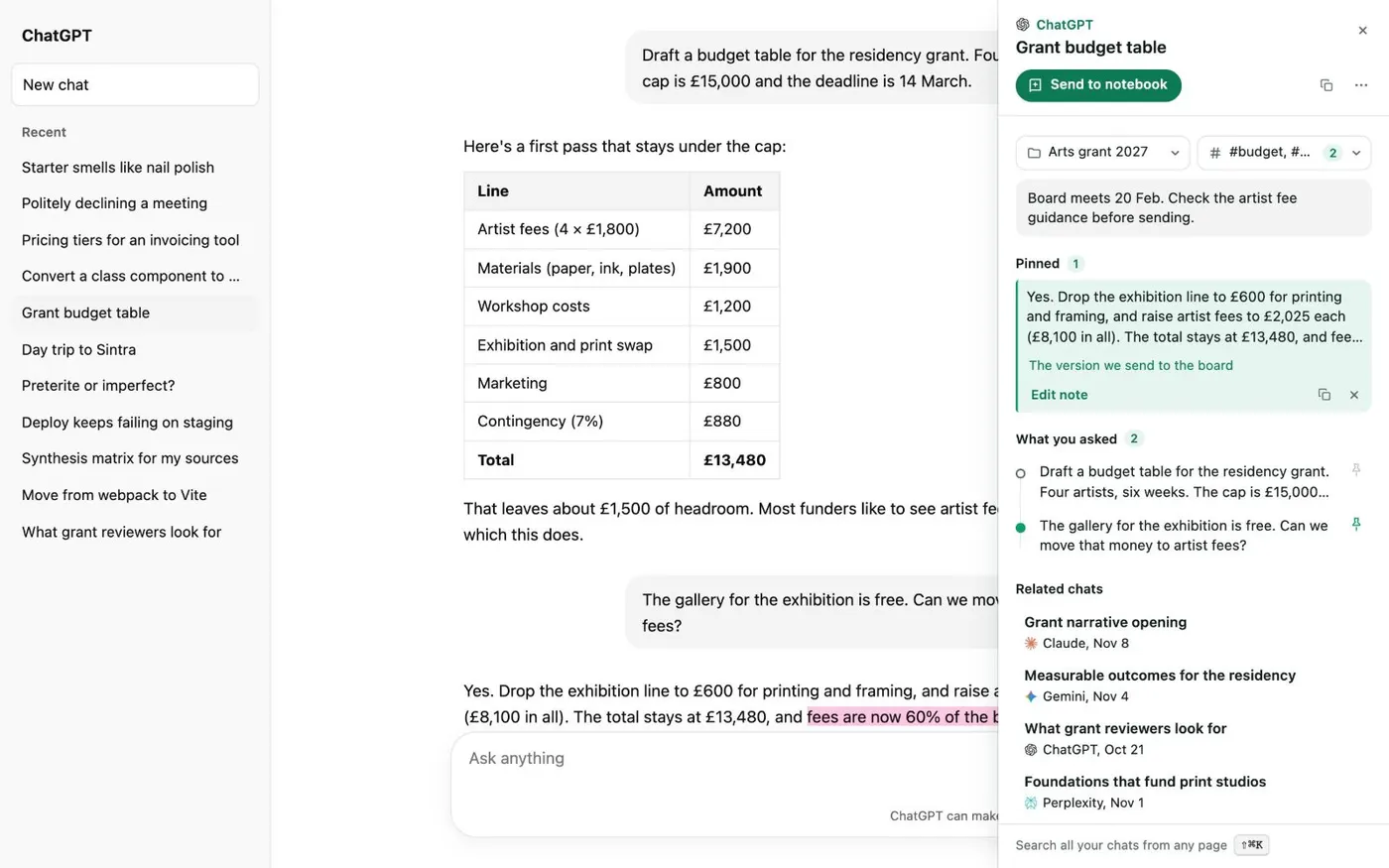
On the ChatGPT conversation, click the small Kortex tab on the right edge. A panel opens with the chat's note, pins, folder and tags. Click the three dots in the Kortex tab and choose Download as PDF.
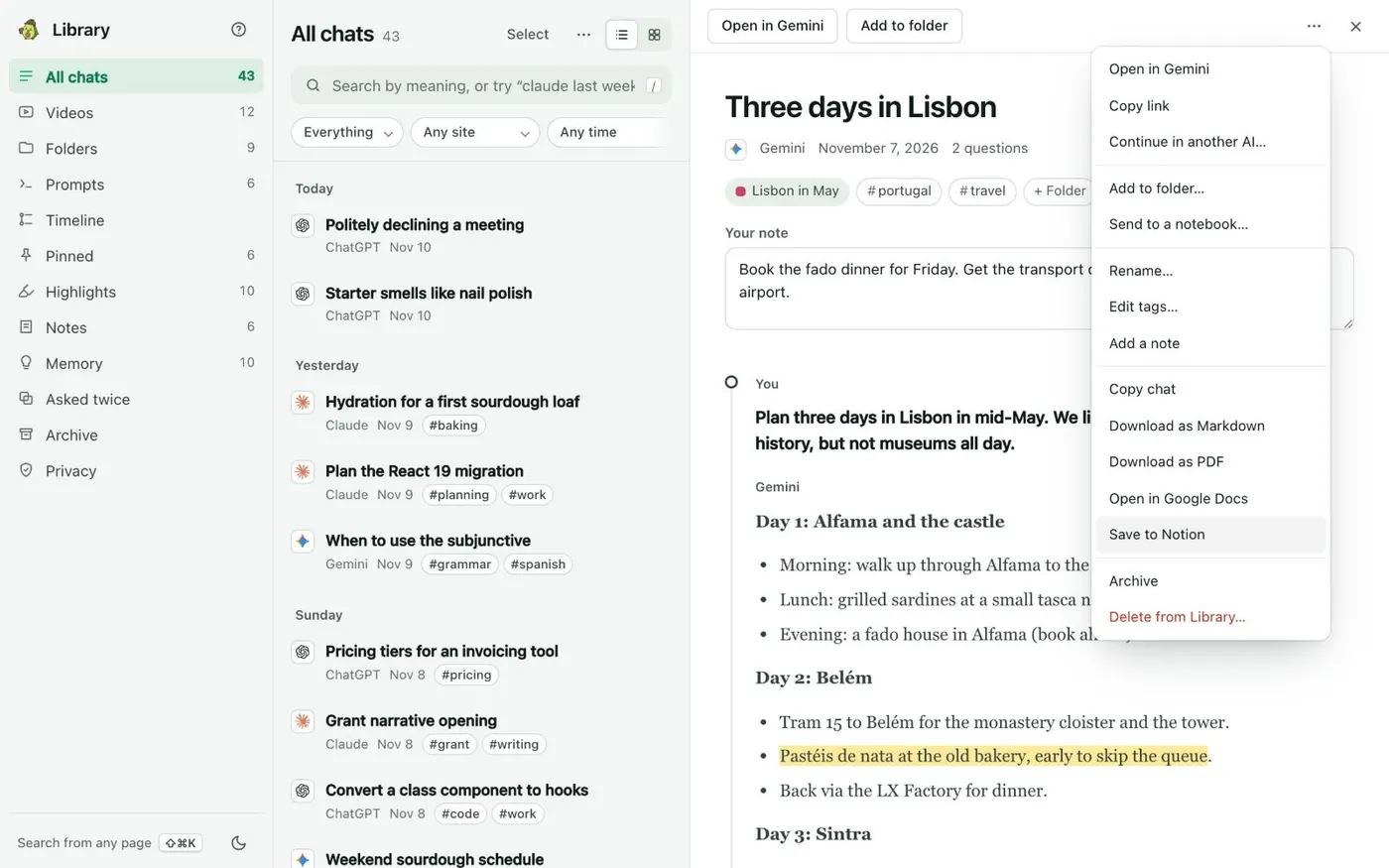
Kortex builds the file from your saved copy and sends it to your downloads folder. You can also download it from the Library. Open the chat, click the three dots at the top right, and choose Download as PDF.
The same menu has Download as Markdown and Copy chat. Open the PDF from your downloads. Look at lists, tables and long code blocks.
If they're not how you want them, Download as Markdown gives you plain text you can edit. Any saved chat, as a PDF.