Claude has its own data export. Here's how to download your chat history, and what the file holds. ai or in Claude Desktop.
Open Settings, then Privacy, and click Export data. The iOS and Android apps can't run an export. Claude starts building your file.
There may be a short wait. Then Claude emails a download link to the address on your account. You need to be signed in to Claude to use it.
The link expires after 24 hours, and it may work only once. So download the file right away and keep it safe. If the link expires, run the export again.
The file has your conversations, your account's user data, and any voice recordings you shared. It doesn't have the files you uploaded. And you can't import it into another personal Claude account.
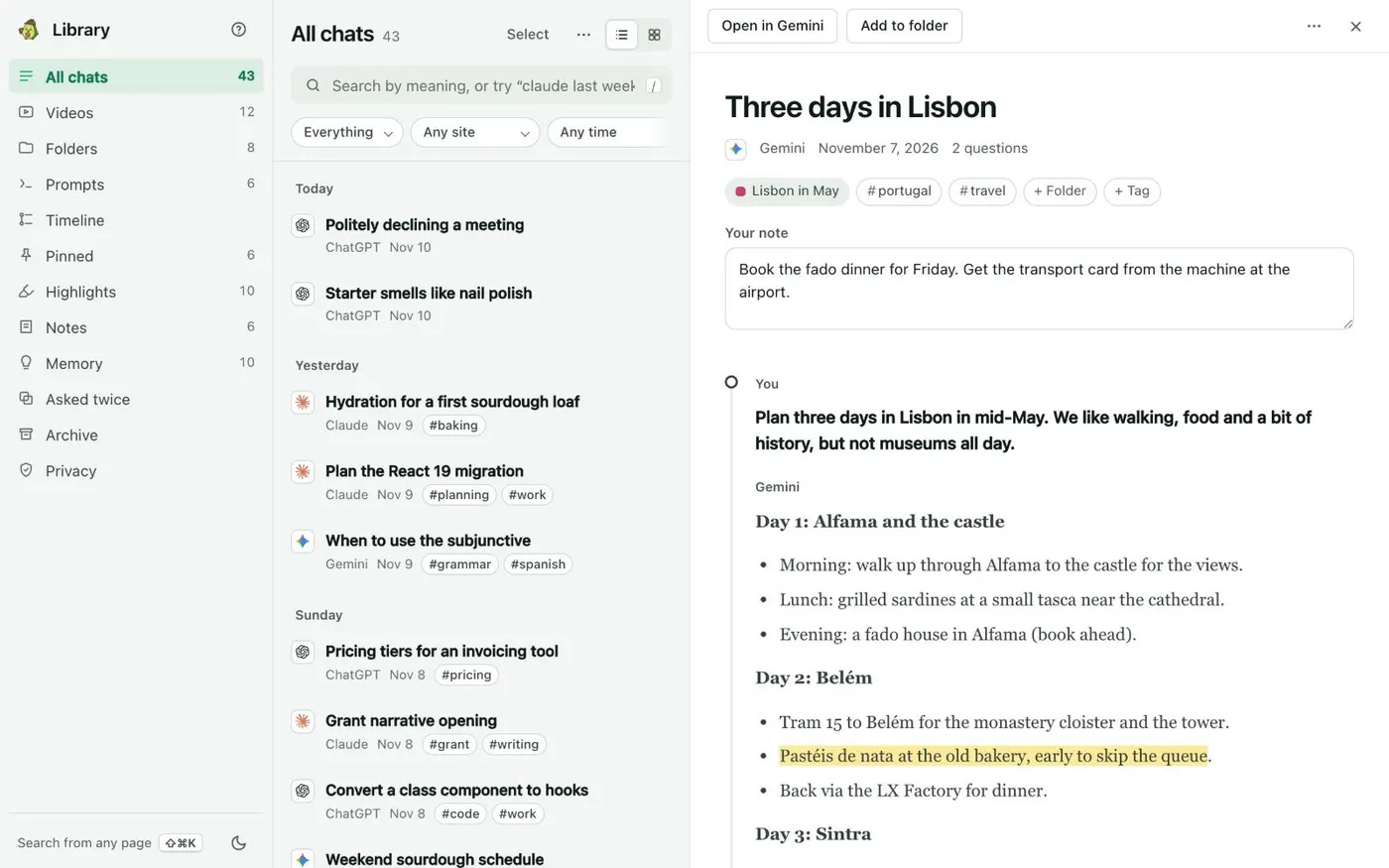
Claude's export is a one-time file. For a copy that stays searchable, the Kortex extension can save your Claude chats in Chrome, on your computer. Turn on saving when Kortex asks.
Then open the Library to read, search or download a chat. Missing the button? The fixes are on the Kortex website.