How to export a Claude conversation to PDF

1 minute 5 steps Updated

Quick answer

Install Kortex and let it save your Claude chats. Open the chat on claude.ai, click the Kortex tab on the right edge, open its ⋯ menu and choose Download as PDF. You can also do it from the chat in the Library. Download as Markdown works the same way.

Watch it first

How to export a Claude conversation to PDF
Read the transcript

Here's how to export a Claude conversation to PDF or Markdown with Kortex. First, turn on saving. Click Keep my chats in my Library when Kortex asks.

Then open the side panel's Chats tab and click the gear. In Saving your chats, check that the Claude switch is on. Claude chats save every few minutes while Chrome is open.

Open the Library from the Chats tab. Search for claude and a word from the chat. Then click the chat to open it in the reader.

Click the three dots at the top right of the reader. Choose Download as PDF. The file goes to your downloads folder.

Need another format? Download as Markdown saves plain text you can edit. Copy chat puts the whole chat on your clipboard.

Open in Google Docs opens a new Google Doc to paste it into. Kortex saves Claude's newest 500 chats. For older ones, download your data from Claude.

In the Library, open the three dots on All chats and choose Add older chats from export files. Pick Claude, then click Choose the file. Any saved Claude chat, as a file.
  1. Turn on saving for Claude

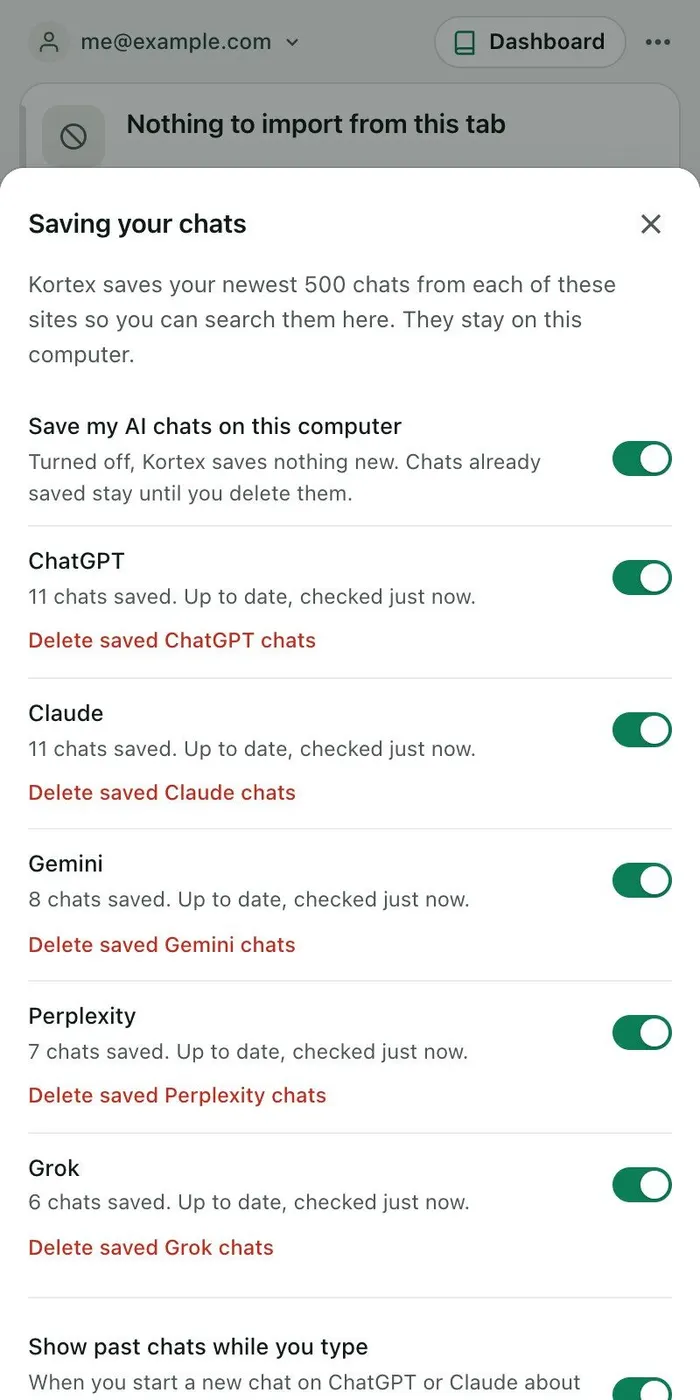
    Click Keep my chats in my Library when Kortex asks. Then open the side panel's Chats tab and click the gear. In Saving your chats, check that the Claude switch is on. Claude chats save every few minutes while Chrome is open.

    The Saving your chats sheet with a Claude row that reads 11 chats saved and up to date, and a Delete saved Claude chats link, among rows for the other AIs.
    Each site says what saving is doing, with its own switch.
  2. Open the Claude chat in the Library

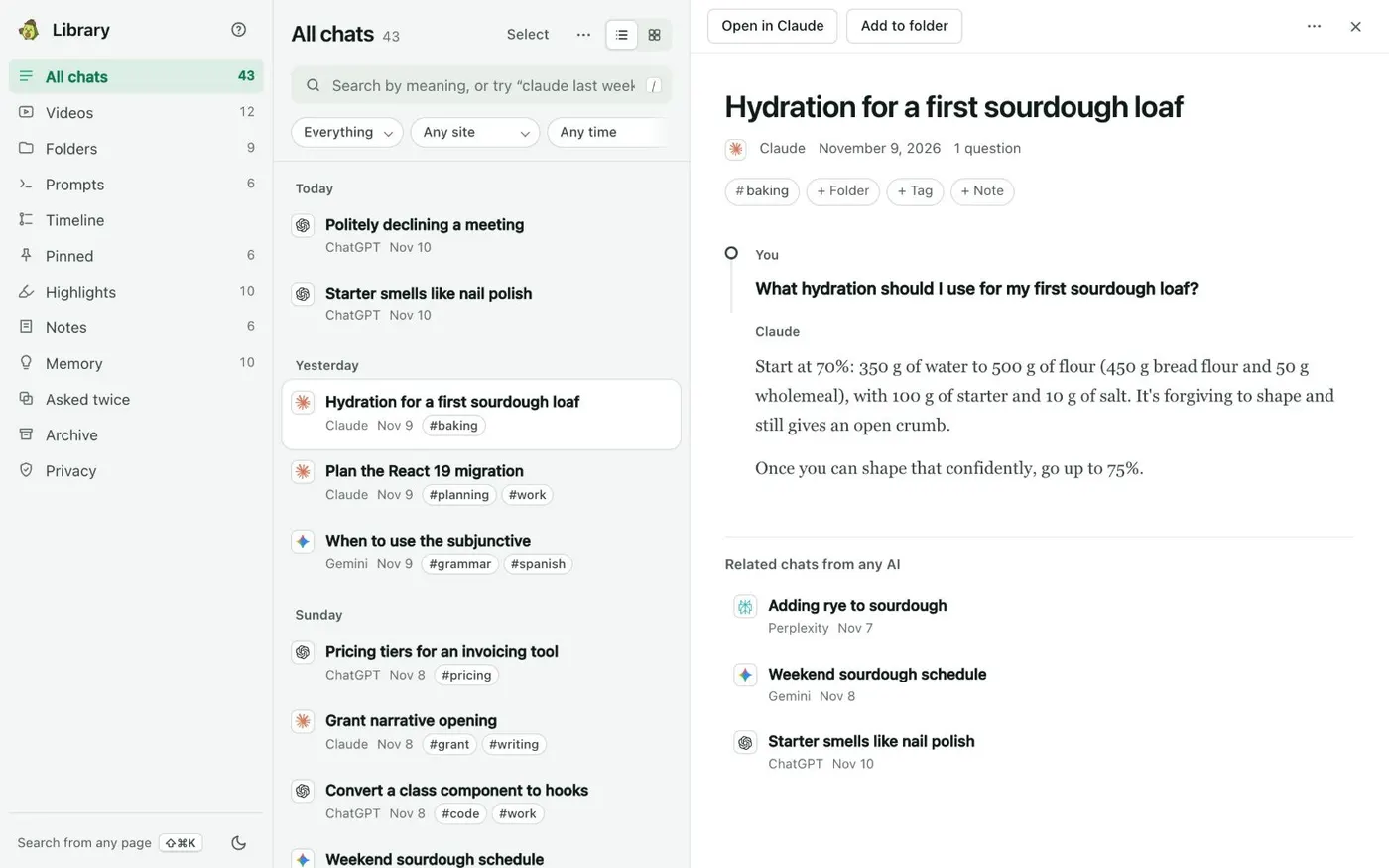
    Choose Read in the Library in the ⋯ menu of the Kortex tab on claude.ai, or open the Library from the Chats tab and search for claude and a word from the chat. Click the chat to open it in the reader.

    A Claude chat about sourdough hydration open in the Library reader, with Open in Claude and Add to folder buttons at the top and related chats below.
    Related chats from any AI sit under the one you’re reading.
  3. Click ⋯ and choose Download as PDF

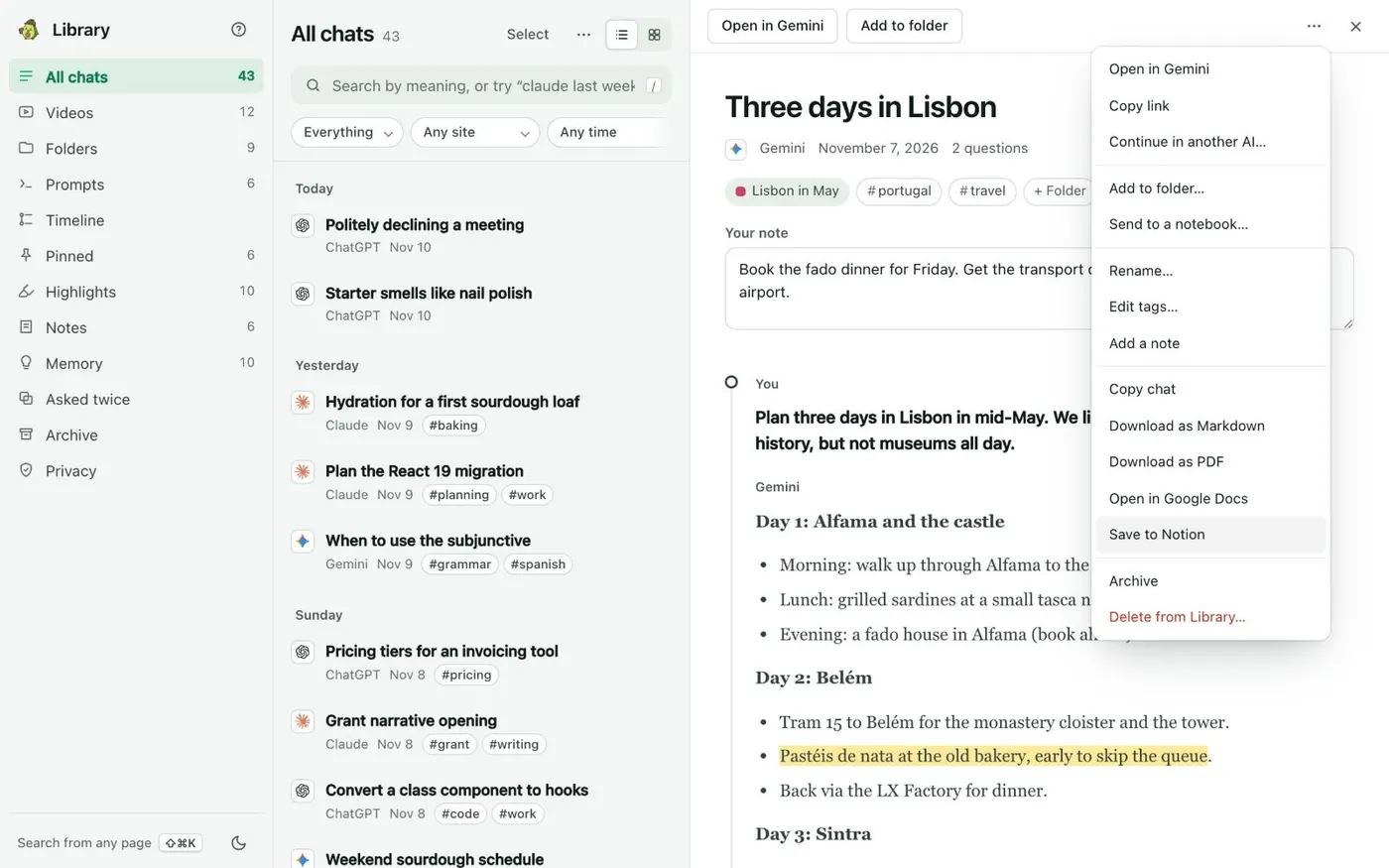
    Click ⋯ at the top right of the reader. Choose Download as PDF. The file goes to your downloads folder. On claude.ai you can do the same from the ⋯ menu in the Kortex tab.

    A chat's ⋯ menu in the Library with Copy chat, Download as Markdown, Download as PDF, Open in Google Docs and Save to Notion listed one under the other.
    Save to Notion sits in every chat’s menu.
  4. Pick another format if you need it

    Download as Markdown saves plain text you can edit. Copy chat puts the whole chat on your clipboard. Open in Google Docs copies the chat, formatted, and opens a new Google Doc to paste it into.

  5. Bring in older Claude chats

    Kortex saves Claude's newest 500 chats. For older ones, download your data from Claude. In the Library, open ⋯ on All chats, choose Add older chats from export files…, pick Claude and click Choose the file. It reads Claude's .zip or its conversations.json.

If it doesn’t work

The Claude chat is not in the Library
Check that Save my AI chats on this computer and the Claude switch are on in Saving your chats, and that you are signed in to claude.ai in this Chrome. A new chat can take a few minutes to appear.
The PDF did not download
Check your browser's downloads, and that Chrome is not blocking them. Try the same Download as PDF from the Library's chat menu, then try Download as Markdown instead.
I need a whole project's chats as one file
Put the chats in a Library folder. The folder's ⋯ menu has Download all as one PDF and Download all as Markdown.

Questions people ask

Something we missed? Ask us.

Does it export the whole Claude conversation?

Yes. The file comes from the full chat as Kortex saved it, with your messages and Claude's replies.

Does this work for ChatGPT and Gemini too?

Yes. ChatGPT, Gemini, Perplexity and Grok chats have the same Download as PDF and Download as Markdown in their ⋯ menu.

Is anything uploaded when I export?

No. Kortex reads the chat from the Library on your computer and saves the file to your downloads. The Library's Privacy view lists text that leaves your computer.

Can I save a Claude chat somewhere other than a file?

Yes. Save to Notion puts the chat on a Notion page, and Keep a Markdown copy writes every chat to a folder, such as an Obsidian vault.

Does it work on a phone?

Kortex runs in Chrome on your computer. The Kortex docs describe the Library and its downloads only on a computer.

Keep going

More tutorials

All tutorials

Do it on your own notebooks.

Install the Kortex extension and follow these steps on a notebook you already have.

100,000+ users, rated 4.5 on the Chrome Web Store.

Talk to the Kortex team

This opens a pre-filled email in Gmail. We usually reply within a day.