Here's how to export a ChatGPT conversation to Markdown. Kortex keeps your ChatGPT chats on your computer, and any saved chat downloads as a Markdown file. Click the Kortex icon, then the Chats tab in the side panel.
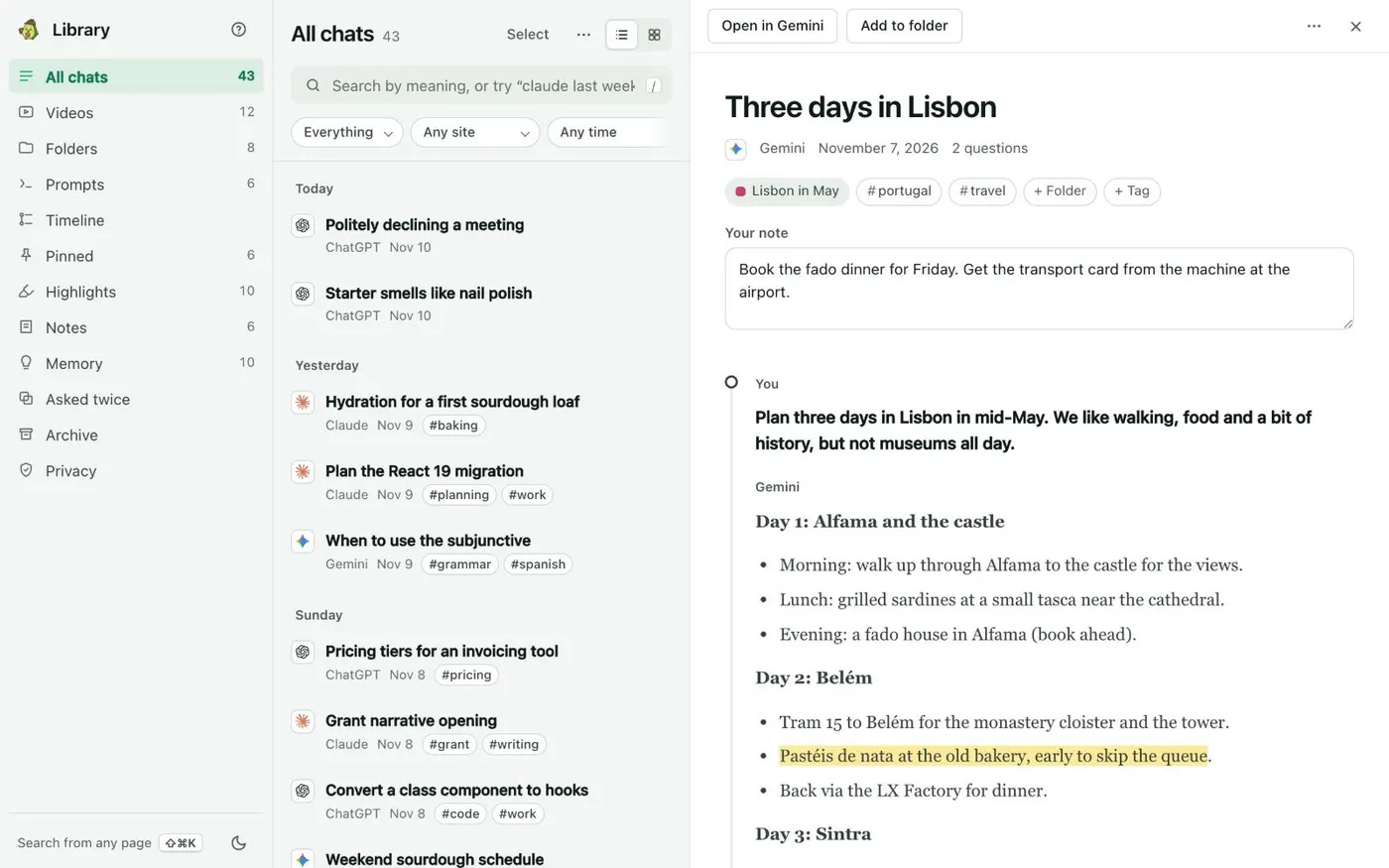
Open the Library from there. All chats lists every saved chat by day. Click the search box and type a word from the chat.
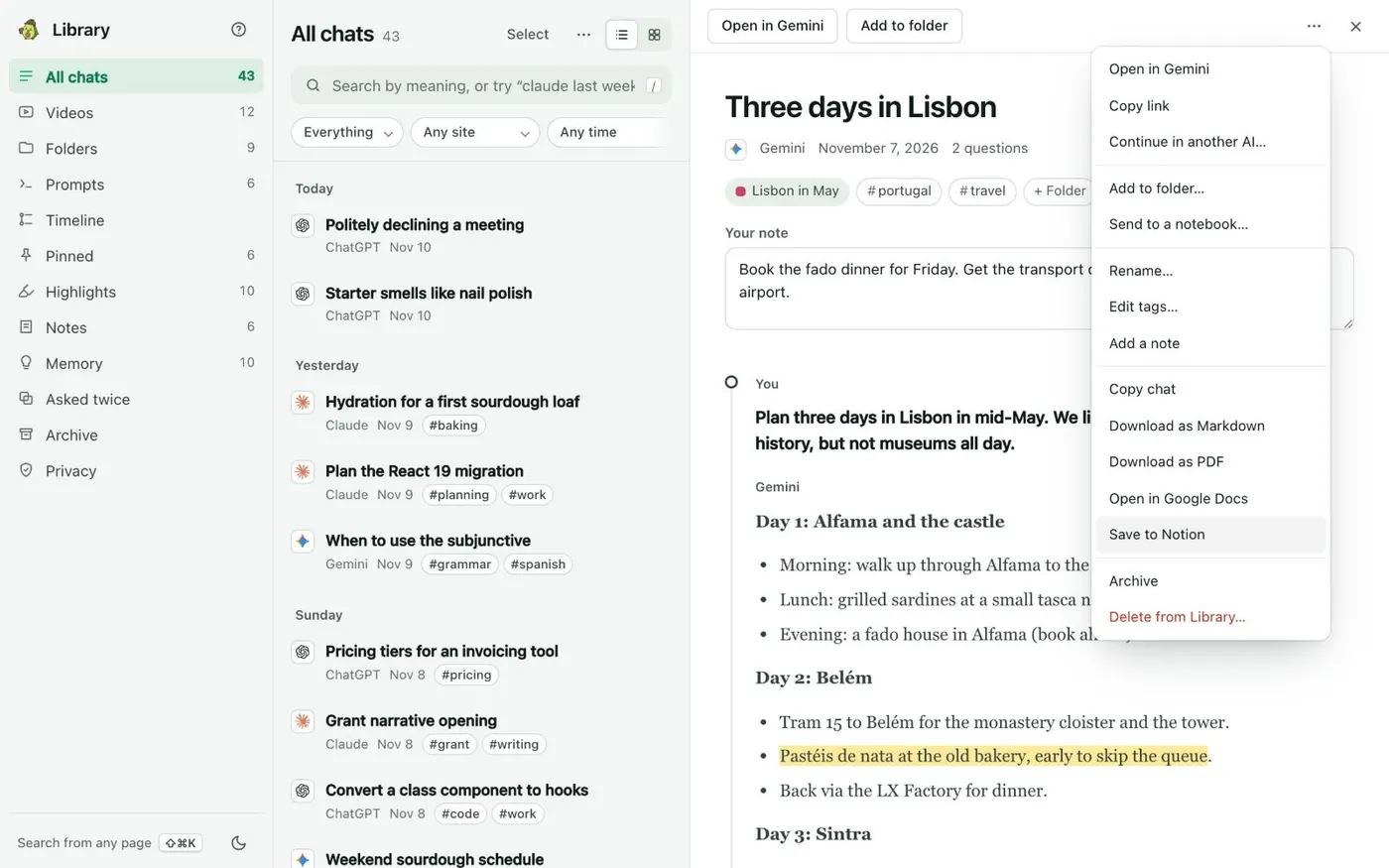
Add chatgpt to show only ChatGPT chats. Then click the chat to open it in the reader. Click the three dots at the top right of the reader.
Choose Download as Markdown. Kortex saves one Markdown file to your downloads folder. You can also do this from the Kortex tab on the ChatGPT page.
It's in the tab's three-dot menu. Open the file in a text editor, Obsidian or any Markdown app. Headings, lists and code from the chat are written as Markdown marks.
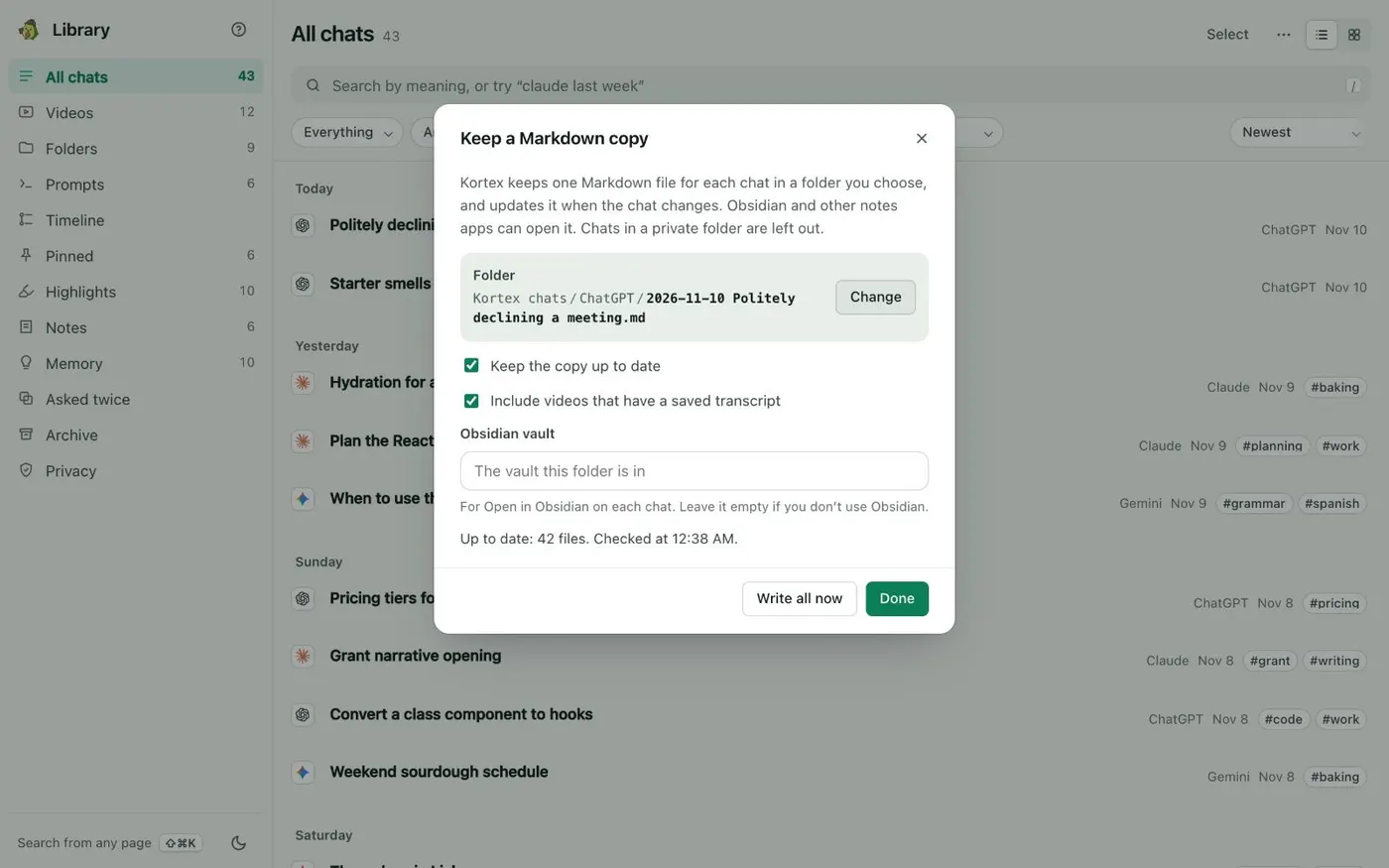
Want every chat instead of one? Open the three dots on All chats and choose Keep a Markdown copy. Choose a folder once.
Kortex writes one Markdown file per chat there. It updates the file when the chat changes. Write all now writes everything at once.
One saved chat, one Markdown file.