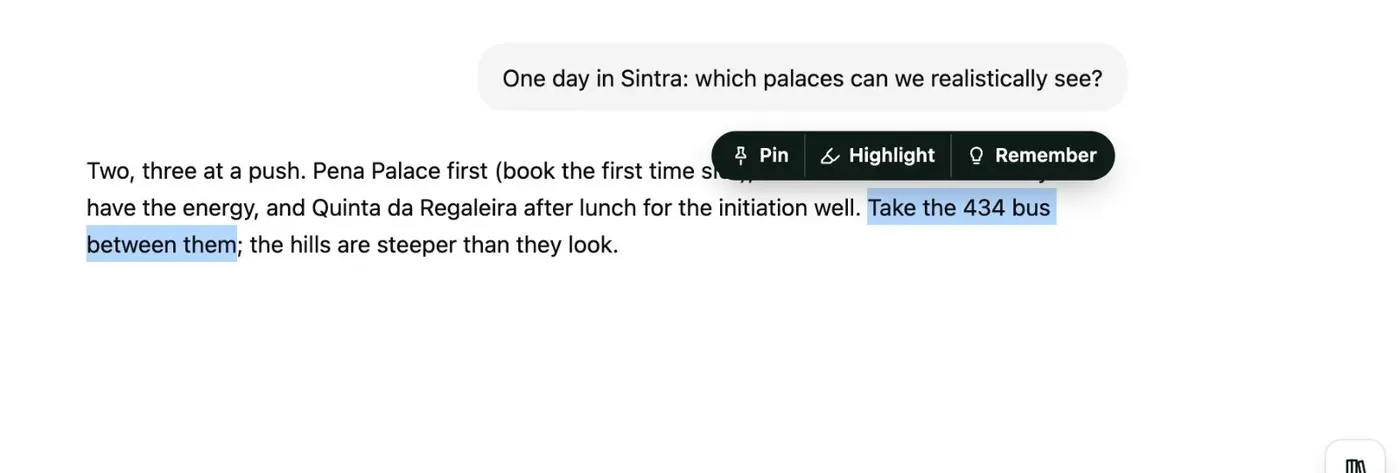
Here's how to highlight ChatGPT answers with Kortex, add a note to each, and find them all again in your Library. Open the chat in ChatGPT, and select words in an answer. A small bar appears above them, with Pin, Highlight and Remember.
Click Highlight. Kortex marks the words in a colour: yellow, green, blue or pink. The mark stays on the page.
Reload the page, and it comes back. Click any highlight on the page. A small menu lets you recolour it, copy it, open it in the Library, or remove it.
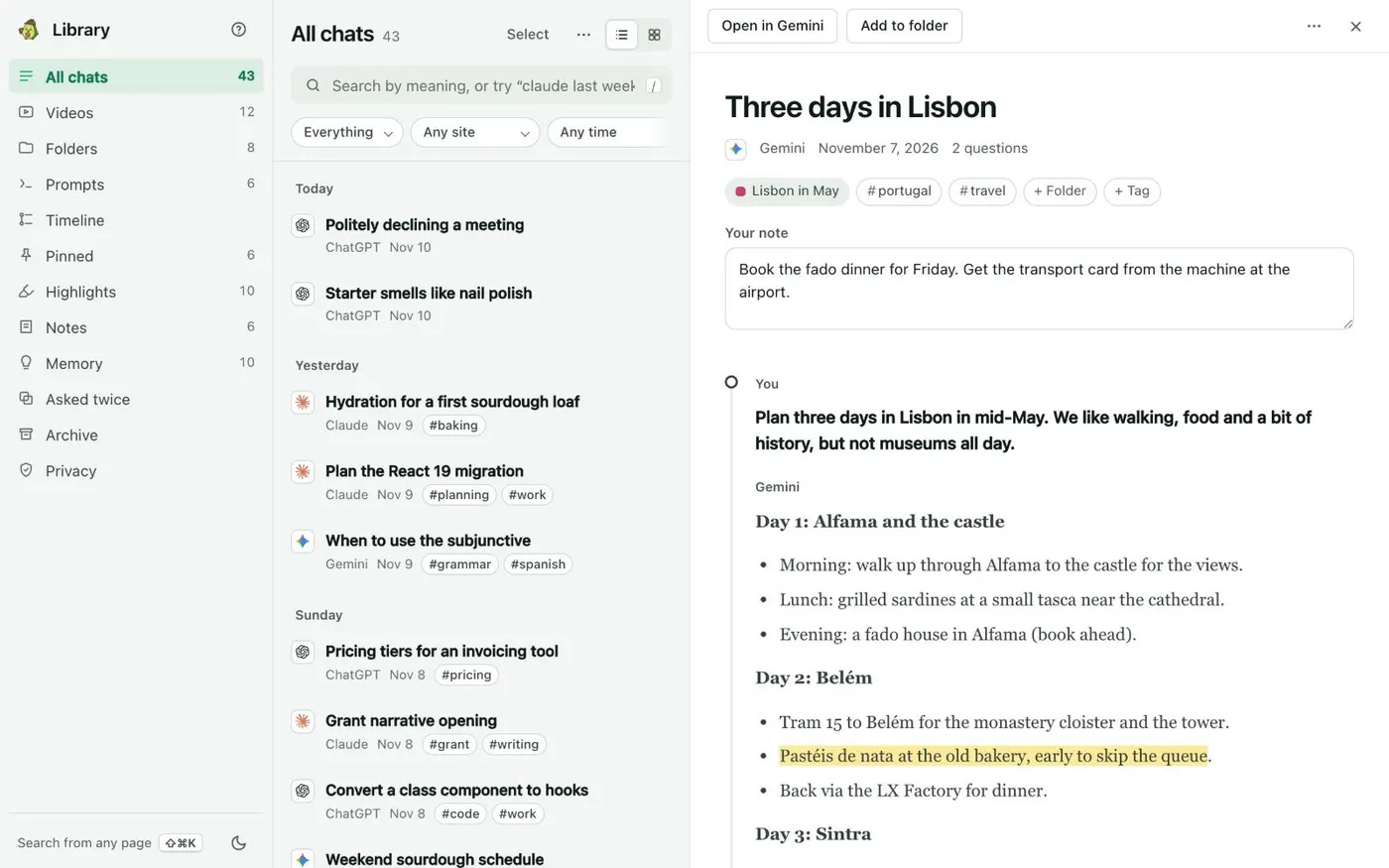
To add a note, open the Library from the side panel's Chats tab, and click Highlights. Open a highlight's menu, and choose Add a note. The note stays with the highlight, and shows beside it.
The Highlights view lists every passage you marked, with its chat and your note. Filter by colour, site or chat. Your highlights are kept on your computer, in your Library.