
Organize
Merge and compare notebooks
Kortex can merge notebooks in Gemini Notebook (formerly NotebookLM). Merge Notebooks combines the notebooks you tick into one new notebook. Compare shows the sources, tags and collections that two notebooks share, and can add what only one has to the other.
What do Merge and Compare notebooks do?
Merge Notebooks combines the notebooks you tick into one new notebook in Gemini Notebook, and can delete the originals. Compare shows what two notebooks share and copies over what is missing.
What you get
-
One notebook instead of five
Put related research into one notebook. Gemini Notebook then answers from all of it together.
-
Keep the originals, or not
A Delete originals switch decides if Kortex removes the old notebooks after the merge. Leave it off until you have checked the new one.
-
See the overlap before you merge
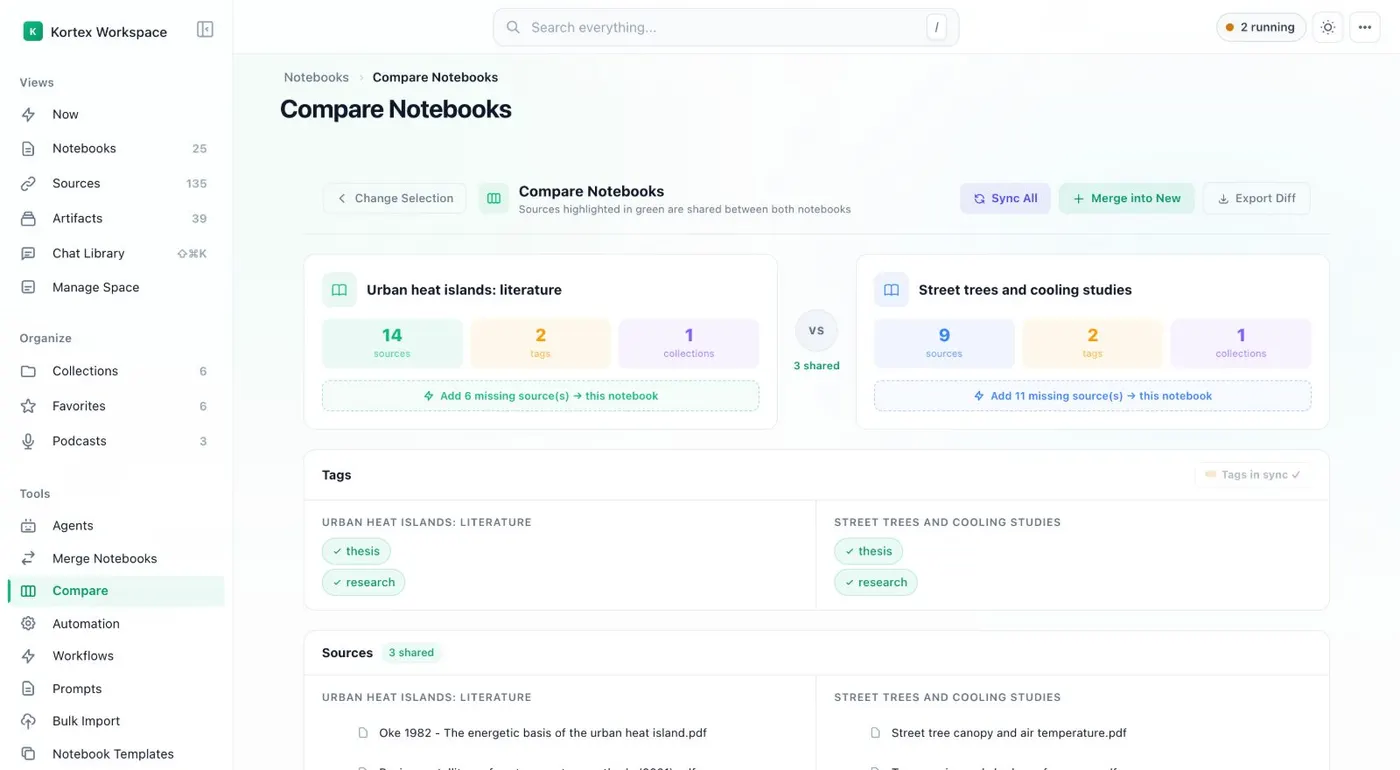
Compare puts two notebooks side by side with their source, tag and collection counts. Shared sources show in green.
-
Copy only what is missing
After a comparison, you can add what only one notebook has to the other. You can sync tags and collections too.
How do I merge notebooks?
Merge Notebooks builds a new notebook from the ones you choose. Open it from the sidebar of the Kortex Workspace. Give the new notebook a name. Then tick the notebooks to include. You need at least two. Kortex shows how many notebooks you picked and how many sources the new one will hold.
Two choices sit beside the name. Delete originals removes the old notebooks after the merge. Add merged notebook to a collection files the result as it is created. Click Merge and confirm. The merge cannot be undone, so keep the originals until you have opened the new notebook.
Is there a source limit?
Gemini Notebook limits the sources in a notebook. If a merge goes over that limit, Kortex shows Merge Incomplete. It says how many sources were added and lists the ones that were not.
How does Compare work?
Compare works on two notebooks. Tick two notebooks, choose Compare, then Compare Selected. You see both notebooks side by side with their source, tag and collection counts. Sources both have show in green.
From there:
- add the sources that only one notebook has to the other
- Sync All, Sync tags and Sync collections
- Merge into New, which merges the two
- Export Diff, which saves the difference
When to use which
Merge when several notebooks are really one topic. Compare when two notebooks overlap and you want to see how, or update one from the other. Use either with collections to keep the result filed.
How it works
Want every step? Follow the tutorial.
-
Open Merge Notebooks
In the Kortex Workspace, choose Merge Notebooks in the sidebar. Or tick notebooks in the Notebooks table and choose Merge.
-
Name it and tick notebooks
Type a name for the new notebook and tick the notebooks to add. Kortex shows how many sources the new notebook will hold.
-
Merge
Choose whether to delete the originals, then click Merge and confirm. The merge cannot be undone.
-
Compare two notebooks
Tick two notebooks and choose Compare, then Compare Selected. Use the buttons to copy what is missing from one side to the other.
Questions people ask
Something we missed? Ask us.
How many notebooks can I merge at once?
Tick as many as you need, at least two. Kortex shows how many sources the new notebook will hold before you click Merge.
Can I undo a merge?
No. Kortex warns that a merge cannot be undone. That is why Delete originals is your choice. It is safest to keep the originals until you have checked the new notebook.
What if the new notebook is too big?
Gemini Notebook limits how many sources a notebook can hold. If some do not fit, Kortex shows Merge Incomplete. It says how many sources could not be added and lists them.
What does Compare do that Merge does not?
Merge makes a new notebook from several. Compare looks at two notebooks that already exist and shows what they share. You can copy over only what is missing.
Does merging copy my tags and collections?
Merge has an option to add the merged notebook to a collection. In Compare, Sync tags and Sync collections copy those from one notebook to the other.
How do I merge NotebookLM notebooks?
Open Merge Notebooks from the sidebar of the Kortex Workspace, name the new notebook and tick at least two notebooks. Click Merge and confirm. The merge cannot be undone, so keep the originals until you have checked the new notebook.
Try it on your own notebooks.
100,000+ people use the Kortex extension. Install it and try merge and compare notebooks on a notebook you already have.
100,000+ users, rated 4.5 on the Chrome Web Store.