Switch from ChatGPT to Gemini: Gemini Notebook (formerly NotebookLM)
A practical ChatGPT to Gemini switch guide: import memory and chat history, rebuild GPTs as Gems, protect your data, and keep a portable source library.
On this page
- What transfers when you switch from ChatGPT to Gemini?
- Before you move your ChatGPT history
- Step 1: Carry over memory and preferences
- Step 2: Import your ChatGPT conversations
- Step 3: Rebuild GPTs and projects by hand
- Keep your sources in a neutral library
- Check privacy before importing
- A calm migration plan
- Frequently asked questions
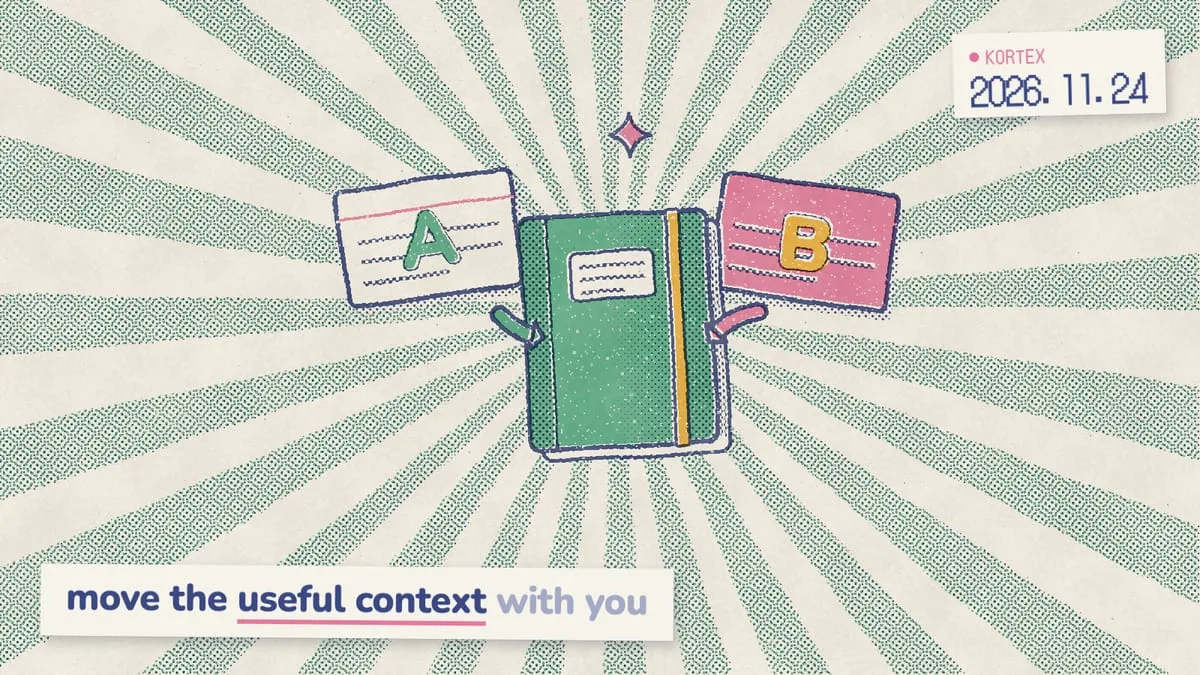
Switching from ChatGPT to Gemini does not have to mean leaving every useful conversation behind. Google now offers an import flow for ChatGPT memory and chat-history exports. The catch is that “moving” can mean different things: importing a ZIP of chats, carrying over selected preferences, rebuilding a custom GPT as a Gem, or preserving files and work context.
The cleanest transition is to save your ChatGPT export, review the personal context Gemini will remember, import the conversations you want to keep, and rebuild custom assistants by hand. Keep source documents in a separate library so a later change of AI app does not strand your research again.
What transfers when you switch from ChatGPT to Gemini?
Google gives you two import routes. One covers memory and preferences. The other covers chat history. Neither copies every setting or rebuilds your ChatGPT tools. Treat the export as a source file and inspect it before you upload.
| ChatGPT item | Gemini transfer | What to expect |
|---|---|---|
| Preferences and remembered context | Import memory flow | Paste Gemini’s prompt into ChatGPT, review the generated response, then add that text as memory in Gemini |
| Full chat history | Chat-history ZIP upload | Imported conversations are marked, searchable and available to continue; the process can take time |
| Custom instructions | Recreate manually | Copy the instructions you want to keep into Gemini saved information or a Gem |
| Custom GPT | Rebuild manually | Transfer instructions and knowledge files yourself; configure tools and connections again |
| Projects, settings and subscription | No direct transfer in Google’s import instructions | Recreate the parts you still need; check each account’s available plan and controls |
| Source documents | Keep or import separately | Put files you rely on in a notebook or folder you control |
ChatGPT and Gemini use different systems. Custom GPTs are ChatGPT assistants that bundle instructions, knowledge files and tools. Gems are Gemini’s custom assistants, with their own instructions and optional files. A chat export is not a GPT-to-Gem converter.
For example, say you use one GPT for brand writing, with a tone guide and product facts attached. Save the tone you want as a Gemini preference. Put the product facts in a source file or notebook. Then rebuild the writing rules in a Gem and add only the files it still needs. Separately import any old chats you want to search. That leaves each item in a place designed to hold it, instead of expecting one ZIP to rebuild your old workspace.
Before you move your ChatGPT history
Start by deciding what should move. A full archive can contain years of personal conversations, work details and attachments. You might only need a few active projects, your response preferences and a handful of important chats.
If you request a ChatGPT export, OpenAI sends a download link when it is ready. The link expires after 24 hours. The ZIP includes chat history and other account data, so save it somewhere secure and inspect it before importing. OpenAI says exports can take up to seven days and warns that deleted chats cannot be restored from an export. Its ChatGPT export guide walks through the steps.
There are account limits, too. ChatGPT exports work for eligible personal accounts and some Edu accounts. Business, Enterprise and Healthcare workspaces can’t self-serve one. Google’s import needs a personal Google Account, and the ChatGPT account must be personal too. Work or school plans may not qualify, so follow your organization’s rules for managed data.
Living in the EEA, Switzerland or the UK? Google’s import isn’t offered there. You still hold the right to a portable copy of your own data: Article 20 of the GDPR covers data portability. The ChatGPT export is that copy. Keep it, and you can reuse it later when an import becomes available.
Step 1: Carry over memory and preferences
This is the lightest way to make a new assistant feel less like a stranger. Gemini gives you a prompt to paste into ChatGPT. ChatGPT replies with a summary of your preferences and context. You review it, then paste the text into Gemini.
On Gemini web, open Settings → Import memory to Gemini. Copy the prompt shown there. In ChatGPT, start a chat, paste the prompt and ask it to include only information you want Gemini to use. Read the result carefully. For example, cut an old job title, a former address or a client name. Then return to Gemini and add the edited text as memory.
This carries a summary, not the original ChatGPT controls. Memory settings, custom-instruction fields and history rules stay in ChatGPT. Copy any custom instructions that matter into a separate document. Then decide which belong in Gemini saved information and which belong in a Gem. OpenAI says custom instructions are included in its data export, but still review and copy the useful rules into their new home. See ChatGPT custom instructions for the account controls and export detail.
Step 2: Import your ChatGPT conversations
For the full history, use Google’s ZIP import:
- In ChatGPT, go to Settings → Data controls → Export data and confirm the export.
- When the download email arrives, save the ZIP before its link expires. Keep the archive private.
- In Gemini, open Settings → Import memory to Gemini.
- Under Import chats, select Add and choose the ChatGPT ZIP.
- Wait for processing, then search your imported chats and open the ones you want to continue.
Google’s current instructions set a 5 GB limit per ZIP and five ZIP uploads per day. Processing can take up to a day. Imported chats carry a marker. You can delete one chat or remove a whole import. Upload the same ZIP again and Google adds new chats and overwrites the ones already imported from it.
The feature has eligibility limits. It requires a personal Google Account, access to the other platform’s chats and memory, and an adult account. Google says it is not available in the EEA, Switzerland or the UK, or in Gemini in Google Messages, Gemini in Chrome or Android XR. If the Import memory to Gemini option is missing, check the official Google import guide for account and region details.
Step 3: Rebuild GPTs and projects by hand
Google’s import flow does not convert custom GPTs, project layouts, app connections, API actions or account settings. Plan to rebuild the parts you still use.
For an existing GPT, copy its instructions and export or gather the reference files you have permission to use. Make a list of its capabilities, apps and actions. In Gemini, create a Gem, add clear instructions and attach relevant knowledge files, then set up any tools or connected services separately. Google’s Gems guide explains how to make and edit Gems in the web app; its tips for writing Gem instructions help with the rebuild. OpenAI’s GPT guide describes GPT instructions, knowledge and capabilities, though what you can edit depends on your ChatGPT plan and workspace.
Treat this as a rebuild, not a copy. Check that the new Gem keeps the same boundaries and source files. Run a few typical prompts and compare the answers with what the GPT gave you. Imagine a GPT that pulled data from a connected app: the chat archive will not bring that connection along, so set it up again.
Keep your sources in a neutral library
Chat history is useful, but it is a poor only-copy of research. Save important files, decisions and references in a notebook or folder you can carry between tools. Gemini Notebook (formerly NotebookLM) can hold source material and answer questions with citations to those sources. A notebook is separate from Gemini Apps memory and chat history.
Kortex can save the current ChatGPT or Gemini conversation as a text source in a Gemini Notebook notebook. That is useful for keeping a research conversation beside the documents it discussed. It does not bulk-import your old ChatGPT archive; use Google’s ZIP import for that. See how Kortex saves AI chats to notebooks and the Claude sibling guide to moving ChatGPT conversations.
Keep the useful chat beside your sources
Save a current ChatGPT or Gemini conversation as a source in Gemini Notebook, where you can ask grounded follow-up questions. Kortex is free on Chrome.
Check privacy before importing
Imported chats can hold more than you remember. Review the archive first. Leave out conversations you don’t want copied. Don’t send confidential work, client or regulated data to a personal account without checking the rules that apply.
Gemini Activity is the log of your Gemini chats and settings. Google says imported and continued chats are saved there and used to improve its services, including training generative AI models. You can manage or delete Activity, but an import is not private from the service. Read the Gemini Apps Privacy Hub and your account’s settings before upload. If your current ChatGPT account is managed by an employer or school, ask the administrator about an approved export and destination.
The same care applies to ChatGPT exports. OpenAI warns that an export holds sensitive account information and says to keep the files and link secure. A short checklist helps: export from the right account, inspect the ZIP, store it securely, import only what you need, then delete the local archive when your policy allows.
A calm migration plan
- Inventory: list the active chats, preferences, GPTs, projects and files you still use.
- Export: request your ChatGPT ZIP and keep it secure while it downloads.
- Review: remove material you do not want in Gemini Activity; check work and privacy rules.
- Import: add selected memory text, then upload the chat ZIP if your account is eligible.
- Rebuild: recreate useful GPT instructions and knowledge as Gems or project files.
- Verify: open important imported chats, test the new Gem and check that source files are present.
- Keep a portable copy: store approved sources and decisions outside either assistant’s chat history.
You do not have to move everything in one go. Start with one current project, check that the chats and preferences came across as expected, and then decide whether to import older conversations. If you are comparing options first, our guide to moving ChatGPT conversations to Claude covers the same archive-versus-settings distinction for a different destination.
Make the next switch easier
Keep the source material and the decisions that matter in one notebook. Save useful chats from supported AI sites with Kortex, free on Chrome.
Frequently asked questions
Can I transfer my ChatGPT conversations to Gemini?
Yes. Google Gemini Apps can import a ChatGPT chat-history ZIP. In Gemini, open Settings, choose Import memory to Gemini, then add the ZIP under Import chats. Google says the file limit is 5 GB and an import can take up to a day. The imported conversations appear as imported chats you can search and continue.
Does switching from ChatGPT to Gemini transfer my memory?
Gemini has a separate memory-import flow. It gives you a prompt to paste into ChatGPT, then you paste ChatGPT’s response into Gemini and add it as memory. Review the generated text first. This carries over selected preferences and context, not the original ChatGPT memory settings.
Can I move a custom GPT to Gemini as a Gem?
There is no direct GPT-to-Gem transfer in Google’s import flow. Copy the GPT’s instructions and gather its knowledge files, then create a Gem in Gemini and add those items where appropriate. Reconfigure tools or connections separately, and check that your account can create or edit the GPT you are copying.
Will importing ChatGPT chats put my data into Gemini Activity?
Google says imported and continued chats are saved in Gemini Activity and used to improve its services, including training generative AI models. Review Google’s Gemini Apps Privacy Hub and your account’s Activity controls before importing. If the chats contain work or client data, check your organization’s policy first.
How do I keep my AI chats portable after I switch?
Keep important research and decisions in source files or a notebook you control, not only in one assistant’s history. Gemini Notebook can hold your chosen source material. Kortex can save a current chat from ChatGPT or Gemini as a notebook source, but it does not import your entire old ChatGPT archive.
Editorial note: fact-checked against the official help pages and docs linked above on November 25, 2026. Spotted something out of date? Contact us and we will fix it, or read more about Kortex.