Chat History in Gemini Notebook (formerly NotebookLM)
Find NotebookLM chat history, check missing conversations, save useful answers, start fresh and delete history carefully. Learn what shared notebooks expose.
On this page
- Where is Gemini Notebook chat history saved?
- Why has my chat history disappeared?
- How do you save an answer you want to keep?
- How do you start a new chat with the same sources?
- How do you delete chat history without deleting the notebook?
- Is chat history private in a shared notebook?
- How does Kortex chat export fit?
- Frequently asked questions
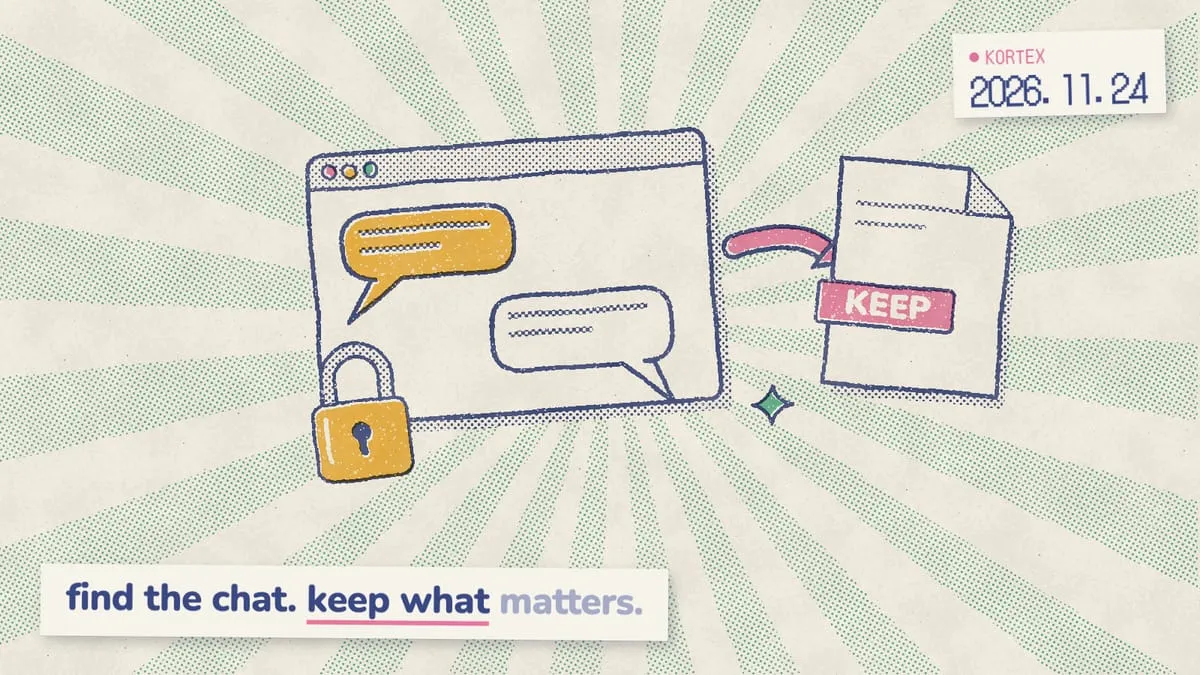
Gemini Notebook (formerly NotebookLM) saves chat history and keeps it private to you, according to Google’s chat help. To find it, open the notebook where you asked the question, with the same Google account. To keep one important answer, use Save to note. To remove the chat history, use Delete Chat History from the chat area’s three-dot menu (Google Help, 2026).
Those three jobs are easy to mix up. A chat is not the same as a saved note, and clearing a chat is not an archive. This guide helps you find missing history, save what matters and start a clean discussion without accidentally deleting your only record.
Where is Gemini Notebook chat history saved?
Look inside the notebook where the chat took place. Chat history is the record of your questions and the notebook’s answers. A saved note is an answer or text you chose to keep separately. An export is a copy outside the notebook. Keeping those objects distinct helps you choose the right control.
For example, you might have two notebooks called “Interview research,” one in a personal account and one in a university account. The same title does not make them the same notebook. Check the account avatar and the notebook’s sources before deciding you are looking at the right place.
Google’s Workspace product guidance says chats are saved by default, can be resumed after closing a session, and remain private to the person who had them even in a shared notebook (Google, 2026). That describes the product’s intended behavior. It is not a promise that any particular missing chat can be recovered.
For account navigation, our login guide covers the sign-in checks. Avoid creating a fresh notebook as your first repair: it gives you another place to search while leaving the original question unresolved.
Why has my chat history disappeared?
Work from reversible checks to destructive ones. Confirm where you are, allow for a sync issue, and distinguish a blank chat from a deleted notebook. A blank view does not tell you what caused it.
| What you see | Check first | Useful next action |
|---|---|---|
| Familiar notebook title, different sources | Wrong notebook or a copy | Open the original notebook from its known link |
| Work material missing on a personal account | Wrong Google account | Switch to the account used for the chat |
| History appears on web but not phone | Device sync or app state | Reopen the app and check the same notebook |
| New copy has sources but no chat | Copy behavior | Return to the original for its history |
| History vanished after a delete action | What you confirmed | Look for a prior note or export, not a refresh trick |
| Notebook itself is absent | Account, ownership or access | Find its link and ask the owner if access changed |
Check whether this is a copied notebook
Google’s notebook-copy instructions say sources and Studio content are copied, while chat history and notes are not. A copy can therefore look familiar without containing the chat you remember (Google Help, 2026).
Use a clear name such as “Interview research - original” for your own filing. If someone sent you a copy, ask whether they meant to share a notebook or give you a separate working version. A copied collection of sources is useful, but it is not a backup of everything you said.
Check mobile sync before deleting anything
Google’s mobile-app guide notes that syncing can be delayed and recommends quitting and relaunching the app when that happens (Google Help, 2026). Check the web version with the same account as a comparison.
Save or copy any visible answer you need before experimenting. Do not uninstall the app, clear history or delete a notebook merely to see whether the chat returns. Those actions change more than the view you are trying to diagnose.
Be cautious with advice that says refreshing always deletes chats
Some published guides describe different behavior. For example, Florida State’s introduction says chats are not retained on refresh, while Google’s own chat and Workspace documentation say history is retained. Follow the product’s documented controls and keep important work separately; do not use conflicting guidance as a guarantee about your account.
For problems affecting the whole app, use our Gemini Notebook troubleshooting guide. This page focuses on the history record rather than every loading failure.
How do you save an answer you want to keep?
Use Save to note for a useful response. Google’s notes documentation describes that control, explains how selected notes can be used as sources, and documents exporting a note to Google Docs (Google Help, 2026). A note gives the answer a separate place in your work, rather than requiring you to find it deep in a chat.
Give it a title that names the result: “Interview themes - checked against transcripts” is more useful than “Good answer.” Before saving, open the citations and check the claims you intend to use. Preserving an answer does not make it accurate.
A practical record has three parts:
- Question: what you asked and which sources you meant to use.
- Answer: the text you want to keep, with useful citations.
- Your check: what you verified, changed or still need to resolve.
For example, a notebook answer may compare two policies correctly but omit an exception. Add your check as a separate note or in your own working document, with the source reference. Don’t rewrite the model’s reply in a way that makes it appear the model originally included your correction.
Keep the chat before you clear it
Kortex can export notebook chats as Markdown, PDF, text and other formats. Open the saved file and check it before deleting the history you worked from.
How do you start a new chat with the same sources?
Decide whether you need a new topic or a cleared history. To move to another topic, you can simply ask a fresh question and name the sources. A prompt such as “ignore our earlier discussion” is an instruction to the model; it is not a storage or deletion control.
To remove the prior chat context through the documented interface, use Delete Chat History. Save anything you need first, read the confirmation and continue only when removal is what you intend. Then ask your new question. Do not assume this keeps an archived chat behind a separate New Chat button: Google’s cited help documents clearing history, not a recoverable archive of branches.
If keeping both discussions matters, leave the original in place and use a separate notebook or a saved working document for the new task. Remember that copying a notebook does not carry over its history. For organizing those separate projects, see notebook organization.
Here is a fresh-topic prompt that keeps the storage decision separate:
New topic: compare the leave-policy exceptions in sources A and B.
Use only those selected sources. Do not rely on earlier interpretations
in this chat. Cite the relevant passage for each difference and flag gaps.
This prompt can help focus an answer. It does not erase previous turns, change who can access saved notes or guarantee that earlier context has no influence.
How do you delete chat history without deleting the notebook?
Use the chat-history control, rather than the notebook-delete control. These are different actions with different scopes. Read the label twice if you are working quickly.
- Keep what matters. Save useful answers or export the chat.
- Check the copy. Open the note or file and confirm it contains the material you need.
- Open the chat menu. In the notebook’s chat area, select the three-dot menu.
- Choose Delete Chat History. Read the confirmation before completing it.
- Verify the intended result. Confirm you are still in the notebook and its source list remains available.
These steps follow the history control documented in Google’s chat help; interface placement can differ between devices. If you cannot find it, use the web version and check the current menu labels. Do not substitute Delete notebook just because it is easier to locate.
Google’s cited history documentation does not offer a recovery procedure for deleted history. Treat deletion as final for your workflow. If you have no saved copy, contact product support with the notebook link and account context; nobody should promise you an undo that is not documented.
Is chat history private in a shared notebook?
Google says the chat history is private to you. The important boundary is what you do next with the answer. Saving it into notebook material or exporting it to a shared folder can expose the text under that object’s permissions.
For example, a private question about an interview participant might become visible if you save its answer as a note in a notebook shared with a team. Google’s notebook-sharing instructions say viewers can read sources and notes shared with them. Review the notebook’s access before you keep a sensitive answer there.
Our sharing guide explains access choices, and the privacy guide covers broader data handling. Private-to-collaborators chat history is not the same claim as a service never processing data.
How does Kortex chat export fit?
Kortex’s export feature saves the chat visible to the extension in formats including Markdown, HTML, plain text, PDF and JSON. Its options let you include user turns and sources or export selected answers. It keeps accessible content; it does not reconstruct deleted history.
For an audit trail, include the questions and relevant source references, then open the file and inspect it. A filename such as “Interview research - chat before reset” tells you why that copy exists. Save it somewhere with access appropriate to the contents.
The full Gemini Notebook export guide owns the format-by-format export steps. Here the habit is simple: verify the copy before you clear the original chat.
Save a copy you can open
Use Kortex to export the notebook chat you need, check the file, and keep it somewhere you control before resetting history.
Frequently asked questions
Does NotebookLM save chat history?
Yes. Google says Gemini Notebook (formerly NotebookLM) retains chat history and keeps it private to you. Open the same notebook with the same Google account to look for your conversation. Save important answers separately if you need a durable working record.
Why has my NotebookLM chat history disappeared?
First check the Google account, notebook and whether you opened a copied notebook. Google says notebook copies do not include chat history. The mobile app can also have sync delays. If you deleted the history, do not assume refreshing or an extension can restore it.
How do I delete NotebookLM chat history?
Open the notebook, use the three-dot menu in the chat area, and choose Delete Chat History. Read the confirmation before proceeding and save anything you need first. This is a destructive reset of chat history, rather than a way to create an archived second conversation.
Editorial note: fact-checked against the official help pages and docs linked above on November 24, 2026. Spotted something out of date? Contact us and we will fix it, or read more about Kortex.