How to Turn Articles into Podcasts with Gemini Notebook
Turn articles into an AI audio overview, then listen in a podcast app. Add article links or an RSS feed to a notebook and create a private Kortex feed.
On this page
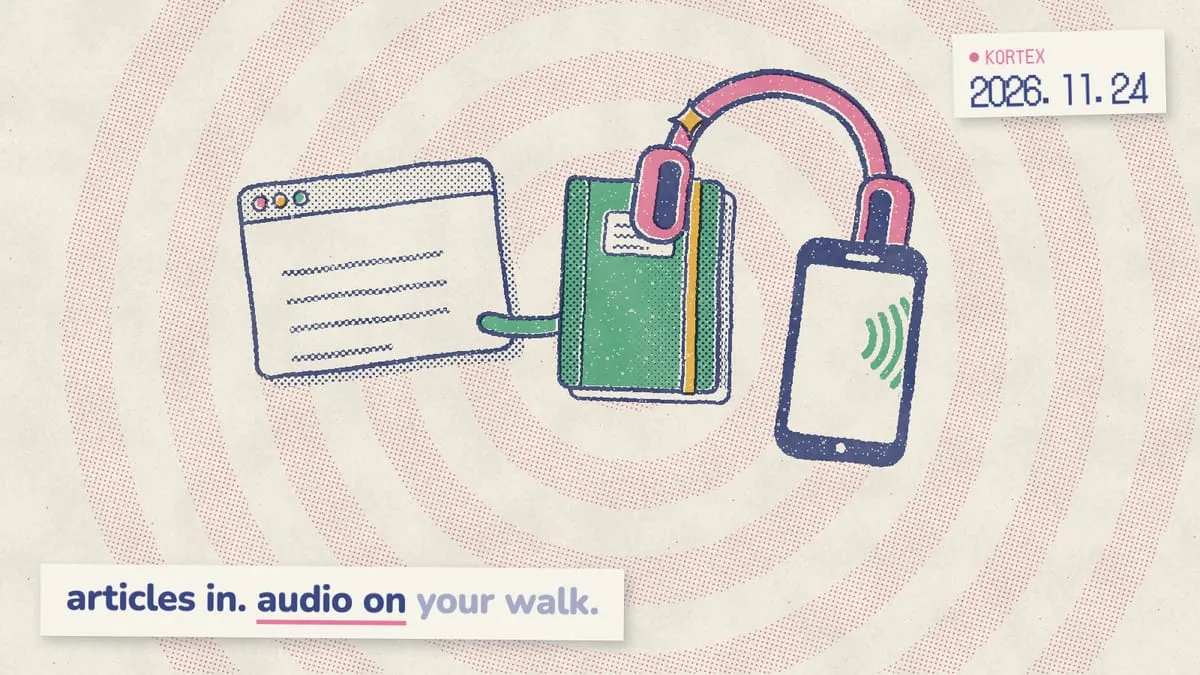
To turn articles into podcasts, first add the article to a source notebook, then generate an audio version and choose how you want to listen. Gemini Notebook (formerly NotebookLM) can make an AI-hosted Audio Overview from sources you select. Kortex can collect those audio files in a private RSS feed that a podcast app can follow.
A phone’s read-aloud tool uses the words on the page. An Audio Overview does something else: it makes a new chat from your sources. That can be easier to hear while walking, but it may leave out parts of the article. It is not a full reading. This guide covers both options, including what to check before relying on the audio.
Choose the kind of listening you want
| Approach | What you hear | Works best when | Main trade-off |
|---|---|---|---|
| Read-aloud or text-to-speech | The article’s written words | You want the full text or exact phrasing | It is not a discussion, and listening time tracks article length |
| Gemini Notebook Audio Overview | An AI-hosted discussion of selected sources | You want a shorter, conversational orientation to one or more sources | It is generated, can leave out details, and needs fact checking |
| Kortex podcast feed | The Audio Overviews you added, delivered as podcast episodes | You want to collect and follow audio in a podcast app | It organizes audio; it does not make the overview or guarantee word-for-word coverage |
These methods solve different parts of the job. Pocket Casts is a podcast player. It can follow an RSS address, but it does not turn articles into narrated summaries. Pocket Casts documents how to add a show by its RSS feed URL in its support guide. The Kortex feed is private, so keep its address private too.
Article-to-audio terms in one minute
An Audio Overview is an AI-generated spoken discussion of source material in a Gemini Notebook. An RSS feed is a list of items that updates when a publisher adds content. An article feed can help collect links, but it is not itself an audio program. A podcast feed is a separate RSS feed that a podcast player can follow to list episodes. The key distinction is that one feed brings articles in, while the other sends finished audio out. Keeping those two feeds distinct helps avoid the expectation that an article RSS link will become spoken audio on its own.
Step 1: Put articles in a notebook
For one article, open a notebook and choose Add sources > Website. Paste the article’s public URL. Google imports the page’s text as a source. It does not import embedded images, videos or linked pages, and paywalled pages are unsupported. These limits are documented in Google’s source guide. Check the imported source before generating audio, especially if it contains charts, footnotes or a login wall. Google’s source help lists the source types and limitations.
For a reading list, you can collect links in a CSV or use a publication’s RSS feed. In Kortex Workspace, choose Bulk Import > RSS Feed, select the target notebook, and run the import. The feed provides article links; the content still has to be reachable, and each item must be suitable as a source. See bulk import for Gemini Notebook for its RSS, CSV, open-tab and web-crawl options.
A notebook works best when its sources have a clear theme. For example, one notebook could hold three research papers about an intervention, while another holds articles from a weekly policy newsletter. Avoid mixing unrelated pieces just because they came from the same feed. If a feed contains dozens of posts, import a small relevant selection first. You can expand the set once you know the sources are useful.
Before making audio, inspect the source list. Confirm the titles and authors look right. Open a source and check that its main text is present. A URL that imports only a short excerpt may not work for the chat you want. When you have access to an official PDF or full-text copy, you may be able to add that file instead, subject to its license and your rights to use it. A page being publicly readable does not automatically grant permission to copy or distribute it. The U.S. Copyright Office explains that some uses may need permission while copyright-law limitations can apply; check the relevant terms and the Copyright Office permission guide if you plan to reuse or share the material.
Keep source names useful
Before you add several links, give the notebook and its sources names that make sense in the player and in later questions. Include a short topic and, if useful, the publication month. If three papers disagree, keep their names distinct so you can ask about each one. If your selected source list is too broad, make separate notebooks or select a smaller set before you generate the overview.
A lightweight check is to ask: “Which selected article supports the claim about [specific point]? Quote the passage and name the source.” If the returned text is missing or vague, fix the source set first. This catches a common mismatch: a feed item imported a teaser or title page rather than the full article. Google says web URL import only scrapes the webpage’s text and does not import embedded video or nested pages; its source help also says paywalled webpages are unsupported. You can use an article PDF you have rights to, but confirm its contents before generating audio.
Step 2: Generate an Audio Overview
Open the notebook and, in the Studio panel, choose Audio Overview. Google offers formats such as Deep Dive, The Brief, The Critique and The Debate. You can choose a language and prompt the hosts to focus on a topic or expertise level. Generation can take a couple of minutes. Google’s Audio Overview instructions list the controls and note that audio and voices are AI-generated and may contain errors or glitches (Google Help, 2026).
Pick the format for the job. Deep Dive is a two-host conversation that unpacks topics from your sources. The Brief gives a quick overview of a document. Critique evaluates material such as an essay, and Debate explores perspectives through a formal exchange. These are formats, not guarantees of completeness or accuracy. If you need a careful review of a claim, ask the notebook in text and open the citations as well. If your question is how to generate a single NotebookLM podcast inside Google, see our Gemini Notebook podcast guide; this article focuses on turning article sources into audio and listening in a separate podcast app.
Try a prompt that sets a useful listening goal:
Make a concise overview of the selected articles about [topic].
Compare where the authors agree and disagree. Name the source for each claim.
Flag limitations or details the sources do not establish. Do not fill gaps with outside assumptions.
That instruction can guide the conversation, but it cannot force the generated audio to cite every sentence or preserve each qualification. When a detail matters, return to the source and verify it. Google warns that Audio Overviews may contain inaccuracies. For important research, cite the article itself, not the generated audio.
Make a listening queue from your research
Kortex brings RSS articles into a notebook and gathers finished Audio Overviews in a private feed you can follow in a podcast app.
Step 3: Listen in the way that fits
You can play an Audio Overview in the notebook, download the file, or share it with notebook access. Those are useful when you only need one episode or want to send a file. Google says downloaded Audio Overviews may be unavailable for some notebooks that use Play Books ebook sources. The Google share link also depends on access to the notebook and its full contents. Its sharing instructions explain the options to share a link, share the notebook or download the audio.
To follow episodes in a podcast app, make a Kortex podcast in the Workspace. In the notebook row, add an Audio Overview to a podcast. Then click Podcast RSS to copy its address. Add that address to a podcast app that supports custom RSS feeds. Kortex describes this workflow in its podcast feed guide; new episodes appear in the feed within about 10 minutes. You can create separate feeds for themes rather than mixing every overview into one long queue.
This is a Kortex feature layered on top of Google’s generated audio. Gemini Notebook creates the Audio Overview; Kortex collects it as a private feed. Google lets you download and share audio, but its Audio Overview help does not describe an RSS subscription feed. In other words, the notebook makes the listening material and Kortex gives it a podcast-style delivery path.
Keep the article attached to its audio
The audio is convenient for a first pass, but it is a transformed version of the reading. Keep the original article in the notebook and remember which links were selected when you made the overview. Sharing or adding an episode to a feed does not make each line in it a quote from the article. Return to the source for exact wording, page numbers, methods, and caveats.
For a class or research group, note the article title and date in the notebook. If you send the audio elsewhere, share the underlying article or a citation too. The Audio Overview may be a useful way to discuss the paper while travelling; the article remains the record you should cite and verify. Google’s Help Center describes these overviews as summaries from uploaded sources and warns they may contain inaccuracies or audio glitches.
When to choose another app
If you want an exact spoken version of one article, a read-aloud feature or text-to-speech app is usually a better fit. It preserves the article’s wording and is direct. Check whether the app supports the page format and language you need, and be careful with subscription articles or content you are not allowed to upload to another service.
If you want a dialogue that combines several articles, an Audio Overview may be more useful. It can bring related sources into one conversation, but it is a generated summary. Use it to get oriented, then return to the original article for exact quotes, methods, numbers and caveats. You may also listen to just the downloaded file without setting up an RSS feed.
If your goal is to keep a regular queue in a podcast app, use the Kortex feed after generating audio. An RSS feed is a delivery format: it helps a compatible app list and refresh episodes. It does not convert articles by itself. For more on that distinction and the feed setup, see the Audio Overview podcast tutorial.
Troubleshoot the audio and feed
- The web import is too short. Open the article URL, confirm it is public and contains the full text, then check the source in the notebook. Use an official PDF or another source you may access if needed. Google’s source guide says paywalled web pages are unsupported.
- The Audio Overview misses a detail. Ask a text question and open the citation to check the article. Do not treat the audio as a full transcript or a complete abstract.
- The podcast app shows no new episode. Kortex says a new item appears after a short delay; see the podcast feed details. Refresh the podcast if it does not show up. If the app rejects the address, confirm that it accepts custom RSS feeds and that you copied the whole URL.
- You only need one audio file. Download the Google Audio Overview rather than setting up an RSS subscription. Google documents Download in the Audio Overview player; some Play Books restrictions may apply.
For Kortex Workspace questions, the support center has answers; you can contact the team there if you need help with a feed. Learn more about the people and product behind the workflow on About us. This guide was fact-checked against the current Google and Kortex documentation on November 25, 2026. It uses the current Google source and Audio Overview documentation, alongside Kortex’s bulk import and private podcast feed feature descriptions.
A simple weekly workflow
- Collect. Add a handful of article links or import a publication RSS feed into one notebook.
- Filter. Remove unrelated pieces and confirm the useful articles imported fully.
- Generate. Create a Deep Dive or Brief overview and give it a focus question.
- Check. Ask a text question about a key claim and open the citation in the article.
- Queue. Add the finished Audio Overview to a Kortex podcast if you want to follow it in an app.
- Review. Revisit the written source when you need exact wording or evidence.
This keeps gathering, making audio, and listening as separate steps. It also makes it easier to spot where a detail came from: the notebook holds the source, the Audio Overview is the generated listening version, and the podcast feed is the delivery layer.
Listen to your sources on the go
Build a focused notebook from articles, make an Audio Overview, and add it to a private podcast feed when you want episodes in your regular player.
Frequently asked questions
Can I turn an article into a podcast with AI?
Yes. Add an article as a website source in Gemini Notebook and generate an Audio Overview. It creates an AI-hosted discussion based on the source, not a word-for-word recording. You can download the audio or add it to a private Kortex podcast feed for a podcast app.
Can Gemini Notebook turn an RSS feed into a podcast?
Gemini Notebook does not turn an RSS address into a podcast feed by itself. Kortex Bulk Import can bring articles from an RSS feed into a notebook; generate an Audio Overview from the sources you choose, then add that overview to a Kortex podcast feed.
Can I listen to a NotebookLM Audio Overview in a podcast app?
Google lets you download an Audio Overview or share it with notebook access. Kortex can also put the audio into a private RSS podcast feed that you add to an app that accepts custom feed addresses.
Does an Audio Overview read an article word for word?
No. Google describes Audio Overviews as AI-generated discussions that summarize topics from your sources. They may contain inaccuracies or audio glitches, so check important details against the cited article.
Is the Kortex podcast feed public?
No. It is a private RSS feed. Anyone who has its address can add it to a podcast app, so treat the address like a password and share it only with the people you want to hear the episodes.