Why Does ChatGPT Forget Things? Gemini Notebook (formerly NotebookLM)
Why ChatGPT forgets details or instructions, how memory differs from chat history and context, and practical ways to keep important project knowledge available.
On this page
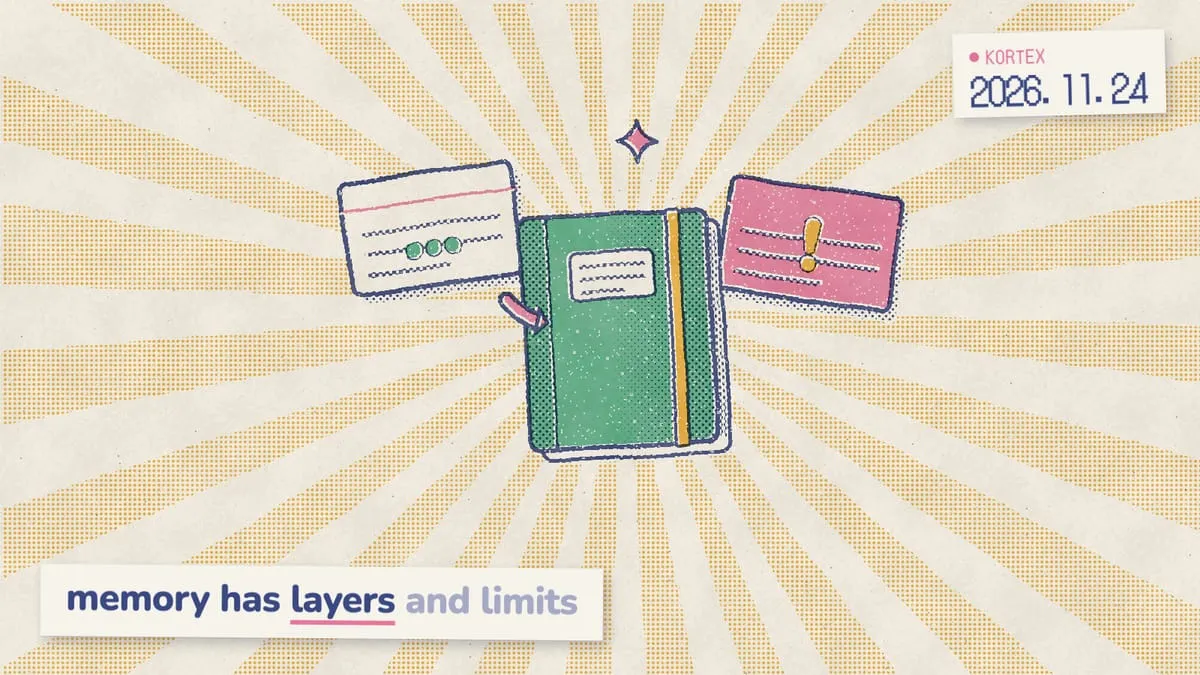
If you are asking why does ChatGPT forget things, the short answer is that “memory” can mean three different things. It can mean what fits in this conversation. It can mean what ChatGPT saves to personalize future chats. Or it can mean the instructions and files for a project. These are separate systems. None promises to keep every sentence or follow every instruction forever.
The fix depends on which kind of forgetting you mean. For a detail lost in a long chat, create a compact recap. For a preference that should carry between chats, review Memory and custom instructions. For project facts that need to stay checkable, keep them in a source file or notebook and ask the assistant to retrieve them.
Three kinds of ChatGPT “memory”
The word memory is often used for several things. ChatGPT can work with the current chat, optional personalization from past chats, and instructions or material attached to a project. Knowing which layer holds a detail makes the problem easier to diagnose.
Conversation context is the material available to the model while it prepares a response. A context window is the limit on how much input and conversation context a model can handle for that response. Memory is personalization across chats, using information saved or referenced when the feature is available and enabled. Chat history is the record of previous conversations. These are separate roles, even when a product reuses the same information in more than one way.
| Layer | What it does | What to use it for |
|---|---|---|
| Current conversation context | Gives the model material from the active chat that is available for the current response | The task and details you are discussing now |
| Memory and chat history | Can personalize future responses using saved memories or relevant past-chat information, when enabled and available | Stable preferences and recurring facts |
| Project instructions and files | Keeps task-specific guidance and reference material with a project | A brief, style guide, source pack, or ongoing work |
These layers are not interchangeable. Chat history is the record of your conversations. Memory can draw selected details from that history. Current context is what the model can use for a response. Project files are references you can reopen and check.
Why ChatGPT forgets details in a long conversation
The active chat is not an unlimited notebook. Models have a finite context window. Only a limited amount of text can be considered for one response. OpenAI says ChatGPT’s Free plan can show “Context window full” or “Chat memory full” when a conversation fills up. Messages and replies both use space, so a few long exchanges can fill a chat. If ChatGPT offers a summary to continue in a new chat, OpenAI cautions that the summary may leave out details (context-window guidance). The exact behavior depends on the model and product. No universal message count marks the point where ChatGPT “forgets.”
That can look like several different failures. A rule from the opening message may disappear. The assistant may mix up two versions of a plan. Or it may answer without a detail you gave much earlier.
Research backs this up. In “Lost in the Middle”, Stanford and other researchers found that language models use information best at the start or end of a long input. Accuracy dropped when the relevant detail sat in the middle. So a fact buried mid-chat is the one most at risk. Put the facts that govern the next task in a fresh, short message near the end.
For example, you ask for a one-page proposal, then change the audience and discuss several examples. When you return to the proposal, the assistant may follow the old audience or miss the example you chose. A short handoff is clearer: “Use the new audience below. Example 4 is approved. Keep the one-page limit.” That is easier to follow than asking it to infer your final choices from every turn.
Try this reset:
- Ask for a short recap of decisions, open questions and constraints so far.
- Correct the recap, especially names, dates and decisions that changed.
- Start a fresh chat in the same project if the thread has become unwieldy.
- Paste or attach the approved recap and say which parts are authoritative.
For long-running work, keep the recap outside the chat in a brief or project file. ChatGPT Projects can group chats, files and instructions, but the available cross-chat behavior depends on your project memory setting, plan and workspace. Read the official Projects help page before relying on a particular setting. Its guidance distinguishes project-only memory from default memory and notes that workspace rules can affect the options (OpenAI, 2026).
Memory is not a transcript of every chat
ChatGPT Memory is for personalization, not a perfect archive. OpenAI says ChatGPT does not retain every detail from every conversation, and what it considers relevant can change (Memory in ChatGPT, 2026). Depending on account, plan, region and workspace settings, controls may include saved memories and reference to chat history. A setting that one account sees may be unavailable to another.
To review what your account supports, open Settings → Personalization → Memory. Check whether saved memories or chat-history reference are on. You can ask ChatGPT what it remembers, fix an entry, or manage saved items there. For something you need carried forward consistently, save a concise, durable fact explicitly rather than assuming a passing mention will be retained.
For example, “I prefer concise answers with metric units” is a stable preference. “For this grant application, use the 2026 call text and never cite the old draft” belongs with that project’s instructions and files. The second rule is too specific to assume that general personalization will carry it into every relevant chat.
Also distinguish deletion from forgetting. Turning off Memory does not delete your chat history. Deleting a chat does not necessarily delete a separate saved memory that came from it. OpenAI describes the controls and their effects in its Memory help page.
Why ChatGPT forgets instructions
Instructions get missed for several reasons. They may compete with other context, be vague, clash with a newer direction, or live in an old chat. A long paragraph of preferences is harder to follow than a few clear rules.
Put each instruction in the place that matches its scope:
| Instruction type | Best place to keep it |
|---|---|
| Stable response preferences, such as “use metric units” | Custom instructions or Memory, if available |
| Rules for one ongoing project | Project instructions |
| Facts, examples or source excerpts to cite | A project file or source notebook |
| One-time constraints for the next answer | The current prompt, near the task |
This placement also helps when an instruction appears to conflict with another. A general preference like “be brief” can coexist with a project requirement for a detailed evidence table, because the project rule is specific to the current deliverable. If two instructions at the same level conflict, say which one is newer and authoritative. Keep the final instruction set short enough to scan.
When the assistant misses a rule, restate the rule and ask it to identify the relevant constraints before drafting. For example: “Before answering, list the three requirements you must follow. Use the attached brief as the source of truth; if a detail is absent, say so.” This makes a forgotten rule visible. It does not guarantee perfect compliance, so check important work yourself.
Keep important project knowledge in a grounded notebook
If you keep re-explaining a project, put its durable knowledge in a source you can inspect. Use a short brief, a versioned file or a notebook with approved material. Ask the assistant to answer from those sources and show where the answer came from. This helps when the facts matter, or when you switch between AI tools.
Gemini Notebook (formerly NotebookLM) is one option for organizing source material and asking questions grounded in selected sources. Google’s NotebookLM help describes source-based answers and citations; check the cited passage yourself, since a citation still needs to support the particular claim. A notebook is an external reference library, not automatic ChatGPT Memory.
Kortex MCP connects a compatible assistant to Gemini Notebook. The assistant can then ask questions over selected sources and get citations back. Kortex MCP is included with Kortex Pro and Lifetime. It can cut repeated copy-paste. It does not make the assistant remember every conversation. The notebook must hold the relevant material, and you still review the returned evidence.
Give your assistant a source it can check
Keep project research in Gemini Notebook and ask compatible assistants to retrieve answers with citations. Kortex MCP is included with Kortex Pro and Lifetime.
A simple system for fewer “you forgot” moments
Use this routine when a chat or project starts to drift.
- Name the layer. Is the missing detail in this chat, a recurring preference, or a project source?
- Store it deliberately. Add a preference to Memory or custom instructions; add project-specific knowledge to its instructions or files.
- Make the next request narrow. State the task, the source of truth and the output format in a few lines.
- Ask for evidence. Request quotations, citations or file references for claims based on your materials.
- Refresh stale context. If decisions changed, update the recap or file so the old version does not compete with the new one.
Use one rule to choose where each detail belongs. If it should follow you between tasks, save it as a preference. If it only applies to this project, put it in the project instructions. If you need to quote or verify it, keep the source file. If the chat has grown too long, carry a short recap into a fresh thread.
If you use Claude as well, its memory controls and project context are separate. Our guide to using Claude memory explains that setup. For a fixed source library in Google’s notebook, see Gemini Notebook as AI memory. And if you want fewer details carried between ChatGPT chats, see how to turn off ChatGPT Memory.
If the problem is that a useful answer vanished rather than that an assistant forgot it, first check the chat history or data export. OpenAI’s export instructions explain how to request an account export and review the files. An export is an archive to inspect. It can’t recreate deleted chats as separate conversations. Treat the download as personal data and store it securely. Exports hold conversation data in JSON and may include other account files (OpenAI, 2026).
The useful distinction is simple: a chat is working context, Memory personalizes, and project files or notebooks preserve material you can check. Put each fact where it belongs, then tell the assistant what to consult.
Keep your project context in one place
Save useful web pages and AI conversations into a notebook, then return to the source when you need to continue. Kortex is free on Chrome.
Frequently asked questions
Why does ChatGPT forget things in the same conversation?
A long chat may contain more material than the model can use at once, and older details may become less available as the conversation grows. Memory is designed to personalize chats, not preserve every detail. Put essential facts in a short recap or a project file and point ChatGPT to them.
Does ChatGPT remember my other chats?
It can use saved memories and, when the setting is available and enabled, relevant information from chat history. This depends on your plan, region and workspace controls. ChatGPT does not retain every detail from past chats.
How do I stop ChatGPT forgetting my instructions?
Put stable preferences in custom instructions or saved memory, and put task-specific rules in the project instructions or a clearly named project file. In a long chat, repeat the two or three rules that matter for the next step and ask ChatGPT to confirm them.
Can Gemini Notebook help ChatGPT remember my research?
A notebook can keep your chosen source material together and return grounded answers when you or a connected assistant asks it. It is a separate source store, not automatic ChatGPT memory. With Kortex MCP, ChatGPT can query Gemini Notebook sources and receive answers with citations; Kortex MCP is included with Kortex Pro and Lifetime.
Editorial note: fact-checked against the official help pages and docs linked above on November 25, 2026. Spotted something out of date? Contact us and we will fix it, or read more about Kortex.