Gemini Notebook Public Notebooks: Find, Share and Stay Private
Find featured and public Gemini Notebook notebooks, understand link sharing versus public search, and check what others can see before you share.
On this page
- How do you find public notebooks in Gemini Notebook?
- What are Featured notebooks?
- Public vs. anyone with the link vs. restricted
- What can visitors see in a public notebook?
- How to make a notebook public
- How to explore a public notebook responsibly
- A quick privacy check before you share
- Frequently asked questions
Gemini Notebook public notebooks are notebooks whose owners have deliberately made them available to others. Your own notebooks are not public by default: Google’s Help Center says private and unshared notebooks never appear in public search, and its FAQ describes the lock icon as meaning a notebook is private. To find public examples, search from notebook.google.com and browse the Public notebooks results. To protect your own work, check the Share menu and keep Notebook Access set to Restricted unless you intend to share.
Google uses different access settings for a named collaborator, Anyone with the link, and Public. These choices have different discovery behavior. This guide explains the distinction, where featured notebooks fit, and what to review before making a notebook accessible to other people.
How do you find public notebooks in Gemini Notebook?
- Go to notebook.google.com and sign in.
- Use the search bar to enter a topic or the kind of notebook you want to explore.
- Press Enter and browse the Public notebooks results.
Google currently says this search works for public notebooks in English. A public notebook can be useful as a starting point: visitors can ask questions and view materials or artifacts made available by the owner. Still check the original sources before treating an answer as authoritative. The fact that someone shared a notebook does not mean Google reviewed every claim in it. For source-grounded research, use it to discover reading material, then build your own notebook from sources you have checked. Our Gemini Notebook research workflow explains how to keep an evidence trail.
A search result may be empty even when a relevant public notebook exists. Public status makes a notebook eligible for search; it does not guarantee a placement. Google says an item may not appear if it is too thin or incomplete, if systems detect a possible policy issue, or if a query is restricted. The notebook may also simply be shared with a link rather than marked Public. These rules are summarized in Google’s public and featured notebooks help.
What are Featured notebooks?
Featured notebooks are curated notebooks preloaded with sources from authors, researchers, publications and nonprofits. On the computer, Google says consumer accounts can browse the Featured notebooks section on the Gemini Notebook home page. Workspace Enterprise and Education accounts can open featured notebooks through direct URLs, but cannot browse that collection from the interface.
A featured notebook works differently from a notebook you own. As a viewer, you can read the included source materials, ask questions, and view prepared items such as Audio Overviews or Study Guides. You may select which included sources to use, but you cannot add your own sources or generate your own artifacts in the featured original. Some notebooks allow you to make a copy; in that copy, you can add sources and create artifacts. If you want a reusable workspace, check whether the copy action is enabled instead of assuming that you can edit the featured original.
Think of a featured notebook as a curated reading room. Think of a public notebook as an owner’s shared workspace that visitors can explore. And think of your own restricted notebook as a private workspace. The labels describe who can get in and what they can do, rather than a quality rating.
Public vs. anyone with the link vs. restricted
| Notebook Access | Who can open it? | Appears in public search? | Good fit |
|---|---|---|---|
| Restricted | You and people you specifically share with | No | Personal notes or controlled collaboration |
| Anyone with the link | Anyone with the URL and a Google Account | No, though it can appear on recipients’ shared-notebooks pages | Sharing with a known audience without public discovery |
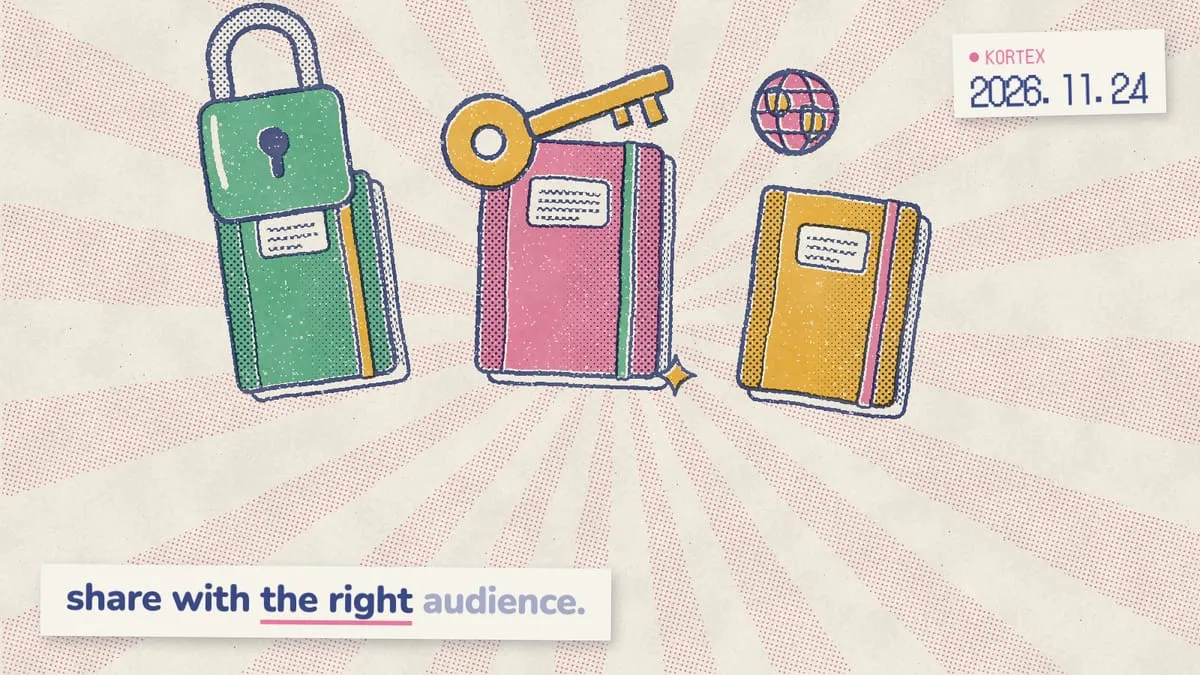
| Public | Anyone with a Google Account who finds or receives the link | Eligible, but not guaranteed | A notebook you intentionally want people to discover |
Public notebook means access is set to Public, which makes the notebook eligible for search. Anyone with the link is a separate link-sharing setting; those notebooks do not show up in public search. A Featured notebook is selected for Google’s curated collection.
Google says people who open a shared notebook need a Google Account. Public search has an additional discovery layer: Public notebooks can appear there; a notebook set to Anyone with the link does not. If you only need a few colleagues to read or edit, share with their accounts instead of using a broader setting. Google’s separate notebook sharing instructions show the collaboration flow. For a fuller checklist about sensitive information and account access, see our Gemini Notebook privacy guide.
Is NotebookLM private by default?
Yes, for an unshared notebook. The lock icon in the share menu indicates that nobody else has access. Google says private and unshared notebooks never appear in public search results (Help Center FAQ). If you shared a notebook individually with colleagues, that still does not make it publicly searchable; it is available to those people under their assigned access.
It is sensible to verify this whenever you handle sensitive or unpublished material. Open Share and read the actual Notebook Access value. Do not infer privacy from a notebook’s absence in search: an Anyone with the link notebook is also absent from public search, but anyone with the link may still access it. Likewise, a Public notebook might not appear in results even though it is publicly shared.
What can visitors see in a public notebook?
Visitors can interact with the notebook and view content made available by its owners or editors, including sources and generated artifacts. That can expose more than a summary or a single answer. Check source documents, notes, and artifacts before sharing; remove material you do not have the right to distribute. Google’s sharing help also notes that copyright rules apply to shared source content. Public access is not the same as permission to reproduce an article elsewhere. The U.S. Copyright Office explains that permission may be needed to use copyrighted works, while legal limits can apply. Its permission guide is a starting point; check the source’s license and your situation before redistributing material.
The Copy link to chat view option creates a focused way to open the chat, hiding sources and artifacts from the default experience. Google explicitly cautions that this does not completely revoke a viewer’s access to those materials; a viewer may still find ways to navigate to them outside that view. Treat it as a simpler presentation, not a redaction tool. If the source itself must remain private, remove it from the shared notebook or keep the notebook restricted.
If you change your mind, an owner or editor can set Notebook Access back to Restricted. Google’s help says that this removes the notebook from other people’s shared-notebooks pages unless they have individual access, removes a previously public notebook from public search, and makes earlier share links stop working. After changing the setting, revisit the Share menu to confirm it shows Restricted. Individual collaborators you’ve separately granted access to may still retain that access, so review those people too.
How to make a notebook public
Only an owner or editor can create share links and manage notebook access. If you are sure the notebook is ready for public discovery:
- Open it at notebook.google.com.
- Select Share in the upper right.
- Set Notebook Access to Public.
- Choose Copy link, then Save.
- Open the link in a separate signed-in Google account or ask a trusted reviewer to confirm what the notebook exposes.
Google’s interface can change, so follow the labels shown in your account. Workspace and Education accounts may be subject to separate organizational terms or controls. If you use a managed account, contact your administrator to confirm the sharing rules that apply to you. Some notebooks with artifacts made from Play Books ebooks cannot be publicly shared. If Public is unavailable, check the notebook’s sources and account context rather than assuming it is a bug.
Share research with the right audience
Kortex helps keep your research library organized while you decide which notebooks to share and which to keep private.
How to explore a public notebook responsibly
Public notebooks can help you orient yourself to a subject, but they are someone else’s selection of material. Start by reading the source list and checking who created the notebook. Ask for an outline of the included sources or a summary of one named document. Open the citations and confirm the passage before carrying a claim into your own work. If the notebook includes a generated artifact, treat it as an interpretation of its sources, not as a replacement for the originals.
For example, a public notebook about a new research field may surface a useful review paper and an introductory guide. Use those references to find the underlying publications. Then create a private notebook from the original papers you have selected and ask questions with citations. This gives you control over the evidence set and keeps your own reading notes separate from the public author’s workspace.
Do not assume a public notebook’s title tells you everything inside it. The owner can make changes, and Google says owner and editor changes appear in shared notebooks without generating a new link. If you revisit the notebook later, check the current sources and artifacts again. Keep a record of the date you consulted it when a research decision depends on that collection.
If the public notebook is a poor fit, remove it from your homepage using the notebook’s More menu. Google describes this as removing the entry from your homepage, rather than changing the owner’s share settings. You cannot make a copy unless the owner allows it. In that case, create your own notebook and add sources you can access and use.
A quick privacy check before you share
Use this checklist each time you publish or send a notebook to a broad audience:
- Confirm whether the access setting should be Restricted, Anyone with the link, or Public.
- Check every source, note and artifact for personal, confidential, licensed or unpublished content.
- Remember that chat view hides materials in its default presentation but does not remove access to them.
- Confirm the audience can sign in with a Google Account and that your Workspace rules allow the sharing.
- If you are sharing only with a team, use named collaborators or the narrower access setting you need.
- If you turn sharing off, check the collaborator list separately and verify the new access state.
Public access changes who can reach the notebook; it does not certify the sources or the answers. Gemini Notebook responses are generated from user-provided sources and instructions. For consequential decisions, inspect the original documents and consult a qualified professional where appropriate.
Keep private work private
Organize your research first, then choose notebook access deliberately. A quick Share-menu check can prevent an accidental broad share.
Frequently asked questions
Are my notebooks in NotebookLM public by default?
No. Google indicates an unshared notebook is private. A notebook must be shared with specific people, anyone with its link, or set to Public before other people can access it. Check Notebook Access in the Share menu if you are unsure.
How do I find public notebooks in NotebookLM?
On notebook.google.com, use the search bar and look under Public notebooks. Google currently supports public-notebook search in English. Only notebooks set to Public are eligible, and eligibility does not guarantee a result.
What is the difference between public and anyone with the link?
Anyone with the link lets people with a Google Account open the notebook but does not put it in public notebook search. Public makes it eligible to appear in those results. Both settings share access beyond named collaborators, so review the notebook contents first.
What are Featured notebooks in Gemini Notebook?
Featured notebooks are curated by authors, researchers, publications and nonprofits. Viewers can read their sources and ask questions, but cannot add sources or generate artifacts unless they make a copy when copying is allowed.
Can people see the sources in a public notebook?
Yes. A public notebook lets people interact with it and see content shared by its owners. Chat view hides sources and artifacts in the default interface, but Google says it does not completely revoke access to them. Set access to Restricted to turn sharing off.