Can Gemini Notebook (formerly NotebookLM) Transcribe Audio?
Can NotebookLM transcribe audio? Turn lecture recordings into source text, check errors, use the mobile recorder, and export a transcript with clear limits.
On this page
- Can Gemini Notebook transcribe audio files?
- How do you turn a lecture recording into study notes?
- Can you record audio directly in the app?
- How should you check an audio transcript?
- Which prompts help with lecture recordings?
- Does it provide timestamps, subtitles or speaker labels?
- How do you export the transcript text?
- What if the recording will not import?
- Frequently asked questions
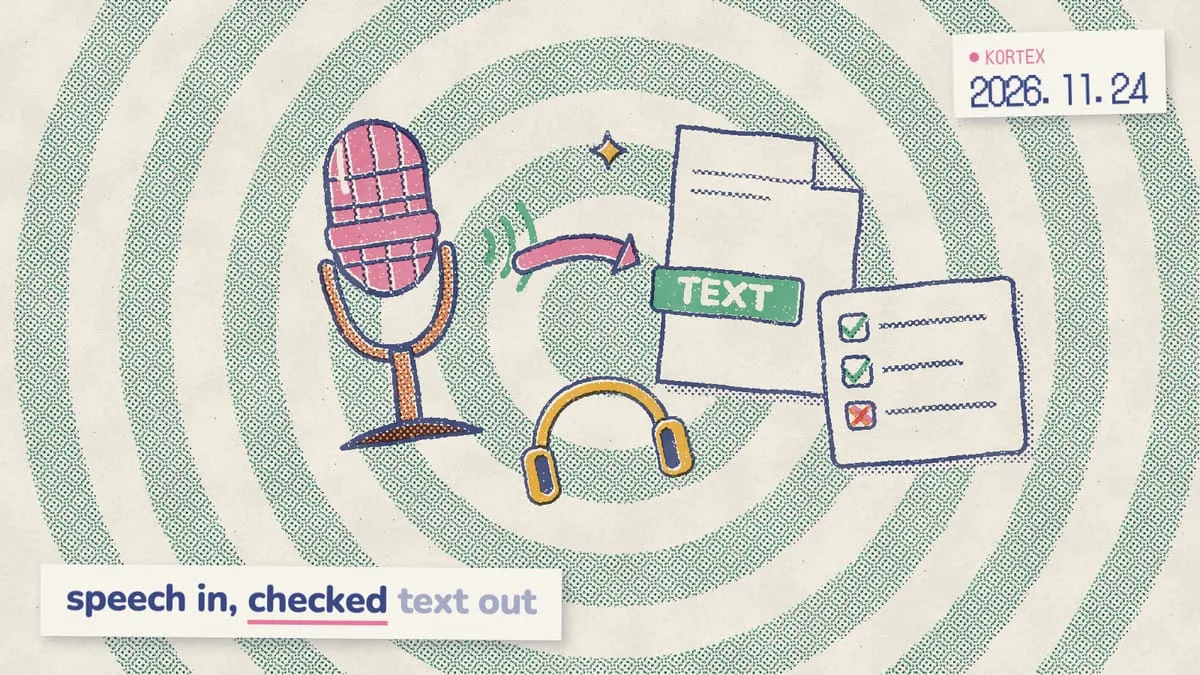
Yes, Gemini Notebook (formerly NotebookLM) can transcribe audio. Upload a supported recording and it turns speech into a text source you can ask questions about. Transcription is a text record of speech. Study notes are a summary or outline made for learning. Check the former before trusting the latter. This guide covers lecture recordings, the mobile recorder, transcript checks and getting the source text back out.
Can Gemini Notebook transcribe audio files?
Yes. Google’s file-import help says audio is transcribed on import. MP3, WAV and M4A are among the supported formats; speech-free audio is unsupported, and poor sound can prevent import. The upload cap is 200MB per file. These are file and input constraints, not a promise of perfect transcription (Gemini Notebook Help, 2026).
For example, Stanford’s recording policy requires instructor or Office of Accessible Education permission to record lectures (Stanford, 2026). Rules vary by course and institution; recording permission and permission to upload are separate checks.
Choose this route when your lecturer has supplied a recording, or when you already have an authorized audio file. For example, a recording called “lecture-final-final.mp3” is hard to identify later. Rename your working copy “Biology 04 - cell signaling” before uploading and keep the original in your own course folder. That small filing step makes the transcript easier to distinguish from the slides and the assigned reading.
This differs from making an Audio Overview. An Audio Overview is generated audio explaining your sources. An imported lecture source is text from a file you supplied. Turning one into the other creates a study aid, not an audio backup.
How do you turn a lecture recording into study notes?
Make the transcript a source first and the notes a separate output. Keeping those roles clear lets you trace a revision card back to the lecture instead of citing an AI summary of an AI summary.
- Check permission. Confirm your course permits recording and uploading the material. A class file for your own study is not always cleared for sharing.
- Keep the audio. Save the unmodified recording somewhere you control. Use that file when a transcript contains a disputed phrase.
- Create a focused notebook. One module or topic is easier to question than a semester’s unrelated material.
- Add the audio file. On the web, use Add sources and choose the upload route. Wait for processing, then inspect the source text.
- Add supporting materials separately. Keep lecture slides and a reading as distinct sources so you can tell them apart.
- Check the passages you will study from. Start with definitions, formulas, dates and unfamiliar names.
- Generate notes from the checked material. Ask for a structure that separates what the lecturer said from your own follow-up questions.
Google’s audio-source announcement describes using class audio, notes and slides to make study guides (Google, 2024). Our recommendation is to insert a transcript check before that synthesis. If the lecturer said “inhibits” and the text says “initiates,” a polished set of cards can preserve the wrong mechanism.
For the broader revision loop, see using Gemini Notebook for studying. Keep this notebook’s scope narrow: it is your reading and practice space, rather than the official record of an examination or a substitute for course materials.
Can you record audio directly in the app?
Yes. In an existing notebook on Android, open Sources, then select Mic at the bottom. Pause or resume as needed and select Stop when finished. Google’s Android recorder instructions specify a maximum of one hour and say the source retains the transcript, rather than the original audio. Recording can continue while the phone locks; ask permission before you start (Google Help, 2026).
Choose based on what you need to keep. If you need to listen again, use a separate approved recorder and import its file instead. If you only need a short dictated explanation for your own study, a text source may be enough. Decide which record you need before the lecture begins.
This is a lecture workflow. For Zoom, Meet or Teams capture and minutes, use our separate meeting-notes guide. Avoid treating a phone left on a desk as evidence that every participant consented to recording.
Keep your checked lecture text
Kortex adds source downloads to your notebook. Export the transcript text you can inspect, then file it beside your lecture notes. Free on Chrome.
How should you check an audio transcript?
Check the words that would change your understanding. There is no need to rewrite every filler word for revision, but a missing negative or wrong unit deserves attention. Use the original audio, lecture slides and course vocabulary as checks, rather than asking the model to certify its own transcript.
| Check | Example problem | What to do |
|---|---|---|
| Names and technical terms | A researcher name becomes an ordinary word | Compare spelling with the slide or reading |
| Negatives | “Does not bind” becomes “does bind” | Replay the original sentence |
| Numbers and units | Milligrams and micrograms get confused | Verify the figure and unit together |
| Equations | Spoken symbols lose their structure | Use the written equation from the course |
| Speaker changes | A student’s guess sounds like the lecturer’s answer | Listen to the exchange and label uncertainty |
| Missing visual context | “This line here” has no referent | Add a note pointing to the relevant slide |
For instance, imagine a statistics lecture that says “the result is not statistically significant.” A tidy summary that drops “not” is worse than a rough transcript. Your check should protect the conclusion, not merely improve the prose. If you cannot resolve a phrase, mark it uncertain and ask the lecturer; don’t fill the gap with a plausible term.
Google’s chat documentation explains source selection and clickable citations. Use those to locate the text behind an answer. A citation to the transcript shows what text the model used; it does not establish that the text matches the audio (Google Help, 2026).
Which prompts help with lecture recordings?
Ask for a bounded result that you can check. A prompt cannot restore inaudible speech or verify the audio if the model only has its transcript. These examples are proposed study prompts, not transcripts from a product test.
Find uncertainty before making notes
Use only the source “Biology 04 - cell signaling”. List terms, numbers,
negatives and incomplete sentences that need checking. Quote the relevant
text. Do not silently correct uncertain words or invent missing content.
Turn checked text into an outline
Use the checked lecture transcript and the lecture slides. Make an outline
with concept, explanation, and supporting passage. Label any disagreement
between the two sources. Put questions for the lecturer in a separate list.
Practice recall instead of rereading
Ask one question at a time about the selected lecture. Wait for my answer,
then compare it with a cited passage. Explain what I missed without adding
material from outside these sources.
For reusable question formats, our flashcard guide explains the study-artifact route. Make a smaller set around mistakes you actually made. Twenty cards copied from an unchecked transcript create twenty opportunities to rehearse an error.
Does it provide timestamps, subtitles or speaker labels?
Do not rely on tools the help pages do not promise for captions or formal records. Google’s audio-import help explains making a text source; it does not promise an SRT subtitle export, complete word-level timings or dependable speaker labels. If those are requirements, create and verify a transcript in a tool designed for that output, then add a text copy to your notebook.
Keep existing time markers when your recording service supplies them. For example, a transcript with a checked “[12:40]” at a section change gives you a useful return point. Asking a chatbot to invent time markers from text alone does not. The same applies to a speaker name: label it only when you can identify who spoke.
A generated “full transcript” in chat is another answer to verify. It can omit passages or change wording. If your task is quoting a lecturer, cite the recording or course-approved source, check the original words, and follow your institution’s citation rules.
How do you export the transcript text?
Export the source itself when you need the imported text. Kortex’s notebook export feature supports source downloads as Markdown, plain text or PDF, with a preview before saving. That export represents the source text available to the extension. It does not recover a recording that the mobile app did not retain, and it does not add verified timing information.
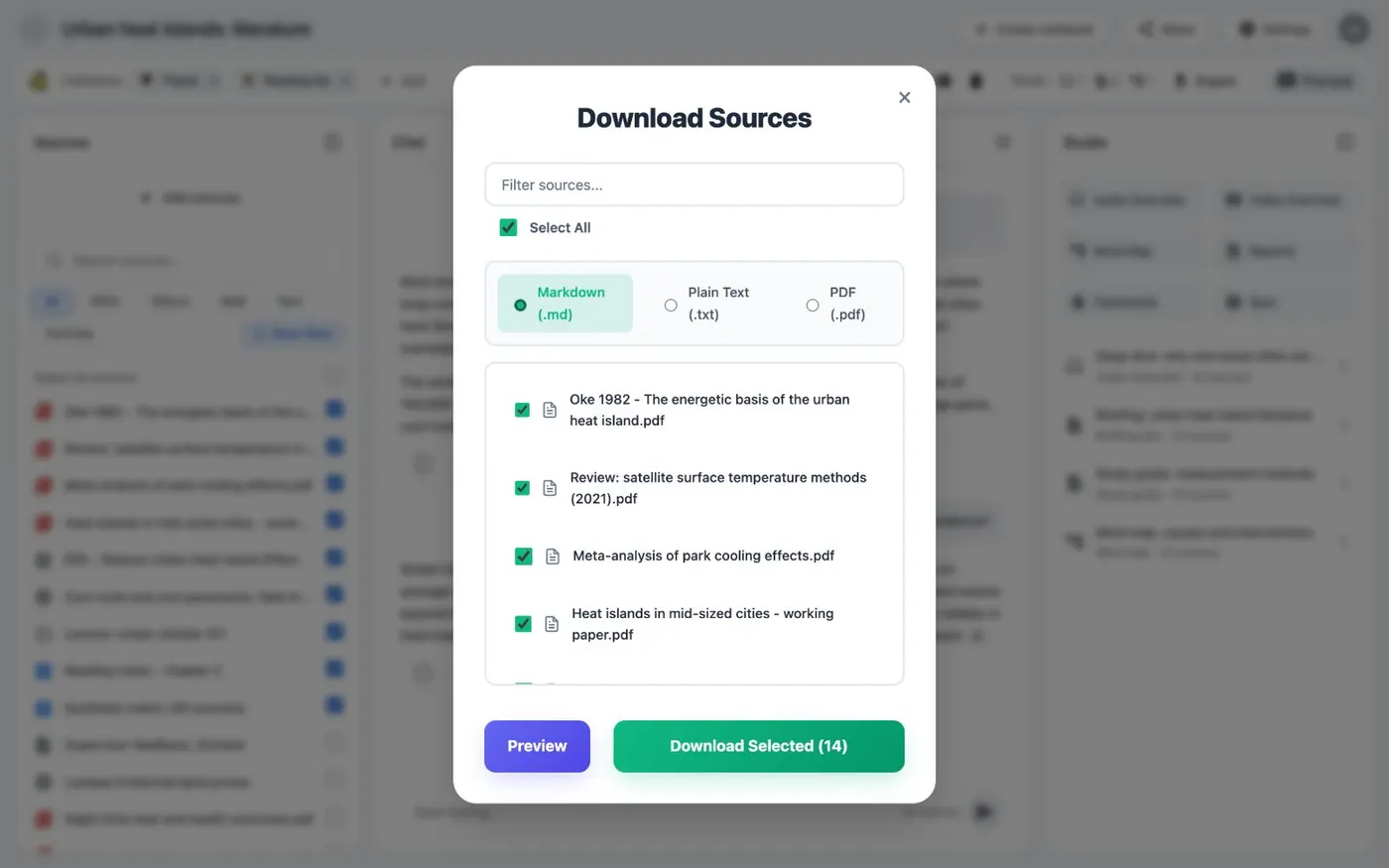
Keep a filename that distinguishes the files: “Biology 04 - original audio,” “Biology 04 - imported transcript,” and “Biology 04 - checked notes.” If you change the text after export, describe what you corrected. A readable audit trail is more useful than pretending the first transcription was exact.
Google also supports exporting notes to Docs. That is a separate route for a note you have written or saved. The new Doc does not synchronize edits back to the notebook note (Google Help, 2026). For all formats and the distinction between sources and chat, see exporting Gemini Notebook.
What if the recording will not import?
Start with the input rather than changing prompts. Check the format and file size, listen for speech, and try a clear short extract to isolate the problem. If one recording fails while another works, preserve both originals while you investigate.
- File too large: make a smaller working copy or split at a topic boundary.
- Poor sound: try a cleaner recording if one exists; do not assume format conversion restores missing speech.
- Unsupported or damaged file: export a fresh copy in a documented format.
- Wrong language or specialist vocabulary: check the supported-language list and verify terms against written course materials.
- Upload works but text is wrong: correct the study source or import a checked transcript before generating notes.
Our Gemini Notebook troubleshooting guide covers wider account and upload problems. For this task, success means a transcript you can inspect and useful study material traced back to it, rather than just an upload that finishes.
Take the transcript with you
Preview and download notebook source text with Kortex, then keep your checked transcript beside the original audio. Free on Chrome.
Frequently asked questions
Can NotebookLM transcribe audio to text?
Yes. Gemini Notebook (formerly NotebookLM) transcribes supported audio uploads and saves the text as a source you can question. Keep your original recording and check names, figures and quotations against it.
Can NotebookLM record a lecture live?
The mobile app can record up to one hour and save the transcript as a source. Google says it keeps the transcript rather than the original voice recording. Ask permission before recording and use a separate recorder if you need an audio archive.
Does NotebookLM give a timestamped, verbatim transcript?
Do not assume that it does. The audio-import documentation does not promise a timestamped subtitle file or reliable speaker labels. Use a dedicated transcription workflow when those are required; a generated summary is not a verbatim record.
How do I save the transcript outside NotebookLM?
Kortex can export the text that appears in a notebook source as Markdown, plain text or PDF. Preview the source before downloading. This exports the source text, rather than recovering the original recording or creating verified timestamps.
Editorial note: fact-checked against the official help pages and docs linked above on November 24, 2026. Spotted something out of date? Contact us and we will fix it, or read more about Kortex.