How to Add Gmail Emails to Gemini Notebook (formerly NotebookLM)
NotebookLM can't import Gmail. To add emails to NotebookLM, let Claude or ChatGPT read your inbox, and Kortex MCP files a month of threads from 1 sentence.
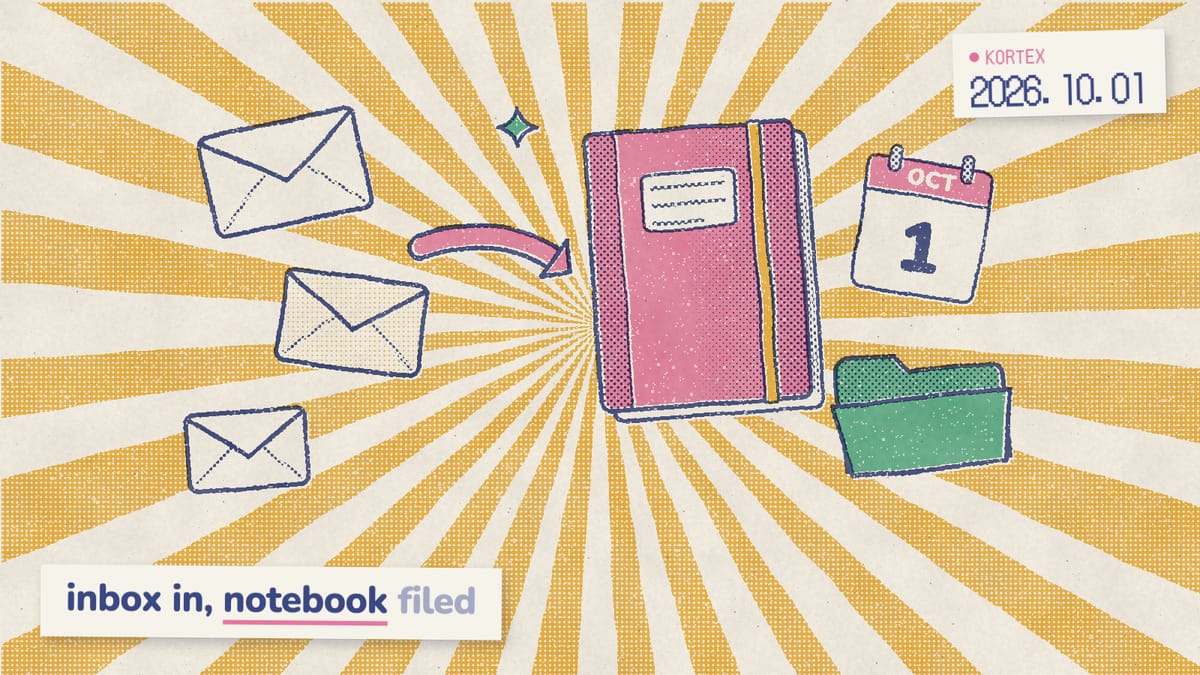
Gemini Notebook (formerly NotebookLM) has no Gmail button. Its help page lists Docs, PDFs, web links, YouTube, audio, images and more as sources, and nothing from your inbox (Gemini Notebook Help, 2026). As a result, a client thread gets copied, pasted and retitled by hand, one email at a time. This guide shows a better way to add emails to Gemini Notebook: the AI assistant you already use reads Gmail, Google Drive and Google Calendar with its own connectors, and Kortex MCP files what it finds into the right notebook.
You’re in good company. When we analyzed the 776 answers on the Kortex MCP waitlist (Sep 19 to Oct 1, 2026), we found 59 people asking to get email into their notebooks and 76 asking for Drive files. Similarly, in the 1,451 Google autocomplete suggestions we analyzed in October 2026, “notebooklm gmail” completed to “notebooklm gmail integration”, and “email to notebooklm” to “forward email to notebooklm”. Both jobs work in Kortex MCP today.
Key Takeaways
- Gemini Notebook has no Gmail or Calendar import (Gemini Notebook Help, 2026).
- Claude or ChatGPT reads your email, Drive and Calendar. Kortex MCP writes the sources.
- 81% of 776 waitlist respondents say their assistant already reaches Gmail and Drive (Kortex waitlist survey, 2026).
- It runs when you ask, in a chat. Kortex MCP is a Pro feature in private beta.
Why can’t NotebookLM access your Gmail directly?
Because Gemini Notebook has no email source type. Google’s list runs from Google Docs and PDFs to ePub files, images and YouTube links, and Gmail isn’t on it (Gemini Notebook Help, 2026). Google Calendar isn’t there either, while Google Drive is, through a file picker. That leaves the usual workarounds. For example, you can paste a thread in as text, print it to PDF, or copy it into a Google Doc first. Each one works for a single email. None of them, however, works for “every email from Acme since September,” because someone still has to find the threads and carry them over. In fact, 244 of 776 waitlist respondents (31%) described a manual copy-paste workaround they use today. One wrote: “I manually upload files one by one to NotebookLM and copy-paste text from emails.”
Drive has a smaller version of the same problem. Its imports “are auto-updated and will sync every few minutes” (Gemini Notebook Help, 2026). However, the picker can’t read your files before you choose them, and “only the docs that mention the renewal” is a reading job, not a picking job.
The gap isn’t storage. A free notebook holds 50 sources, and each source can run to 500,000 words (Gemini Notebook Help, 2026). The gap is the carrying: something has to search, read, decide and file. That’s a job for an AI assistant with the right connectors, and Kortex is the piece that hands its findings to your notebook.
Stop copy-pasting email into your notebooks
Get Kortex free on Chrome to start. The assistant bridge in this guide is Kortex MCP, a private beta for invited Kortex Pro members, so join the waitlist for your invite.
How does the bridge between your inbox and your notebook work?
Kortex MCP is a bridge. Your assistant fetches from whatever it’s connected to, such as Gmail, Drive or Calendar, and Kortex MCP carries that text into Gemini Notebook. We built it to do only the writing half, so Kortex never opens your inbox. The reading happens in your AI client, with that client’s own Gmail, Drive or Calendar connector. Notably, most people already have that half switched on. In the waitlist survey, 81% said their AI assistant can reach Google Drive and 81% said it can reach Gmail, while Notion (30%) and Slack (14%) trail far behind. In other words, the missing piece is rarely access to your inbox. It’s somewhere to put what the assistant reads.
Here’s the trip a single email takes:
- You ask your assistant in plain words.
- It searches Gmail, Drive or Calendar with its own connector.
- It sends the text and a notebook name to Kortex at
https://mcp.kortex-notebooklm.com/mcp. - Your Kortex Chrome extension adds the source with the Google session you’re already signed into.
Importantly, Kortex never stores your Google password or cookies (Kortex MCP security docs, 2026). Our Gemini Notebook MCP guide covers the wider picture.
The live server listed 150 tools on October 1, 2026. Specifically, this job leans on six of them:
| Tool | What it does in this job |
|---|---|
list_notebooks | Finds the notebook you named. |
create_notebook | Makes the notebook if it doesn’t exist yet. |
add_text_source | Adds an email thread, or any text, as a titled source. |
add_google_doc | Links a Google Doc as a live source. |
bulk | Runs one tool over up to 200 targets in a single call. |
is_source_ready | Checks that new sources finished processing. |
What do you need before you start?
An invite, then four pieces of setup. Kortex MCP is a private beta: only invited members can connect, and invites go out from the Kortex MCP waitlist. It’s a Kortex Pro feature, at $9.99 a month or $4.92 a month billed yearly.
- The Kortex extension, installed in Chrome and signed in. Chrome has to be running, though it can sit minimised. The first call after Chrome has been idle can take up to 30 seconds; the MCP troubleshooting docs explain why and how to wake it.
- Kortex added to your client. In Claude Code it’s one line; in claude.ai it’s a custom connector, and in ChatGPT a developer-mode app. Our guide to connecting Gemini Notebook to Claude and ChatGPT walks through each one.
- Gmail, Drive or Calendar switched on in the same client, as described below.
- A key that can write, if you use an API key instead of OAuth sign-in. New keys default to Read-only, which can’t add sources. Standard, in contrast, creates and edits but never deletes. The API key docs show how to create one with the right profile.
In Claude Code, that one line is:
claude mcp add --transport http kortex https://mcp.kortex-notebooklm.com/mcpWhich AI assistants can read Gmail, Drive and Calendar?
Claude and ChatGPT both ship first-party Gmail, Drive and Calendar connectors, documented by Anthropic and OpenAI (2026), and Kortex MCP connects to both. In addition, they’re the assistants our waitlist named most: Claude in 126 answers, ChatGPT in 69 (Kortex MCP waitlist survey, 2026).
| Client | Gmail | Google Drive | Google Calendar | How Kortex connects |
|---|---|---|---|---|
| Claude (claude.ai, Desktop) | Gmail connector | Drive connector | Calendar connector | Custom connector. |
| Claude Code | Your claude.ai connectors | Your claude.ai connectors | Your claude.ai connectors | One claude mcp add command. |
| ChatGPT | Gmail app | Google Drive app | Google Calendar app | Developer mode. |
Gmail, Drive and Calendar in Claude
Anthropic’s help center says its Google Workspace connectors (Gmail, Google Calendar and Google Drive) work on Claude and Claude Desktop. On Team and Enterprise plans, however, an Owner turns them on first (Claude Help Center, 2026). In a chat, select +, then Connectors, and switch on the ones you need next to Kortex. Two details shape this job. First, the Drive connector reads Docs, Sheets, Slides, PDFs and Office files, though very large files can arrive incomplete (Claude docs, 2026). Second, the Gmail connector sees “attachment metadata (not attachment content)” (Claude Help Center, 2026). Claude Code, in particular, inherits all of this. If you’ve logged into Claude Code with a claude.ai account, “MCP servers you’ve added in claude.ai, known as connectors, are automatically available in Claude Code” (Claude Code docs, 2026).
Gmail, Drive and Calendar in ChatGPT
OpenAI says that “when you connect a Google app such as Gmail, Calendar, or Drive, ChatGPT can access information needed for the supported requests you make” (OpenAI Help Center, 2026). Kortex, meanwhile, joins through developer mode, which OpenAI lists for Pro, Plus, Business, Enterprise and Education accounts on the web (OpenAI developer docs, 2026).
One recent snag: until late September 2026, a custom MCP app could block ChatGPT’s own Gmail and Drive apps, showing “This conversation is restricted to developer MCPs” instead. On October 1, OpenAI support wrote, “We removed a server-side restriction on mixing custom MCPs with other apps in late September” (OpenAI Developer Community, 2026). Still see it? Start a fresh chat.
How do you add emails to Gemini Notebook?
Name the sender, the time window and the notebook in one sentence, and the assistant does the rest. A free notebook holds 50 sources (Gemini Notebook Help, 2026), so a month of threads from one client usually fits with room to spare. Behind that sentence, the assistant searches Gmail with its own connector and reads each thread. It calls list_notebooks to find your notebook, or create_notebook if there isn’t one. Then it adds each thread with add_text_source, titled something like “2026-09-14 Renewal terms” so the list sorts by date. Past three or so threads, however, it should switch to bulk, which runs one tool over up to 200 targets, three writes at a time. Finally, is_source_ready confirms everything finished processing. Start with this:
Find every email from <client> this month and add each thread as a source to my <client> notebook. Title each source with the date and the subject.Why the dated titles? Because you’ll run this again next month. With dates, the assistant can read the source list with get_notebook, compare titles and skip what’s already there. Without them, in contrast, duplicates creep in.
The result reads like a dated inbox for one client, from “2026-09-03 Kickoff agenda” to “2026-09-22 Invoice question”. For instance, ask what Acme agreed to on pricing, and Gemini Notebook answers with citations that jump to the quote in the right thread (Gemini Notebook chat help, 2026). As one waitlist respondent put it: “Pull all client emails into a Notebook.” That took one sentence.
A month of client email, filed and dated from one sentence
Kortex MCP lets the assistant you already use turn Gmail threads into notebook sources you can question with citations. It's a private beta for invited Kortex Pro members, and invites go out from the waitlist.
When one source per thread is too many
A chatty client can fill 50 sources in a quarter, so ask for one source per week instead. As a result, you keep the history and use far fewer slots:
Go through my email with <client> from July to September. Make one source per week with every thread from that week in date order, titled "<client> email, week of <date>". Add them to my <client> notebook and skip any week that's already there.Saving one passage, not a whole thread
Sometimes you only want the paragraph that matters. save_snippet adds a single passage with a date header. Leave out the notebook and it lands in a “[SNIPPETS]” notebook Kortex creates.
Save the paragraph in Dana's last email where she lists the launch dates to my <client> notebook.What about attachments and links?
Attachments take a detour, since Claude’s Gmail connector doesn’t read their contents. If the file also lives in Drive, ask for it from there. Alternatively, in Claude Code, download it and ask Claude to upload it: Kortex’s three-step upload (start_file_upload, upload_file_chunk, finish_file_upload) handles PDFs, Word and text files up to 50 MiB.
Links are simpler. For example, “Add every link Dana sent this month to my add_url_source, which takes several web pages or YouTube videos in one request.
How do you add a Google Drive folder to Gemini Notebook?
Ask for the folder by name. The assistant lists it with its Drive connector, then Kortex links each Google Doc with add_google_doc. A linked Google Doc is a live source that Gemini Notebook re-reads when you sync, so “sync the Google Docs in my notebook” pulls in later edits through sync_google_docs. In contrast, PDFs, Word files, Sheets and Slides take a different path. Your assistant reads them with its Drive connector and adds the text with add_text_source, which is a snapshot of today. Gemini Notebook only imports Drive files you have “view access or more” to (Gemini Notebook Help, 2026). The linked Doc is also opened by the Google account your notebooks run under. Therefore, if your assistant’s Drive connector uses a different account, share the files with your notebook account first.
Add the Drive docs in folder <folder name> to my <notebook> notebook. Link Google Docs as live sources. For PDFs and Word files, add the text.The assistant really earns its keep on judgement calls:
Look through my "Research 2026" Drive folder and add only the docs that discuss the tariff change to my Trade notebook. Tell me which ones you skipped and why.To be fair to Google, three Docs are quicker through its own Drive picker. That said, the assistant route wins at 30 files, across several folders, or whenever choosing means reading.
How do you pull meeting notes from Google Calendar?
Use the notes Google Meet already writes. With “Take notes for me” on, the notes document is “saved in the meeting organizer’s Google Drive in the ‘Google Meet’ folder” and is “automatically attached to the Google Calendar event” (Google Meet Help, 2026). Your assistant reads Calendar to see which meetings happened, finds those docs in Drive, and Kortex links them with add_google_doc. A new client gets a fresh notebook from create_notebook. As a result, each client’s notebook becomes a searchable record of your calls. A few caveats apply. “Take notes for me” needs an eligible Google Workspace edition or a Google AI plan (Google Meet Help, 2026). Additionally, the notes sit in the organizer’s Drive, so whether you can open them depends on the organizer’s sharing settings.
Pull notes from today's meetings. For each meeting with an outside client, find the Gemini notes doc and add it to that client's notebook. If the notebook doesn't exist yet, create it.No Gemini notes? Add the event’s title, attendees and agenda as a text source, then paste your own notes and have them added too.
Does it run automatically?
No. It runs when you ask, inside a conversation. Kortex schedules run hourly, daily or weekly inside the extension while Chrome is open, and the extension checks for due rules every 15 minutes (the workflows and schedules docs cover setup). However, schedules can’t read Gmail or any other outside app on their own (Kortex MCP workflows docs, 2026). Only your AI client can do that, and only while you’re talking to it. What a schedule can do is ask a notebook a question and save the answer, generate an Audio Overview or study material, or run a saved workflow. Saved workflows, similarly, chain Kortex tools only, so they can’t open your inbox either. Our guide to Gemini Notebook AI workflows explains where that line sits.
So split the job: fill the notebook in a chat on Friday, then let a schedule use it on Monday at 8am:
Every Monday at 8am, ask my <client> notebook "What did <client> ask for last week that we haven't answered yet?" and save the answer as a note.That second half is exactly what our daily briefing guide is about.
What should you watch out for?
Four things, the checks you’d run on any assistant that reads your email:
- Where the text ends up. Each email becomes a source in your Gemini Notebook, so anyone you share that notebook with can read it. Keep client email in notebooks you haven’t shared widely.
- Instructions hiding in email. Strangers write your email. Prompt injection is text planted in content an assistant reads, aimed at steering it, and researchers have shown attacks that inject prompts “into data likely to be retrieved” (Greshake et al., arXiv, 2023). Claude Code’s docs, likewise, warn that servers fetching outside content “can expose you to prompt injection risk” (Claude Code docs, 2026). Keep approval prompts on for write tools, or use a Standard key, which never deletes.
- Google’s limits. Questions about all those new sources use Gemini Notebook’s own quota, which refreshes every five hours until a weekly cap (Gemini Notebook Help, 2026).
- Speed. Kortex jobs run one at a time; as a result, 40 separate calls means 40 round trips. Let the assistant use
bulkinstead.
What else can you send to a notebook?
Anything your AI client can read. A folder on your laptop, a GitHub repo, Notion pages or a web search all go in the same way. Fewer people have those connected than Gmail and Drive. Nevertheless, the bridge is identical. It also runs the other way, carrying notebook answers back out to your assistant.
In short, your assistant reads, Kortex MCP files, and Gemini Notebook answers with citations. Once you’re in, the quickstart gets you to a first call, and Gmail is only the first door.
Your inbox, filed into notebooks by the assistant you already use
Your assistant reads Gmail, Drive and Calendar, and Kortex MCP files what it finds into the right Gemini Notebook. Kortex MCP is a private beta for invited Kortex Pro members, so join the waitlist for an invite.
Frequently asked questions
Can NotebookLM read emails from Gmail?
No. Gemini Notebook (formerly NotebookLM) takes Google Docs, Slides, Sheets, PDFs, web links, YouTube, audio and pasted text, but it has no Gmail source type. To skip the copy-paste, let an AI assistant read Gmail with its own connector, and Kortex MCP adds each thread to your notebook as a source.
Does Kortex read my Gmail?
No. Your AI client reads Gmail with its own connector, like Claude’s Gmail connector or ChatGPT’s Gmail app. Kortex MCP only receives the text your assistant hands it and adds that text to your notebook through your own Kortex extension. Kortex never stores your Google password or cookies.
Can I add email attachments to a notebook?
Usually, with one extra step. Anthropic says Claude’s Gmail connector sees attachment metadata, not attachment content. If the file also lives in Google Drive, ask for it from there. In Claude Code, save the attachment to disk and Kortex can upload PDFs, Word and text files up to 50 MiB.
Can Kortex send my emails to a notebook automatically every day?
Not on its own. Kortex schedules run hourly, daily or weekly while Chrome is open, but they can’t read Gmail or any other outside app. The Gmail step happens when you ask your assistant in a conversation. A schedule can then ask the filled notebook a question or make an Audio Overview.
Does this work in ChatGPT?
Yes. ChatGPT has Gmail, Google Calendar and Google Drive apps, and Kortex connects through developer mode on paid plans. OpenAI said on October 1, 2026 that it removed a restriction on mixing custom MCP apps with its own apps in late September. If you still see a “restricted to developer MCPs” error, start a new chat.
Will Google Docs I add stay up to date?
Linked ones will. add_google_doc adds a live Google Doc source, and asking your assistant to run sync_google_docs makes Gemini Notebook re-read every linked Doc in the notebook. Emails, PDFs and Word files added as text are snapshots of the day you added them, so add them again after big changes.
Editorial note: fact-checked against the official help pages and docs linked above on October 2, 2026. Spotted something out of date? Contact us and we will fix it, or read more about Kortex.