Connect Gemini Notebook (formerly NotebookLM) to Claude and ChatGPT
How to connect NotebookLM to Claude or ChatGPT: add Kortex MCP with one URL, then ask any Gemini Notebook, or up to 3 at once, and get cited answers back.
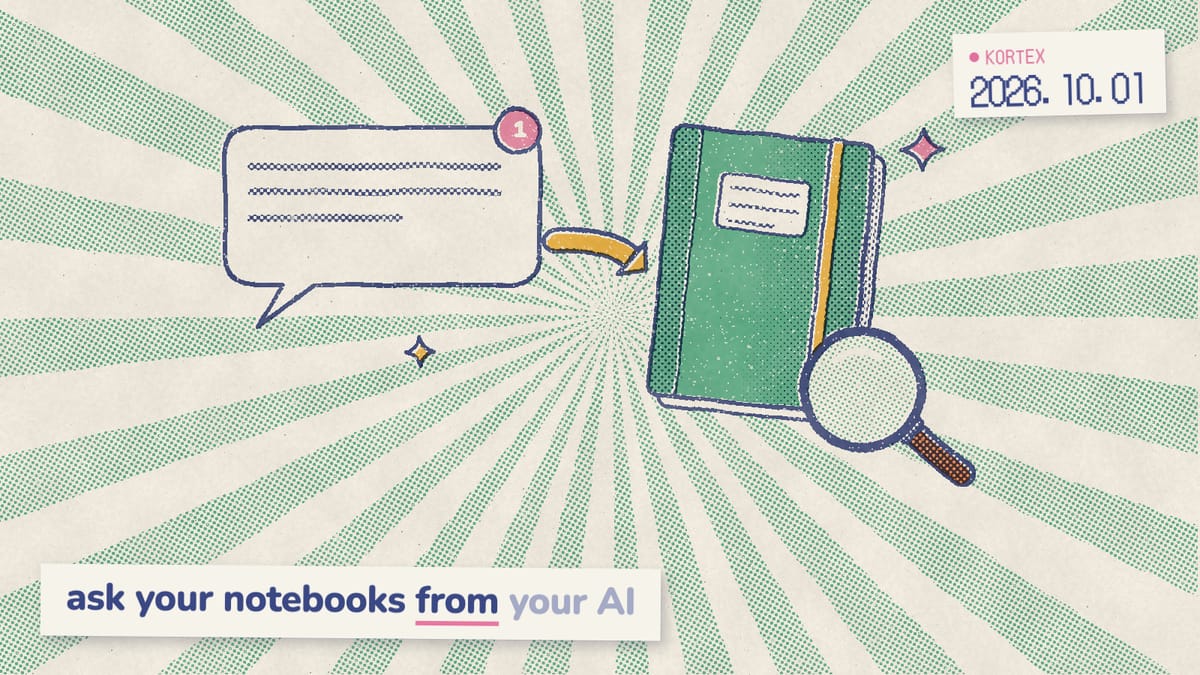
You’ve got a notebook full of interview transcripts, papers or contracts in Gemini Notebook (formerly NotebookLM). Meanwhile, you do most of your actual work in Claude or ChatGPT. So the day goes like this: ask the notebook, copy the answer, paste it into Claude, lose the citations on the way, repeat. This guide shows how to connect Gemini Notebook to Claude or ChatGPT, so you can ask your notebooks from the chat and keep the citations intact.
When we analyzed the 776 answers on the Kortex MCP waitlist (Sep 19 to Oct 1, 2026), we found 110 people asking to query their notebooks for cited answers from their AI assistant. They named Claude most often (126 people), then ChatGPT (69). In fact, search shows the same pull. In the 1,451 Google autocomplete suggestions we analyzed in October 2026, “connect notebooklm to” completed to Claude first and ChatGPT second. It already works in Kortex MCP.
Key Takeaways
- 110 of 776 Kortex MCP waitlist respondents asked for cited notebook answers inside their AI assistant (Kortex waitlist survey, 2026).
- One URL connects Claude Code, Claude Desktop, claude.ai and ChatGPT.
ask_questionreturns an answer, citations and a session.ask_libraryasks up to three notebooks.- Kortex MCP is a Pro feature in private beta, by invite.
Why can’t Claude access your Gemini Notebook on its own?
Because there’s no door to walk through. Google publishes no public consumer API for Gemini Notebook, so Claude and ChatGPT have nothing official to call. Google’s only documented API is enterprise-only, a v1alpha preview inside Gemini Enterprise on Google Cloud, as our Gemini Notebook MCP guide explains. For a personal account, therefore, the copy-paste loop is the default. Plenty of people live in that loop. In the waitlist survey, 244 of 776 respondents (31%) described a manual copy-paste workaround they use today. One wrote: “Manually, ask the question in notebooklm, then copy paste it for context into Claude.” In other words, the person becomes the API. Asking notebooks for cited answers ranked third of the 21 needs in the survey, behind running jobs on a schedule and tidying the library.
That loop costs more than time. Gemini Notebook answers only from your sources, which general chatbots don’t. Google’s help center says chat responses “only use data from your sources” and that it uses “direct quotes, text, and images from your sources as citations” (Gemini Notebook Help, 2026). Paste an answer into Claude, however, and those citations rarely survive the trip. Why does that matter? General models invent references. In a JMIR study, for example, 28.6% of the references GPT-4 produced for systematic reviews were hallucinated (JMIR, 2024). Grounding is the known fix. The paper that introduced retrieval-augmented generation found that models answering from retrieved passages wrote “more specific, diverse and factual language” than a model working from memory alone (Lewis et al., arXiv, 2020). That grounding is exactly what you lose when the notebook stays in another tab.
There’s a second limit. Each Gemini Notebook chat lives inside one notebook. As a result, an answer spread across three notebooks means three questions and some stitching. The fix isn’t a better copy-paste habit. It’s letting your assistant ask the notebook itself, citations attached.
Stop pasting notebook answers into Claude
Get Kortex free on Chrome today. Kortex MCP, the part that lets Claude and ChatGPT ask your notebooks directly, is a private beta for invited Kortex Pro members, and invites go out from the waitlist.
How does Kortex MCP bring your notebooks into Claude?
Kortex MCP is a bridge between your AI client and your own Chrome. We built it to run every call through the browser you already use: your client calls https://mcp.kortex-notebooklm.com/mcp, and the call is relayed to your Kortex extension, which asks Gemini Notebook with the Google session you’re signed into. The answer and its citations travel back the same way (Kortex MCP docs, 2026). As a result, Gemini Notebook still does the grounding, and Claude gets the result where your work already is. The bridge runs the other way too. Whatever your AI client can reach, such as Gmail, Google Drive or a web page, Kortex MCP can carry into a notebook. Kortex never opens your inbox; your assistant reads it with its own connector, the job behind our Gmail to Gemini Notebook guide.
When we ran tools/list against the live server on October 1, 2026, it returned 150 tools (the Kortex docs say 145+). Specifically, this guide needs five of them:
| Tool | What it does | Changes your notebooks? |
|---|---|---|
ask_question | Asks one notebook and returns the answer, its citations and a session_id | No |
ask_library | Asks up to three notebooks and keeps each answer separate, with its citations | No |
search_everything | Searches notebooks, sources, notes, collections, tags and podcasts at once | No |
list_notebooks | Lists every notebook’s id, name and creation date | No |
save_chat_to_note | Saves the latest answer and its citations as a native notebook note | Yes |
Before you start, the honest part. Kortex MCP is a private beta, and only invited members can connect. It’s a Kortex Pro feature, at $9.99 a month or $4.92 a month billed yearly. In addition, you’ll need:
- An invite from the waitlist.
- The Kortex extension installed in Chrome and signed in.
- Chrome running, even minimised, with no notebook tab open.
- Patience on the first call: after Chrome has been idle, the extension can take up to 30 seconds to wake.
How do you connect Gemini Notebook to Claude or ChatGPT?
You paste one URL and sign in. Claude takes Kortex as a remote MCP server in Claude Code, Claude Desktop and claude.ai, and ChatGPT takes it as an MCP app in developer mode. Anthropic says custom connectors work on Free, Pro, Max, Team and Enterprise plans, though Free users are limited to one (Claude Help Center, 2026). OpenAI, meanwhile, offers developer mode to Pro, Plus, Business, Enterprise and Education accounts on the web (OpenAI, 2026). In every case, sign-in happens on a Kortex consent page, so no Google password ever goes into your AI client. Remember that Kortex MCP is a private beta for invited Kortex Pro members, so these steps work once your invite arrives. Pick the setup that matches where you work.
Claude Code
One command in your terminal:
claude mcp add --transport http kortex https://mcp.kortex-notebooklm.com/mcpSign in on the Kortex consent page that opens. If the browser doesn’t open, however, type /mcp inside Claude Code to authenticate, as Anthropic’s Claude Code MCP docs describe. Developers get the best of it: Claude can ask a notebook and edit code in the same turn.
Claude Desktop and claude.ai
Both take Kortex as a custom connector, with no key or Node.js needed. In Claude, go to Customize > Connectors and choose Add custom connector. Name it Kortex, paste the endpoint URL, and continue. Your browser opens the Kortex consent page, you sign in, and Kortex shows up in your connectors list. The client setup docs have copy-paste setup for every major client, Cursor and VS Code included.
Then check the connector’s settings, in particular its tool permissions: each tool can be set to allow, ask every time, or never. Read tools like ask_question are fine on always allow. Conversely, set anything that deletes to ask every time.
ChatGPT
ChatGPT reaches MCP servers through developer mode, which supports streaming HTTP with OAuth (OpenAI, 2026). It takes three steps:
- Open Settings > Security and login and turn on Developer mode.
- Open Plugins and select + to create a developer-mode app for a remote MCP server.
- Name it
Kortex, paste the endpoint as the server URL, set authentication to OAuth, create the app, and sign in on the Kortex consent page.
Kortex then shows up under the Developer mode tool in the composer. As a result, the prompts below work the same in ChatGPT as in Claude.
How do you ask one notebook and get citations back?
You ask in plain English, and your assistant calls ask_question. The tool sends your question to Gemini Notebook and returns three things: the answer, its citations, and a session_id (Kortex tools docs, 2026). Each citation points to a passage from your sources, so the evidence arrives attached. You can also narrow the question to specific sources, since ask_question accepts a list of source ids. For instance, you might ask only the 2026 interviews in a notebook that also holds older ones. In clients that show interactive panels, the tool opens one, and each [n] reveals the passage behind it. No panel in your client? Your assistant still receives the citations as text it can quote. Name the notebook and ask for sources, like this:
Ask my "Q3 customer interviews" notebook what the three most common onboarding complaints are, and cite the sources for each one.Here’s the shape of what comes back (made-up interviews, trimmed):
Onboarding complaints, from “Q3 customer interviews”
- Setup took longer than people expected, mostly the first data import [1][2].
- Admins couldn’t tell which teammates had finished setup [3].
- The welcome email linked to an outdated guide [4].
[1] Interview 07.pdf: “It took us most of a week to get the first import working.”
The session_id is what makes follow-ups work. When your assistant passes it back, Kortex sends Gemini Notebook’s own conversation history with the next question. Thus, pronouns and earlier answers stay in context, even across extension restarts.
Follow up in the same session: which of those complaints came from enterprise customers? Keep the citations.In Claude Code, the notebook answers and Claude acts on it in one turn:
Ask my "API design decisions" notebook why we chose cursor pagination over offsets, cite the sources, then update the pagination section of README.md to match.In other words, one message gets a grounded answer, its sources and the work done, with no citations lost in a paste.
Cited notebook answers, right inside Claude
Ask any notebook from Claude or ChatGPT and get the answer with its sources, then follow up or act on it in the same chat. Kortex MCP is a private beta for invited Kortex Pro members, so join the waitlist to get your invite.
Can you ask up to three notebooks at once?
Yes. ask_library asks the same grounded question across up to three notebooks, chosen by explicit ids, a Kortex tag, a collection or a library search. Each notebook’s answer comes back separately with its own citations, so your assistant can compare them and say where they disagree (Kortex tools docs, 2026). Notably, it’s read-only and charges no Kortex credits. That “separately” is the point. A blended answer hides the moment two sources contradict each other. Three labelled answers, in contrast, make the contradiction the headline. Consider a competitor review with one notebook per vendor, all tagged “competitors”, and one question about team pricing. You get three answers side by side, each with the passages behind it, instead of one smooth paragraph that quietly averages them.
Ask my notebooks tagged "competitors" how each vendor prices its team plan. Show each notebook's answer separately with its citations, then tell me where they disagree.Tags and collections make this much easier. For example, if your library is a flat list of 80 notebooks, tag and group it first.
One habit worth building: when the answers disagree, ask for the passages, not a verdict. Gemini Notebook can tell you what each source says. That said, deciding which source is right is still your call.
How does Claude find the right notebook first?
It searches your library before it asks, so you don’t need exact notebook names. list_notebooks returns every notebook’s id, name and creation date. search_everything, meanwhile, searches your whole library at once: notebooks, sources, notes and artifacts, Kortex collections, tags and podcasts (Kortex tools docs, 2026). Both are read-only. As a result, a vague question becomes two steps. Your assistant searches, picks the best match, then asks it.
Search my library for anything about "data retention". Tell me which notebooks it shows up in, then ask the best match what our policy is for deleted accounts, and cite the sources.To pick notebooks by meaning rather than keywords, semantic_library_metadata can describe each notebook for Claude to search. However, it writes to Kortex, so a read-only key can’t use it.
How do you keep answers grounded?
Gemini Notebook does the grounding. Your job, therefore, is to keep Claude from smudging it. Google says its citations are direct quotes from your sources, and that you can select one to read the quote in context (Gemini Notebook Help, 2026). Kortex passes those citations through as returned.
Keep the notebook and Claude in separate lanes
The risk is the layer on top. Claude may, for instance, summarise, add context or answer part of a question from its own knowledge.
The fix is to keep two lanes. Notebook claims go next to their citations. Claude’s own thoughts get a label. Paste this at the start of a research chat:
For this chat, answer questions about my research only from my Gemini notebooks through Kortex. Put every notebook claim next to its citation, label anything that comes from you rather than a notebook as "my note", and say "the notebook doesn't say" when it doesn't.Getting answers with no citations at all? The usual cause is a follow-up sent without the session_id, which starts a fresh conversation. Ask your assistant to reuse the session.
Use a read-only key when you only need answers
Asking questions never changes your notebooks, so lock the connection down. Kortex API keys default to the Read-only profile: reads only, and nothing is created, changed or deleted, as the MCP security docs explain. In fact, the assistant doesn’t even see the write tools, which matters for more than accidents. Prompt injection is text hidden in a web page, email or source that tries to give your assistant instructions, and Kortex’s docs call a read-only key the cheapest defence against it. Create one in the Kortex popup under Settings > General > MCP Connection and send it as Authorization: Bearer kx_mcp_.... Keys are shown once and stored only as a hash.
On the other hand, a read-only key can’t save answers back. save_chat_to_note writes the latest answer and its citations into a native notebook note, so it needs a key that allows writes.
What are the limits of using Gemini Notebook in Claude?
Mostly Google’s. Kortex MCP rides on top of Gemini Notebook, and hence its usage limits still apply. Since September 2, 2026, Gemini Notebook usage refreshes every five hours until a weekly cap (Gemini Notebook Help, 2026). Longer chats use more of it.
A few more to know:
- Chrome must be open with the extension signed in. A closed laptop answers nothing.
- Rate limits: 60 calls a minute per key and 120 across all your keys (Kortex MCP security, 2026). Normal chat never comes close.
- Notebook answers only cover the notebook. If the sources don’t say it, Gemini Notebook won’t either. That’s a feature.
What can you do once Claude can ask your notebooks?
In short: one URL connects Claude or ChatGPT to Gemini Notebook, ask_question and ask_library bring back cited answers, and a read-only key keeps it safe. The next jobs come quickly.
Use notebooks as long-term context with Gemini Notebook as AI memory. Similarly, get a cited answer on a schedule with a daily briefing, or turn a chat into an Audio Overview with Studio from chat.
When your invite lands, the Kortex docs quickstart gets you to a first cited answer. Here’s how to get in line.
Ask your notebooks from Claude, citations intact
One URL, and Claude or ChatGPT can ask any notebook and show you the passages behind the answer. Kortex MCP is a private beta for invited Kortex Pro members: join the waitlist for an invite, and get Kortex free on Chrome while you wait.
Frequently asked questions
Can I use NotebookLM in Claude?
Yes, through Kortex MCP. Gemini Notebook (formerly NotebookLM) has no public consumer API, so Claude can’t open your notebooks by itself. Kortex MCP gives Claude tools like ask_question and ask_library. It’s a Kortex Pro feature in private beta, so you need an invite from the waitlist before you can connect.
Can you connect NotebookLM to ChatGPT too?
Yes. Turn on developer mode under Settings > Security and login, then add Kortex as an MCP app with the server URL and OAuth. OpenAI says developer mode is available to Pro, Plus, Business, Enterprise and Education accounts on the web. The same tools and the same citations come back.
How do I connect NotebookLM to Claude Code?
Add Kortex with one claude mcp add command in your terminal, using the Kortex server URL, then sign in on the Kortex consent page. If the browser doesn’t open, type /mcp inside Claude Code to authenticate. Kortex MCP is a private beta for invited Kortex Pro members, so you need a waitlist invite first.
Are the citations real, or does Claude make them up?
Gemini Notebook writes the answer and its citations from your sources, and Kortex passes them back as returned. Google says it uses direct quotes from your sources as citations. Claude can still add its own commentary, so ask it to label anything that didn’t come from the notebook.
Can Claude ask more than one notebook at once?
Yes, up to three. The ask_library tool asks the same question across up to three notebooks, picked by id, Kortex tag, collection or library search. Each notebook’s answer comes back separately with its own citations, so your assistant can show where they disagree instead of blending them.
Does Kortex see my Google password?
No. Kortex never stores your Google password or cookies. The request goes from your AI client to the Kortex endpoint and then to the Kortex extension in your own Chrome, which asks Gemini Notebook with the Google session you’re already signed into.
Why does the first question take so long?
Chrome puts idle extensions to sleep, so the first call after a quiet spell can take up to 30 seconds while Kortex wakes up. Later calls are fast. Chrome has to stay running with the extension signed in, though it can sit minimised with no notebook tab open.
Editorial note: fact-checked against the official help pages and docs linked above on October 2, 2026. Spotted something out of date? Contact us and we will fix it, or read more about Kortex.