Make a Mind Map in Gemini Notebook (formerly NotebookLM)
Learn how to make a NotebookLM mind map in Gemini Notebook in 1 click, ask about any node, download or share it, and use maps to study or review papers.
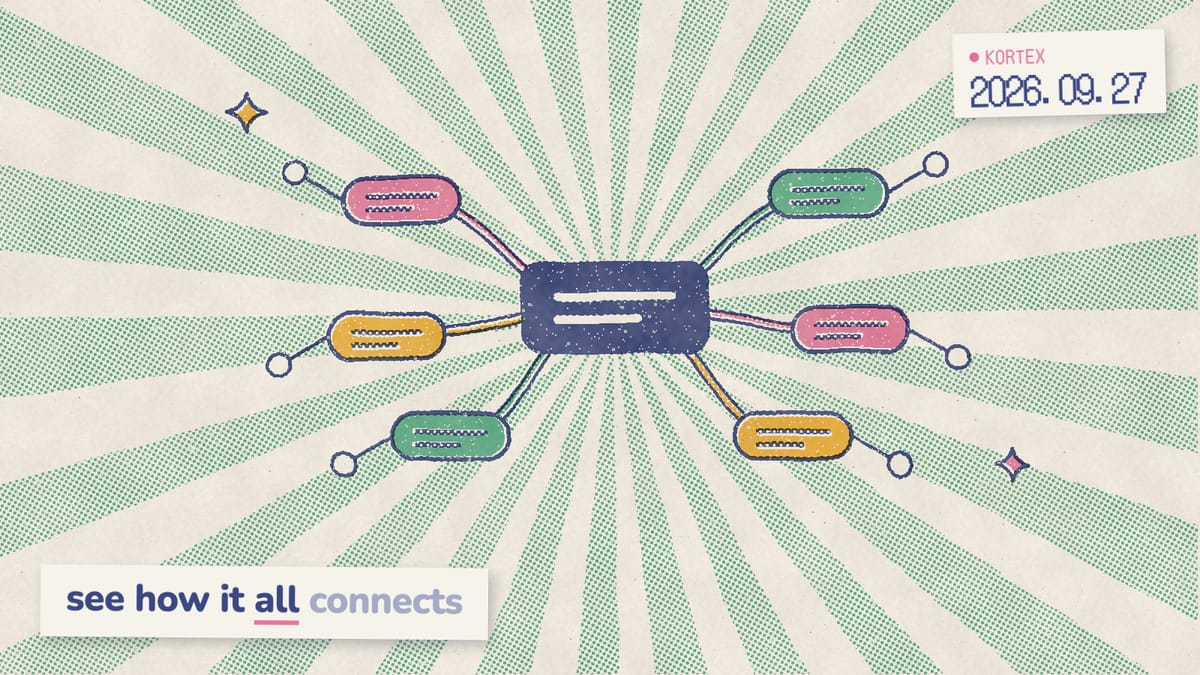
Twenty papers into a new topic and you still can’t see how the pieces fit? That’s the job the Mind Map in Gemini Notebook (formerly NotebookLM) was built for. It reads the sources in your notebook and draws the main topics and sub-topics as a branching diagram you can click through, question and download. Here’s how to make one, how to get more out of every node, and where maps help most: studying and literature reviews.
Key Takeaways
- Mind Maps turn your sources into a clickable diagram (Google Workspace Updates, 2025).
- Select any node to ask about it in chat.
- Download a map or share the notebook.
- Maps are web-only, and their structure is AI interpretation.
What is a Gemini Notebook mind map?
A Mind Map is a branching diagram that summarizes your uploaded sources as main topics and related ideas (Gemini Notebook Help, 2026). Think of it, in fact, as the table of contents your sources never had. Google’s own example shows the idea (Google Workspace Updates, 2025). A biology student writing a thesis on coral reef decline uploads research papers and gets branches for ocean acidification, rising sea temperatures, pollution and overfishing. The help page pitches maps for 4 jobs: a quick overview, an easy entry point to a new topic, connecting ideas and organizing your thoughts. In other words, a map answers “what’s in here?” before you ask anything specific. That said, the branches are the model’s reading of your sources, not a structure you drew yourself, so treat them as a first draft.
People clearly look for this. When we analyzed 1,451 Google autocomplete suggestions for Gemini Notebook topics in October 2026, we found 13 distinct mind map searches. Three were about problems, such as “not showing” and “not working”. Similarly, three more were about getting a map out, through an exporter, an extractor or a plain export. This guide covers both.
How do you make a mind map in Gemini Notebook?
Open a notebook with sources and select the Mind Map chip in the chat. The finished map appears as a new note in the Studio panel, where you can reopen it any time (Gemini Notebook Help, 2026). There’s also a Mind Map tile at the top of the Studio panel (Google, 2025), so you have two ways in. The whole job takes four steps:
- Open notebook.google.com in a desktop browser. The mobile app doesn’t support Mind Maps.
- Open a notebook that already holds your sources, or create one and upload them.
- Select the Mind Map chip in the chat, or the Mind Map tile in Studio.
- Open the new note in the Studio panel when it’s ready.
Want a fresh version? Select More, then Delete note, and generate again. Alternatively, keep the old one. The Studio can store several outputs of the same type in one notebook, and Google suggests versions for different chapters, for example one map per chapter of your course notes. Never built a notebook before? Our beginner’s guide to Gemini Notebook walks through the setup.
Mind map not showing or not working?
Check three things. First, the mobile app doesn’t support Mind Maps, so a missing chip on your phone is expected (Gemini Notebook Help, 2026). Second, the map is built from sources. Therefore, add at least one before you select the chip. Third, look for a “Limit reached” message. Google’s usage page says you can come back once the allowance refreshes, which happens every 5 hours until a weekly cap (Gemini Notebook Help, 2026).
How do you use a mind map once it’s made?
Use 3 moves. Zoom and scroll to get around, expand or collapse branches to change the level of detail, and select a node to ask about it in the chat (Gemini Notebook Help, 2026). The options in the top right corner expand the view, download the map or close it. Start collapsed. Read the first ring of branches as the notebook’s big themes, then open one branch at a time. When a node looks unfamiliar, select it. Why reread a whole paper when one click gets you the passage? The chat answers with citations, and hovering over one shows the full quoted text (Gemini Notebook Help, 2026). For instance, in the coral reef map, selecting the pollution branch asks the chat about pollution and returns cited passages from your papers. As a result, the map works as an index into your sources, not just a picture of them.
Keep the good answers. Notably, Save to note pins a chat reply to the notebook with its tables and clickable citations intact. That way a map session leaves a trail of notes behind it, instead of a chat you’ll scroll through later.
How do you download or share a mind map?
You get 2 options. Select Download inside the Mind Map window to save a file you can send anywhere, or share the whole notebook so other people can load the same map in their Studio panel (Gemini Notebook Help, 2026). However, notebooks that use a Play Books ebook as a source may block downloads, depending on the publisher’s restrictions. Which one should you use? A downloaded file suits a slide, a handout or a quick message. Sharing the notebook suits a class or a team, because the map stays next to the sources it came from, and every node stays clickable. Teachers, for example, can build one notebook per unit and share it, as our Gemini Notebook for teachers guide shows. Consequently, the right choice depends on whether your reader needs the picture or the sources behind it.
Want the map as text instead of a picture? Kortex MCP is a connector that lets an AI client such as Claude or ChatGPT work with your notebooks, and it’s included with Kortex Pro and Lifetime. Through it, your assistant can read a mind map’s tree and turn it into an outline for your notes. Nevertheless, one notebook per unit soon means maps scattered across a dozen notebooks.
Every mind map you've made, in one table
Kortex lists the mind maps, flashcards and other Studio outputs from all your notebooks in one place you can search, file in folders and download. Free on Chrome.
Mind maps in interactive learning overviews
Interactive learning overviews are reports that mix summaries with quizzes, flashcards and mind maps (Google Workspace Updates, 2026). You’ll find them in the Studio panel under Reports, then Interactive, with Learning Overview as the template. Inside a generated overview, select Add under any suggested artifact to embed it (Gemini Notebook Help, 2026). This is where a map earns its place in studying. The map gives you the shape of a unit, while the embedded quizzes and flashcards check whether it stuck. Note the limits, though: interactive reports work only on the web, and some content needs you to be 18 or older. Similarly, the Mind Map itself is a desktop feature. Our guide to interactive reports covers the rest of the page around the map.
A map is the overview, not the test. Accordingly, once you know the shape of a topic, switch to recall. Our Gemini Notebook flashcards guide covers cards, quizzes and Anki, and how to study with Gemini Notebook builds the full exam routine.
Can a mind map speed up a literature review?
Yes, as a first pass. The free plan holds 50 sources per notebook and Pro holds 300 (Gemini Notebook Help, 2026), and a map of that pile shows the themes before you read closely. It’s a sorting tool, not a verdict. Specifically, load the papers, generate a map, and treat each top-level branch as a candidate theme for your review. Select a node to get a cited answer, then open the citations to see which papers actually support it. A branch resting on one thin citation is a gap worth noting. In contrast, a branch that pulls from many papers is probably a core theme. Our Gemini Notebook research guide covers the rest of a review workflow, from search to final draft.
Literature reviews come up in our own data too. We analyzed 776 answers to the Kortex MCP waitlist survey (Sep-Oct 2026), and 20 people asked for help with literature reviews specifically. One wrote that they want to “automate the creation of literature reviews on technical and social topics.”
Why check at all? A 2025 study of document-grounded tools found NotebookLM hallucinated in 13% of outputs, against about 40% for ChatGPT and Gemini. Most errors weren’t invented facts but “interpretive overconfidence” (Hagar, Agustianto & Diakopoulos, 2025). A mind map is pure interpretation, since the grouping is the model’s call. Thus, read branches as hypotheses about your sources, and let the citations settle them.
What limits apply to mind maps?
Maps share Gemini Notebook’s compute-based allowance with every other feature. It refreshes every 5 hours until a weekly cap, and Google publishes no per-map count. Paid plans get a multiple of the standard allowance (Gemini Notebook Help, 2026).
| Plan | Usage allowance |
|---|---|
| Free | Standard |
| Plus | 2x standard |
| Pro | 4x standard |
| Ultra | 5x or 20x Pro |
- No manual editing. The help center documents regenerating a map, not editing its nodes.
- Accuracy. Google’s own page warns that Gemini Notebook “can be inaccurate; please double check its responses.”
- Play Books sources may block downloads.
Put the two web-only rules together and the whole map workflow is a desktop job. Both help pages say so: the app doesn’t support Mind Maps, and interactive reports are web-only. Hence, plan map sessions at a computer, and save the phone for flashcards, quizzes and Audio Overviews, which the app does support (Gemini Notebook Help, 2026).
Want narration instead of a static diagram? A Video Overview covers the same sources as a narrated video.
How does Kortex help you map a whole course?
A Mind Map covers one notebook. If a course is spread across several notebooks, you get several separate maps. Kortex is a free Chrome extension with 100,000+ users (Kortex, 2026), and we built its Pro plan to handle exactly that. Pro can merge many notebooks into one without duplicate sources, so a single map can span the whole course. It also shows a source diff between two notebooks, with an option to copy missing sources and tags across. On the other hand, Kortex can duplicate a notebook, which gives you a copy to trim down to one chapter for a tighter map. Collections with subfolders, colours and pinning keep every mapped notebook easy to find, and notebook tags let you group them by course or project. Therefore, when exam season comes, the map you need is one merge away.
One mind map for the whole course
Kortex keeps the notebooks behind your maps organized and exportable, and on Pro it merges a course's notebooks without duplicate sources, so a single map covers it all. Free on Chrome.
Frequently asked questions
How do I make a mind map in Gemini Notebook?
It takes 1 click. Open a notebook with sources and select the Mind Map chip in the chat, or the Mind Map tile in the Studio panel. The map appears as a new note in Studio, and you can reopen it any time. Use the web version, because the mobile app doesn’t support Mind Maps.
Can I edit a Gemini Notebook mind map?
Not directly. Google’s help center documents no way to rename or move nodes. To change a map, delete it with More, then Delete note, and generate a new one. The Studio can store several outputs of the same type, so you can also keep 2 or more maps side by side.
Can you make a mind map in the Gemini Notebook app?
No. Google’s help center says the mobile app doesn’t support Mind Maps, and the interactive learning overviews that include them are web-only too. Use notebook.google.com in a desktop browser, where all 3 map interactions work: zooming, expanding branches and asking about a node.
How many mind maps can I make in Gemini Notebook?
Google publishes no fixed number. Gemini Notebook uses compute-based limits that refresh every 5 hours until a weekly cap, and maps share that allowance with every other feature. Plus gets 2x the standard allowance, Pro 4x, and Ultra 5x or 20x Pro.
Editorial note: fact-checked against the official help pages and docs linked above on October 26, 2026. Spotted something out of date? Contact us and we will fix it, or read more about Kortex.