Gemini Notebook (formerly NotebookLM) App: Phone and Desktop
Is there a NotebookLM app? Yes: free Gemini Notebook apps for iPhone, iPad and Android since 2025, but none for Mac or Windows. See setup and offline audio.
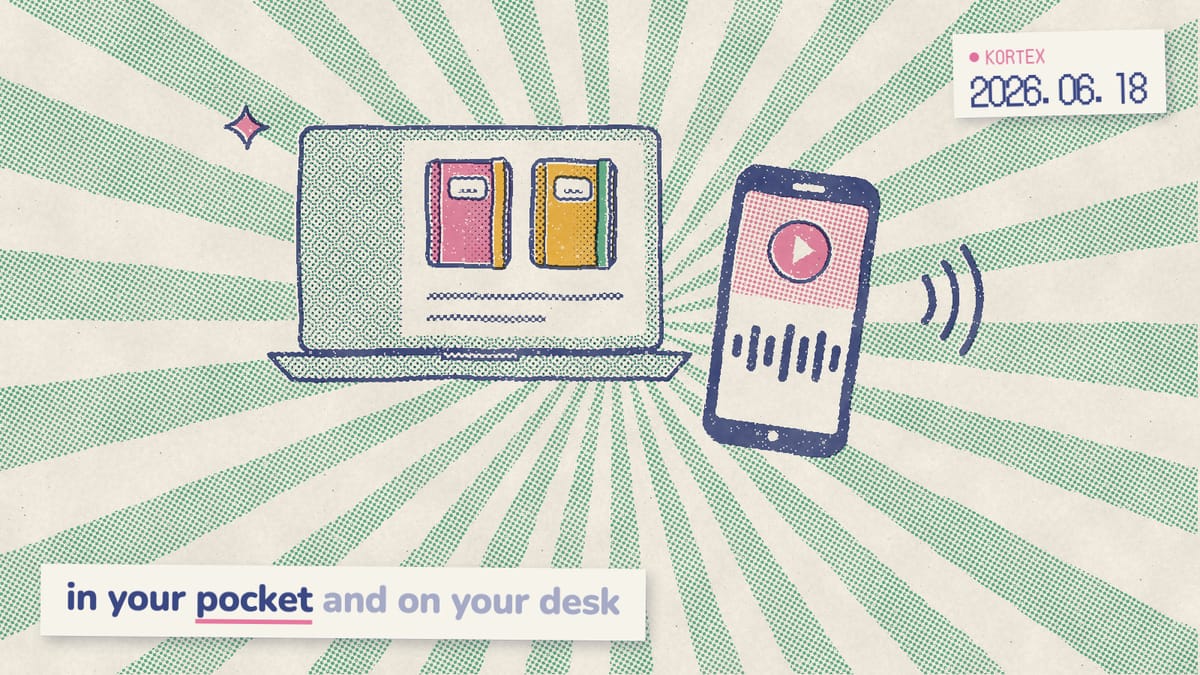
If you’ve been using Gemini Notebook (formerly NotebookLM) only at your desk, you’ve been missing half the experience. For roughly two years, Google’s AI research tool lived inside a browser tab. That changed in May 2025, when an official app arrived for iPhone and Android. Now you can download an Audio Overview, pop in your earbuds, and learn from your own research notes during a walk. This guide covers whether a true desktop app exists, how to install the mobile and web versions, and which features only work on your phone.
Key Takeaways
- Google launched the official mobile apps for iOS and Android on May 19, 2025 (Google, 2025).
- There is no native desktop app. On a computer, you use the web app, which Chrome can install in its own window.
- The app requires iOS 17+ or Android 10+ and is free to download.
- Notes, Mind Maps, reports and data tables still need the web.
Is there a Gemini Notebook app for iPhone and Android?
Yes, there’s a real app. Google launched the official standalone mobile apps for iOS and Android on May 19, 2025, one day before Google I/O, when the product was still called NotebookLM (Google, 2025). The app runs on iPhones and iPads with iOS 17 or higher, and on Android phones and tablets with Android 10 or higher. Before that date, going back to its 2023 debut, it ran only in a browser. In fact, the best phone option in April 2025 was adding the website to your home screen from Chrome or Safari (9to5Google, 2025). Why did an app take so long? Audio Overviews, the podcast-style feature that made the tool famous, only arrived in September 2024 (Google, 2024). As a result, portable listening became the app’s headline job. Notably, Google’s launch post called it a first version with “many of the core features”, with more to come.
New to the tool? Our Gemini Notebook workflow for students walks through setting up your first notebook before you go mobile.
Is there a Gemini Notebook app for Mac or Windows?
No. Google doesn’t ship a downloadable Windows or macOS program, and plenty of people go looking for one. When we analyzed 1,451 Google autocomplete suggestions in October 2026, half of the ten completions for “gemini notebook app” asked about Mac, MacBook, macOS, Windows or desktop. Specifically, the desktop experience is the web app at notebook.google.com, which was notebooklm.google.com until the July 2026 rename. However, you can make it feel like an app. A Progressive Web App (PWA) is a website you install so it opens in its own window, with an icon in your dock, taskbar or app launcher. Chrome lets you install any page this way (Chrome Help, 2026). Additionally, because it’s still the live website underneath, it stays up to date on its own. Thus, the honest answer for Mac and Windows users is no download, but a one-minute install that looks and behaves like a program.
How do you install it as a desktop app (PWA)?
Open notebook.google.com in Chrome. Select the three-dot menu, then Cast, save, and share, then Install page as app. Alternatively, on some sites, an Install icon appears in the address bar. Confirm, and the app opens in its own window.
The installed version gives you the full feature set: Mind Maps, Reports, Flashcards, Quizzes, and the Learning Guide chat style. Because it’s the complete web app, nothing is stripped out. Therefore, for deep research sessions with lots of sources, this remains the best way to work.
How do you download the Gemini Notebook app?
Setup takes about a minute. Search “Gemini Notebook” on the App Store or Google Play, select the official app, install it, and sign in with the same Google account you use on the web (Gemini Notebook Help, 2026). Your notebooks, sources and generated Audio Overviews then appear on your phone. There’s nothing to migrate or export, because the app and the web version read from the same account. That said, Google warns that syncing between devices can lag, so give a new upload a moment before you go looking for it. Importantly, the app uses your existing quota, not a separate one. Since September 2, 2026, that quota is compute-based and refreshes every five hours until a weekly limit. For example, generate a few long Audio Overviews on your laptop in the morning, and you’ll have less room on your phone that afternoon. Plan your generations accordingly.
Running a lot of notebooks across both devices? Our guide to organizing 50+ Gemini Notebooks keeps the list tidy.
Web app vs mobile app at a glance
| Capability | Web app | Mobile app |
|---|---|---|
| Chat with citations | Yes. | Yes, without chat settings. |
| Notes, Mind Maps, Reports, Data Tables | Yes. | Not yet. |
| Flashcards, Quizzes, Video Overviews, Slide Decks, Infographics | Yes. | Yes. |
| Audio Overviews for offline listening | Download as a file. | Download inside the app, no file. |
| Interactive “Join” mode | Yes, in English. | Yes, in beta and English only. |
| Adding sources | + Add in the Sources panel. | + Add, or your phone’s share menu. |
| Best for | Deep research and writing. | Listening and capturing on the go. |
If the app crashes or a feature is missing after an update, our Gemini Notebook troubleshooting guide walks through the fixes.
What can the app do that the website can’t?
The mobile app adds a handful of on-the-go features the web version lacks. You can download Audio Overviews for offline listening, keep them playing in the background while you use other apps or turn off the screen, and add sources from any app through the share sheet (Gemini Notebook Help, 2026). Then, in September 2026, Google added a new audio recorder in the app to capture lectures and record your thoughts. It also announced real-time voice conversations with a notebook in nearly 100 languages, rolling out first to Google AI Ultra subscribers aged 18 and over (Google, 2026). Meanwhile, the web keeps the heavy tools. Notes, Mind Maps, reports and data tables aren’t available in the app yet, and neither are chat settings. Google itself recommends the desktop version “for the full Gemini Notebook experience”. In other words, the phone is for listening and capturing, while the computer is for building.
Offline and background audio playback
This is the feature commuters love most. Download an Audio Overview while you’re on Wi-Fi, then listen on a flight, a subway ride or a run with no signal. Likewise, the audio keeps playing when you switch to another app or lock your screen. Find your saved episodes in the Downloaded section on the app’s main page.
Interactive “Join” mode and the share sheet
Tap “Join” during an Audio Overview and you can interrupt the two AI hosts to ask a follow-up question out loud. They respond, then continue the conversation. Interactive mode works on the web too, in English only (Gemini Notebook Help, 2026). Similarly, the share-sheet integration is practical. Reading an article in Safari or watching a YouTube video? Tap Share, pick Gemini Notebook, and that page or video becomes a source in seconds. On a laptop, however, the same capture still means copying a link and pasting it into the Sources panel.
Capture sources on your laptop in one click
Kortex adds an import button to any web page, YouTube video and ChatGPT or Claude chat, so a source goes from your browser to a notebook without the copy and paste. Free on Chrome.
Is the app free, and what are the limits?
Mobile users get the full free tier, with no downgrade. Free Gemini Notebook users get 100 notebooks and up to 50 sources per notebook (Gemini Notebook Help, 2026). Since September 2, 2026, usage limits refresh every five hours until you reach a weekly limit (Gemini Notebook Help, 2026). These limits apply across the app and the website, because they belong to your account. In addition, each source can be sizeable. A single PDF, Google Doc, web page or YouTube transcript can run up to 500,000 words, and an uploaded file up to 200MB (Gemini Notebook Help, 2026). With 50 of those per notebook, even a free account holds a large research library. Consequently, most casual users never hit the source ceiling. The weekly usage limit, on the other hand, is the one heavy listeners notice first.
What do paid plans add?
Paid Google AI plans raise the usage limits, and they work the same on mobile and web. As of September 2026 (Gemini Notebook Help, 2026):
- Google AI Plus gets two times the standard usage, plus 200 notebooks with 100 sources each.
- Google AI Pro gets four times the standard usage, plus 500 notebooks with 300 sources each.
- Google AI Ultra gets 5x or 20x the Pro allowance, depending on the subscription.
Is a paid plan worth it for app users specifically? If you generate long Audio Overviews daily for commutes, the extra headroom matters. Otherwise, the free tier covers most casual and student use. Want to see how far the free tier goes? Our Gemini Notebook study workflow shows what you can do without paying.
How do you get the most out of Audio Overviews on mobile?
Audio Overviews are podcast-style discussions in which two AI hosts talk through your sources, and they launched in September 2024 (Google, 2024). They’re the reason most people install the app, and listening isn’t a lazy way to study. For instance, in a randomized trial with 130 medical students, those who learned common orthopedic diseases from a podcast scored higher on the post-test than those who read a book chapter (Back et al., 2017). That said, it was a single study of a human-made podcast, not an AI one, so treat it as a hint rather than proof. Nevertheless, it suggests a commute can be real revision time. On mobile, you can download overviews for offline listening and tap “Join” to interrupt with questions. Beyond the standard Deep Dive, Gemini Notebook offers Brief, Critique and Debate formats, so you can match the episode to the trip.
| Audio Overview format | What it does | Best for |
|---|---|---|
| Deep Dive | Full podcast-style conversation between two hosts. | Learning a topic end to end. |
| Brief | Short summary of your sources. | Quick reviews and short commutes. |
| Critique | Critical feedback on your material. | Pressure-testing an argument. |
| Debate | Hosts explore multiple perspectives. | Studying contested topics. |
Language support is broad, too. Audio Overviews now work in more than 80 languages (Gemini Notebook Help, 2026), controlled through an output language setting Google first announced in April 2025 (Google, 2025). For example, you can feed English sources and generate a Spanish or Japanese overview, which makes the app a quiet language-learning aid.
To get sharper overviews, start from strong prompts. Our 30 best Gemini Notebook prompts give you ready-made starting points. Want a fresh overview waiting every morning? Our guide to a scheduled daily briefing with Audio Overviews sets one up through Kortex MCP, a private beta for invited Kortex Pro members.
How does Kortex extend Gemini Notebook beyond the app?
Kortex is a free Chrome extension we built to extend Gemini Notebook on the desktop, where most heavy research happens, with export, a saved prompt library, web clipping and automation. More than 130,000 people use it. It matters because the mobile app fixes portability but not export: Gemini Notebook still has no way to export a whole notebook’s sources, notes and chats in one step, on any platform. Desk work, in fact, is where most demand sits. When we analyzed the 776 answers to our Kortex MCP waitlist survey (Sep-Oct 2026), only 6 people asked for voice or mobile features. In contrast, 128 wanted notebooks to run on a schedule and 121 wanted help tidying their library. Kortex enhances Gemini Notebook; it doesn’t replace it. For instance, you clip sources from your phone via the share sheet, then export finished notes to PDF or Markdown from your laptop.
The saved prompt library is the time-saver. Instead of retyping the same research prompts, you store and reuse your best ones with a click. Pair that with our 10 Kortex automation workflows, and the desktop gets much faster than tapping prompts on a phone keyboard. For the full picture of what’s missing natively, read Kortex vs Gemini Notebook.
The app lets your research travel with you, but the desktop web app is still where deep work gets done.
Listen on your phone, finish on your laptop
Kortex adds one-click clipping, a prompt library and export to PDF or Markdown to Gemini Notebook on the desktop. On Pro, it also turns your Audio Overviews into a podcast feed for Spotify or Apple Podcasts. Free on Chrome.
Frequently asked questions
Is there a Gemini Notebook app for iPhone and Android?
Yes. Google launched standalone apps for iOS and Android on May 19, 2025, when the product was still called NotebookLM. They’re free to download. The app requires iOS 17 or higher and Android 10 or higher.
Is there a Gemini Notebook app for iPad?
Yes. The same app runs on iPads with iOS 17 or later, and on Android tablets with Android 10 or later. Search for Gemini Notebook in the App Store or Google Play, select the official app, and sign in with the Google account you use on the web.
Is there a Gemini Notebook app for Mac or Windows?
No native desktop app exists. The desktop experience is the web app at notebook.google.com, formerly notebooklm.google.com. In Chrome, you can install it as an app from the three-dot menu: select Cast, save, and share, then Install page as app. It then opens in its own window.
Can I listen to Gemini Notebook Audio Overviews offline?
Yes, on the mobile app. You can download Audio Overviews for offline listening inside the app and keep them playing in the background while you use other apps. The app can’t save the audio as a file, though. To get a file, use Download on the web.
How much does the Gemini Notebook app cost?
The app is free. Free users get 100 notebooks with 50 sources each, and usage that refreshes every five hours until a weekly limit. Google AI Plus doubles the standard usage, and Google AI Pro quadruples it.
Can I add sources to Gemini Notebook from other apps on my phone?
Yes. The mobile app integrates with your system share sheet. From a browser, PDF viewer, or YouTube, tap Share and select Gemini Notebook to add a website, document, or video as a source.
What can the app do that the website can’t?
The app adds offline listening, background playback, share-sheet source capture and an audio recorder for lectures. Interactive ‘Join’ mode works on both, in English. The web app is still the only place for notes, Mind Maps, reports and data tables.
Editorial note: fact-checked against the official help pages and docs linked above on October 1, 2026. Spotted something out of date? Contact us and we will fix it, or read more about Kortex.