
Kortex Extension for Gemini Notebook (formerly NotebookLM)
Get started with Kortex, the free Chrome extension for NotebookLM: install it in a minute, use 10 free exports a day, set up automations and see what Pro adds.

The Kortex extension is a free Chrome add-on that brings export, folders, tags, a prompt library and automation into Gemini Notebook (formerly NotebookLM), and this guide gets you from install to your first export in about three minutes. We built Kortex because Gemini Notebook is great at answers but stops at the edge of the notebook. Below you’ll find what it adds, how to install it, a first-week setup list and what Pro costs.
Key Takeaways
- Gemini Notebook gives grounded answers, but it has no bulk export, no notebook tags and no automation.
- Kortex adds export, import, automation and organization inside the Gemini Notebook page.
- Setup takes a few minutes: install on Chrome, sign in with Google and export a notebook in one click.
- The free plan covers 10 exports and 10 imports a day; Pro is $9.99 a month or $4.92 a month billed yearly.
What is Gemini Notebook missing?
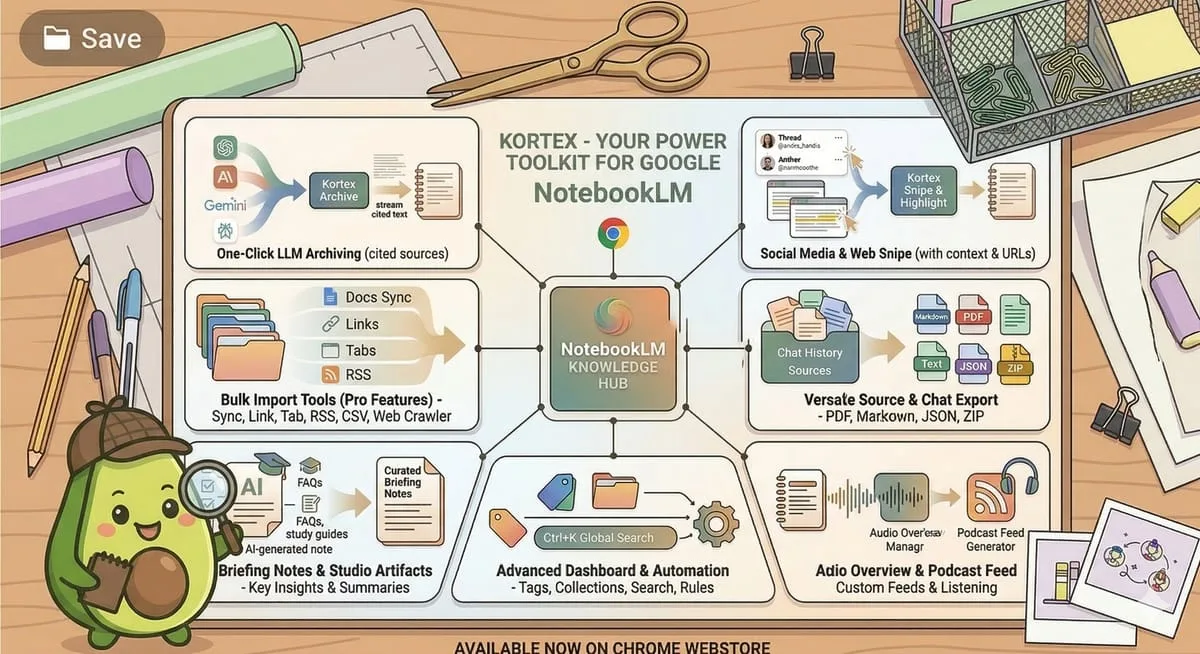
Gemini Notebook is missing the tools that act on your research: bulk export, a prompt library, tags and automation. That said, the core is strong. Gemini Notebook answers from the files, links and videos you add, with citations back to each passage, and its traffic grew more than 200% in October 2024 to 31.5 million visits (Similarweb, 2024). Grounding helps; nevertheless, it isn’t perfect. A 2026 study notes that grounding a model in retrieved text “reduces unsupported statements but does not eliminate them” (Mulakkayala et al., arXiv, 2026), so it’s still worth clicking the citations. It was called NotebookLM until Google renamed it in July 2026. However, the gap shows up the moment you need to act on that research. Imagine you’ve spent two hours on a literature review: 20 papers, a briefing doc and a chat that surfaced the key contradictions. Now, for example, you want to share the brief, paste quotes into your paper or archive the session. In plain Gemini Notebook, consequently, most of that is copy and paste.
Here’s what’s missing, specifically:
- No bulk export. Notes go to Google Docs one at a time, and no button exports a notebook’s sources or chats.
- No prompt library. You retype the same research questions every session.
- Thin organization. Native Collections started rolling out in July 2026 and work like playlists (Android Authority, 2026), but there are still no tags or nested folders.
- No automation. Every step is manual, every time.
Google built Gemini Notebook as a research assistant, not a file manager. Kortex, in contrast, fills the gaps outside that scope without changing how Gemini Notebook works. For a head-to-head view, the Kortex vs Gemini Notebook comparison lists the exact feature gaps.
Export, tags and automation inside Gemini Notebook
Kortex adds the missing pieces to the notebooks you already have: one-click export, collections and tags, a prompt library and automation rules. Free on Chrome.
What is Kortex?
Kortex is a free browser extension that adds export, import, automation and organization features inside Gemini Notebook. It has 100,000 users and a 4.7-star rating from 371 reviews on its Chrome Web Store listing, and it also runs in Chromium browsers such as Edge and Brave. We built it as an extension rather than a separate app; as a result, there’s nothing to migrate. Your notebooks stay in your Google account. Install it, sign in once, and the new controls appear inside Gemini Notebook: a download button above the sources, export buttons on the chat and Studio panels, and a prompt library. In addition, Kortex has its own Workspace, a full dashboard for your notebooks, sources and artifacts outside Gemini Notebook. On the free plan, Kortex’s own data, such as tags and folders, stays in your browser; Pro keeps it in your Kortex account so it syncs across devices. Uninstalling it leaves your Gemini Notebook workspace unchanged.
What can Kortex do?
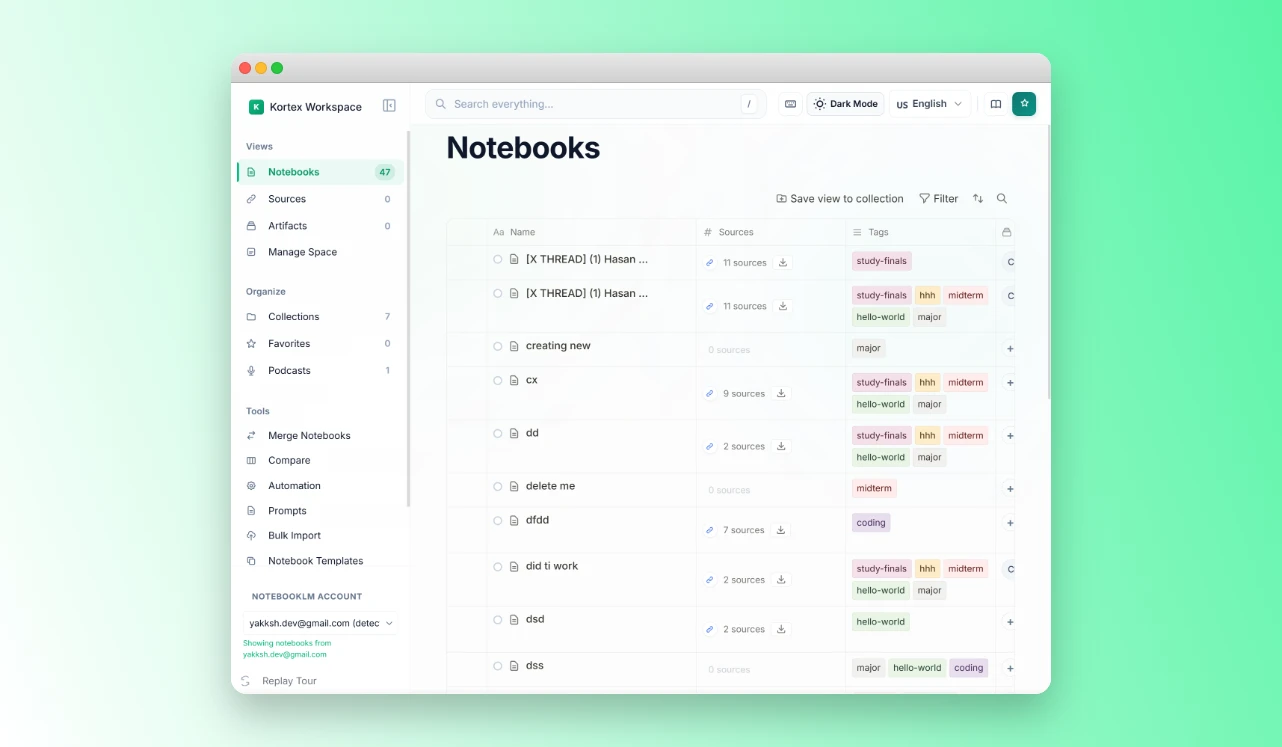
Kortex adds four things Gemini Notebook doesn’t have: export, import, automation and an organization layer. Each one fills a specific gap; in fact, together they add up. For example, with all four switched on, a notebook can get a briefing doc, a tag and a folder, and have its sources exported, with one tag from you.
Export: get your research out
Export is the reason many people install Kortex. When we analyzed 776 Kortex MCP waitlist answers in September and October 2026, we found that 72 people asked to get their notes and outputs back out, and more than half had a manual workaround. Gemini Notebook itself sends single notes to Google Docs or Sheets and downloads flashcards as CSV, but it has no native export of sources or chats. Kortex, therefore, adds three kinds of export. One button above the sources panel saves every source in a notebook as PDF, Markdown, text or a ZIP. Another saves every note and artifact from the Studio panel at once, as PDF, Markdown or a ZIP. Chats export whole, or only the replies you tick, as Markdown, text, PDF or JSON, with or without your own questions. As a result, researchers can paste a briefing doc into Obsidian or Notion, and teams can share output without sharing the notebook. Notably, Kortex doesn’t export to Word or Google Docs, and it doesn’t build APA or MLA bibliographies.
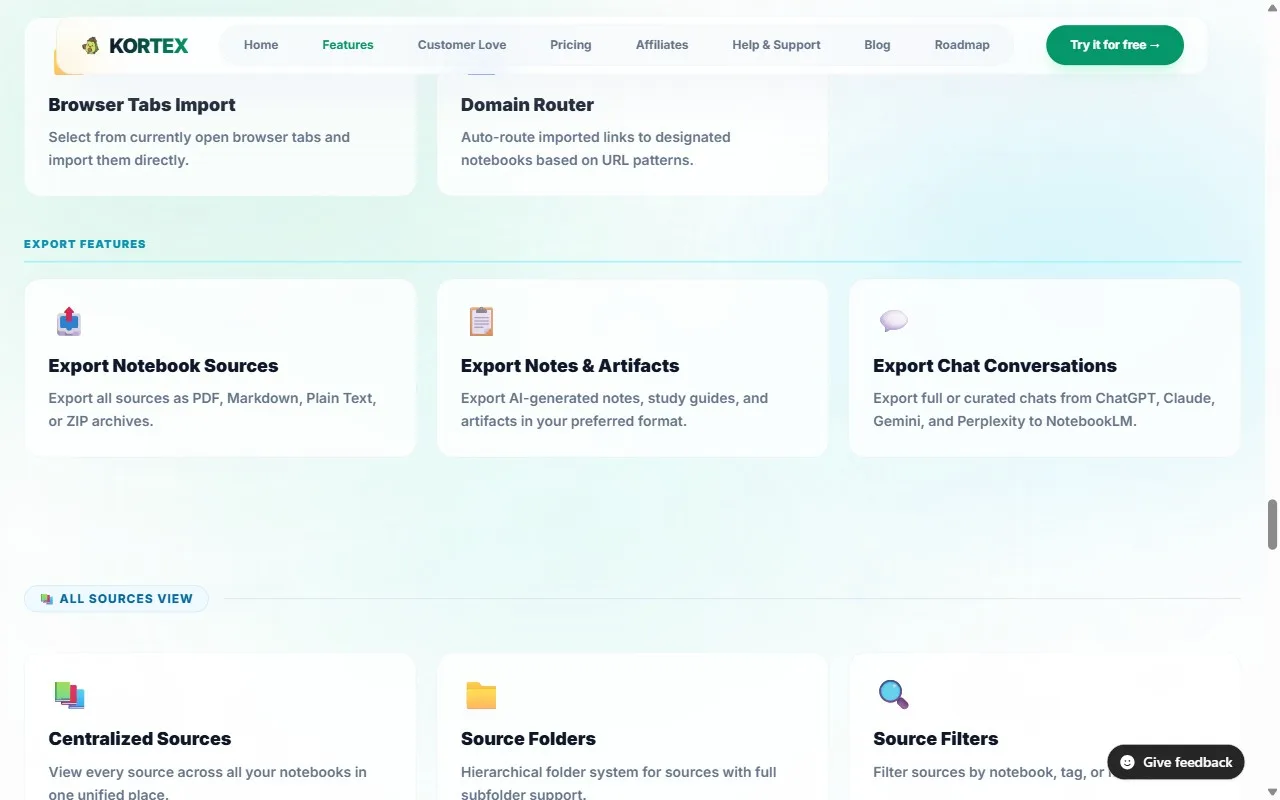
The free plan covers 10 of these one-click exports a day, enough to get your most important notebooks out this week.
Your Briefing Docs, chats and sources as Markdown or PDF
Kortex adds the export buttons Gemini Notebook leaves out, with citations kept in place, so a notebook leaves as one ZIP in a single click. Free on Chrome.
Import: bring content from anywhere
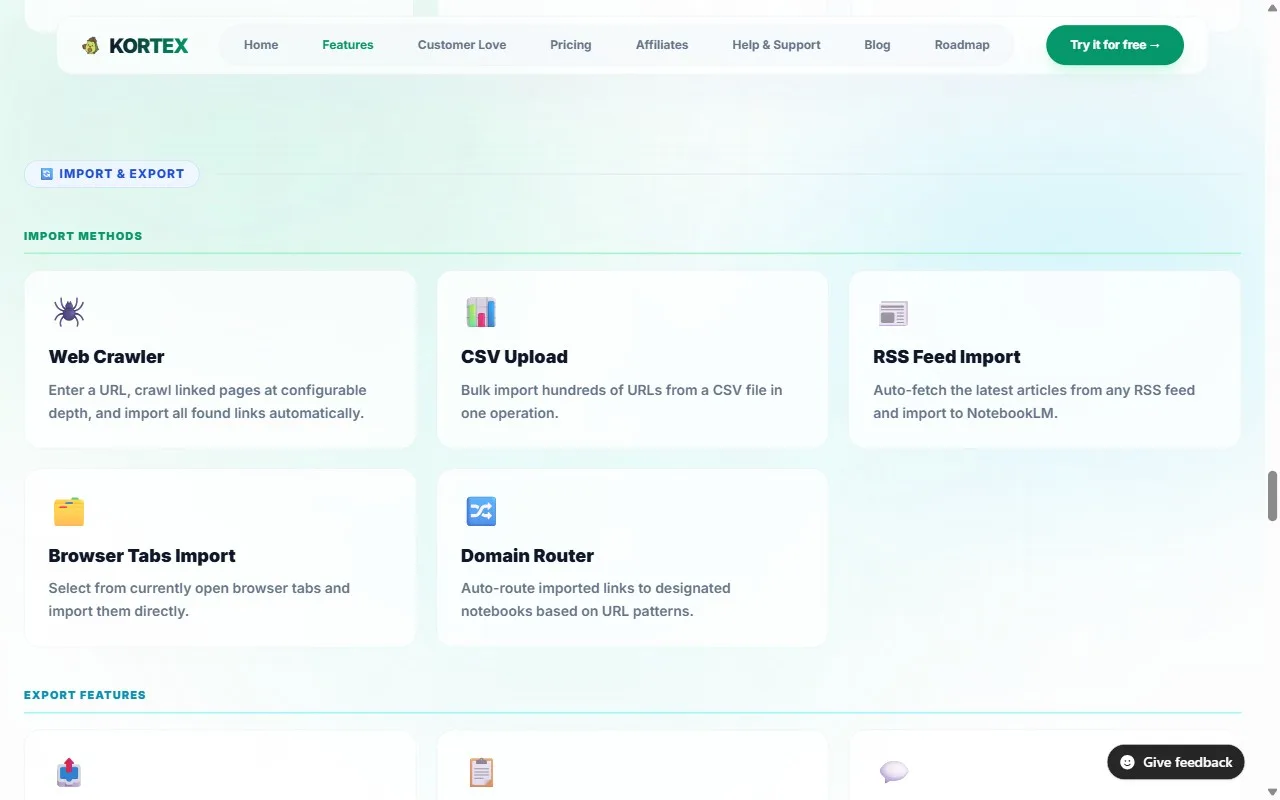
Copy-pasting into Gemini Notebook is slow; hence Kortex adds faster ways in. The free plan includes 10 imports a day from 15 sites, including ChatGPT, Claude, Gemini, X, Reddit and YouTube.
- Highlight and send. Select text on any page and right-click; it becomes a source with the page link and the date.
- AI chats. A button inside ChatGPT, Claude, Gemini, Perplexity and more sends the chat to a notebook, and sending it again later updates the source instead of adding a copy.
- Social posts. X threads, Reddit posts with their top comments, and LinkedIn posts with the author.
- Google Docs. Send a Doc to a notebook from inside Google Docs; Pro adds Google Docs sync for every Doc in one click.
- Bulk import (Pro). Paste a list of links, pick from open tabs, upload a CSV, follow an RSS feed or crawl a site.
Highlight and send is the habit that pays off most, in particular when you read on the web. In other words, spot a passage worth keeping, right-click, and it goes to the notebook you choose, with no tab switching.
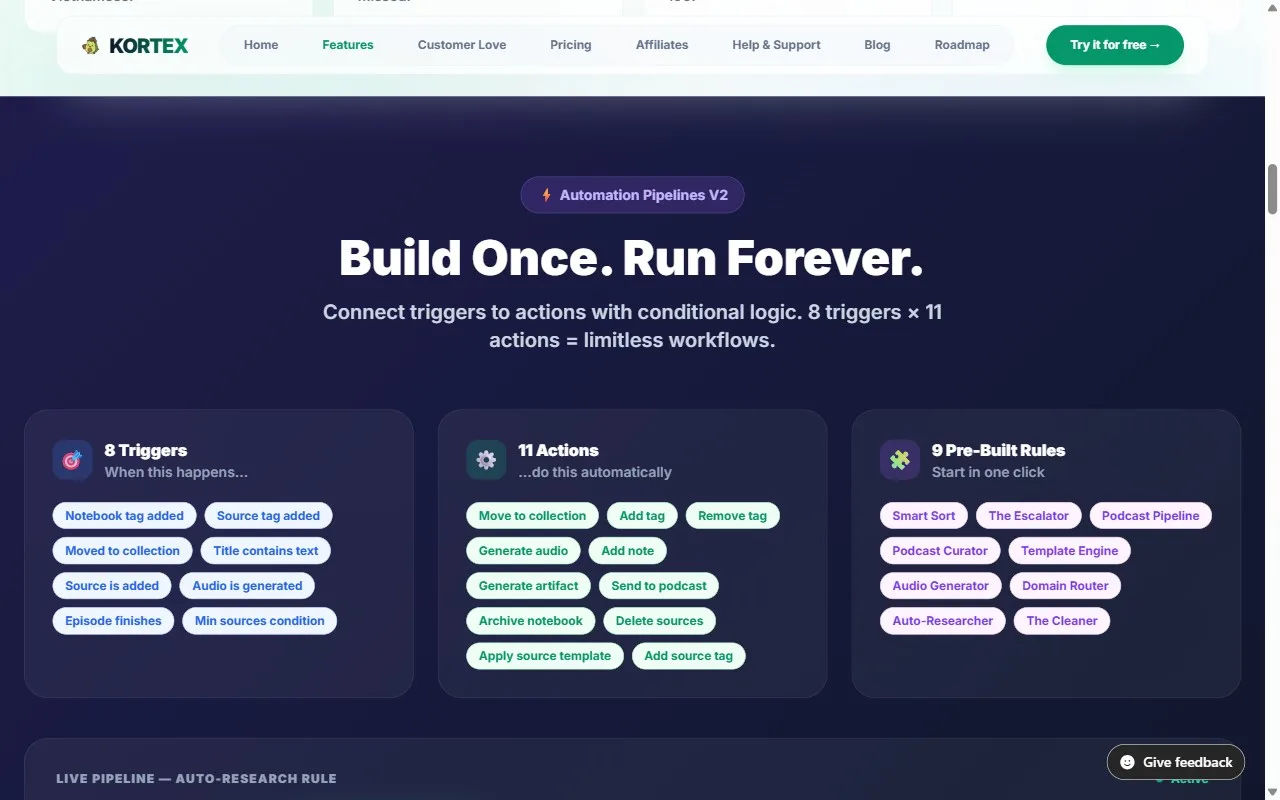
Automation: rules that run on their own
Kortex automation is a set of rules in the format “when this happens, do that,” and it comes with Kortex Pro: 8 triggers, 11 actions and 9 ready-made rules. Rather than buttons you click, rules run in the background while you read. A trigger can be a tag, a move into a collection, a new source or a finished Audio Overview; an action can file the notebook, add a tag, generate an artifact or send audio to your podcast. The value, however, is in combinations. For instance, tag a notebook once, and it gets a briefing doc, lands in the right folder and sends its audio to your feed. Demand is real: in our waitlist survey, 128 of 776 people asked for work that runs on a schedule or trigger, the top request. For the best combinations, the guide to 10 Kortex automation workflows has exact trigger-and-action setups.
| Ready-made rule | What it does |
|---|---|
| Auto-Researcher | Tag #to-summarize and a briefing doc and flashcards start generating. |
| Smart Sort | Tag a notebook #work and it moves to the Work collection. |
| Podcast Pipeline | Notebooks filed in Daily Read add their audio to your podcast. |
| Domain Router | Links from a site you name, such as arxiv.org, go to one notebook. |
| The Escalator | Tag #paper and Kortex adds #to-summarize and #cite too. |
| Template Engine | File a notebook in a course folder and it gets the same starter notes. |
| The Cleaner | Finish an episode and it leaves the feed. |
Audio: turn your notebooks into a podcast
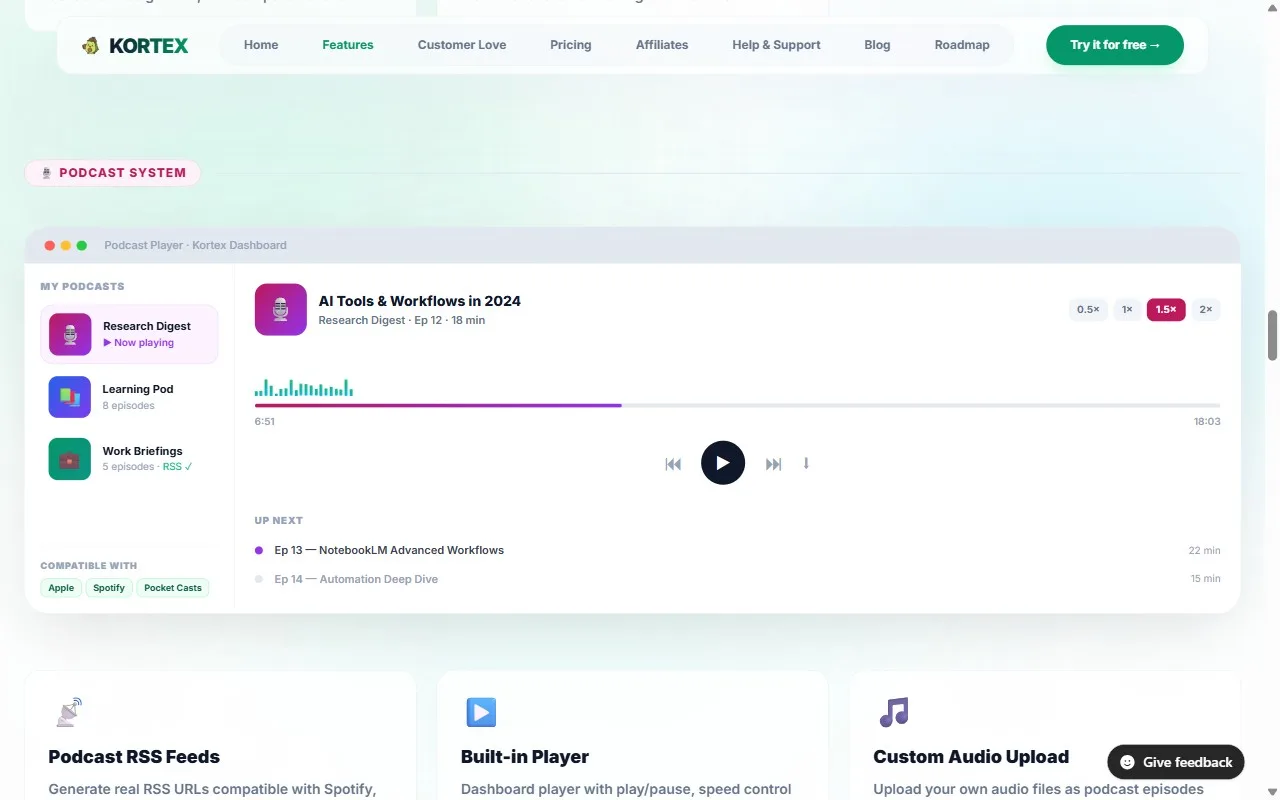
Gemini Notebook’s Audio Overview turns your sources into a conversation between two AI hosts, in 80+ languages. It’s handy, in particular, for taking in dense material on a commute or a walk. Kortex Pro makes it a listening habit:
- Private RSS feed. Each podcast has its own link for Spotify, Apple Podcasts, Pocket Casts or Overcast, with 1,000 minutes that never expire.
- Built-in player. Listen in the Workspace at 0.5x to 2x, skip 15 seconds and pick up where you stopped.
- Collection to podcast. Link a collection, and its new audio becomes episodes by itself.
Organization
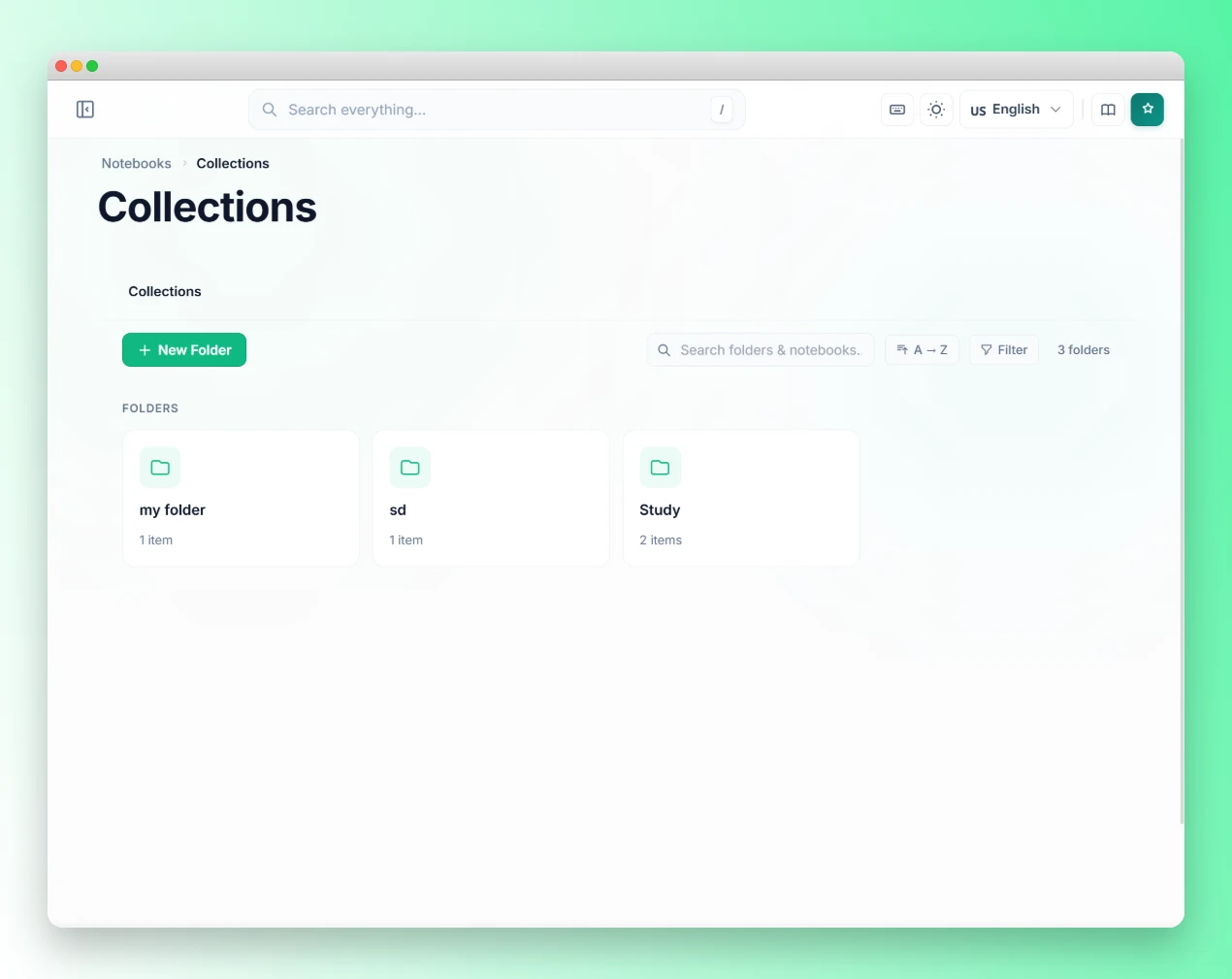
Heavy users, importantly, pile up notebooks fast. In our waitlist survey, 327 of 776 people (42%) keep more than 50 notebooks, and Gemini Notebook’s free plan allows up to 100 (Gemini Notebook Help, 2026). Kortex adds an organization layer:
- Collections. Folders for notebooks, with subfolders, colors and pinning.
- Tags. Colored tags for notebooks, plus smart collections that fill themselves from tag rules.
- Search everything. One box looks through notebooks, sources, notes, artifacts, collections and tags.
- Prompt library. Save, sort and insert your best prompts with one click.
- Source views. Save a filtered list of sources, such as only PDFs, and switch back in one click.
For a naming, tagging and folder system that scales past 100 notebooks, the guide to organizing 50+ Gemini Notebooks lays out a three-tier approach.
How do you install the Kortex extension?
Setup takes about three minutes; specifically, three steps. Here’s the exact sequence.
Step 1: Install. Add Kortex to Chrome (it also works in Edge and Brave). It installs in under a minute and switches on at notebook.google.com, and at the old notebooklm.google.com address too.
Step 2: Sign in. Click the Kortex icon in your toolbar and sign in with your Google account. That starts your free plan.
Step 3: Export your first notebook. Open any notebook. New buttons appear above the sources panel. Click the download button to save everything as a ZIP, or pick PDF, Markdown or plain text.
First week setup checklist
Once export works, these five steps get you set up within your first week:
- Save 3 prompts to the prompt library. Paste in your most-used research questions and name each one. Every prompt is then one click away.
- Turn on Auto-Researcher (Pro). Tag a notebook
#to-summarizeand a briefing doc and flashcards start generating. - Create 3 or 4 collections. Think about how you really sort work: by project, client, topic or status. Then, similarly, file your existing notebooks.
- Tag your 5 most active notebooks. Give each a status tag (
#active,#referenceor#archive) and a type tag (#research,#client,#personal). - Try highlight and send once. On your next browsing session, select a passage, right-click and send it to a notebook.
Is Kortex free, and what does Pro cost?
Kortex is free to start, with no credit card needed. The free plan’s 10 daily exports and 10 daily imports cover most single research sessions, and it includes 10 saved prompts, 5 source views and 5 folders. People who export often, want automations or need unlimited folders move to Pro, at $9.99 a month or $4.92 a month billed yearly. Additionally, Pro adds sync across devices, a podcast feed with 1,000 minutes, Google Docs sync and bulk import. Kortex doesn’t cap Gemini Notebook’s AI features; instead, they follow your Google plan, so the limits come from Google, not us. Meanwhile, Google changed how those limits work this year. Since September 2, 2026, Gemini Notebook usage refreshes every five hours up to a weekly cap, with Google AI Plus at two times and AI Pro at four times the standard limit (Gemini Notebook Help, 2026). Is it worth paying? Consider your library size. In our survey, the share of people already on Pro rose from 21% of those with 1 to 10 notebooks to 65% of those with more than 200.
| Tier | Price | Exports | Imports | Prompts | Source Views |
|---|---|---|---|---|---|
| Basic | Free | 10 / day | 10 / day | 10 saved | 5 |
| Pro | $9.99 /mo | Unlimited | Unlimited | Unlimited | Unlimited |
| Pro Yearly Most Popular | $59 /yr | Unlimited | Unlimited | Unlimited | Unlimited |
Pro unlocks Google Docs Sync, source deletion, all automation features, and Podcast Feed System: Stream your notebooks as audio (1,000 min free). See full pricing →
Pro also includes Kortex MCP. Kortex MCP is a connector that lets Claude, ChatGPT or Cursor work inside your notebooks. It’s a private beta for invited Kortex Pro members, with invites sent from the Kortex MCP waitlist. To see what it does, read how to ask your notebooks from Claude or ChatGPT and get cited answers.
What’s on the Kortex roadmap?
Kortex ships new features often, and the roadmap is public; thus you can see what’s next. See what’s planned on the public Kortex roadmap, and find step-by-step help in the Kortex documentation. When we analyzed 1,451 Google autocomplete suggestions in October 2026, “kortex notebooklm firefox” and “kortex notebooklm safari” both showed up, so those browsers are clearly on people’s minds; for now, Kortex runs on Chrome and other Chromium browsers.
The quickest way to judge Kortex is on your own notebooks: install it, export one notebook, and try Auto-Researcher before your next research session.
Get your research out of Gemini Notebook today
Install Kortex, export any notebook in one click, and let Auto-Researcher write a Briefing Doc for every notebook you tag. Free on Chrome.
Frequently asked questions
Does Kortex work on Safari or Firefox?
Not yet. Kortex is a Chrome extension, and it also runs in Chromium-based browsers such as Edge and Brave. There’s no Safari or Firefox version today.
How do I sign in to Kortex?
Click the Kortex icon in your browser toolbar and sign in with your Google account. That starts the free plan. Kortex then works on notebook.google.com, and on the old notebooklm.google.com address too. If you upgrade, use the same email you sign in to Kortex with.
Does Kortex send my data to a third-party server?
Your notebooks stay in your Google account, and Kortex works through the Gemini Notebook page in your browser. On the free plan, Kortex’s own data, such as tags, folders and saved prompts, stays in your browser. Pro keeps that data in your Kortex account so it can sync across your devices.
What happens to my exports if I cancel my subscription?
Your existing exports are yours. Canceling Pro moves you back to the free plan (10 exports and 10 imports a day), but you keep every file you’ve already exported.
Can I save my research prompts in Kortex?
Yes. The prompt library lets you save prompts, sort them into folders and insert them inside Gemini Notebook with one click. The free plan holds 10 saved prompts and Pro has no limit. For a set worth saving right away, see the guide to 30 Gemini Notebook prompts for deep research.
Is Kortex affiliated with Google?
No. Kortex is an independent browser extension, not made by or affiliated with Google. It adds a layer on top of the Gemini Notebook web app.
Does Kortex work with Gemini Notebook Plus?
Yes. Kortex works on any Gemini Notebook plan, from free to Google AI Plus, Pro and Ultra. Paid Google plans raise Gemini Notebook’s own caps, such as more sources per notebook; Kortex’s export, organization and automation features sit on top of whichever plan you have.
What’s the most useful first automation to set up?
Auto-Researcher: tag a notebook #to-summarize and a briefing doc and flashcards start generating. It front-loads the analysis, so a summary is waiting when you come back. Automations are a Pro feature, and the Kortex automation workflows guide linked above has nine more recipes.
Can I use Kortex for team research workflows?
Yes. Gemini Notebook supports notebook sharing, and Kortex export lets each person keep their own copy of a briefing doc, chat or source list. For groups, Kortex Teams costs $12 per seat per month, billed yearly with 3 seats minimum, and adds shared prompt libraries, team notebooks and an admin dashboard.
Editorial note: fact-checked against the official help pages and docs linked above on October 2, 2026. Spotted something out of date? Contact us and we will fix it, or read more about Kortex.