# NotebookLM Notebook and Source Templates
Templates save a setup you want to reuse in Gemini Notebook (formerly NotebookLM). Kortex has three kinds. Notebook templates keep tags and collections, source templates keep tags and a folder, and note templates keep a title and text.
**This needs Kortex Pro.** See [pricing](https://www.kortex-notebooklm.com/#pricing).
 ## Why use templates?
A template is like a cookie cutter. You shape one thing once, and then stamp the same shape on many.
## Notebook templates
A notebook template keeps a notebook's tags and collections. It does not copy its sources or notes.
1. Click **Notebook Templates** in the sidebar.
1. Choose a **Source Notebook** and click **Save Template**.
1. On another notebook, click **Apply to Notebook...**.
## Source templates
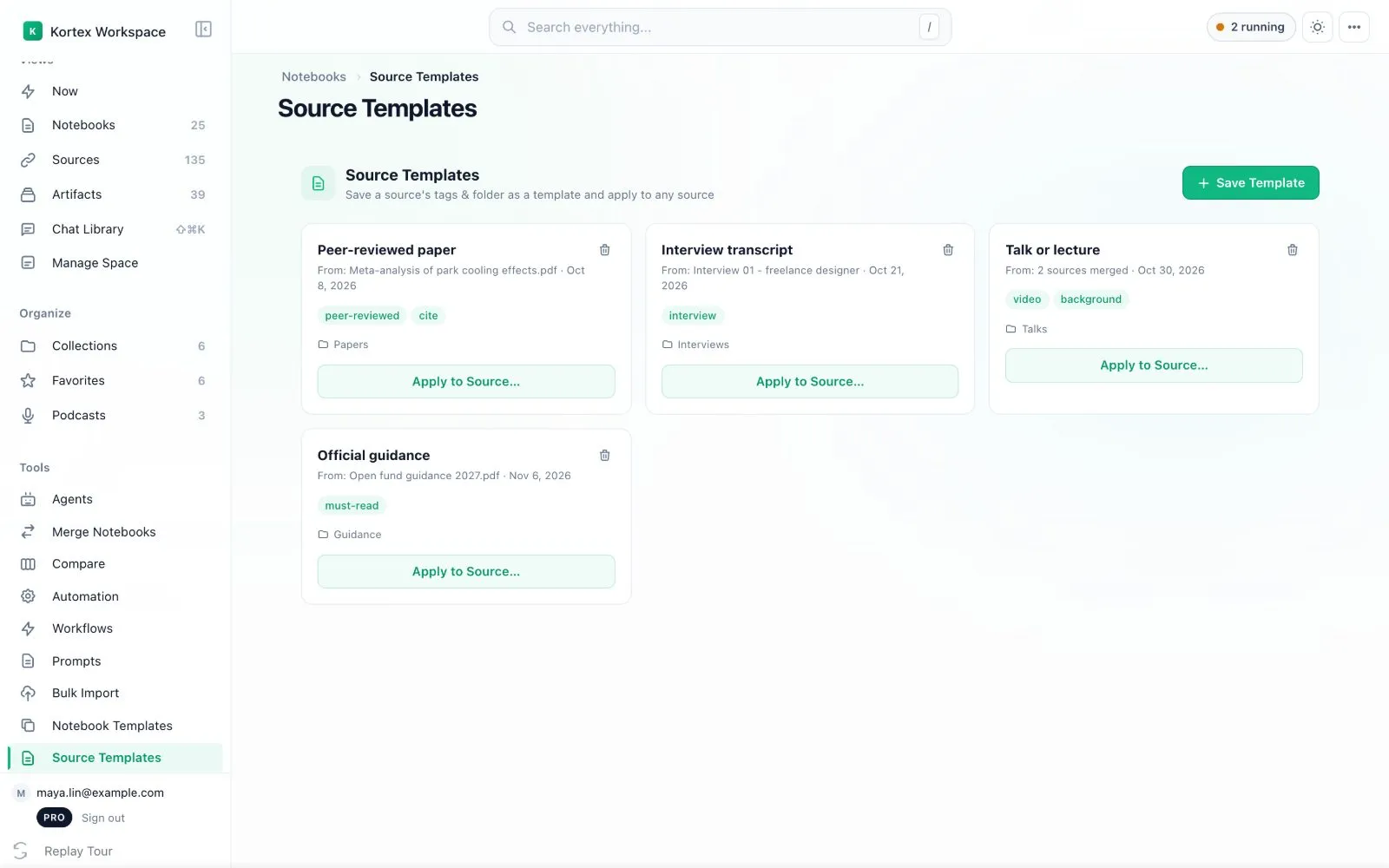
A source template keeps a source's tags and folder. Use it to file other sources the same way.
1. Click **Source Templates** in the sidebar.
1. Pick a source and click **Save Template**. To combine several, use **Merge as one template**.
1. Pick other sources and click **Apply to Source…**.
 ## Note templates
A note template is a title and some text. An automation rule can add it to a notebook for you.
1. Click **Note Templates** in the sidebar.
1. Click **New Template**. Write a title and the text.
1. In an automation rule, use the **Add note** action and choose the template.
 :::tip Good to know
- Automations can apply a source template with the **Apply source template** action.
:::
## Which template should I use?
- To give a new notebook the same tags and collections, use a notebook template. Sources and notes are not copied.
- To file other sources the same way, use a source template.
- To add the same note to many notebooks, use a note template with an automation's **Add note** action.
## Related pages
- [Automation Rules](/docs/automation-rules)
- [Template Engine](/docs/automation-template-engine)
- [Manage Space](/docs/manage-space)