# Open Your Prompts on Any Website
The prompt panel shows your saved prompts on almost any website. Press `Ctrl+Shift+P` on Windows or `⌘⇧P` on a Mac, pick a prompt, and Kortex puts it where you were typing. It works in support chats, forms and emails too.
 ## Why use the prompt panel?
Not every chat box has a `;` menu. The prompt panel works on other sites too, such as a support chat, a form or an email.
## How to open the prompt panel
1. Click where you want to type.
1. Press `⌘⇧P` on a Mac, or `Ctrl+Shift+P` on Windows.
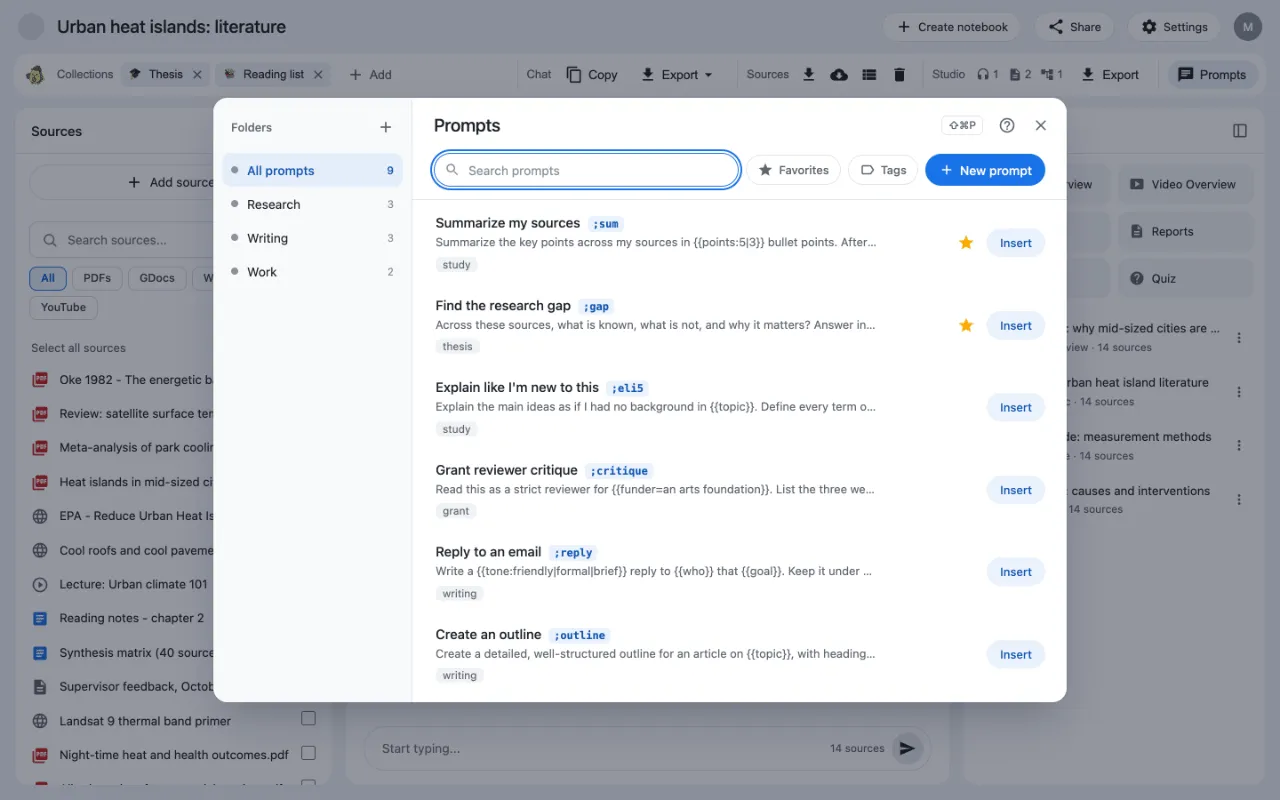
1. Your prompts open in a panel. Use the search box, folders or tags to find one.
1. Click **Insert**. The prompt goes where you were typing.
If Kortex cannot find a place to type, the button says **Copy** instead. Click it, then paste the prompt yourself. Press the same keys again to close the panel.
 ## What else the panel does
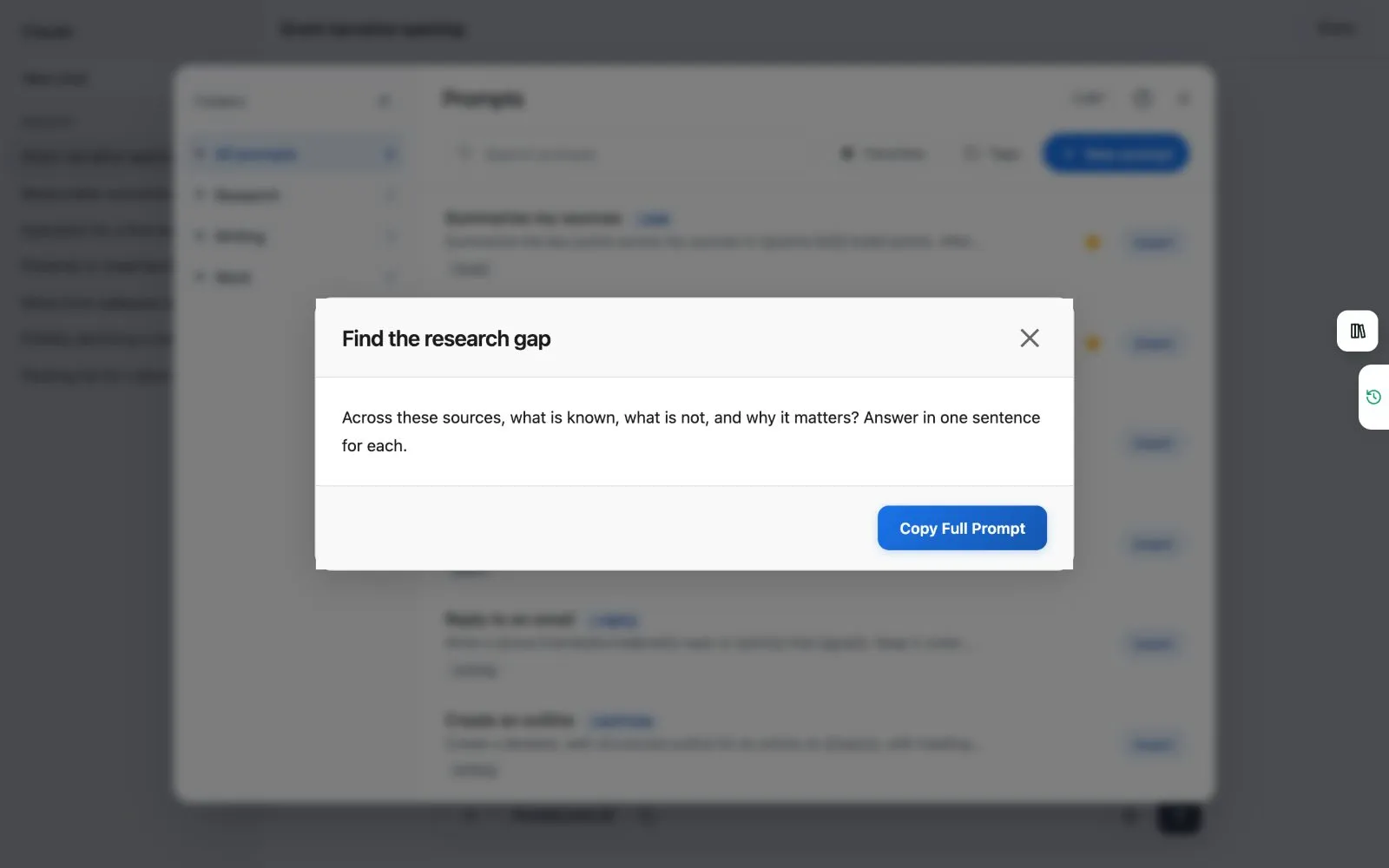
- **Preview** shows a prompt in full, with a copy button.
- The **more** button on a prompt lets you preview, edit or delete it.
- You can make folders and filter by tags.
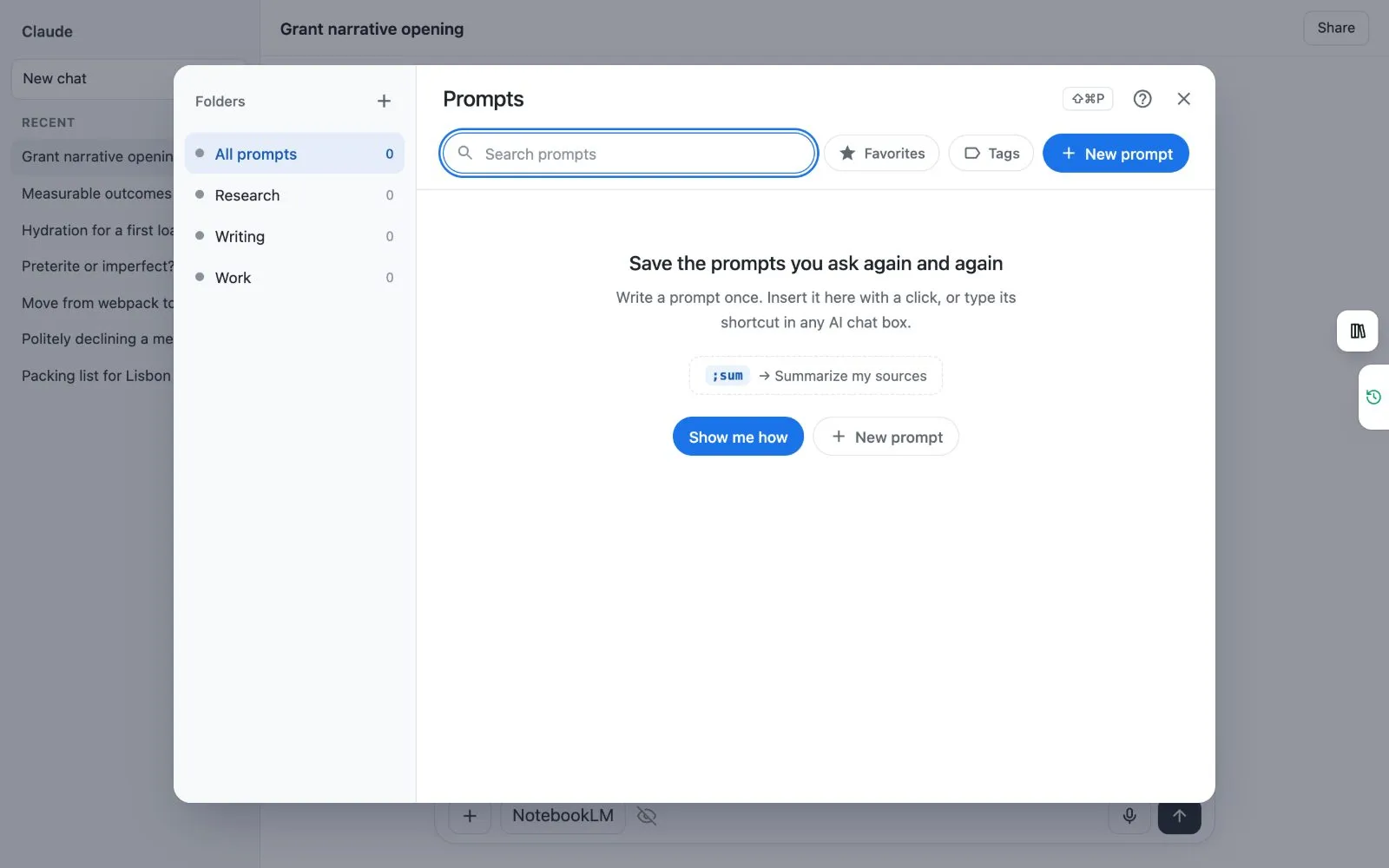
- The first time, a short tour helps you save your first prompt.
 ## How do I change the keys?
1. Type `chrome://extensions/shortcuts` in the address bar and press Enter.
1. Find Kortex. Click the box beside **Open your Kortex prompts on any page** and press the keys you want.
On Chrome's own pages, which begin with `chrome://`, the keys open the dashboard's Prompts page instead.
## Right-click menus
### Save selection as a Kortex prompt
1. Select some text on any page.
1. Right-click it and choose **Save selection as a Kortex prompt**.
1. The Library opens a new prompt with the text already in it. Add a title and a shortcut, then save.
 ### Insert a Kortex prompt
1. Right-click in a chat box on an AI site.
1. Choose **Insert a Kortex prompt**. It lists the 15 you used most recently.
1. Click one. It goes in the chat box.
### Use a Kortex prompt on the selection
Select text on any page, right-click, and choose **Use a Kortex prompt on the selection**. Your selection, the page title and its address fill the built-in blanks. The prompt goes into the chat box on this page, or into a new chat on the AI you used last.
:::tip Good to know
- The panel's **?** button walks you through your first prompt.
:::
Related: [Prompt shortcuts](/docs/prompt-shortcuts), [The Prompts button on Gemini Notebook](/docs/prompt-holder-button).