# Prompts with Blanks: Fill In a Form
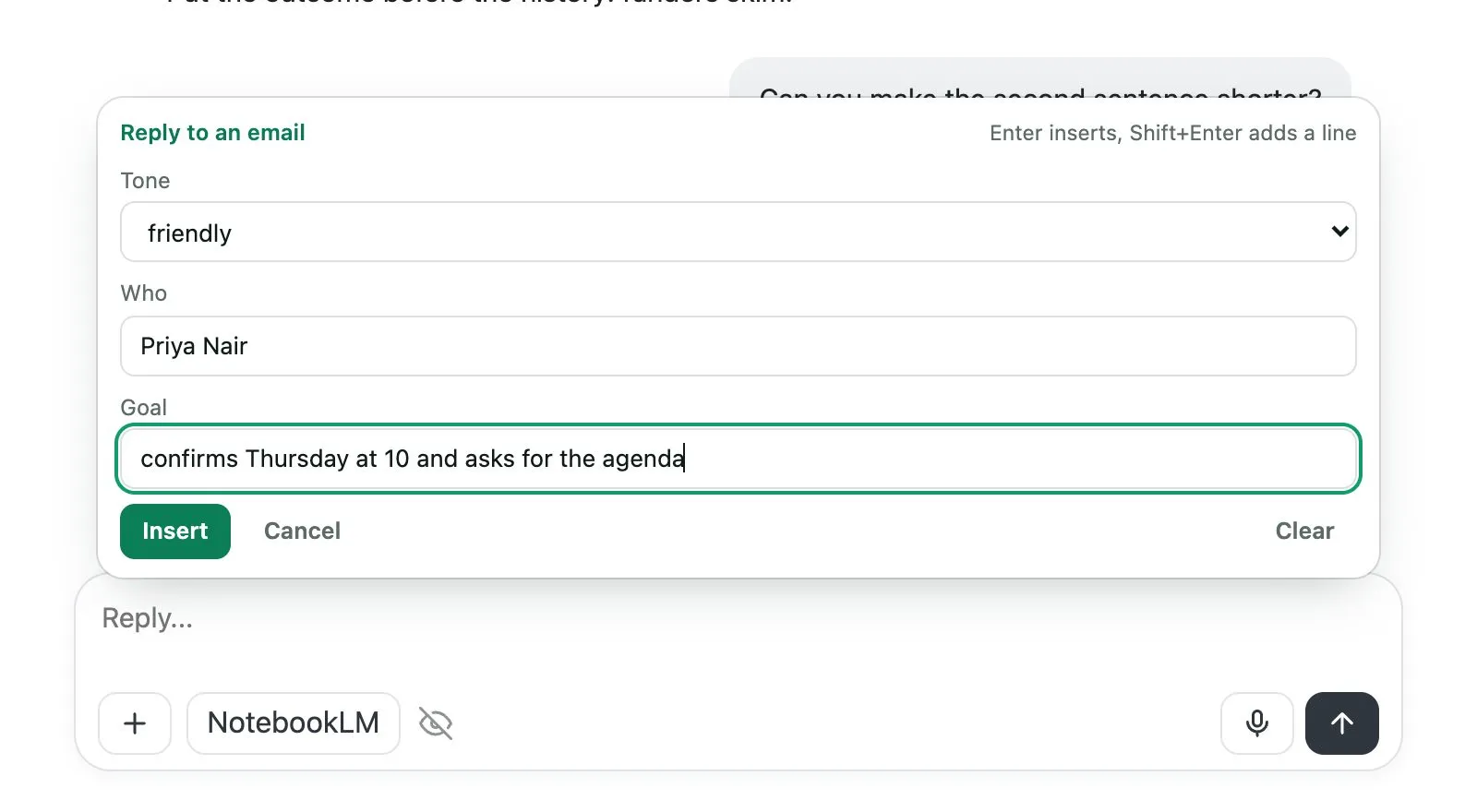
A blank is a gap in a saved prompt that you fill in each time you use it. Write the blank once, and Kortex opens a small form when you insert the prompt. It is like a form letter with spaces for the name and the date.
 ## Why use blanks?
Many prompts stay the same except for one or two words. A blank lets you save the part that stays and change the rest in seconds.
## How to write a blank
Put the name of the blank between double curly brackets in your prompt.
- `{{audience}}` is a blank you fill in each time.
- `{{audience=my team}}` is a blank with its usual answer already in it.
- `{{tone:formal|friendly}}` is a choice. The first one, **formal**, is picked for you.
Kortex can also fill some blanks for you: `{{selection}}`, `{{clipboard}}`, `{{date}}`, `{{time}}`, `{{page}}` and `{{url}}`. They are the text you selected, what you copied, today's date, the time, the page's title and its address. Write `{{>sum}}` to bring in another saved prompt by its shortcut.
You do not have to remember this. In the Library's prompt editor, the **Add a blank** menu inserts any of them for you.
 ## How to use a prompt with blanks
1. Type `;` and the prompt's shortcut in a chat box, then press **Enter**.
1. A small form opens above the chat box. It shows your last answers.
1. Fill in each field. Press **Tab** to move to the next one. Choices show as a list.
1. Press **Enter**, or click **Insert**. The finished prompt goes in the chat box. **Shift+Enter** adds a new line inside a field.
## How do I chain prompts, one step after another?
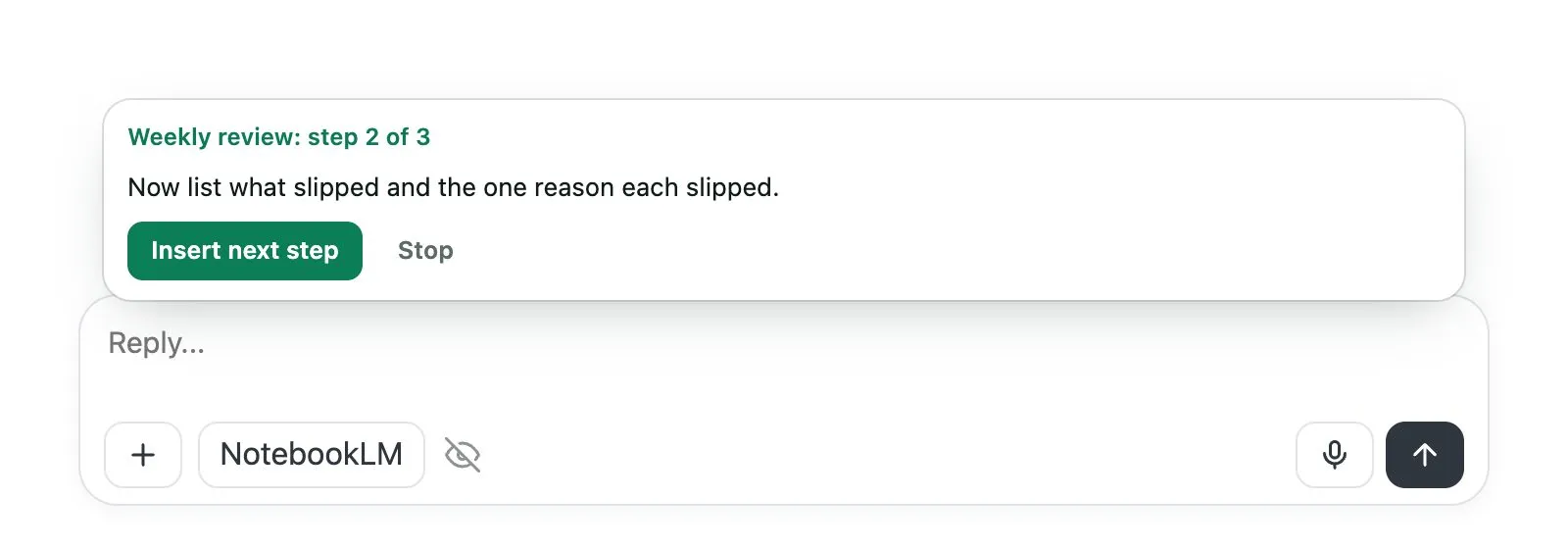
Some jobs take two or three messages in a row. Write them in one prompt and put a line with only `>>>` between the steps.
1. Use the prompt as usual. The first step goes in the chat box.
1. Send it, and wait for the answer.
1. A box appears above the chat box. Click **Insert next step**.
1. Click **Stop** if you do not want the rest.
 :::tip Good to know
- The editor warns you about likely mistakes, such as a blank spelled two ways. It never stops you from saving.
- In the Library's Prompts view, the **⋯** menu has **Starter ideas**: ready-made prompts with blanks you can copy.
:::
Next: [Prompt shortcuts](/docs/prompt-shortcuts), [Prompt suggestions](/docs/prompt-suggestions).