# Search Sources Inside a NotebookLM Notebook
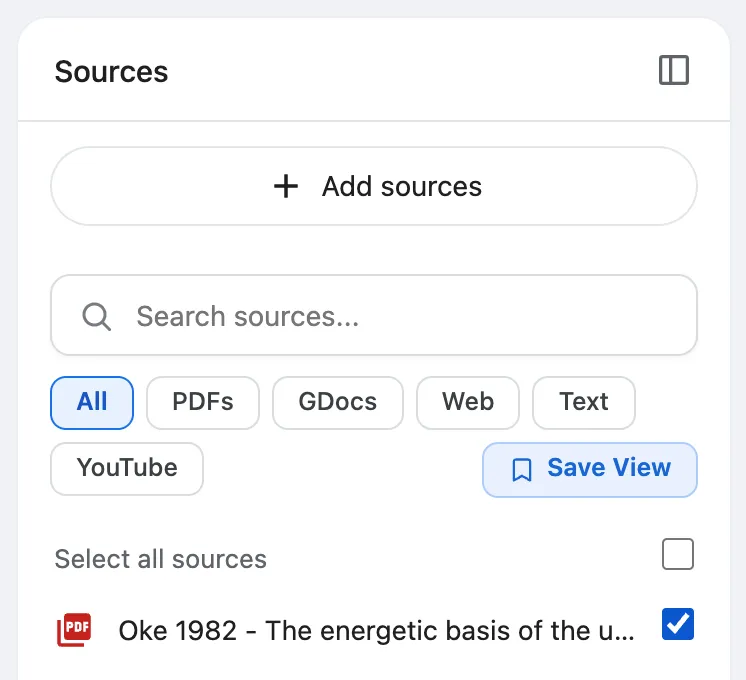
Source Search shrinks the source list of a Gemini Notebook (formerly NotebookLM) notebook as you type, so you find a source fast. You can also filter by type: PDFs, GDocs, Web, Text or YouTube.
 ## Why search sources?
A notebook can hold dozens of sources. Searching is like using the index at the back of a book: you jump straight to the page you want.
## How to search
1. Open a notebook. Look at the **Sources** panel on the left.
1. Click the **Search sources…** box and type. The list narrows as you type.
1. Under the box, a line such as **5 of 14 sources** tells you how many match. It says **No sources match** if none do.
1. Click the small **x** in the box to clear the search.
## How to filter by type
Under the search box there is a row of buttons: **All**, **PDFs**, **GDocs**, **Web**, **Text** and **YouTube**. Click one to show only that kind of source. Click **All** to see everything.
 ## Keep a search
Click the blue **Save View** button to keep your search and filter. See [Source views](/docs/source-views-dropdown).
## Can I search sources across all notebooks?
Yes, in the dashboard. [All Sources](/docs/all-sources) has a search box. You can also press `/` or `Ctrl+K` in the dashboard to search notebooks, sources, collections, tags, podcasts and notes together.
Related: [Notebook search](/docs/notebook-search-bar), [The Kortex notebook bar](/docs/notebook-bar).