# Kortex Tab: Notes and Pins on AI Chats
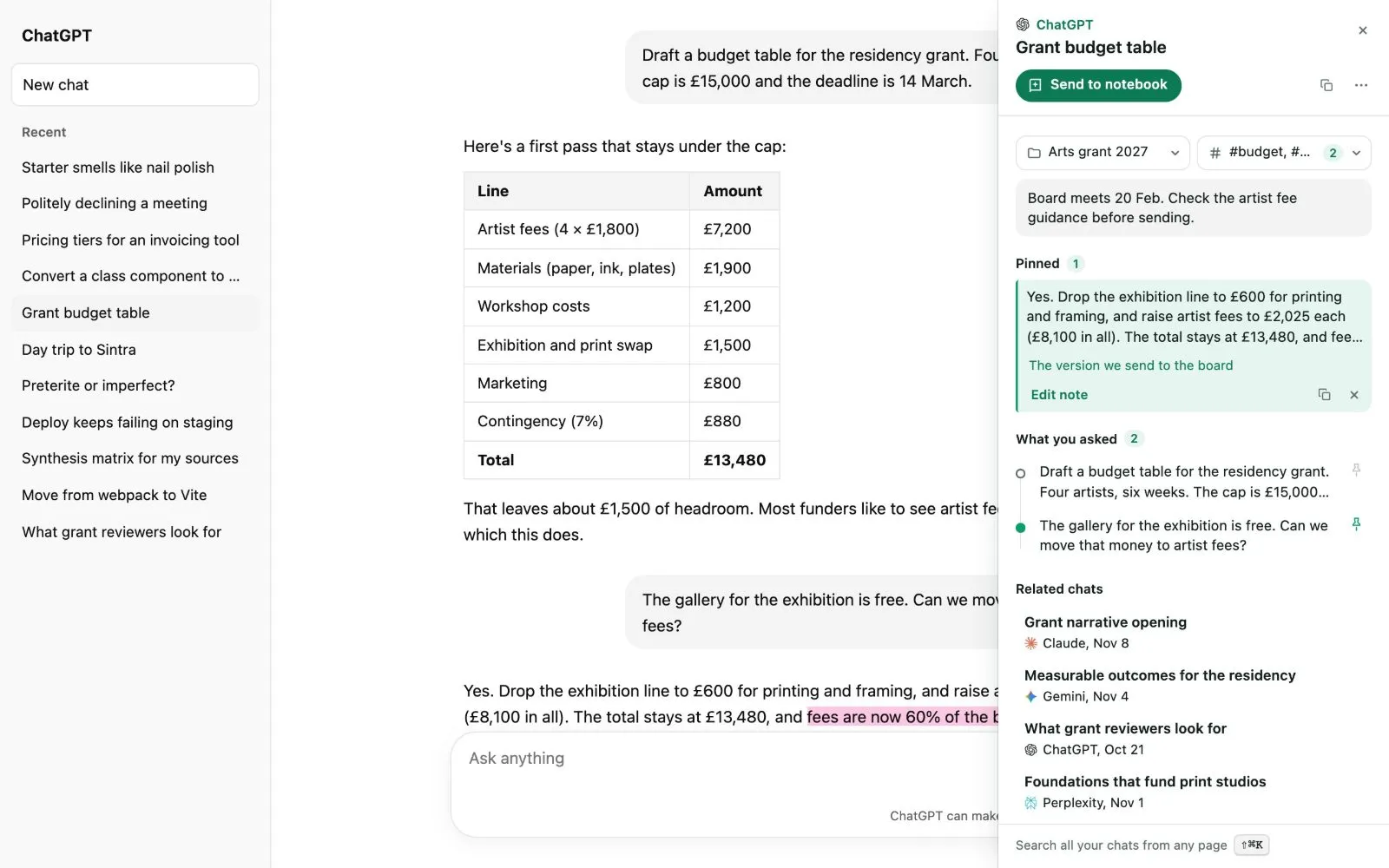
The Kortex tab is a small tab on the right edge of an AI chat. It opens a panel about the chat you are reading, with your notes and pins, and a button to send the chat to a notebook in Gemini Notebook (formerly NotebookLM).
 ## Why use the Kortex tab?
Think of sticky notes on a page in a book. You can mark what matters, file the chat, and find your way back later, all without leaving the chat.
## Where it shows up
The tab is on ChatGPT, Claude, Gemini, Perplexity and Grok. Click it to open the panel. Click the **x** in the corner to close it.
The first time, a notice beside the tab asks whether Kortex may keep your chats on this computer. The panel works once you say yes. Kortex saves a chat a few minutes after you start it.
## What is in the panel
- **Folders.** Click the folder button to tick the Library folders this chat belongs in. Kortex marks a folder **Suggested** when one fits. Type a new name to make a new folder. You can also drag a chat from the site's own sidebar onto a folder.
- **Tags.** Pick tags you already use, or type a new one.
- **Your note.** One note per chat. It saves as you type.
- **Pinned.** The answers you pinned, each with a note you can add or edit.
- **What you asked.** A list of your questions in order. Click one to jump to it. Click the pin beside a question to pin its answer.
- **Related chats.** Other chats about the same thing, from any AI. Click one to open it.

 ## How to pin, highlight or remember words
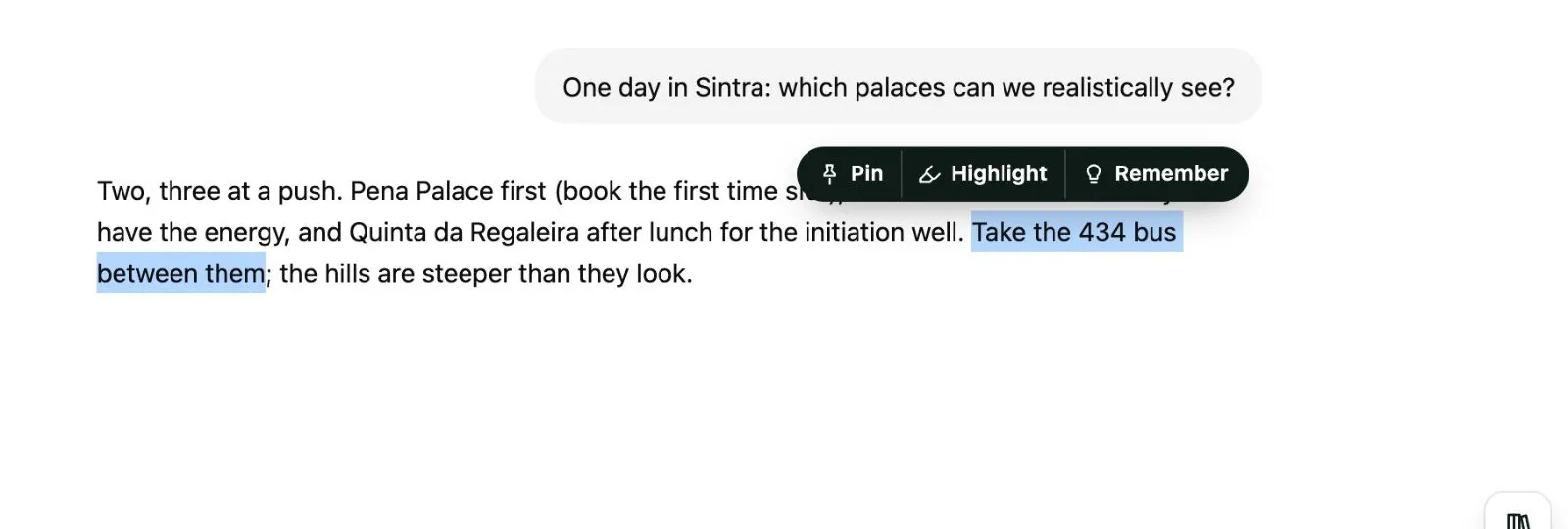
1. Select some words in an answer with your mouse.
1. A small bubble appears. Click **Pin** to keep the passage with the chat, **Highlight** to mark it in a colour, or **Remember** to save it as a fact in your Memory.
1. The bubble says **Pinned**. The passage now shows under **Pinned** in the panel.
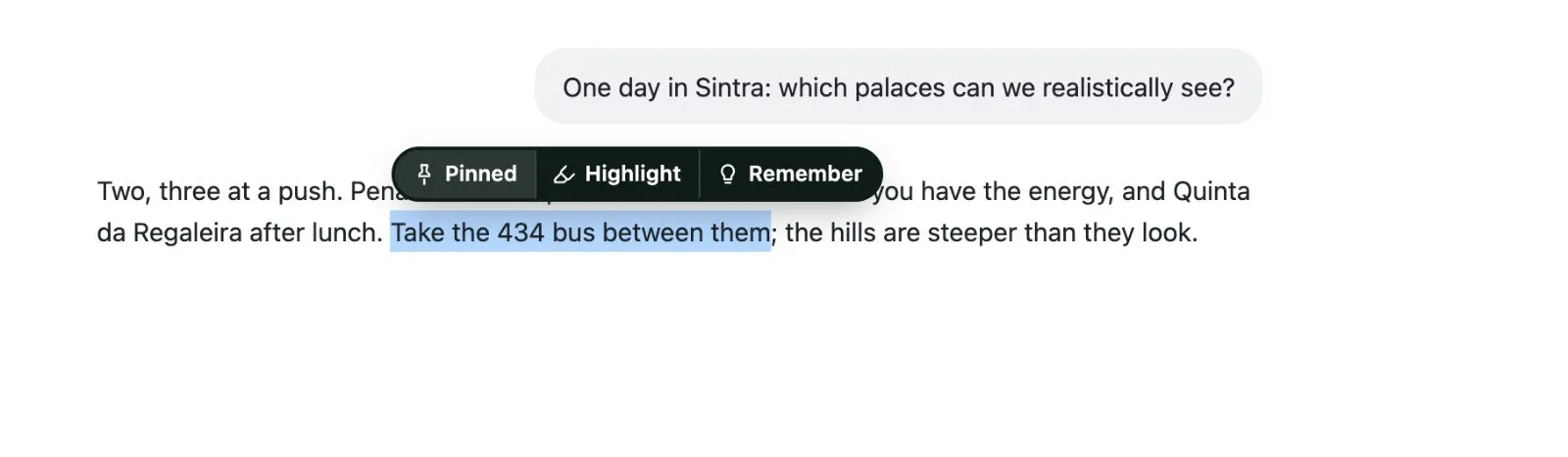 Highlights stay painted when you come back. Click one to change its colour, add a note or remove it. Highlights can be yellow, green, blue or pink.
:::info On the free plan
You can keep 20 highlights and 20 pins. When you reach the limit, a short line appears in the bubble or the panel, with a button. Older items are locked. Pro has no limit. See [the free plan and the trial](/docs/chat-library#on-the-free-plan-and-the-trial).
:::

 ## The outline of your questions
In a long chat of four questions or more, a column of small dots appears under the tab. There is one dot for each question. Click a dot to jump to that question.
## How to send the chat to a notebook
1. Open the Kortex tab.
1. Click the green **Send to notebook** button.
1. Pick a notebook from the list. The one that fits best is marked **Suggested**.
1. The chat goes into that notebook as a source.
 ## Copy, and the more menu
- The copy button beside **Send to notebook** copies the whole chat, formatted.
- The **⋯** button opens a menu: **Continue in another AI…**, **Read in the Library**, **Download as Markdown**, **Download as PDF**, **Save to Notion** and **Archive**.
- An archived chat leaves every list and search except the Archive. Choose **Move out of the archive** to bring it back.
:::tip Good to know
- A second button just above the tab opens the whole Library over the page.
- The panel's footer reminds you that you can search all your chats from any page. See [Chat search](/docs/chat-search).
- You can hide the tab. Turn off **Show the Kortex tab on AI sites** in the side panel's **Chats** settings.
- Your chats, notes and pins stay on this computer.
:::
Related: [Saving your chats](/docs/library-saving), [Folders](/docs/library-folders), [Continue in another AI](/docs/semicolon-commands).