# NotebookLM MCP: Agents and Workflows
Agents is where you manage the AI assistants, such as Claude, that work inside your Gemini Notebook (formerly NotebookLM) notebooks through Kortex MCP, a connection that lets an assistant use Kortex. Workflows are steps your assistant saved to repeat.
**This needs Kortex Pro.** See [pricing](https://www.kortex-notebooklm.com/#pricing).
 ## Why use Agents and Workflows?
You can ask your AI assistant, in plain words, to make a study guide or file your notebooks. Agents is where you decide what it may touch. Workflows is where its repeatable jobs live.
## Agents
An assistant connects to Kortex over MCP. MCP is a standard plug that lets an AI app use other tools. A **key** is like a spare house key you give to a helper. You can take it back at any time without changing the locks for the others.
The page shows:
- Whether Kortex is **Ready for agent requests**, and when the last call came in.
- Your **Keys**: a name, when it was last used, and a **Revoke** button.
- Each key's level. **readonly** can only look. **full** can change things.
### How to make a key
1. Click **Agents** in the sidebar.
1. Under **What is this key for?** type a name, such as the app and computer.
1. Under **It may**, choose what the key can do. A new key is read-only.
1. Under **Tools it lists**, choose **Everything**, or **Just my chats** if it only needs your chat Library.
1. Click **Create key**.
Give the assistant the least it needs. You can always make a second key with more power.
Setting up an app is covered in [Kortex MCP Server](/docs/mcp-server) and [the quickstart](/docs/mcp-quickstart).
## Workflows
After your assistant does a job you will repeat, say "save that as a workflow called weekly digest". Later you can say "run my weekly digest". The Workflows page lists every workflow you saved.
 Each workflow shows what it needs, its steps and the phrase that runs it. Open one to see each step and its recent runs on this computer.
 ### How to run a workflow on a timer
1. Open **Workflows** in the sidebar.
1. Click **Schedule** on the workflow.
1. Choose to run it every day or every week, and a time. Fill in any inputs it asks for.
 Chrome must be open for a scheduled workflow to run. Workflows are made by your assistant. This page does not edit them. More on [MCP workflows](/docs/mcp-workflows).
## The activity pill
While a workflow runs, the pill in the top bar says so. Click it to see what is running and what has just finished.
 ## If you see a locked page
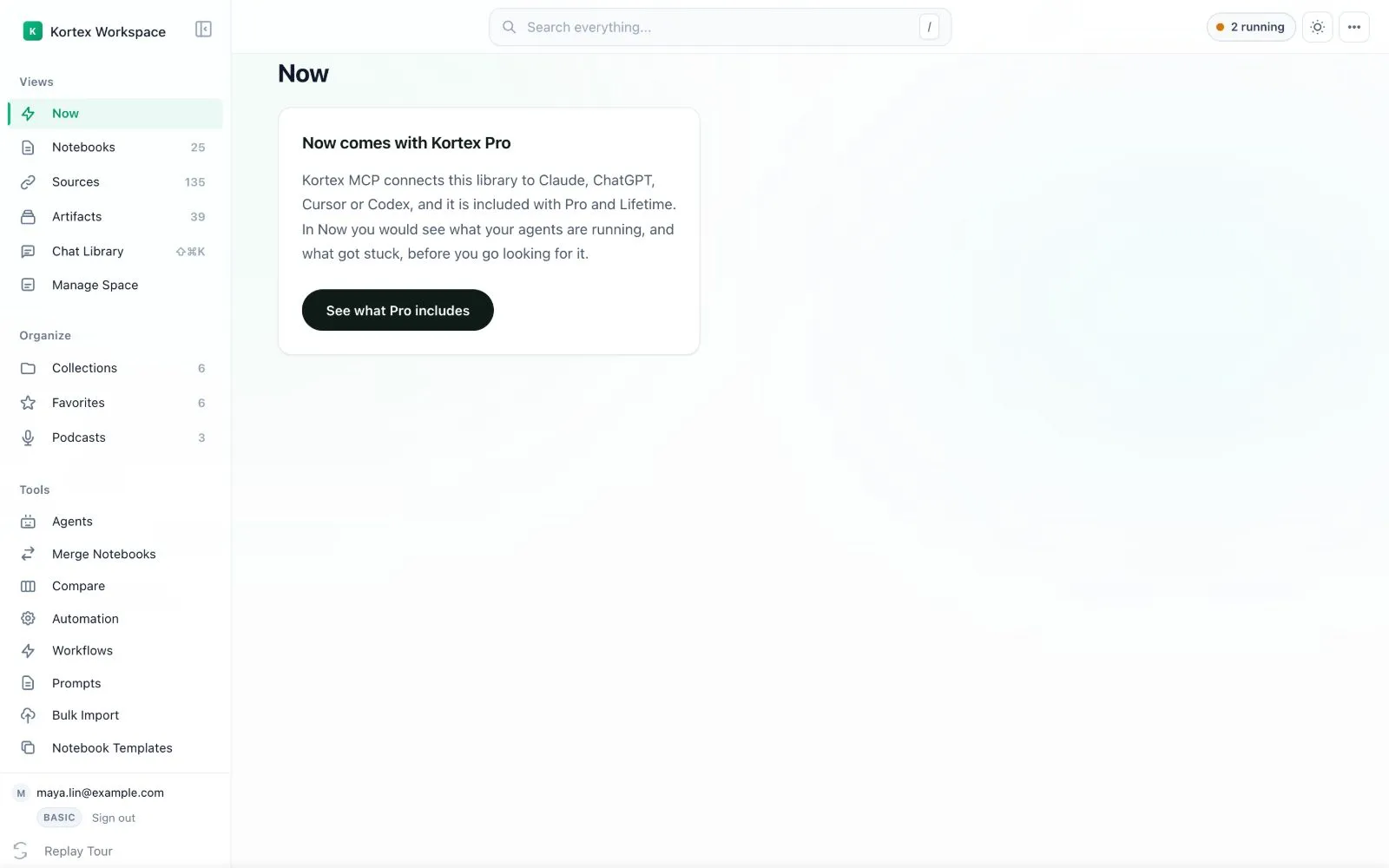
- On the Basic plan, Now, Workflows and Agents say they come with Kortex Pro and offer to show what Pro includes.
- On a Pro account that the MCP rollout has not reached yet, the page says its wave has not opened. There is no upgrade button, because nothing is wrong with your plan.
 :::tip Good to know
- Revoking a key stops that assistant straight away.
- Keep your keys private, like passwords.
:::
## Related pages
- [Kortex MCP Server](/docs/mcp-server)
- [MCP workflows](/docs/mcp-workflows)
- [API keys](/docs/mcp-api-key)
- [Now](/docs/dashboard-now)