# Organize NotebookLM Notebooks in Collections
A collection is a folder for notebooks. In the Kortex dashboard you group your Gemini Notebook (formerly NotebookLM) notebooks by project or client, nest folders inside folders, and open any collection to see its notebooks.
 ## Why use collections?
It is like a shelf in a library with a sign on it. Instead of searching 25 notebooks, you open the shelf called Thesis.
A notebook can sit in more than one collection. Removing it from one never deletes the notebook.
## How to make a collection
1. Click **Collections** in the sidebar.
1. Click **New Folder**.
1. Type a name and confirm.
 You can pin the collections you use most so they stay near the top.
## How to open a collection
Click its card. You see its notebooks as cards. The buttons at the top are **New Folder**, **Add Notebook** and **Generate for collection**. A search box, a view switch, a sort and a **Filter** are on the right.
 ## How to add notebooks
1. Open the collection.
1. Click **Add Notebook**.
1. A list shows notebooks that are not in it yet. Type in the search box to find one.
1. Click a notebook to add it.
 You can also tick notebooks in [All Notebooks](/docs/all-notebooks) and use **Add to collection** in the bar.
## Folders inside a collection
Click **New Folder** inside a collection to make a smaller folder in it. A folder can hold notebooks too. Folders can sit inside folders.
## Generate for a collection
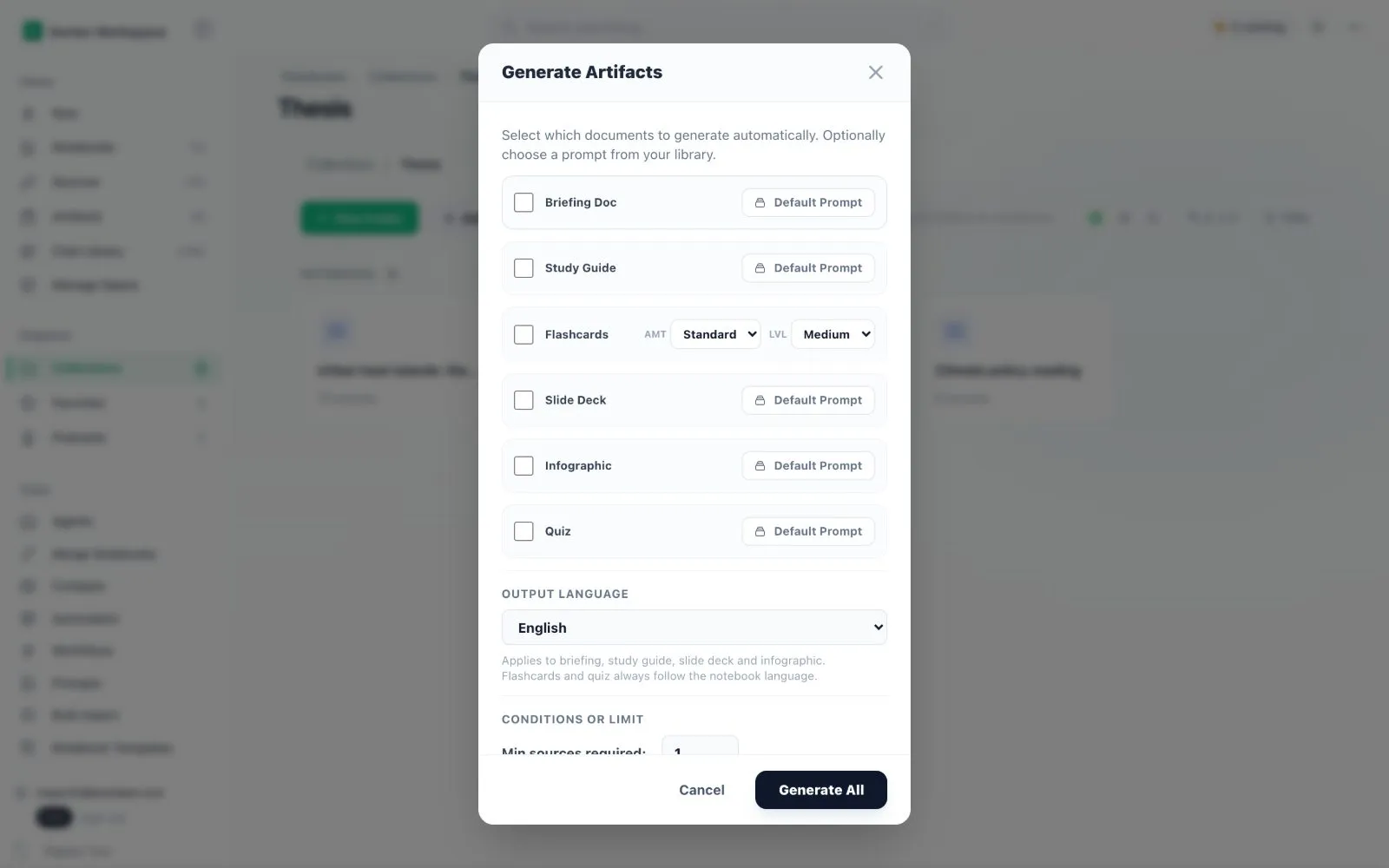
This needs Kortex Pro. See [pricing](https://www.kortex-notebooklm.com/#pricing). **Generate for collection** makes the same kind of output for every notebook in the collection at once. Tick the types you want, choose a prompt for each and pick a language.
 ## How to delete
1. Open the menu of the collection or folder.
1. Choose delete.
1. Read the message. Deleting a collection removes only the collection. Your notebooks stay.
1. For a folder, type the word `confirm`. The **Delete** button works after that.
Notebooks in a deleted folder move to Unfiled.
 ## Two kinds of collections
Gemini Notebook has its own collections too. The Collections page can show both. Kortex ones are Kortex's own folders. Gemini Notebook ones are read live from Google. There is also a button to copy your Kortex folders over to Gemini Notebook. See [Gemini Notebook collections](/docs/notebooklm-collections).
:::tip Good to know
- On the Basic plan you can have 5 collections. Kortex Pro has no such limit.
- Generating for a whole collection needs Pro.
:::
## How many collections can I have?
The Basic plan has 5 Kortex collections. Folders can nest and take a color, and you can pin up to three collections. A Smart Collection fills itself from rules. **Generate for collection** makes a Studio output for every notebook in a collection, and it needs Kortex Pro.
## Related pages
- [All Notebooks](/docs/all-notebooks)
- [Favorites](/docs/favorites)
- [Manage Space](/docs/manage-space)
- [Automation Rules](/docs/automation-rules)