# NotebookLM Prompts Button and Prompt Panel
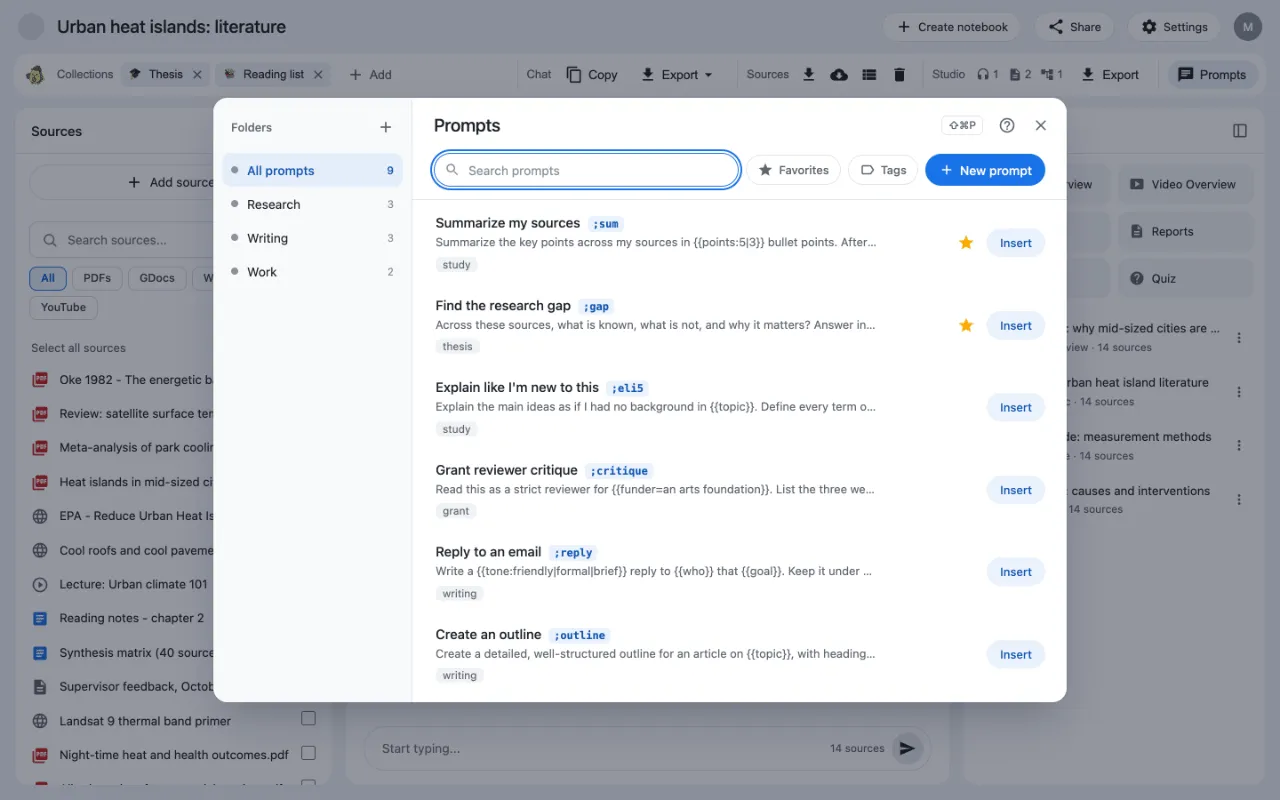
The Prompts button in the Kortex bar keeps the messages you send to AI again and again. One click puts a prompt in the Gemini Notebook (formerly NotebookLM) chat box. You can sort prompts into folders and filter them by tag.
 ## Why use the Prompts button?
A prompt is the message you type to an AI. If you often ask "Summarize my sources in five bullet points", you do not need to type it every time. This panel is a recipe box for prompts.
## How do I open it?
Click the **Prompts** button at the right end of the Kortex bar. On any web page you can also press `Cmd+Shift+P` on a Mac, or `Ctrl+Shift+P` on Windows.
## The first-run tour
The first time you open the panel on a site, a short tour starts. It has five steps and takes about 20 seconds. You can click **Skip tour** at any time. To see it again, click the round **?** button at the top of the panel.
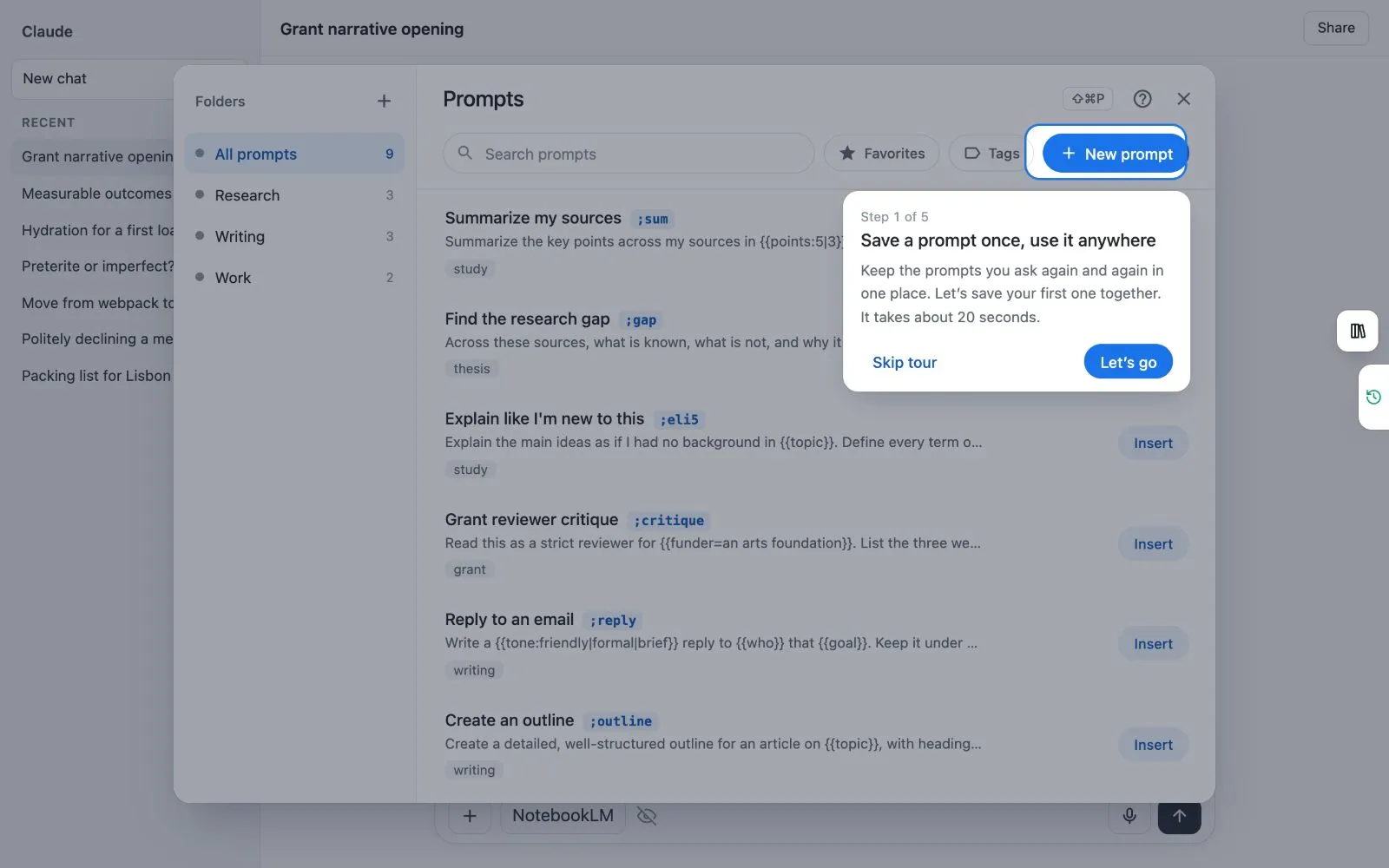 1. **Save a prompt once, use it anywhere.** Click **Let's go**.
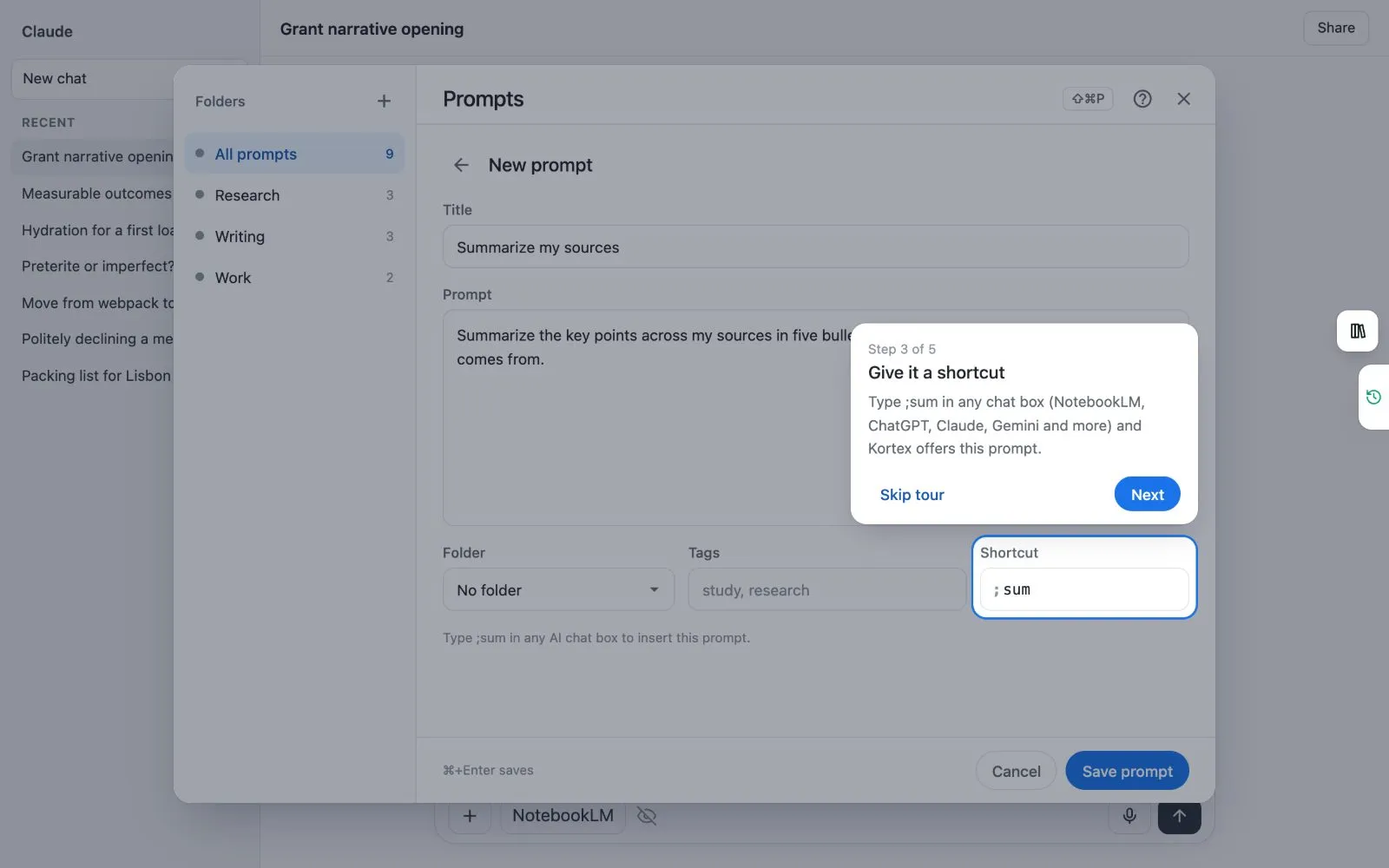
1. **Name it, then write it.** Kortex fills in an example. Keep it or change the words.
1. **Give it a shortcut.** Type the shortcut in any chat box and Kortex offers this prompt.
1. **Save it.** Click **Save prompt**.
1. **Now use it.** Click **Insert**, or type the shortcut in any chat box.
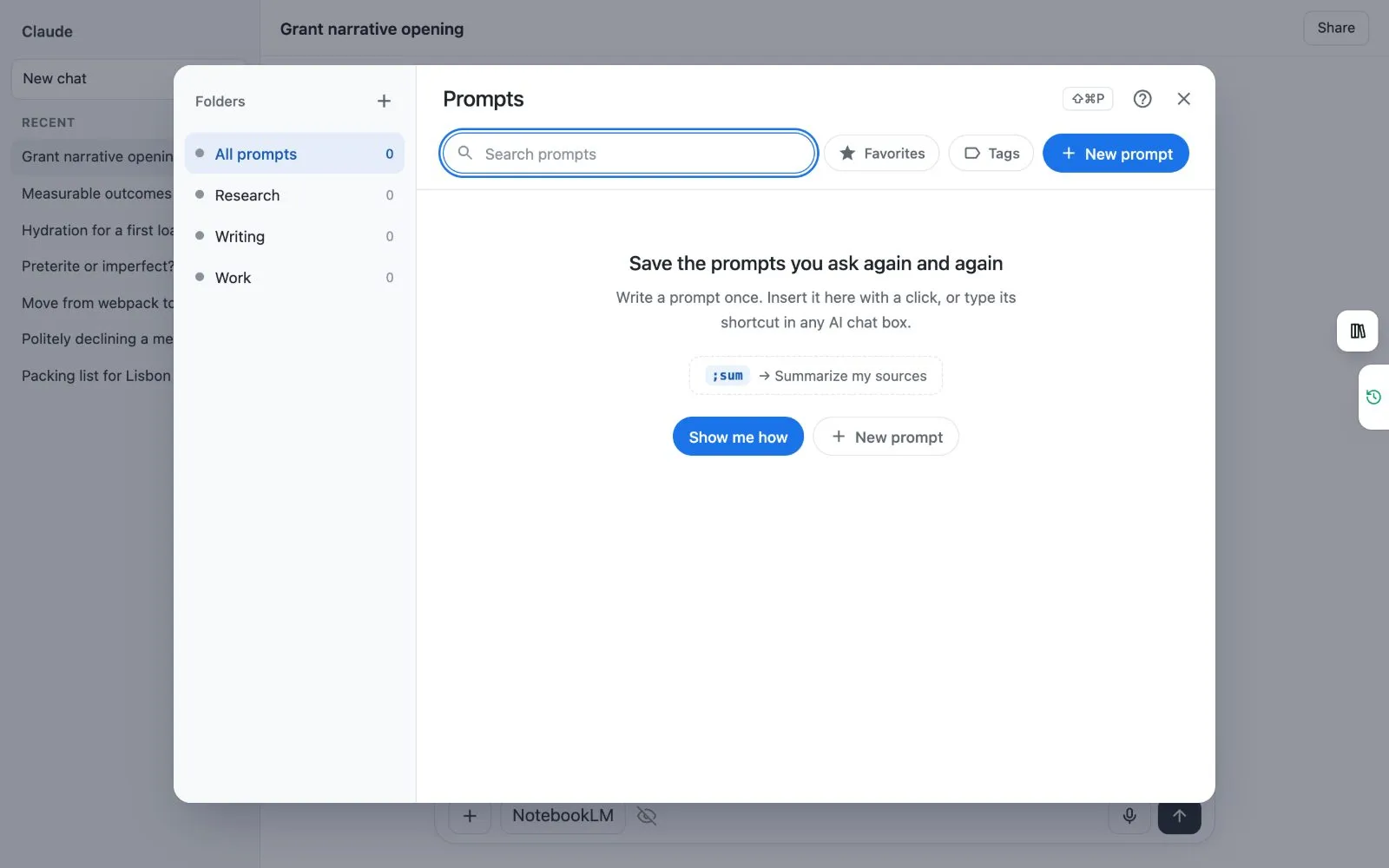
 If you have no prompts yet, the panel opens empty with a way to write your first one.
 ## How to use a prompt
1. Open the panel.
1. Find your prompt. Type in **Search prompts**, or click a folder on the left.
1. Click **Insert**. The prompt goes into the chat box.
1. Press Enter in the chat box to send it.
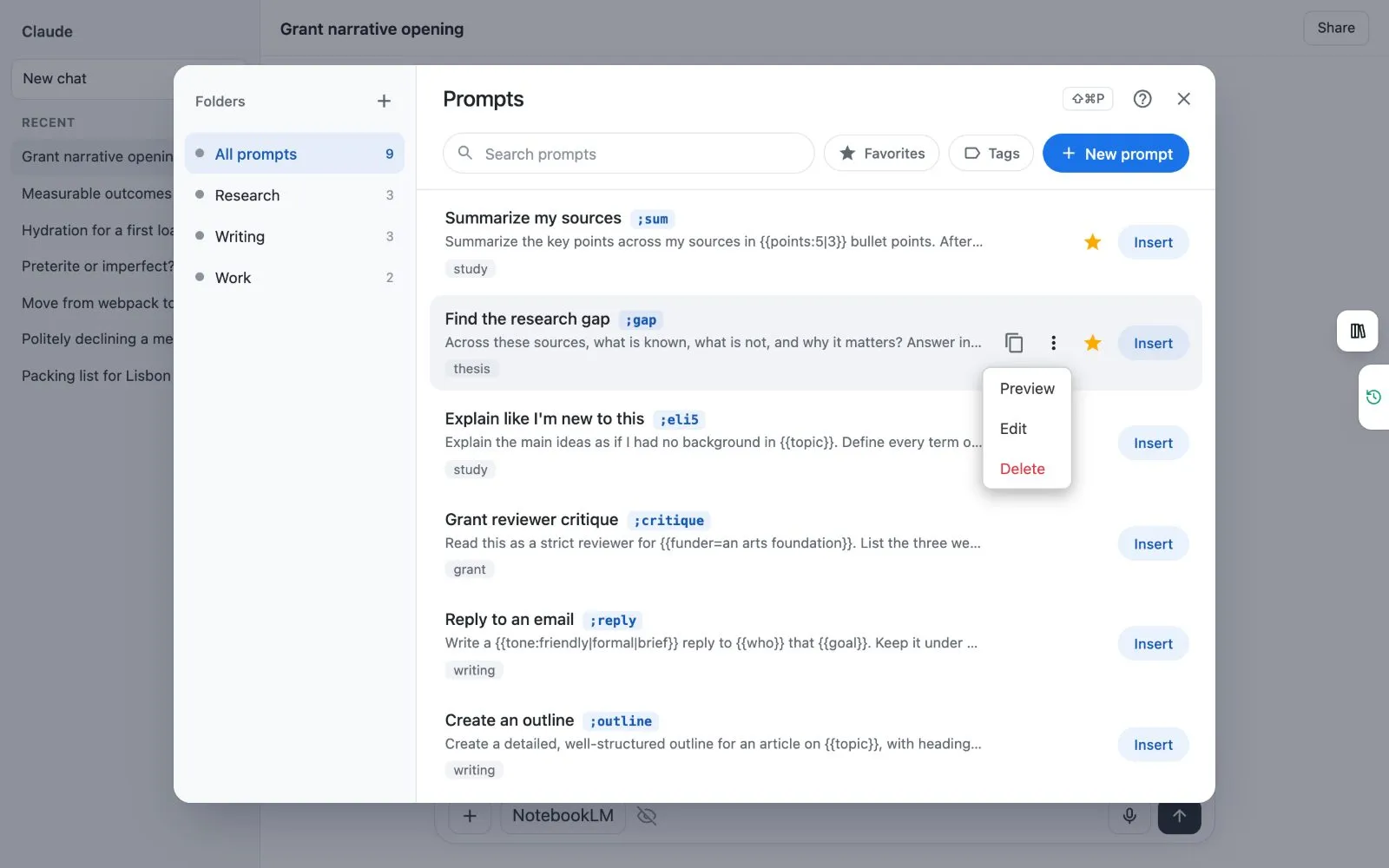
The small copy button beside a prompt copies it instead. The star marks a favourite. Click **Favorites** to see only those.
## A prompt's menu
Move your mouse over a prompt. Three dots appear. Click them to see **Preview**, **Edit** and **Delete**.
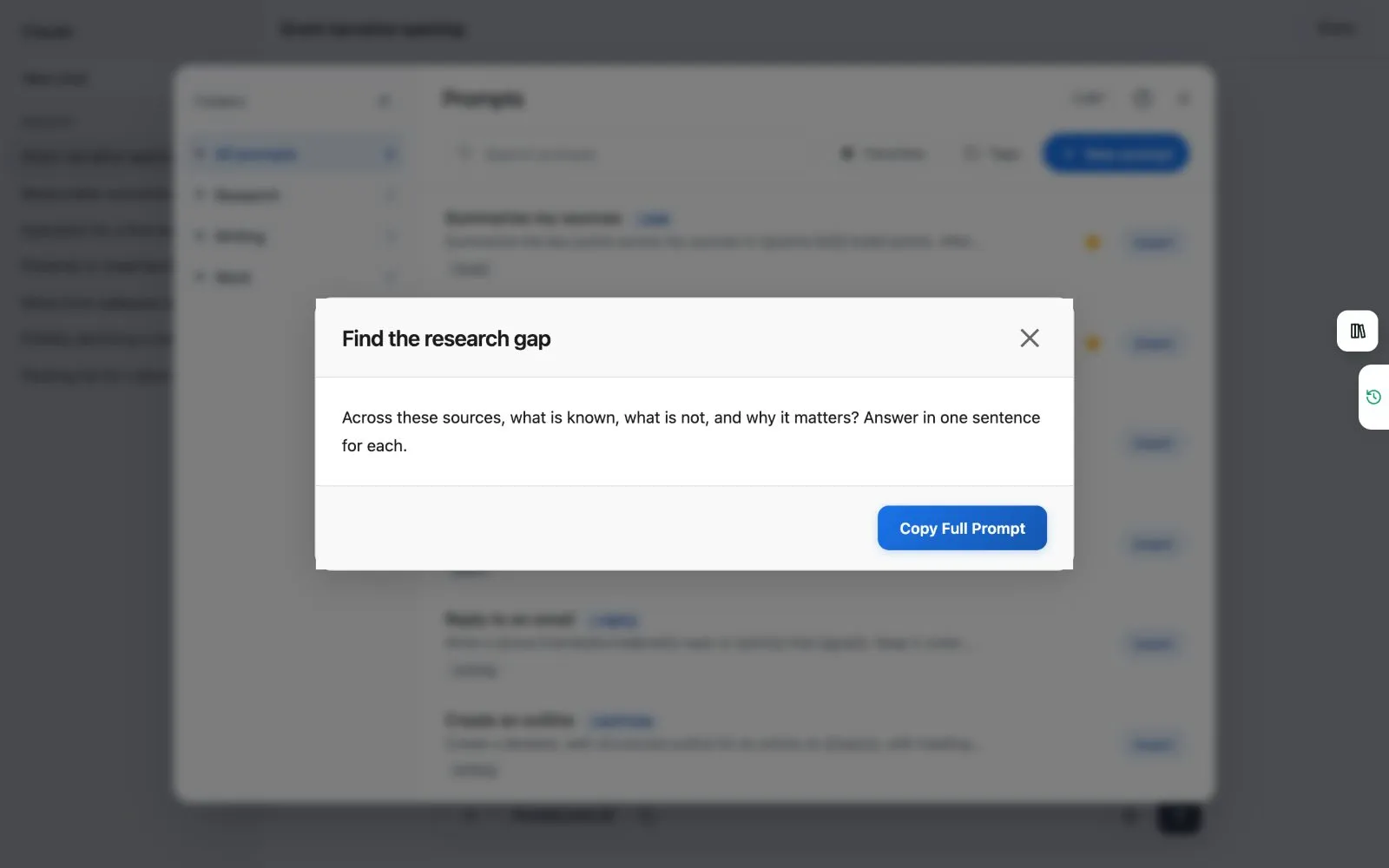
 ## Preview a prompt
**Preview** shows the whole prompt, with a button to copy it, before you insert it.
 ## Write or edit a prompt
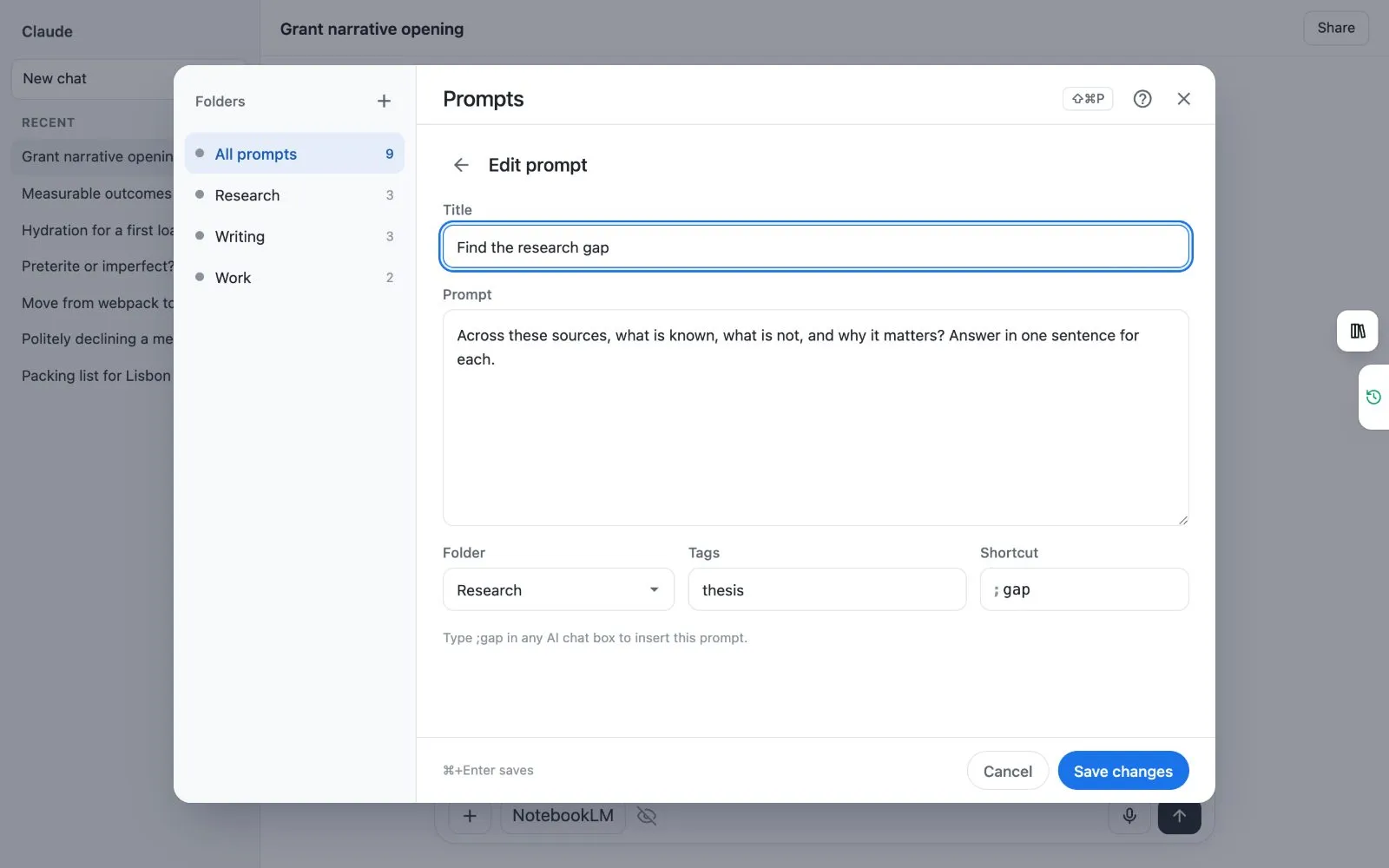
1. Click the blue **New prompt** button. To change one you have, choose **Edit** from its menu.
1. Fill in the **Title** and the **Prompt**.
1. Pick a **Folder**, add **Tags**, and, if you like, a **Shortcut**.
1. Click **Save prompt** (or **Save changes**). Pressing Cmd+Enter or Ctrl+Enter also saves.
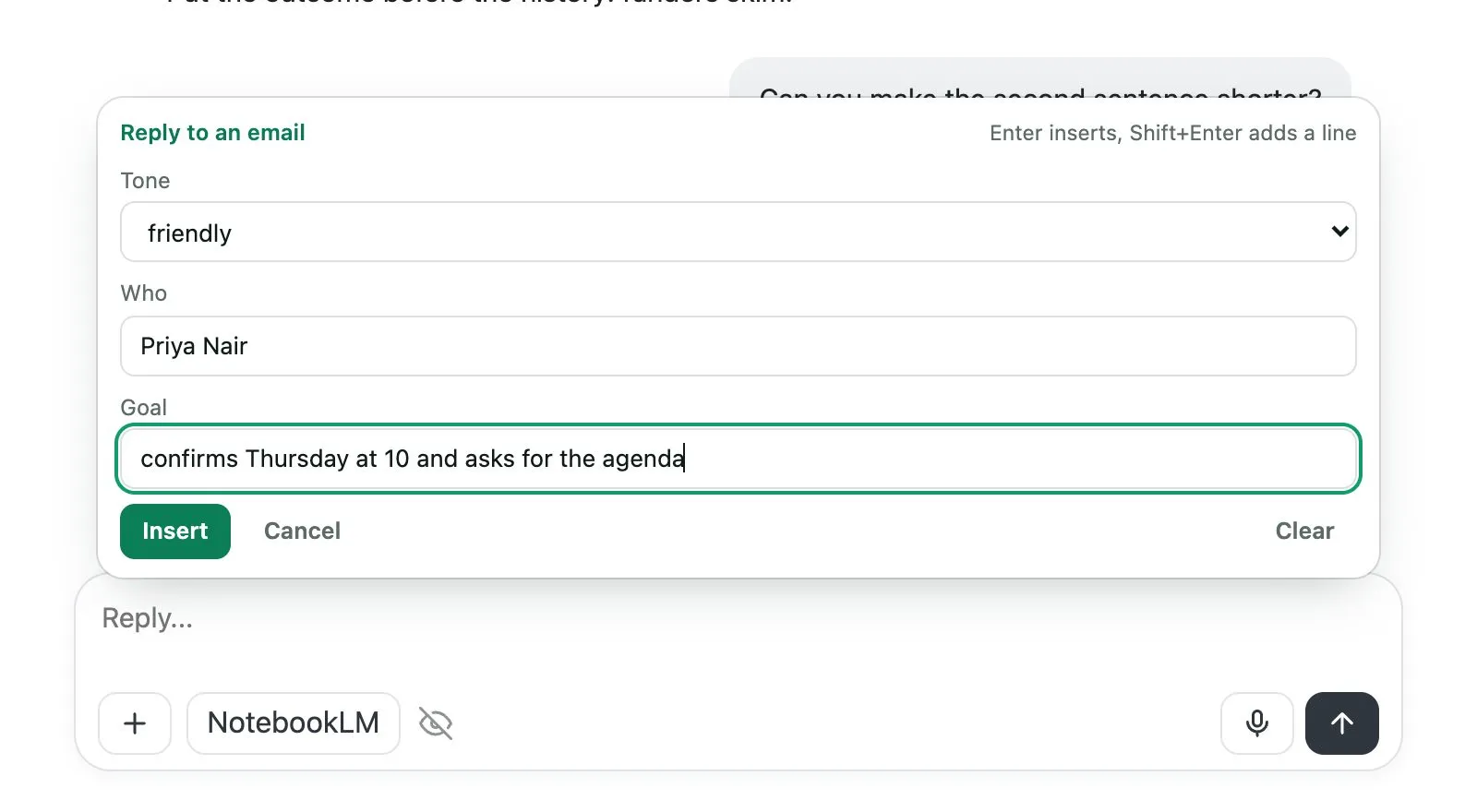
 A blank in a prompt is a gap you fill in each time. Write it in double curly brackets, like `{{topic}}`. Kortex asks for it in a small form when you insert the prompt.
 ## Folders
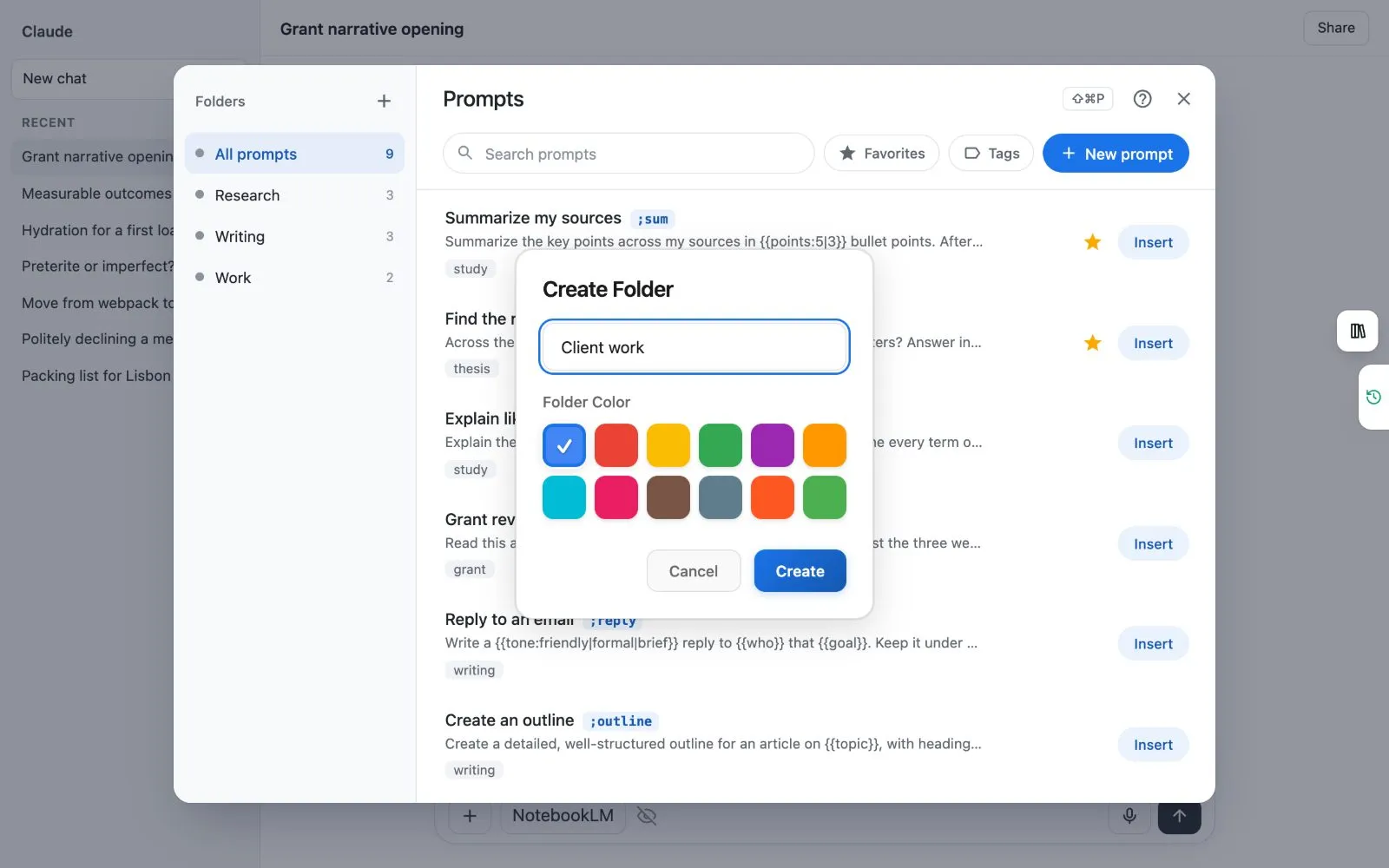
Folders sit on the left. **All prompts** shows everything, and the number is how many prompts there are.
1. Click the **+** beside **Folders**.
1. Type a name and save it.
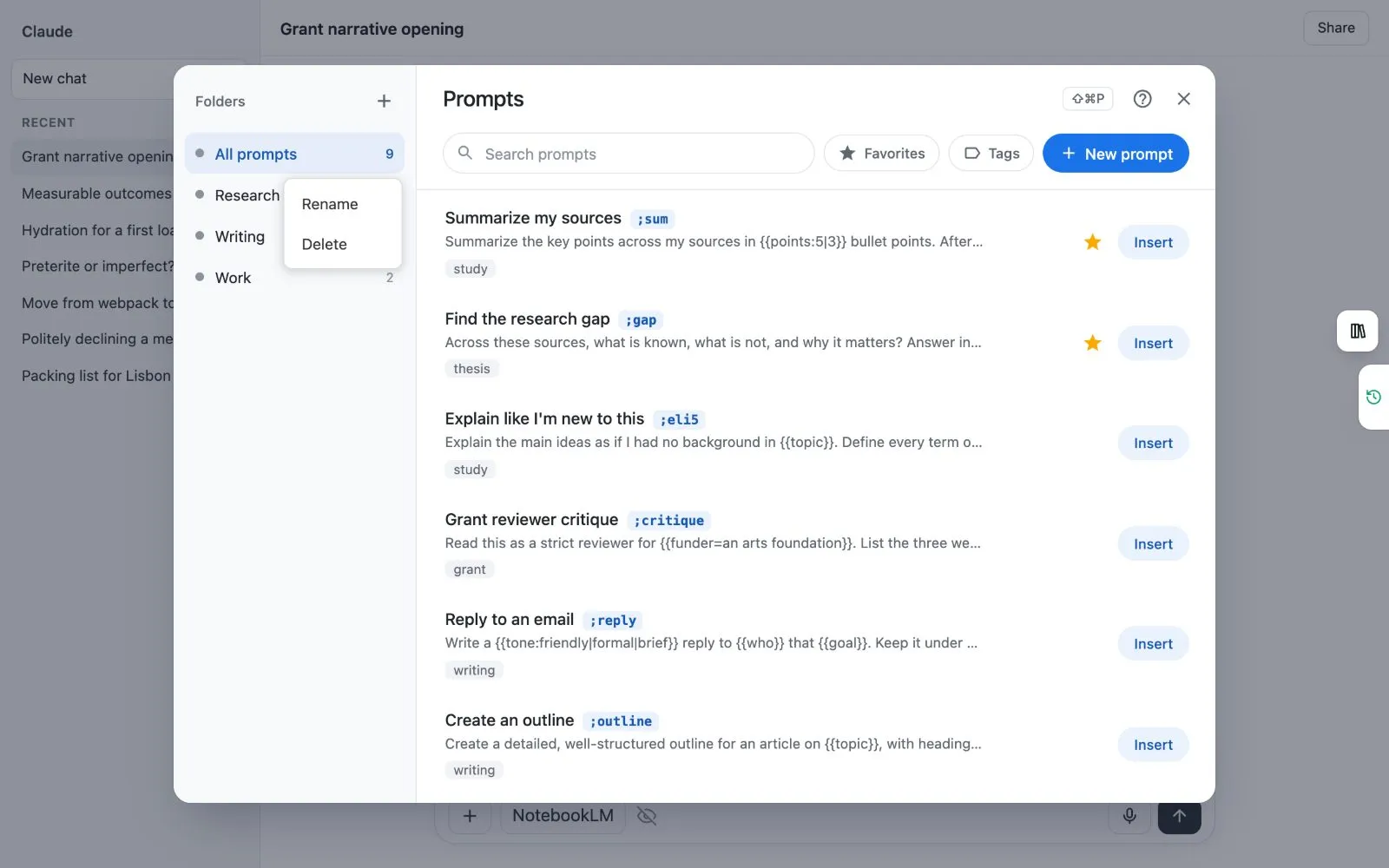
1. To rename or delete a folder, use the more button beside it.
 ## Filter by tag
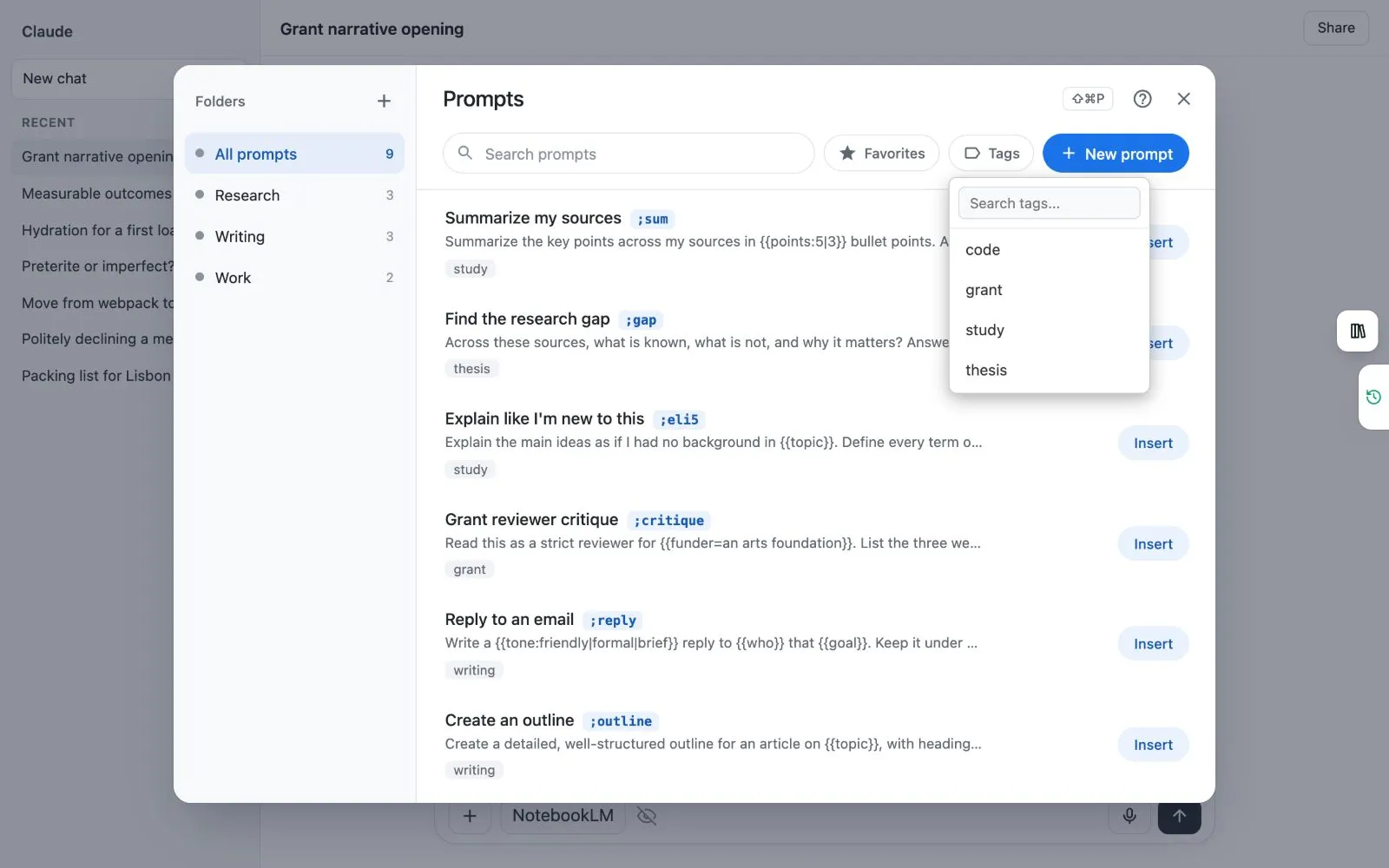
Tags are little labels, like "study" or "grant". Click **Tags**, then pick one to see only the prompts that carry it. You can type in **Search tags…** to find a tag.
 :::tip Good to know
- The free plan keeps 10 prompts and 5 prompt folders. Kortex Pro has no limit and keeps them on all your computers. See [pricing](https://www.kortex-notebooklm.com/#pricing). Delete a prompt and you get its slot back.
- The same prompts show in the side panel, the Library and the dashboard. See [Prompts everywhere](/docs/prompts-everywhere).
:::
Related: [Prompt shortcuts](/docs/prompt-shortcuts), [Prompt blanks](/docs/prompt-blanks), [The Kortex notebook bar](/docs/notebook-bar).