# Library Views: Timeline, Pins, Highlights
The Library has views in its left column that show your saved AI chats in different ways: Timeline, Pinned, Highlights, Notes, Asked twice and Archive. Each view is the same chats sorted another way, like photos sorted by date, by album or by favorite.
 ## Why use the other views?
- See what you worked on week by week.
- Find the answers you pinned, the passages you marked, and the notes you wrote, all in one place each.
:::info On the free plan
Timeline, Pinned, Highlights and Notes show the last 30 days. Older items show their title, site and date, but they are locked. You can keep 20 highlights, 20 pins and 10 notes. Pro opens them all and has no limit. See [the free plan and the trial](/docs/chat-library#on-the-free-plan-and-the-trial).
:::
 ## Timeline
**Timeline** lays out your chats week by week, newest first. Each week shows how many chats it has and, above them, the topics you talked about. Kortex works the topics out by meaning on your computer.
 1. Click **Timeline** in the left column.
1. Click a topic under a week to narrow that week to it.
1. Use the menus at the top to narrow by site, folder or tag.
## Pinned
**Pinned** lists every message you pinned in a chat, with your note on it. Click one to open the chat at that answer.
 ## Highlights
**Highlights** lists every passage you marked on an AI site, with its chat and your note. Filter by colour, site or chat. A highlight's ⋯ menu copies the passage, changes its colour, adds or edits a note, opens its chat on the site, or removes it.

 ## Notes
**Notes** lists the notes you wrote on your chats and the notes you wrote on their own, newest first. Click **New note** to write one. It saves as you type.
 ## Asked twice
Sometimes you ask two AIs the same question. **Asked twice** groups those chats.
 - **Keep together in a folder** files them in one folder.
- **They're different** says they are not the same question.
Nothing is deleted either way.
## Archive
Archiving tucks a chat away without deleting it. An archived chat leaves every view and search except **Archive**.
1. Open a chat's ⋯ menu and choose **Archive**.
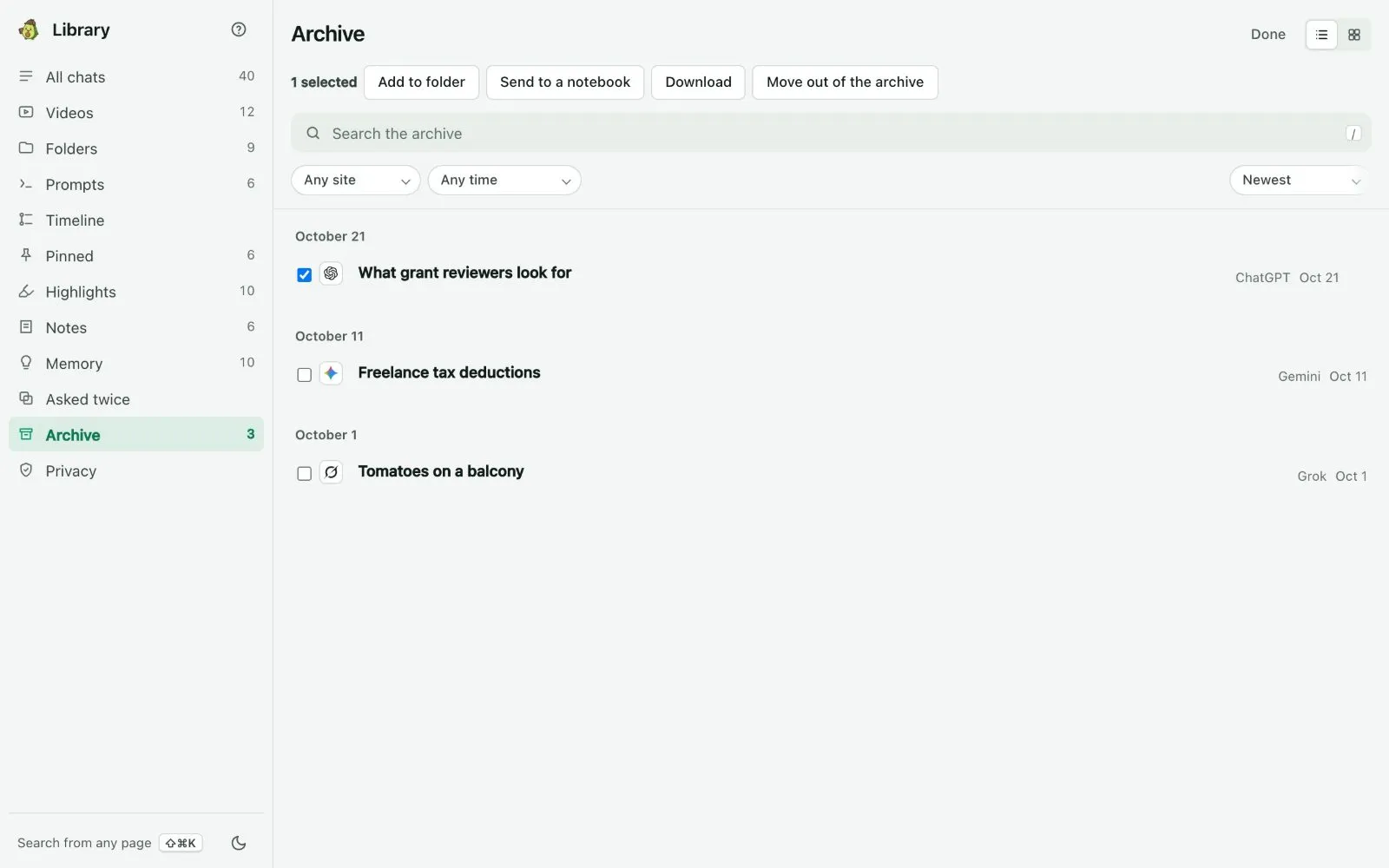
1. To bring it back, open **Archive**, click **Select**, tick the chats and choose **Move out of the archive**.
 ## Select mode
Select works on many chats at once.
1. Click **Select** at the top right of **All chats**. A tick box appears beside every chat.
1. Tick the chats you want.
1. Use the bar above the list: **Add to folder**, **Send to a notebook**, **Download** or **Archive**.
1. Click **Done** when you finish.
 ## Cards or list
Each view can show a list or cards. Use the two small buttons at the top right to switch. Each view also has its own sort menu, such as **Newest** or **Oldest**.
## The reader
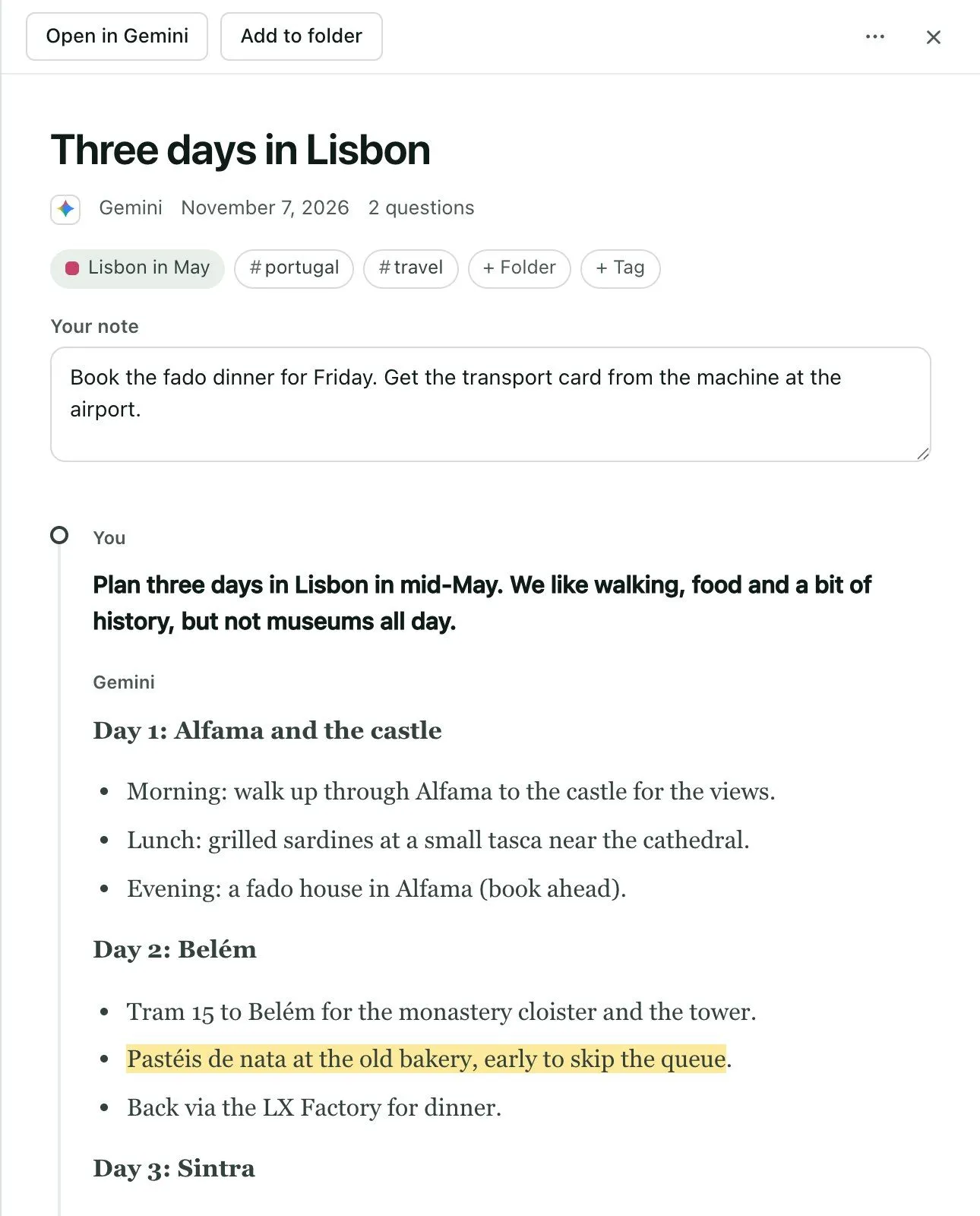
Click a chat to read it in the Library, even offline. It looks the way the AI showed it, with headings, lists, tables, code and maths. Your highlights are painted in.
 ### Add a note
1. Open a chat.
1. Click the box under its title, **Your note**, and type. It saves as you type.
You can also choose **Add a note** in the chat's ⋯ menu. The note also shows in **Notes** and on the chat's Kortex tab.
 ### Related chats
Under a chat, **Related chats** lists others about the same thing, from any AI, found by meaning. Click one to read it.
 ### The chat menu
A chat's ⋯ menu has **Open in** its site, **Copy link**, **Continue in another AI…**, **Add to folder…**, **Send to a notebook…**, **Rename…**, **Edit tags…**, **Add a note**, **Copy chat**, **Download as Markdown**, **Download as PDF**, **Open in Google Docs**, **Save to Notion**, **Archive** and **Delete from Library…**.
 **Rename…** keeps your name for the chat in Kortex only, even when the site sends the name again.
 Related: [Memory](/docs/library-memory), [Folders](/docs/library-folders).