# Move Context From One AI to Another
You can start a new chat on another AI with what the last one decided, without pasting the whole thing. Kortex builds a handoff pack from your saved chat. You read and edit each pack before it goes in.
## Why move context between AIs?
- A chat got long and you want a fresh start that still knows the plan.
- Another AI is better at the next step. It needs the background first.
## How to continue in another AI
1. Open a chat's ⋯ menu, in the Library or on the Kortex tab.
1. Choose **Continue in another AI…**. Kortex builds a handoff pack: what the chat decided, what is still open, the key facts, your pins and note, and where it stopped. Every line links to the message it came from.
1. Pick the AI. Read and edit the pack. You can add short summaries of related chats from other AIs.
1. Confirm. A new chat opens there with the pack in the chat box.
 Nothing in the pack is written by a model. It is the chat's own sentences.
## Commands in a chat box
Type `;` in any AI's chat box. A menu opens with your saved prompts and these commands.
 - `;ref` lists past chats from any AI, the closest in meaning to your draft first. Type words after it to search. Picking one puts in the passage that matters, with a link back.
- `;me` adds your Memory facts as a short about-me pack.
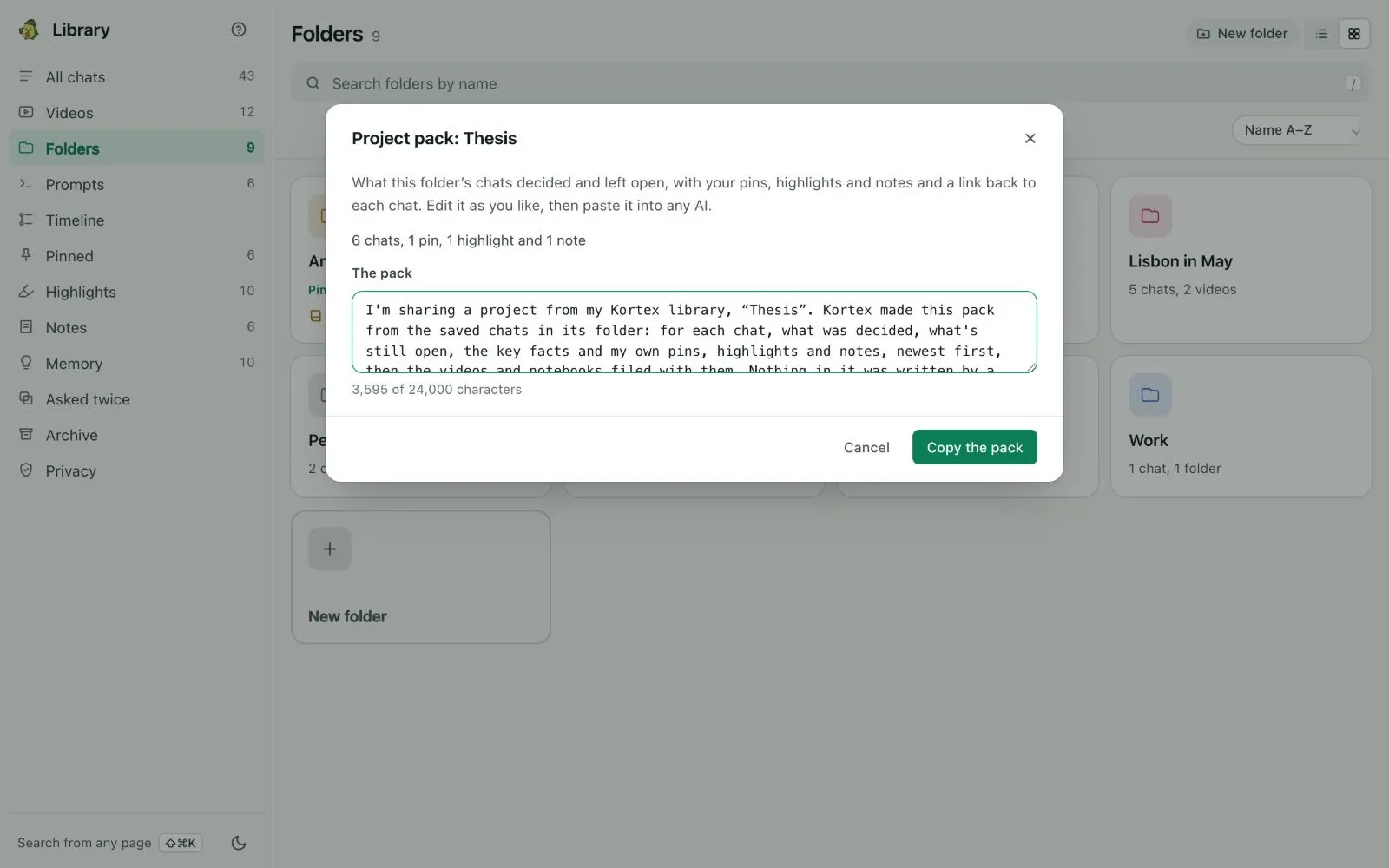
- `;pack` and a folder's name adds what that folder's chats decided.
- `;ask` and a question asks the notebook that fits best and puts the cited answer in the chat box. This one is not on every plan: see [pricing](https://www.kortex-notebooklm.com/#pricing).


 In the Library, **Copy as an about-me pack** (in Memory) and **Copy as a project pack** (in a folder's menu) do the same as `;me` and `;pack`.
 ## Out of the Library
- **Send to a notebook…** adds a chat to a Gemini Notebook notebook as a text source.
- **Download as Markdown** and **Download as PDF** save a chat to a file on this computer.
- **Open in Google Docs** copies the chat, formatted, and opens a new Google Doc to paste it into.
- **Save to Notion** copies a chat to a Notion page you choose, with its messages and your note, pins and highlights. Saving it again updates the same page.

 :::info On the free plan
You can move context 3 times a week. **Continue in another AI…**, `;ref`, `;pack` and `;me` share those 3. When they are used, a line says when they come back. Pro has no limit. See [the free plan and the trial](/docs/chat-library#on-the-free-plan-and-the-trial).
:::
:::tip Good to know
- Everything here follows the Library's [privacy rules](/docs/library-privacy): private folders stay out, likely secrets are masked before anything leaves, and each send is listed.
- The first time you use **Save to Notion**, Kortex asks you to connect your workspace.
:::