# Export NotebookLM Chat to PDF or Markdown
Export Chat copies or saves your Gemini Notebook (formerly NotebookLM) conversation, all of it or only the answers you pick. You can save it as Markdown, HTML, plain text, PDF or JSON.
 ## Why export a chat?
A good chat with your sources is worth keeping. Copy puts it on your clipboard, which is like a short-term memory for text, ready to paste anywhere. Export saves it as a file.
## How to copy a chat
1. Open a notebook with a chat.
1. In the Kortex bar, in the **Chat** group, click **Copy**.
1. The button says **Copied!**. Paste the chat where you like.
If the chat is empty, the button says **No Chat!**.
## How to export a chat
1. Click **Export**. A menu opens.
1. Use the two switches. **Include User Turns** keeps your own questions. **Include Sources** keeps the source marks.
1. Pick a format: **Markdown**, **HTML**, **Plain Text**, **PDF** or **JSON**. The file is saved to your computer.
 ## Pick only the answers you want
Under each answer in the chat there is a small checkbox.
1. Tick the box under an answer you want to keep. Tick as many as you like.
1. The buttons change to **Copy Selected** and **Export Selected**, with a number in brackets.
1. Click either one. Only the answers you ticked are copied or saved, as a short briefing.
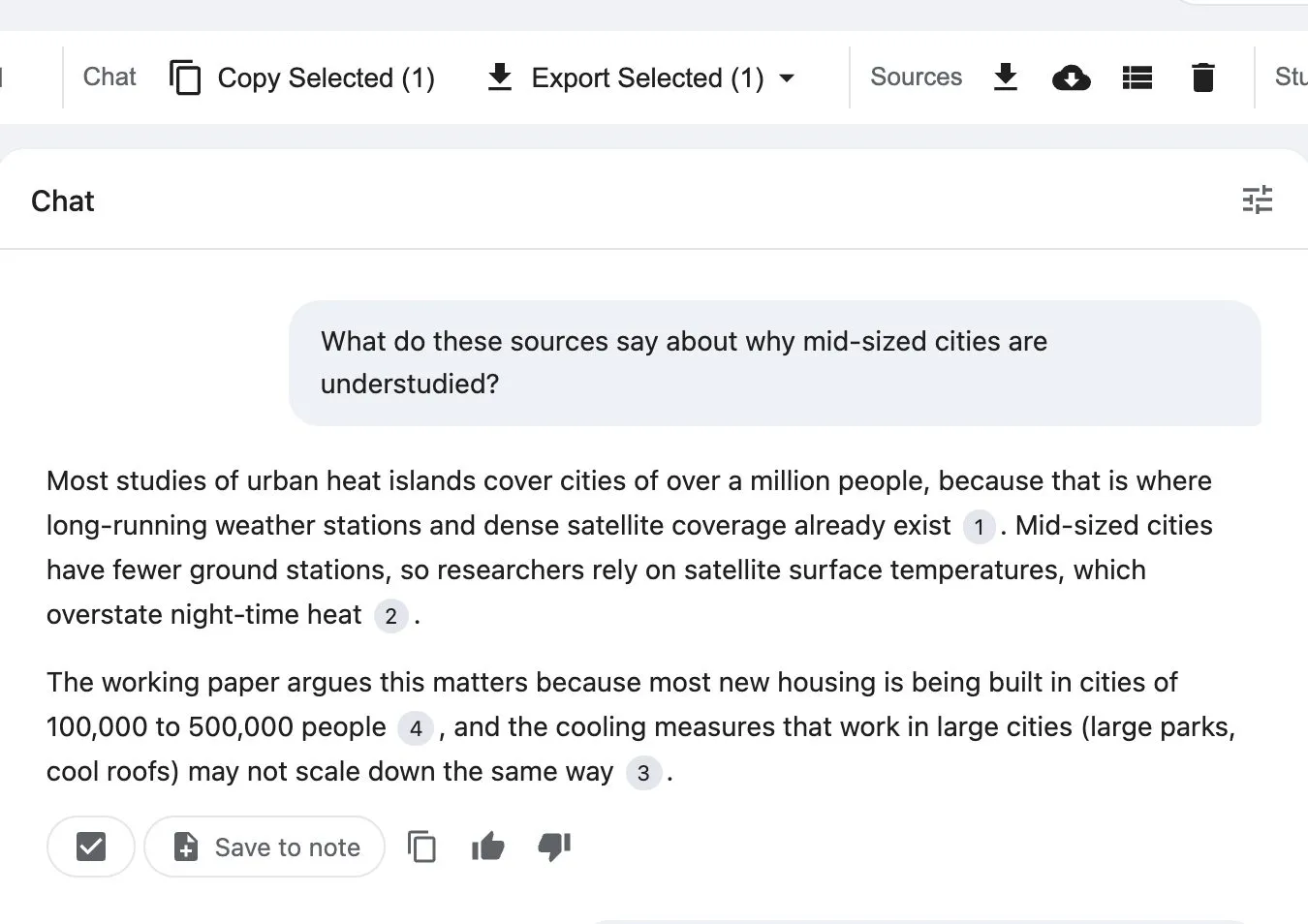 Untick a box to take an answer out. Your ticks stay until you reload the page.
## Preview & Edit before exporting
This needs Kortex Pro. See [pricing](https://www.kortex-notebooklm.com/#pricing). It lets you read and change the text before it is saved.
1. Click **Export**, then **Preview & Edit**.
1. Pick a format.
1. A window opens. On the left you can change the text. On the right you see how it will look. The top shows the file's format and name.
1. Click **Export** to save it, or **Cancel** to stop.
 :::tip Good to know
- Copy has no daily limit.
- Exports count toward your exports. The free plan has 10 a day. Kortex Pro has no limit.
:::
Related: [The Kortex notebook bar](/docs/notebook-bar), [The chat Library](/docs/chat-library).