# Automate NotebookLM with Rules and Triggers
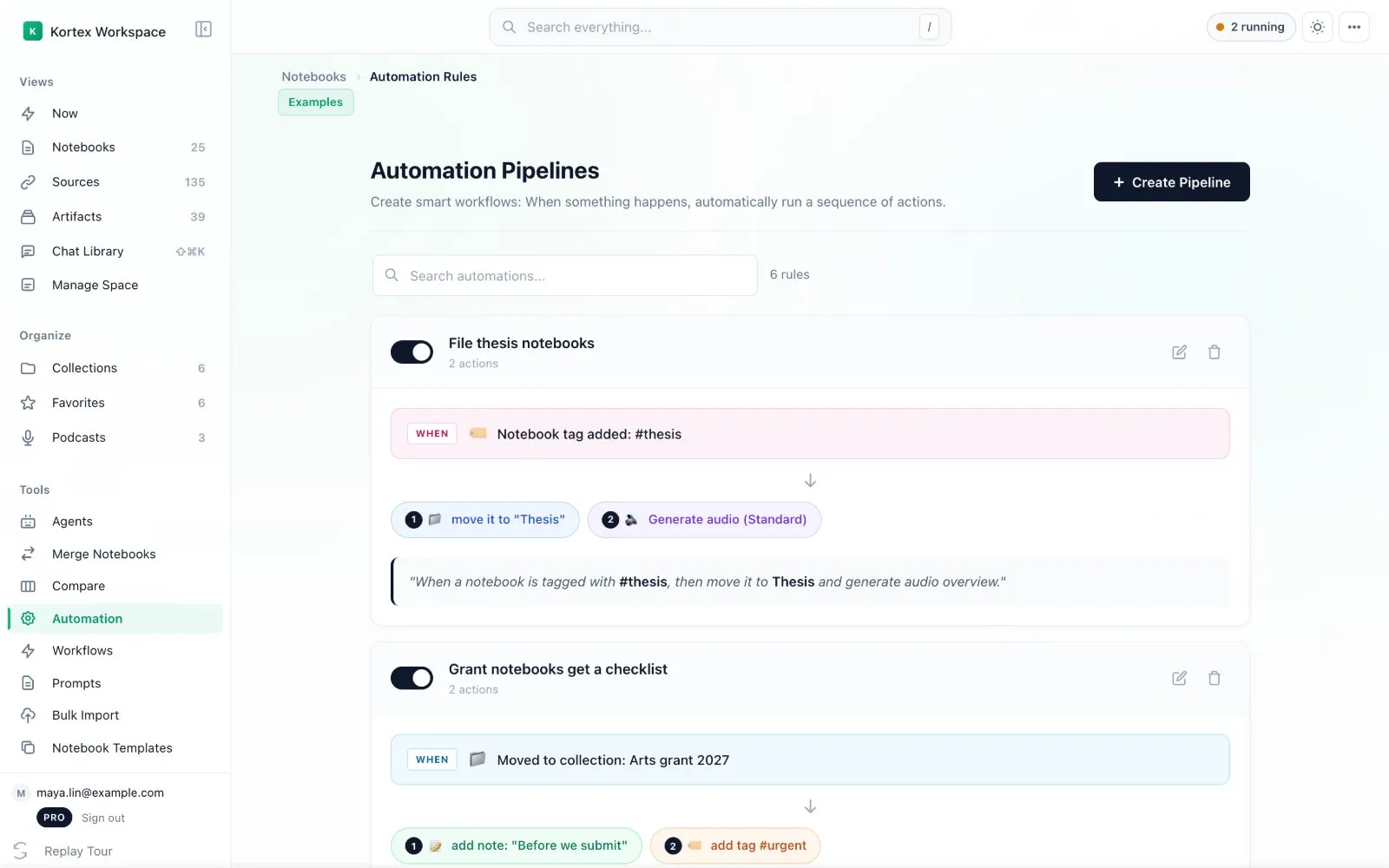
An automation rule runs on its own when something happens in your Gemini Notebook (formerly NotebookLM) library. You pick a trigger, such as a tag added, and one or more actions, such as moving a notebook to a collection. It needs Kortex Pro.
This needs Kortex Pro. See [pricing](https://www.kortex-notebooklm.com/#pricing).

 ## Why use automation rules?
Think of a helper who sorts your mail. You tell them once: "Bills go in the blue tray." After that you never sort a bill again.
- You stop doing the same tidy-up steps over and over.
- Every notebook gets handled the same way.
- One tag can start several jobs at once.
## The two parts of a rule
- **The trigger** is the thing that happens. For example: you add a tag to a notebook.
- **The actions** are the jobs Kortex does next. For example: move the notebook to a collection, then make an Audio Overview.
Kortex calls a rule a **pipeline**. A pipeline is one trigger followed by one or more actions, done in order.
## How to make a rule
1. Open the **dashboard**.
1. Click **Automation** in the left sidebar, under Tools.
1. Click the dark **Create Pipeline** button at the top right. A window opens with four steps: **Name**, **Trigger**, **Actions** and **Review**.
1. **Name.** Type a name you will recognise later, such as "File new thesis notebooks". You can click one of the suggestions instead. Press **Next**.
1. **Trigger.** Pick what should start the rule. This step is explained below. Press **Next**.
1. **Actions.** Add one or more jobs for Kortex to do. Click an action, fill in its details, and add more if you like. Press **Next**.
1. **Review.** Check the summary. The rule is switched on when you save it.
 ## The Trigger step
The trigger step shows a card for each thing that can start a rule. Click one card.
 - **Notebook tag added**: you put a tag on a notebook. You then pick the tag.
- **Source tag added**: you put a tag on a source inside a notebook.
- **Moved to collection**: a notebook is added to a collection you pick.
- **Title contains text**: a notebook's title has the words you type.
- **Domain Router**: a saved web address has the text you type in it.
- **Audio is generated**: an Audio Overview is ready.
- **Episode Finishes**: an episode finishes playing in a podcast.
- **On a schedule**: every hour, every day or every week. No event is needed. You pick the day and hour in your computer's local time. You can limit it to one notebook.
Some triggers also have an optional **Minimum Sources** box. If you fill it in, the rule only starts when the notebook has at least that many sources.
## What a rule can do
These are the actions you can add in step 3.
- **Move to collection**
- **Target Notebook**: send a saved page to a notebook you choose
- **Add tag** or **Add source tag**
- **Generate audio**: an Audio Overview in a style (Deep Dive, Brief, Critique or Debate), a length, and any instructions you type
- **Generate artifact**: a briefing, study guide, flashcards, slide deck, infographic or quiz
- **Add note**: a Kortex note, from one of your note templates or written right there
- **Send to podcast**: add the finished Audio Overview to a podcast
- **Apply source template**
- **Ask and save the answer**: ask the notebook a question and keep the reply as a new source or a note
- **Run a workflow**: run a workflow you saved from your AI assistant (see [Workflows and Schedules](/docs/mcp-workflows))
## How to turn a rule on or off
1. Open **Automation** in the dashboard.
1. Find the rule's card. There is a round switch at its left edge.
1. Click the switch. Dark means on. Light means off.
To change a rule, click the pencil icon on its card. To remove it, click the bin icon. You can find a rule fast with the **Search automations** box.
## The nine kinds of rule
Each page below shows one kind, with an everyday comparison and an example.
- [Smart Sort](/docs/automation-smart-sort): a tag files the notebook into a collection.
- [The Escalator](/docs/automation-escalator): one tag adds other tags.
- [Domain Router](/docs/automation-domain-router): a web address picks the notebook.
- [Template Engine](/docs/automation-template-engine): a ready-made note appears in the notebook.
- [The Generator](/docs/automation-generator): an Audio Overview is made for you.
- [The Pipeline](/docs/automation-pipeline): a collection feeds a podcast.
- [Podcast Curator](/docs/automation-podcast-curator): a tag feeds a podcast.
- [The Cleaner](/docs/automation-cleaner): finished episodes are removed.
- [Auto-Researcher](/docs/automation-auto-researcher): study guides and briefings are made for you.
## Rules that work well together
A few small rules can work like a conveyor belt. Here are four to copy.
### Inbox, then Active, then Archive
1. Make three collections: _Inbox_, _Active_ and _Archive_.
1. Smart Sort: tag `#active` moves a notebook to _Active_.
1. Smart Sort: tag `#archive` moves it to _Archive_.
1. Escalator: tag `#archive` also adds `#reviewed` and `#done`.
### A daily listening queue
1. Make a collection called _Daily Read_.
1. Generator: a notebook that enters _Daily Read_ gets an Audio Overview.
1. Pipeline: _Daily Read_ feeds the podcast _Morning Commute_.
1. Cleaner: a finished episode is removed.
### Class notes
1. Make a collection for the class.
1. Template Engine: a notebook that enters it gets notes called _Lecture Summary_ and _Key Terms_.
1. Auto-Researcher: it also gets a study guide and flashcards.
### Links go to the right notebook
1. Domain Router: addresses with `arxiv.org` go to a notebook called _Papers_.
1. Domain Router: addresses with `youtube.com` go to _Videos to Watch_.
:::tip Good to know
- Rules run in the background while Chrome is open. They do not run when Chrome is closed.
- Scheduled rules are checked every 15 minutes, so they start a little after the hour you chose.
- Whether a rule is on or off is kept on this computer.
- Start with one rule. Watch it for a week. Then add another.
- Name tags like jobs, such as `#listenlater` or `#archive`. They are easier to remember.
:::
## Watching what ran
Click the pill in the top bar of the dashboard (it says something like **2 running**). A list opens with what ran recently, including rules, workflows and Audio Overviews. Dismissing a row only hides it. It does not stop the work.
 Related: [Workflows and Schedules](/docs/mcp-workflows), [Podcasts](/docs/podcasts-view), [Templates](/docs/templates).