# Search All NotebookLM Notebooks in One Table
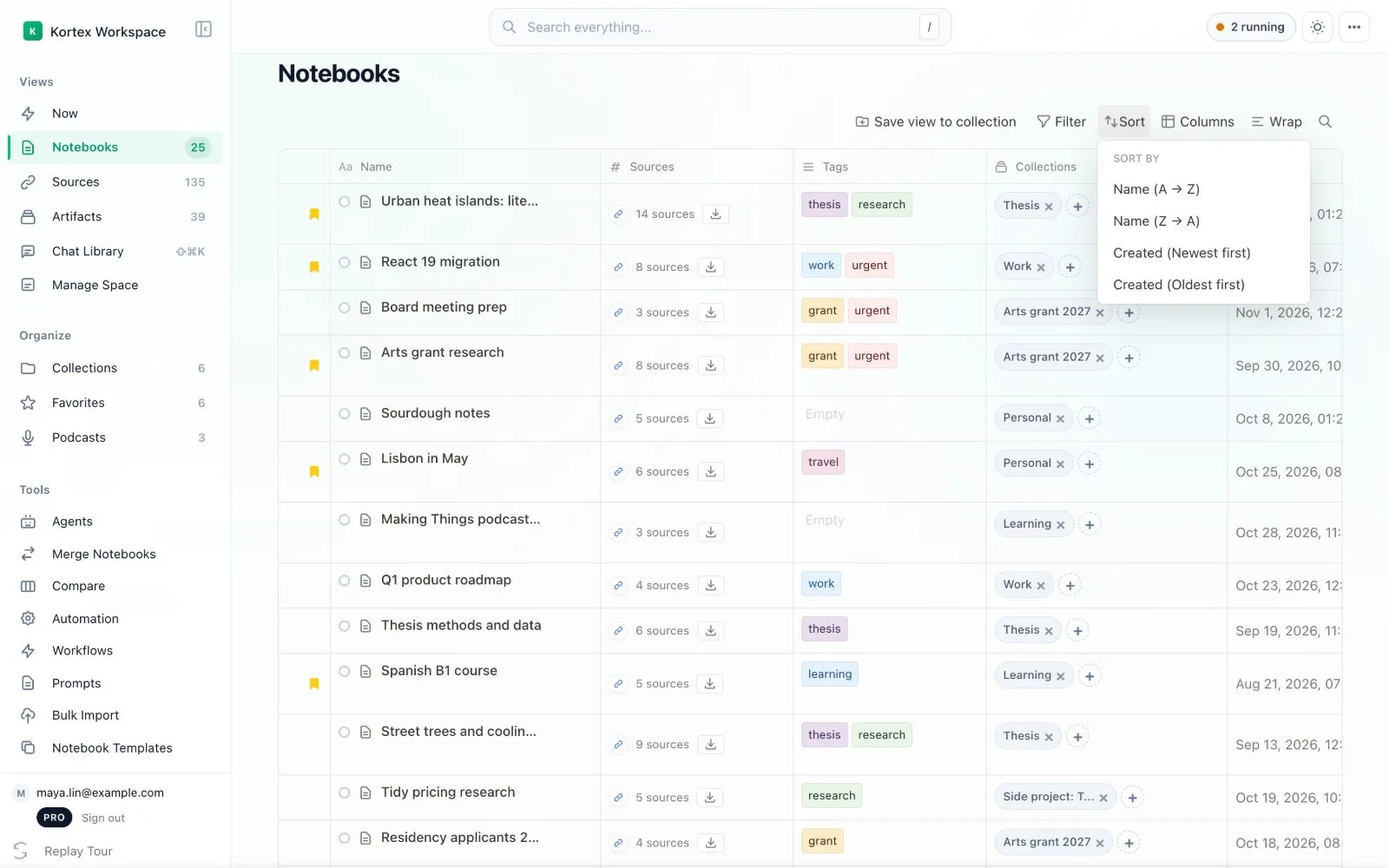
All Notebooks is one table of every notebook you have in Gemini Notebook (formerly NotebookLM), and it is where the Kortex dashboard opens. You can search all your NotebookLM notebooks here, then filter, sort, tag and act on many at once.
 ## Why use All Notebooks?
Imagine a filing cabinet where every folder is on one long shelf, with its label, its size and its date. You can find any notebook in a moment, and you can tidy many at once.
## Reading the table
Each row is one notebook. The columns show its name, how many sources it holds, its tags, its collections and the dates. A yellow mark on the left means you starred it as a favorite. Click a notebook's name to open its page. See [Notebook Detail](/docs/notebook-detail).
## How to search
1. Click the small magnifying glass at the right of the toolbar, or press `/`.
1. Type part of a name.
The big **Search everything...** box at the top looks through notebooks, sources, notes and more at once.
 ## How to filter
1. Click **Filter** in the toolbar.
1. Choose to narrow by name, tag or highlight.
Each filter stays above the table as a small pill. Click a pill to remove it.
 ## How to sort
Click **Sort** and choose to order by name or by the date a notebook was made.
 ## Choose your columns
Click **Columns**. Tick the columns you want and untick the ones you do not. Kortex remembers your choice.
 Click **Wrap** to show long names on more than one line.
## Rows and density
The bottom of the table says how many rows are selected. **Rows per page** lets you choose how many rows to see. The arrows move to the next page. To fit more rows on screen, press `Ctrl+K` and choose compact rows.
 ## How to change several notebooks at once
1. Tick the box at the left of each notebook you want. Tick the box in the header to pick them all.
1. A bar appears at the bottom. It says how many you picked.
1. Click what you want to do: **Add to collection**, **Tags**, **Merge**, **Compare** or **Delete**.

 ## Tags
A tag is a short label, like a sticky note, that you put on a notebook. Click the tags in a row to add or remove tags. You can search the tags, make a new one or change its colour.
 ## A row's menu
Right-click a notebook to open its menu. You can open it, rename it, duplicate it or delete it.
 ## Making a new notebook
The **New notebook** window asks for a name. You can also pick a collection to put it in. You can open it with `C` then `N`.
 ## What if something goes wrong?
If the table is empty, it says so and points you to Gemini Notebook to make your first notebook. If a notebook you just made is missing, press `Ctrl+R` to refresh.
 :::tip Good to know
- Merge and Compare appear in the bulk bar. Compare needs Kortex Pro.
:::
## Related pages
- [Notebook Detail](/docs/notebook-detail)
- [Collections](/docs/collections)
- [Merge Notebooks](/docs/merge-notebooks)
- [Manage Space](/docs/manage-space)